1.8 Enable and Disable Button

Level 1

13 Steps

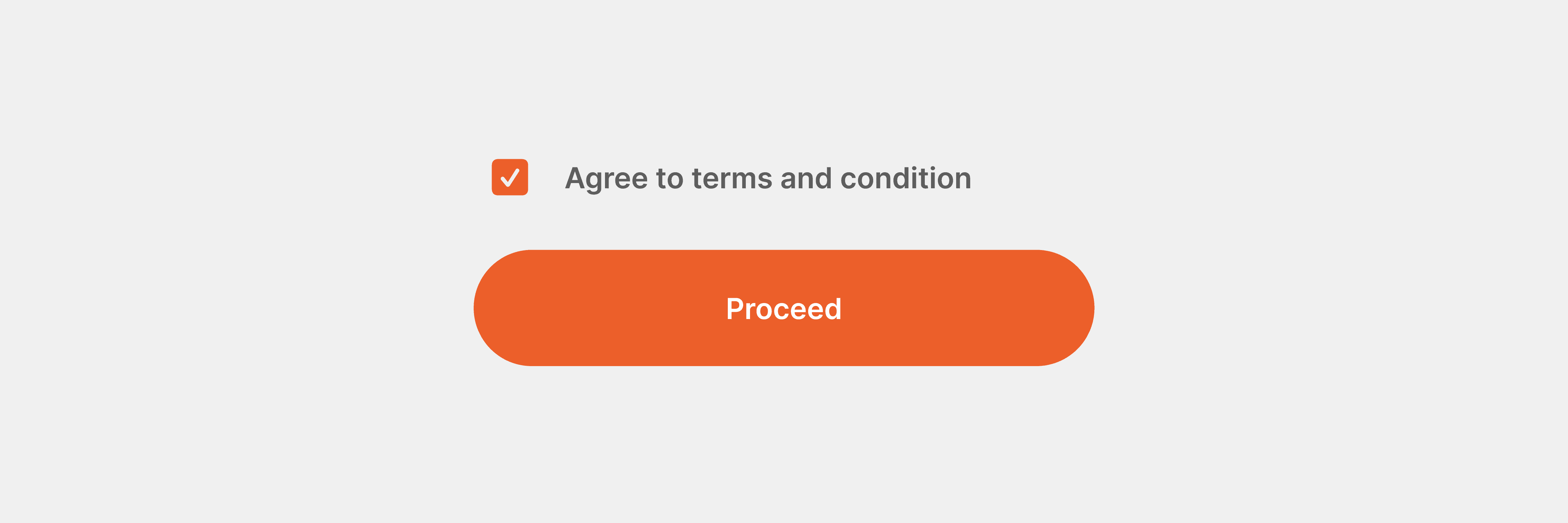
What you are building

A button that becomes enabled only when a condition is met.


Tap a checkbox to agree.
The Proceed button activates.
Tap Proceed to move forward.


This pattern is extremely common in forms and checkout flows.

How to think about it

This interaction is about permission.


The user can see the action, but cannot take it yet.

The UI communicates readiness clearly instead of blocking with errors.


Here, the state lives in opacity. The button visually tells you whether it can be used.

Recreate this in ProtoPie

Start by creating two scenes:

  • Scene 1: Checkbox and Proceed button

  • Scene 2: Any destination screen


Scene 2 exists only to confirm navigation works.


In Scene 1, create two main containers:

  • Checkbox container

    • Icon container

      • Square icon (opacity 100%)

      • Check icon (opacity 0%)

  • Proceed button

    • Agree to terms and condition text


Set the Proceed button opacity to 30% by default.

This makes the checkbox unchecked by default.
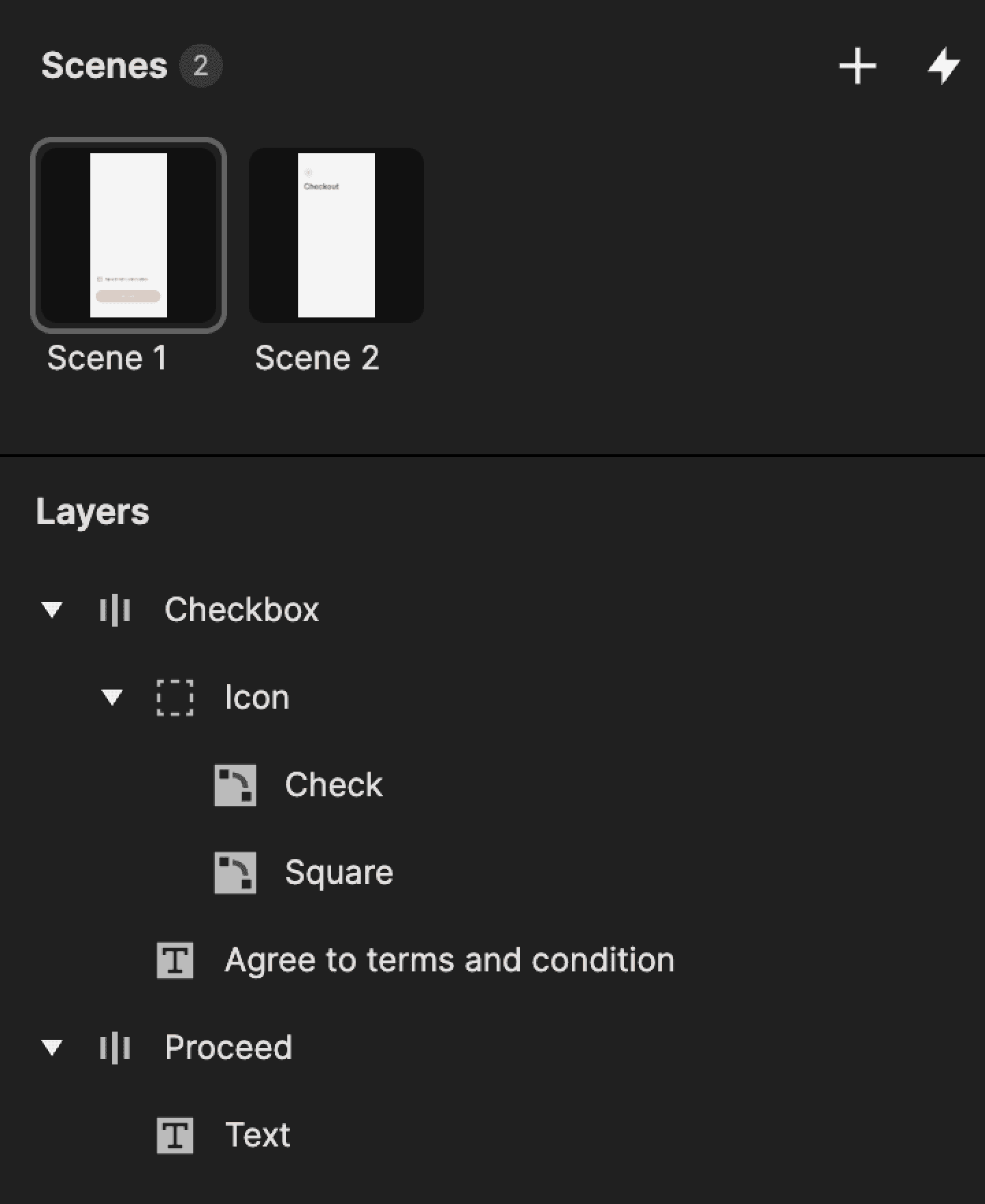
This is a screenshot of layers in ProtoPie.

Step 1: Add tap trigger to Checkbox

Select the Checkbox container.

Add a Tap trigger.
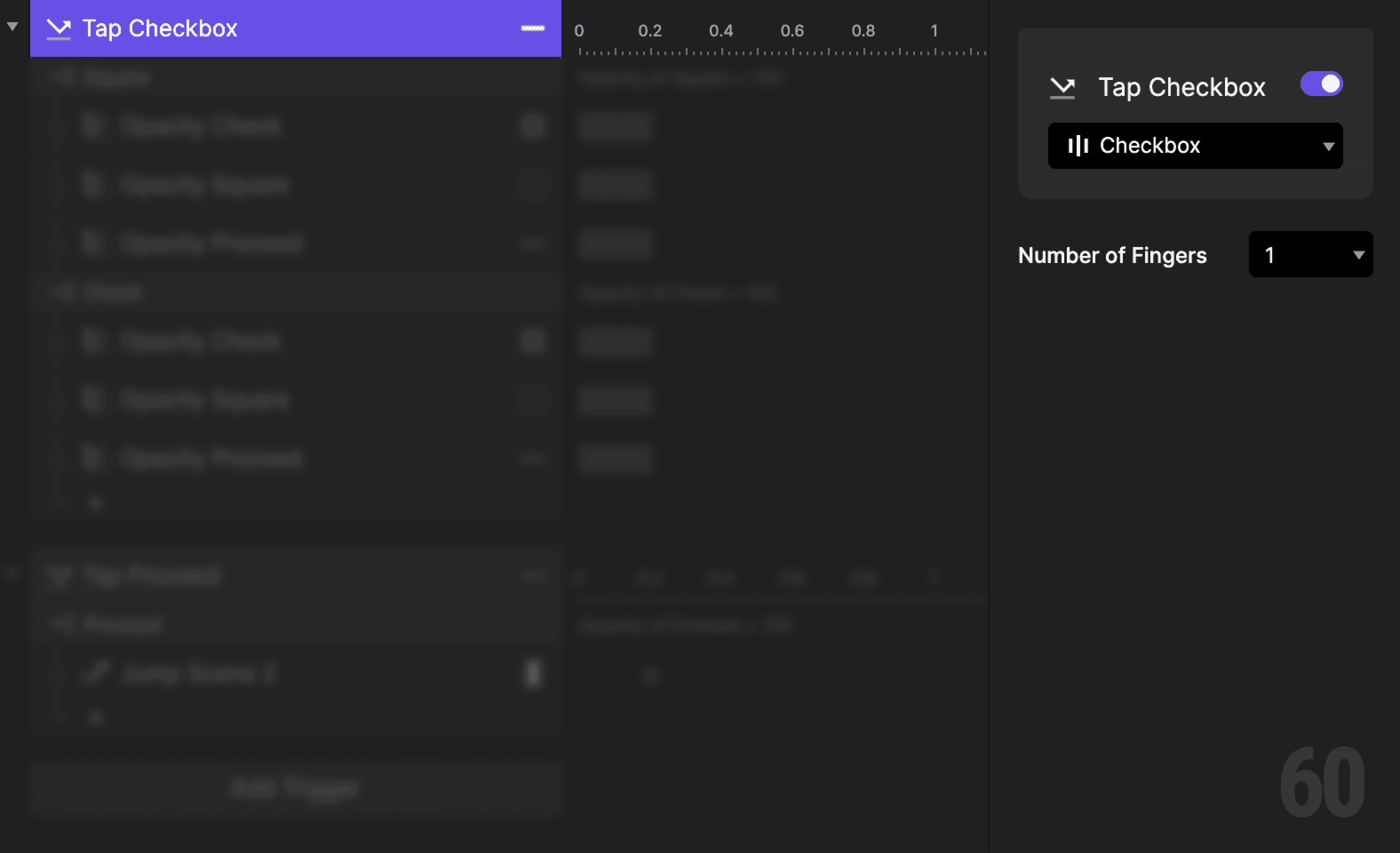
This is a screenshot of Step 1: Add tap trigger to Checkbox.

Step 2: Create a condition (check)

Add a Condition based on Square icon opacity.


This reads as:
When Square icon opacity is 100%, then do the following.


This means the checkbox is currently unchecked.
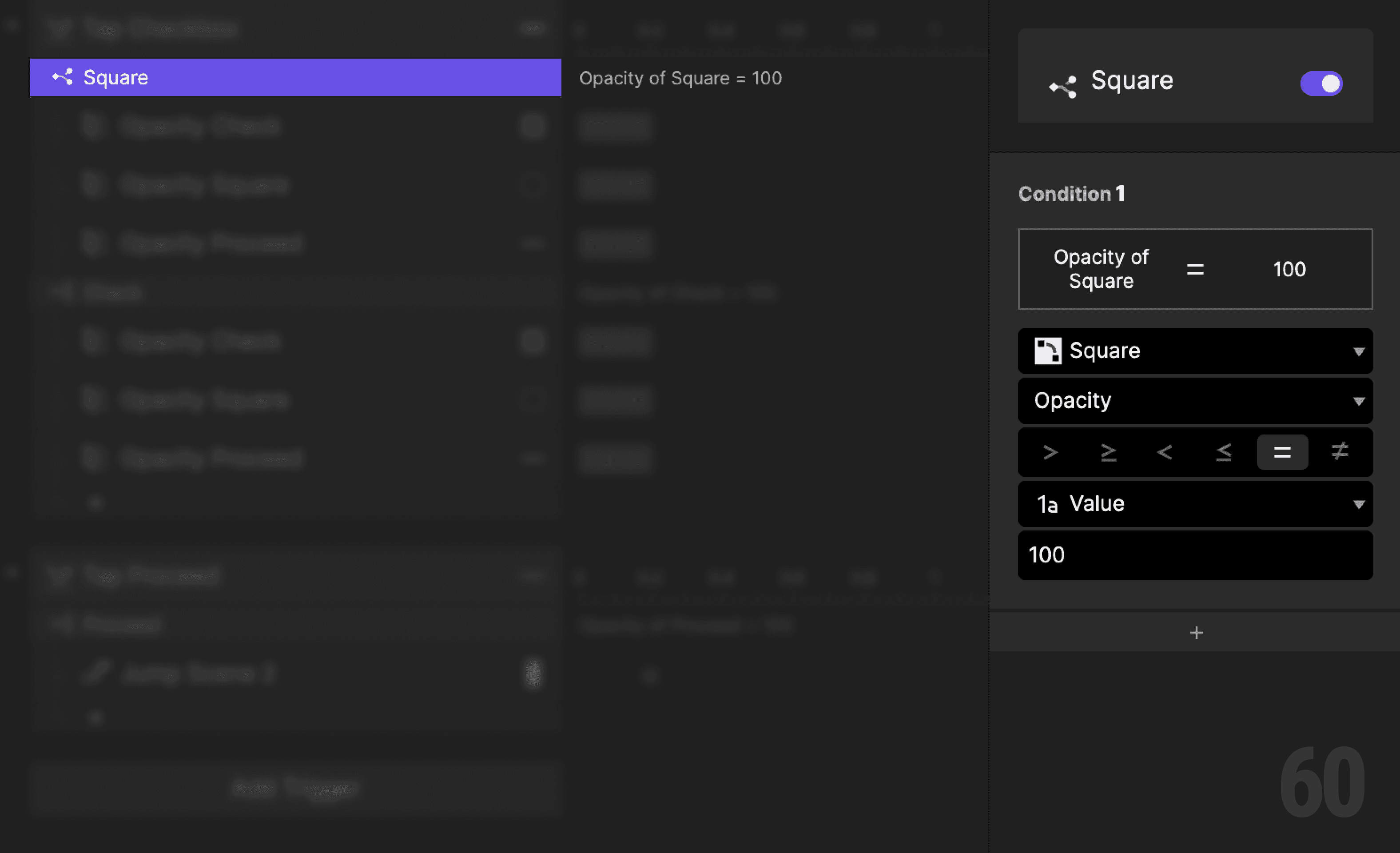
This is a screenshot of Step 2: Create a condition (check).

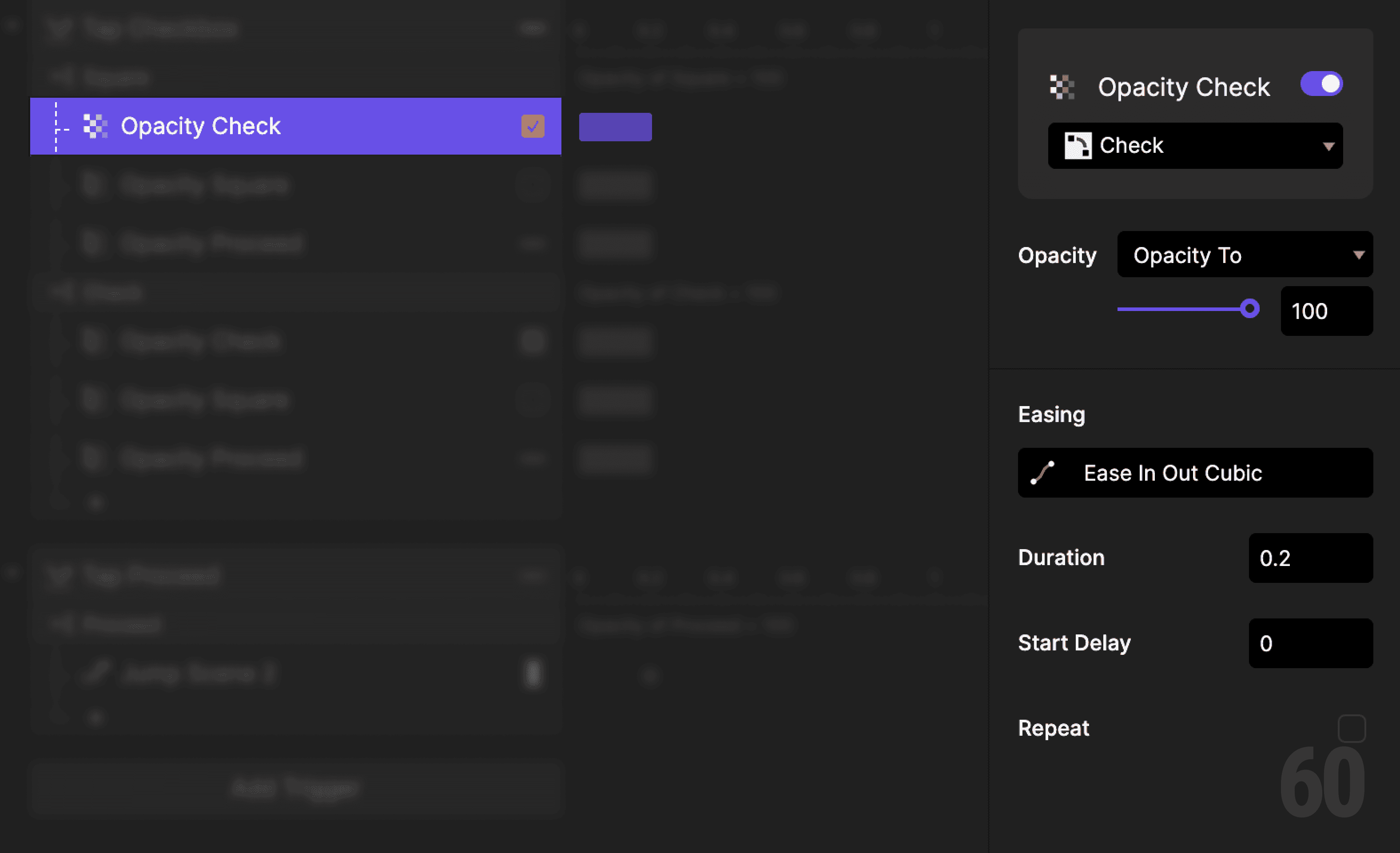
Step 3: Show the check icon

Add an Opacity response.

  • Target: Check icon

  • Set opacity to 100%

This is a screenshot of Step 3: Show the check icon.

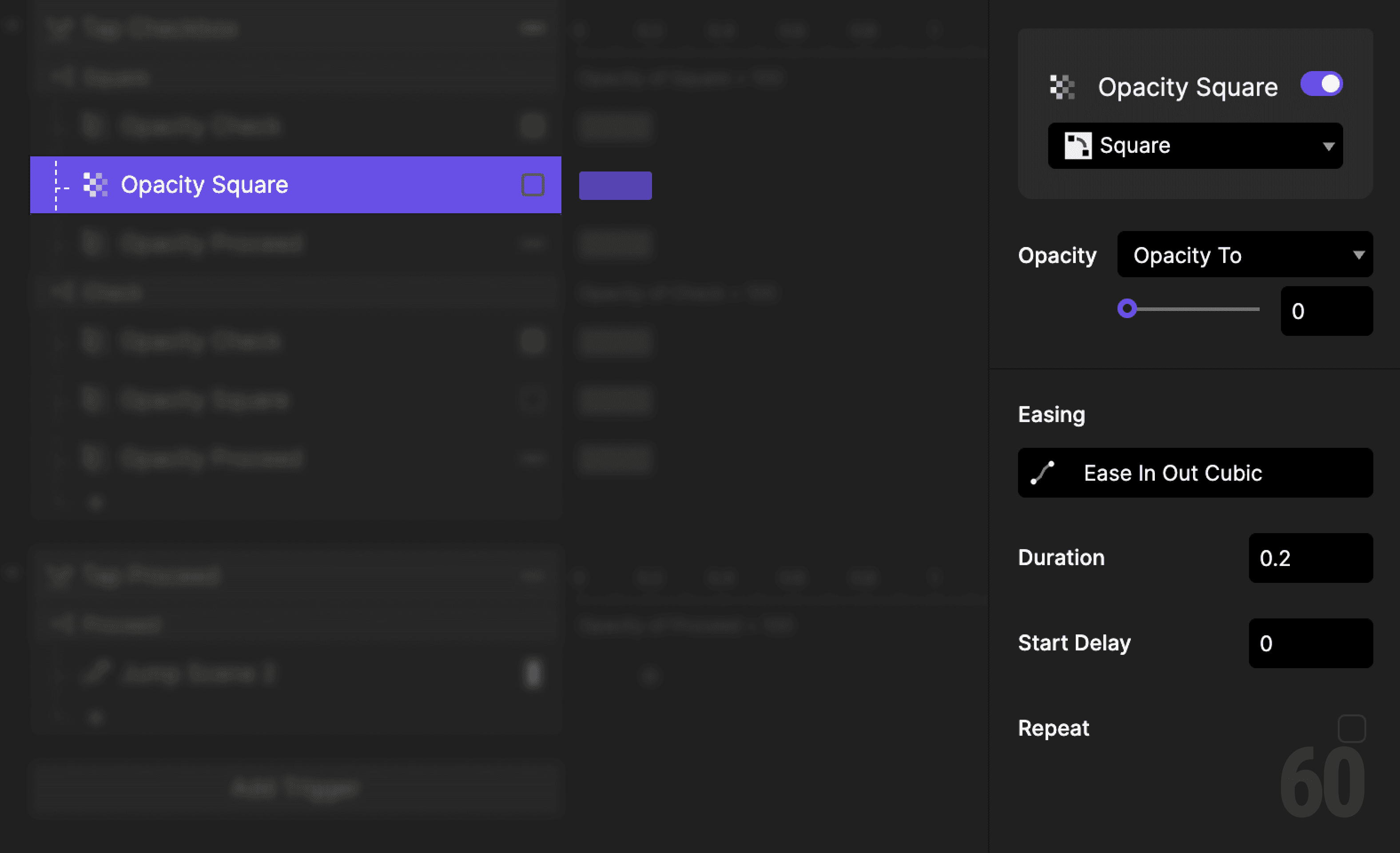
Step 4: Hide the square icon

Add an Opacity response.

  • Target: Square icon

  • Set opacity to 0%

This is a screenshot of Step 4: Hide the square icon.

Step 5: Enable the Proceed button

Add an Opacity response.

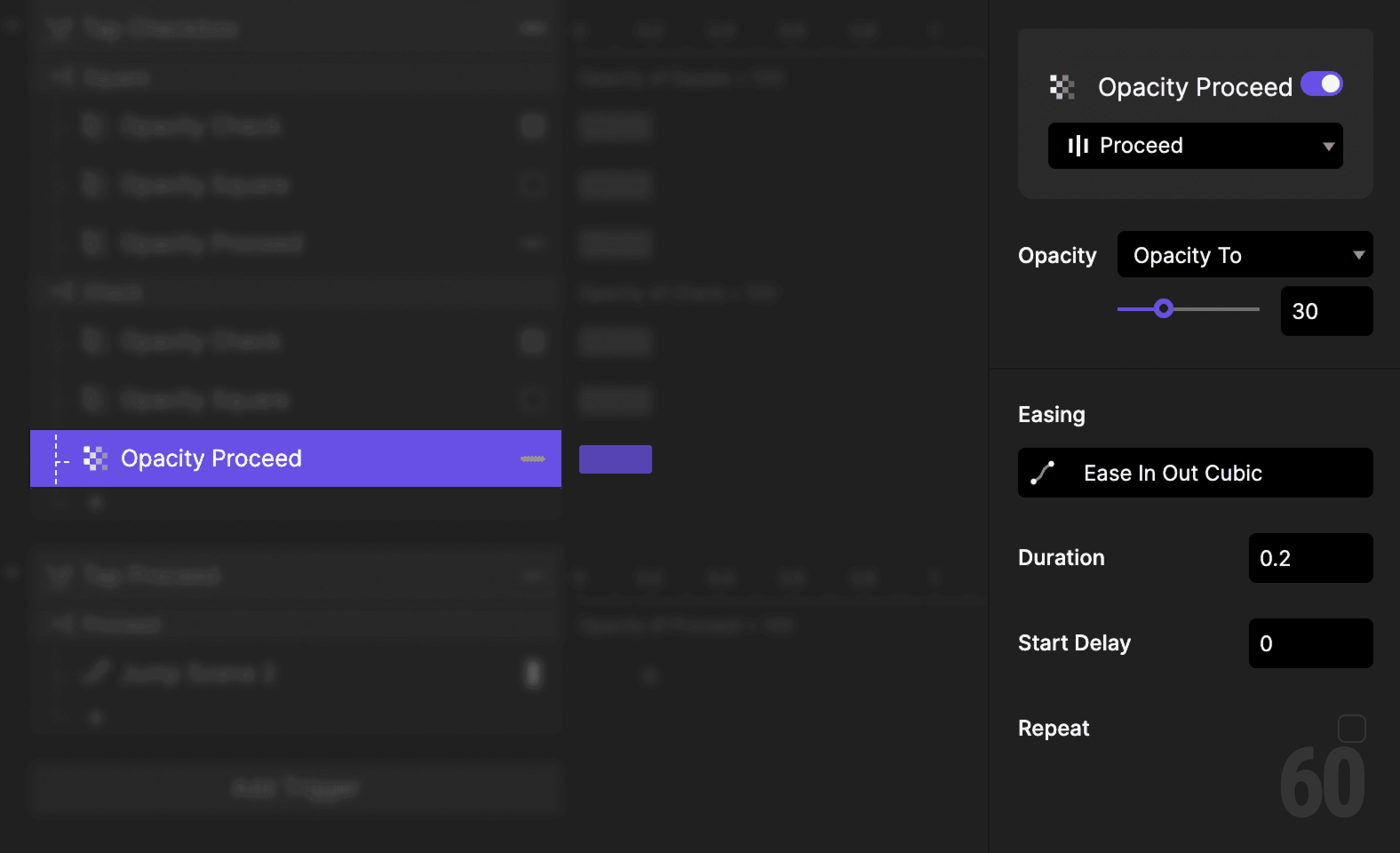
  • Target: Proceed button

  • Set opacity to 100%


This visually enables the action.
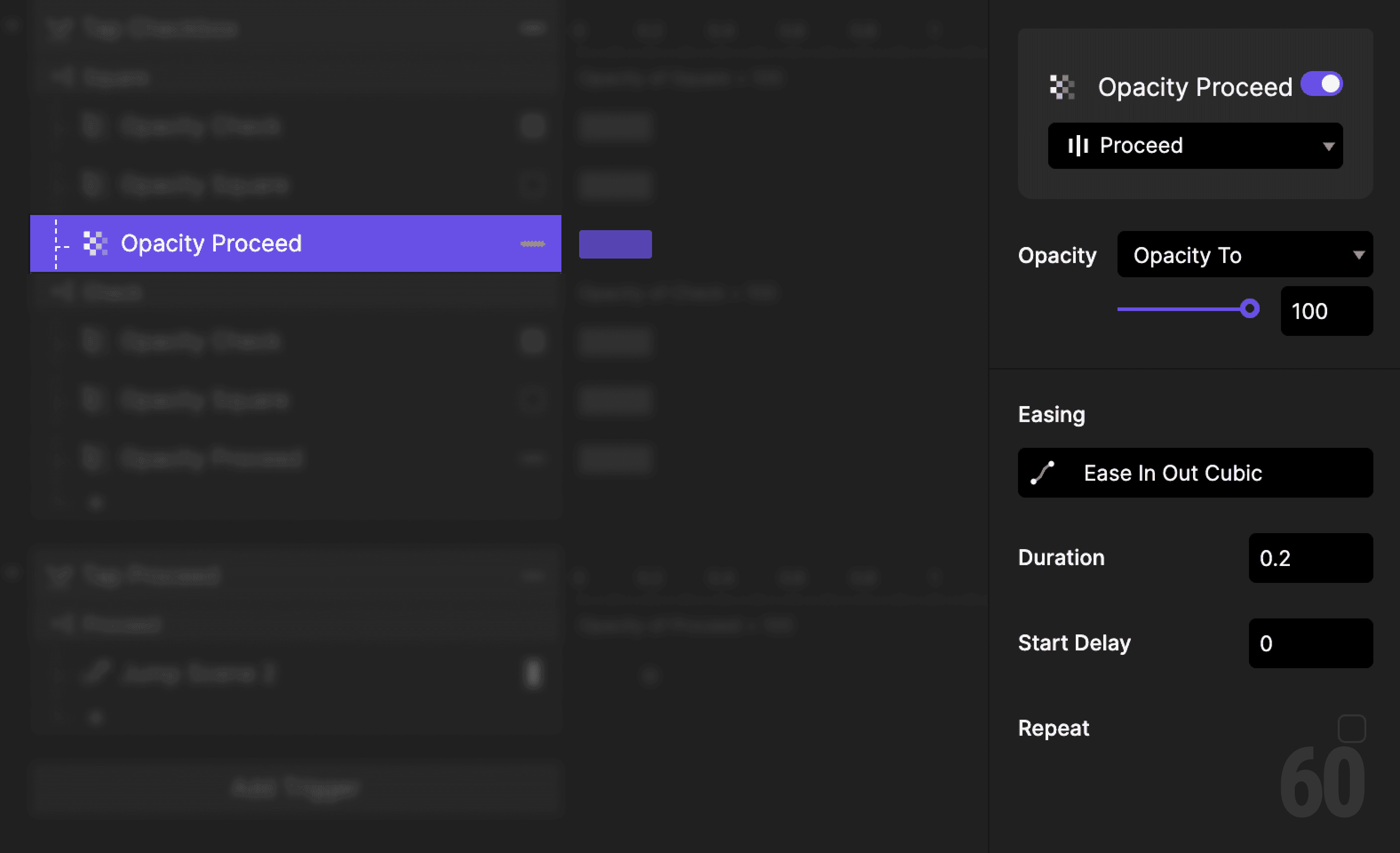
This is a screenshot of Step 5: Enable the Proceed button.

Step 6: Create a condition (uncheck)

Add another Condition to the same tap trigger.

Set it based on Check icon opacity.


This reads as:
When Check icon opacity is 100%, then do the following.


This means the checkbox is currently checked.
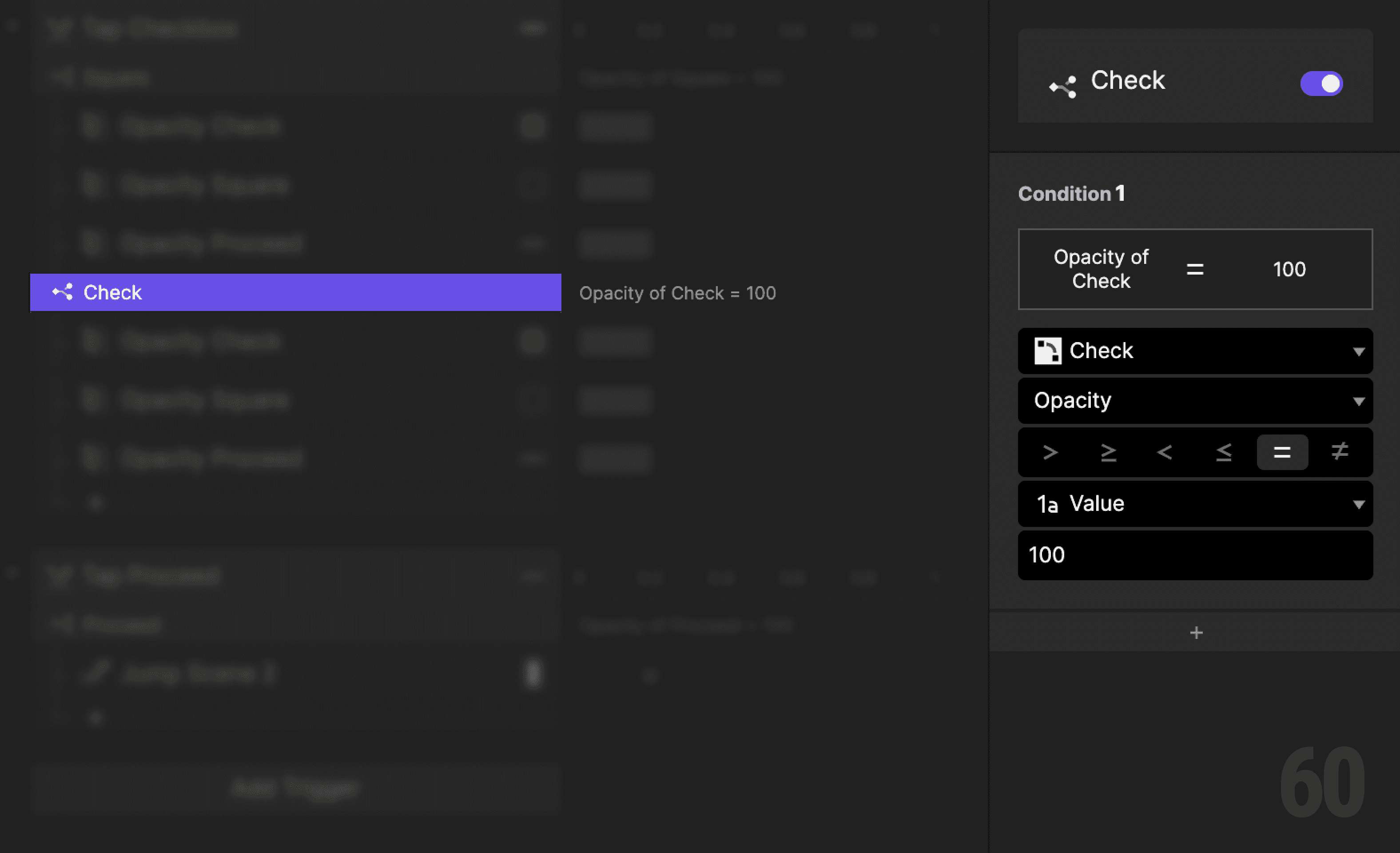
This is a screenshot of Step 6: Create a condition (uncheck).

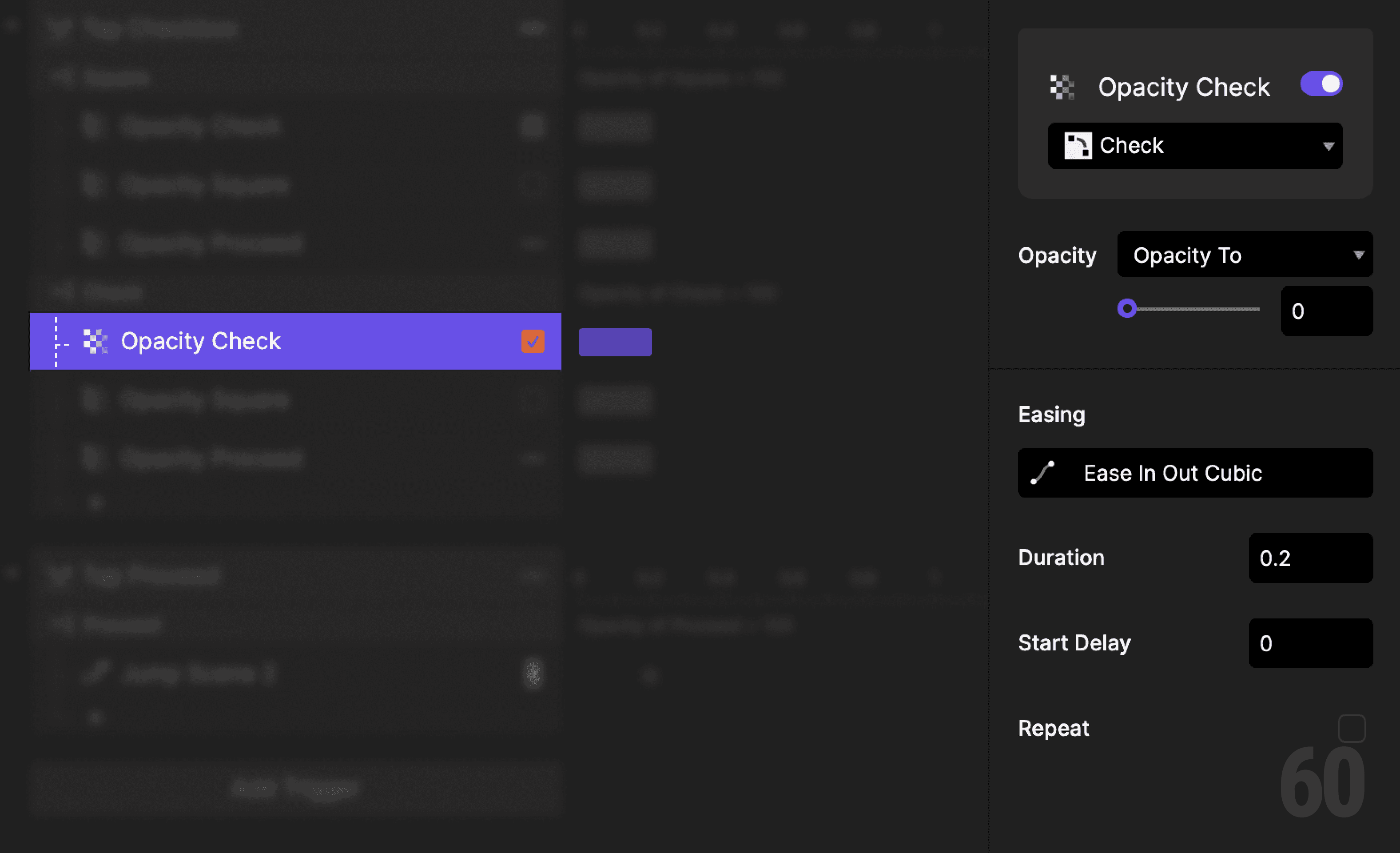
Step 7: Hide the check icon

Add an Opacity response.

  • Target: Check icon

  • Set opacity to 0%

This is a screenshot of Step 7: Hide the check icon.

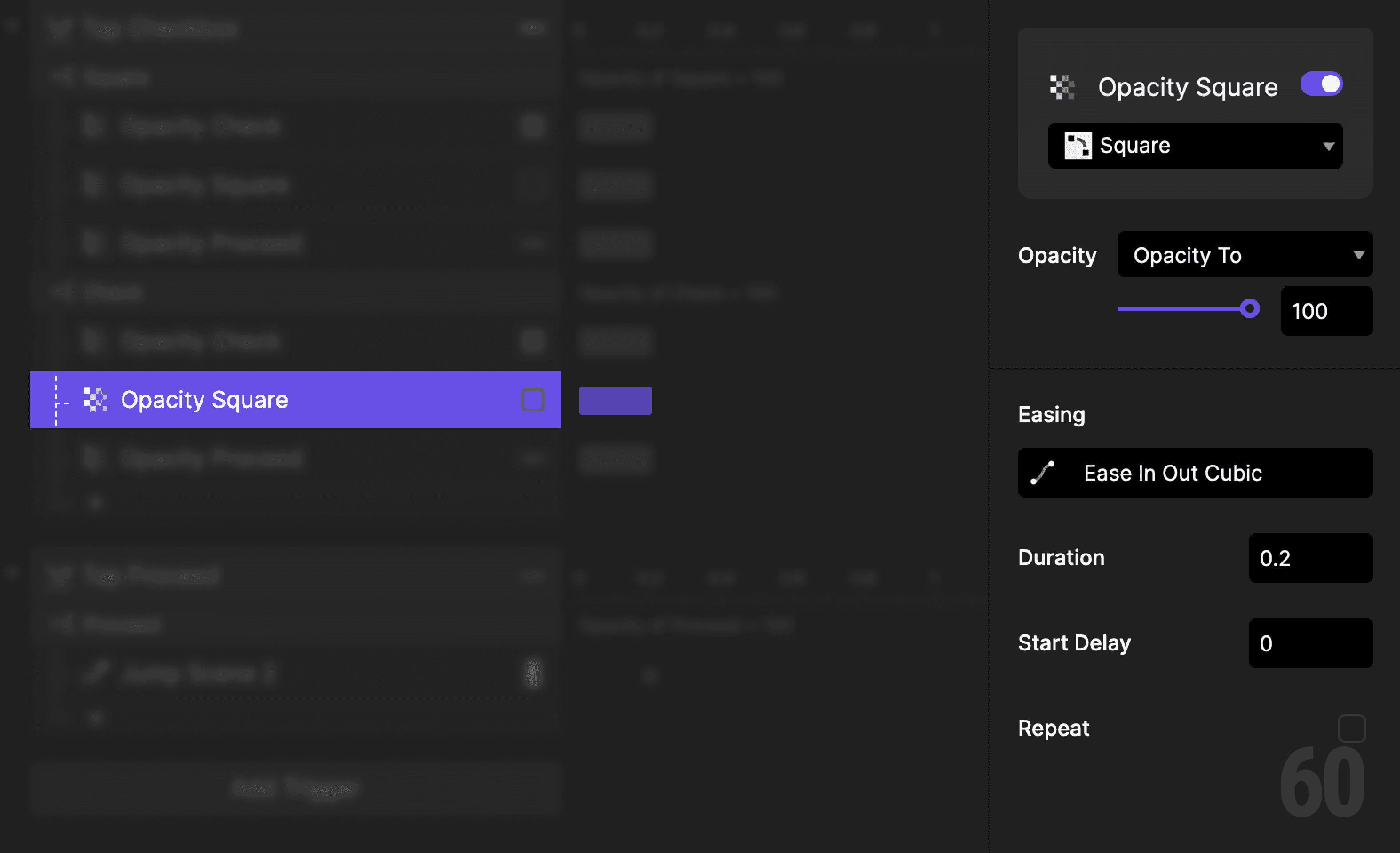
Step 8: Show the square icon

Add an Opacity response.

  • Target: Square icon

  • Set opacity to 100%

This is a screenshot of Step 8: Show the square icon.

Step 9: Disable the Proceed button

Add an Opacity response.

  • Target: Proceed button

  • Set opacity to 30%

This is a screenshot of Step 9: Disable the Proceed button.

Step 10: Add tap trigger to Proceed

Select the Proceed button.

Add a Tap trigger.
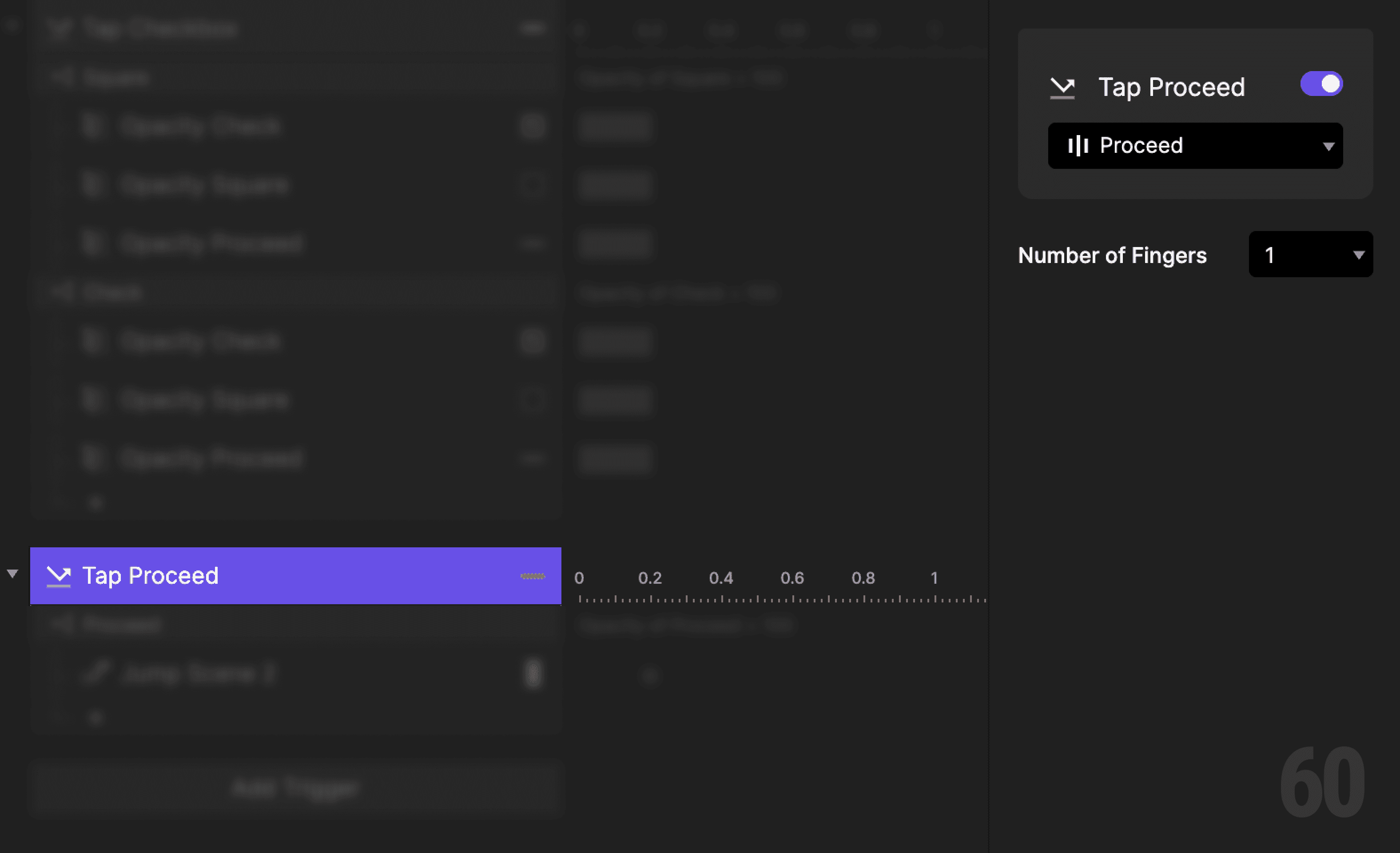
This is a screenshot of Step 10: Add tap trigger to Proceed.

Step 11: Gate navigation

Add a Condition based on Proceed button opacity.


This reads as:
When Proceed opacity is 100%, then do the following.
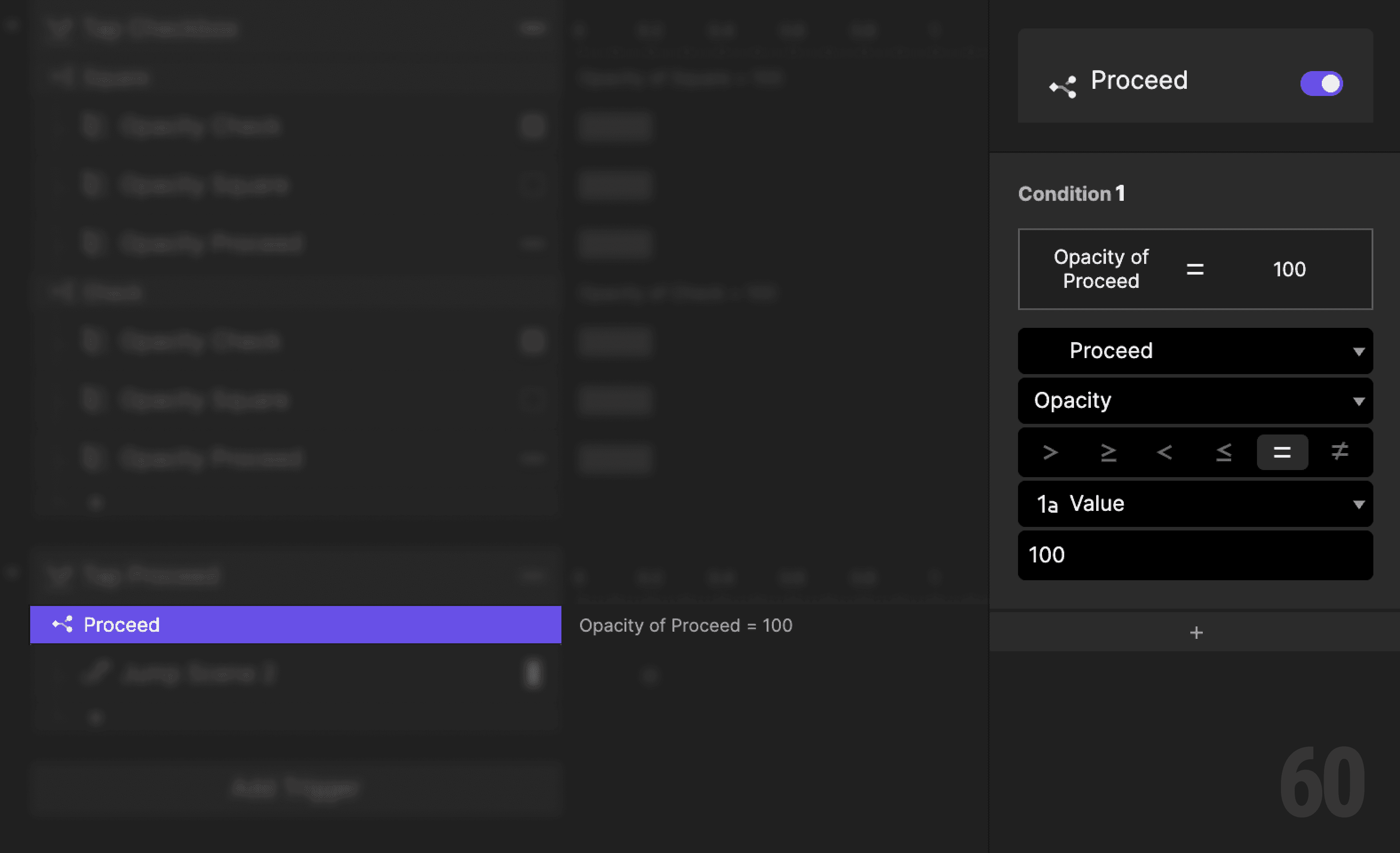
This is a screenshot of Step 11: Gate navigation.

Step 12: Jump to Scene 2

Add a Jump response.

  • Destination: Scene 2


The button only works when it is enabled.
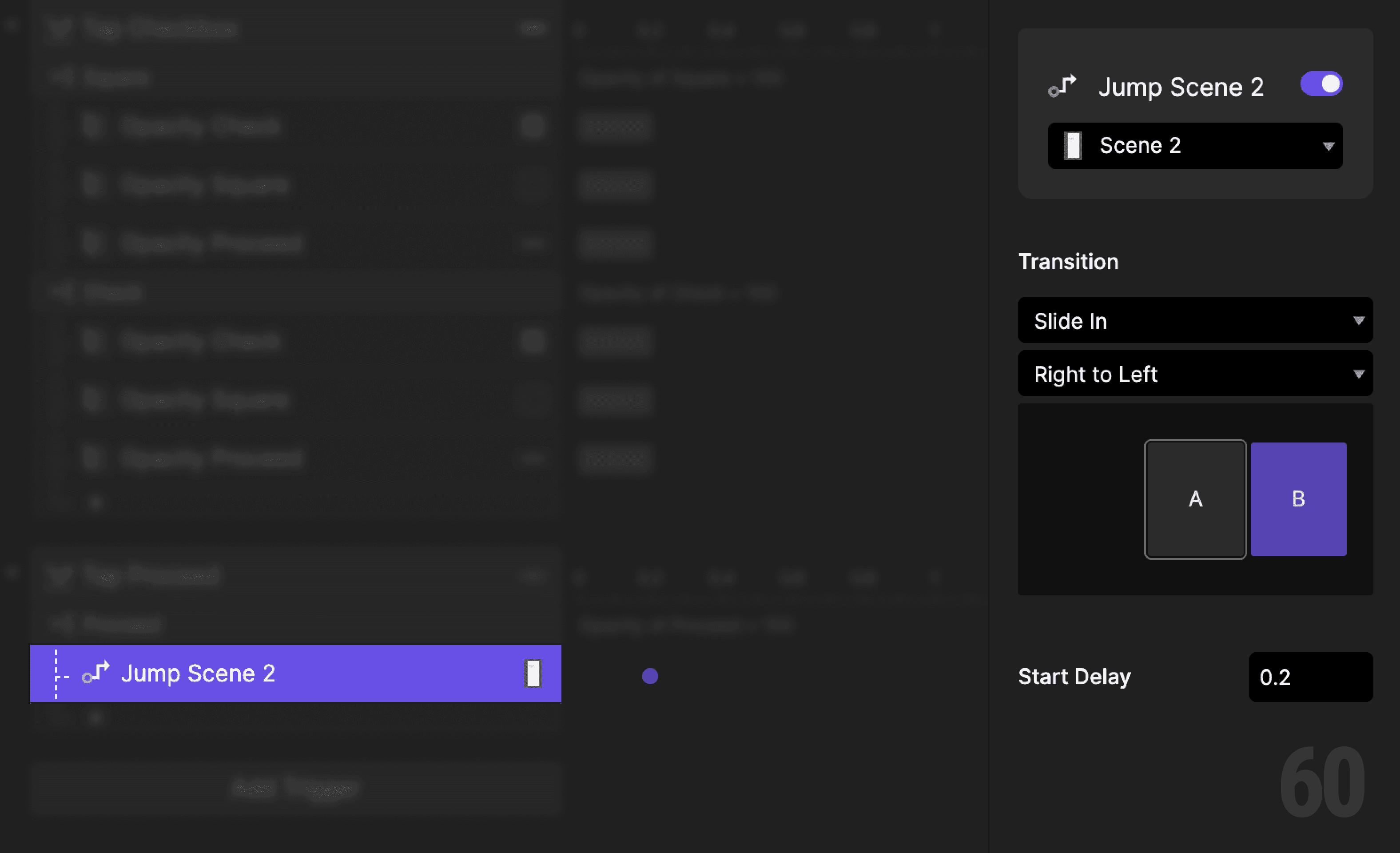
This is a screenshot of Step 12: Jump to Scene 2.

Step 13: Preview and test

Tap the checkbox and observe the button.

Check for:

  • Clear enabled and disabled states

  • No navigation when disabled

  • Immediate activation when checked


If the button never lies, the interaction is correct.

Try this next

  • Add press feedback to the Proceed button

  • Disable interaction entirely using hit testing

  • Replace opacity logic with a variable

Up next

Toast message feedback. Showing temporary confirmation after an action.
This is a background image of 1.9 Toast Message Feedback.

Toast Message Feedback

1.9