1.7 Step Indicator Update

Level 1

16 Steps

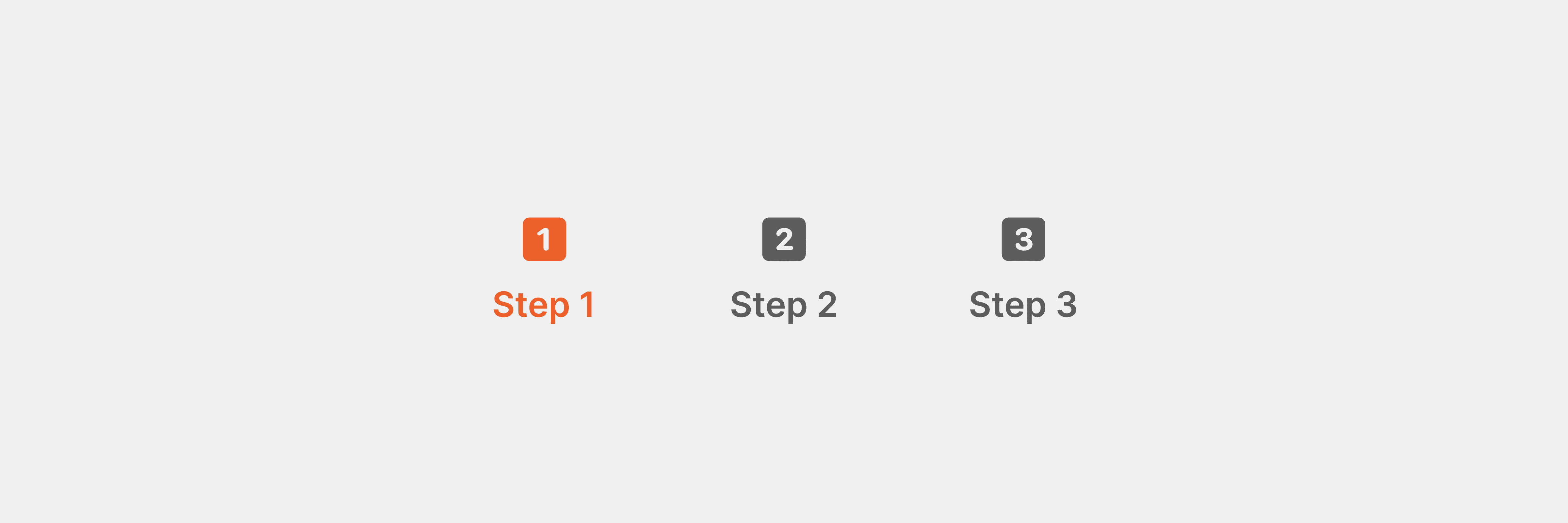
What you are building

A step indicator that updates visually as the user progresses.


Tap Proceed to move forward.
Each step highlights in order.


This pattern is commonly used in onboarding, forms, and multi-step flows in iOS.

How to think about it

This interaction introduces explicit state tracking.

Instead of reading state from position or opacity, you now track it directly using a variable.


The UI listens to that variable and updates itself when the value changes.

Recreate this in ProtoPie

Start by creating a Steps container with three step items.


Each step includes:

  • An Icon (vector)

  • A Text label


Below the steps, create two buttons:

  • Proceed

  • Done


Create a variable named which_step.

  • Type: Number

  • Default value: 1

This variable represents the current step.
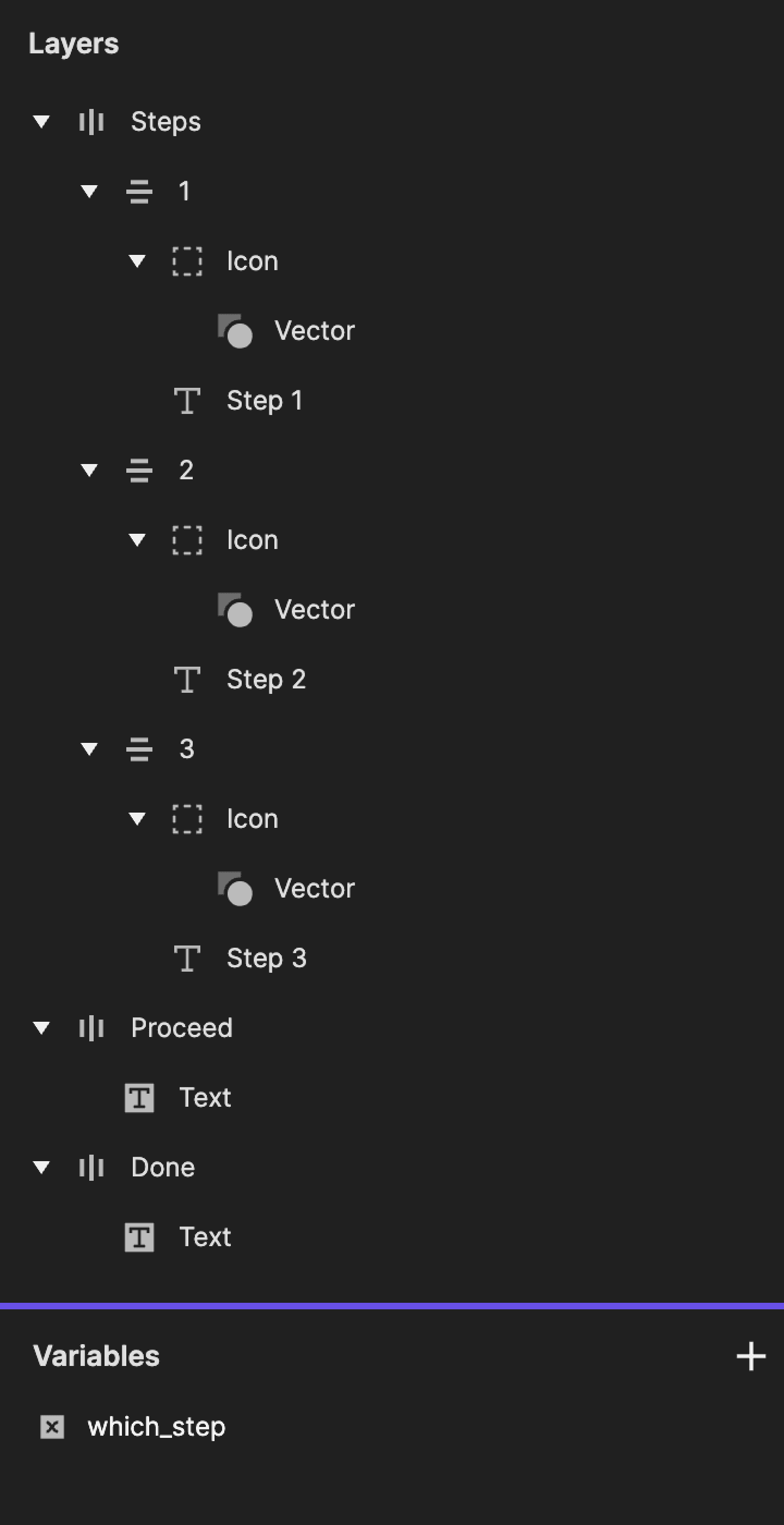
This is a screenshot of layers in ProtoPie.

Step 1: Add tap trigger to Proceed

Select the Proceed button.

Add a Tap trigger.
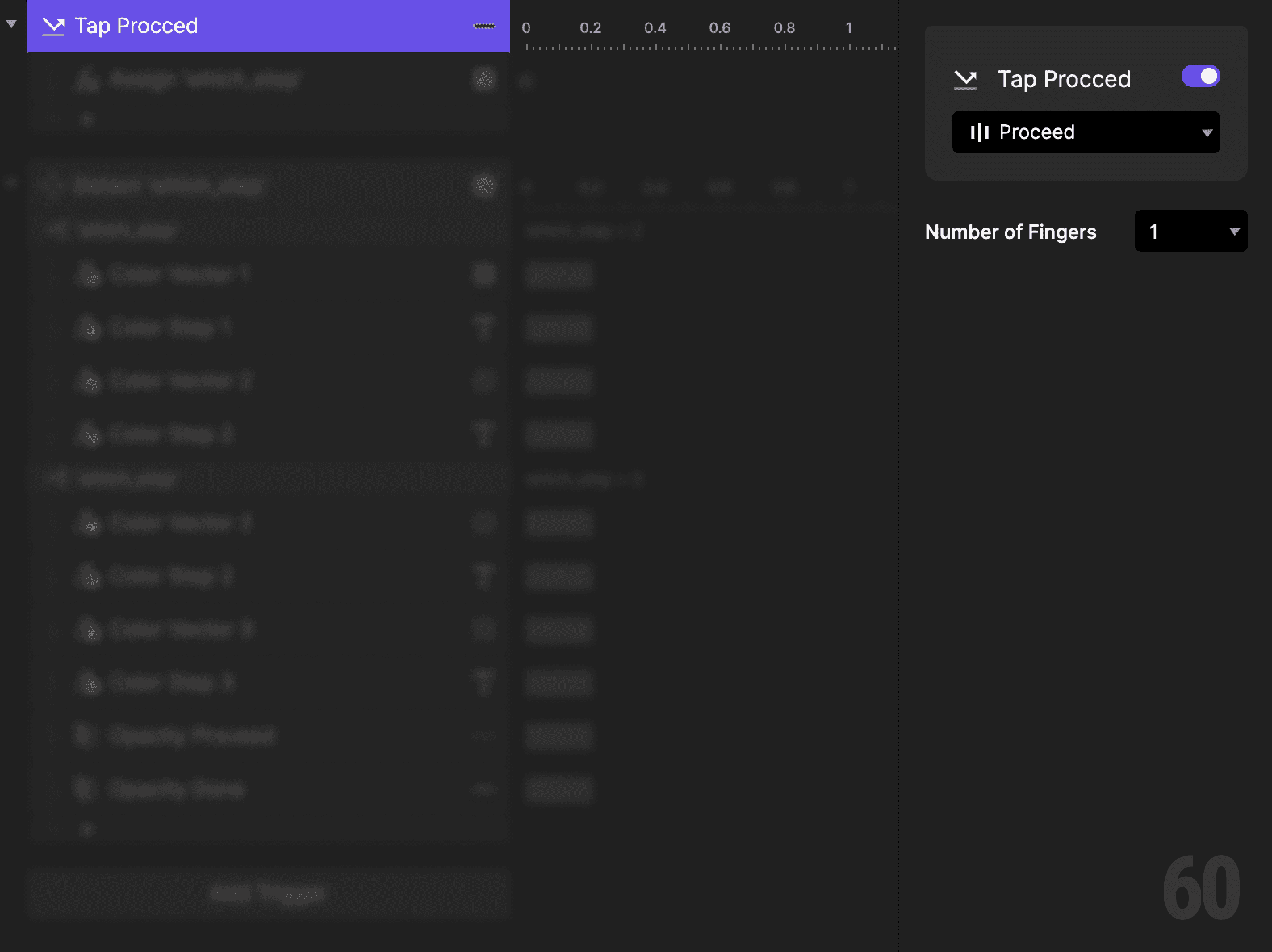
This is a screenshot of Step 1: Add tap trigger to Proceed.

Step 2: Increment the step value

Add an Assign response.

  • Target variable: which_step

  • Formula: which_step + 1


Each tap moves the flow forward by one step.
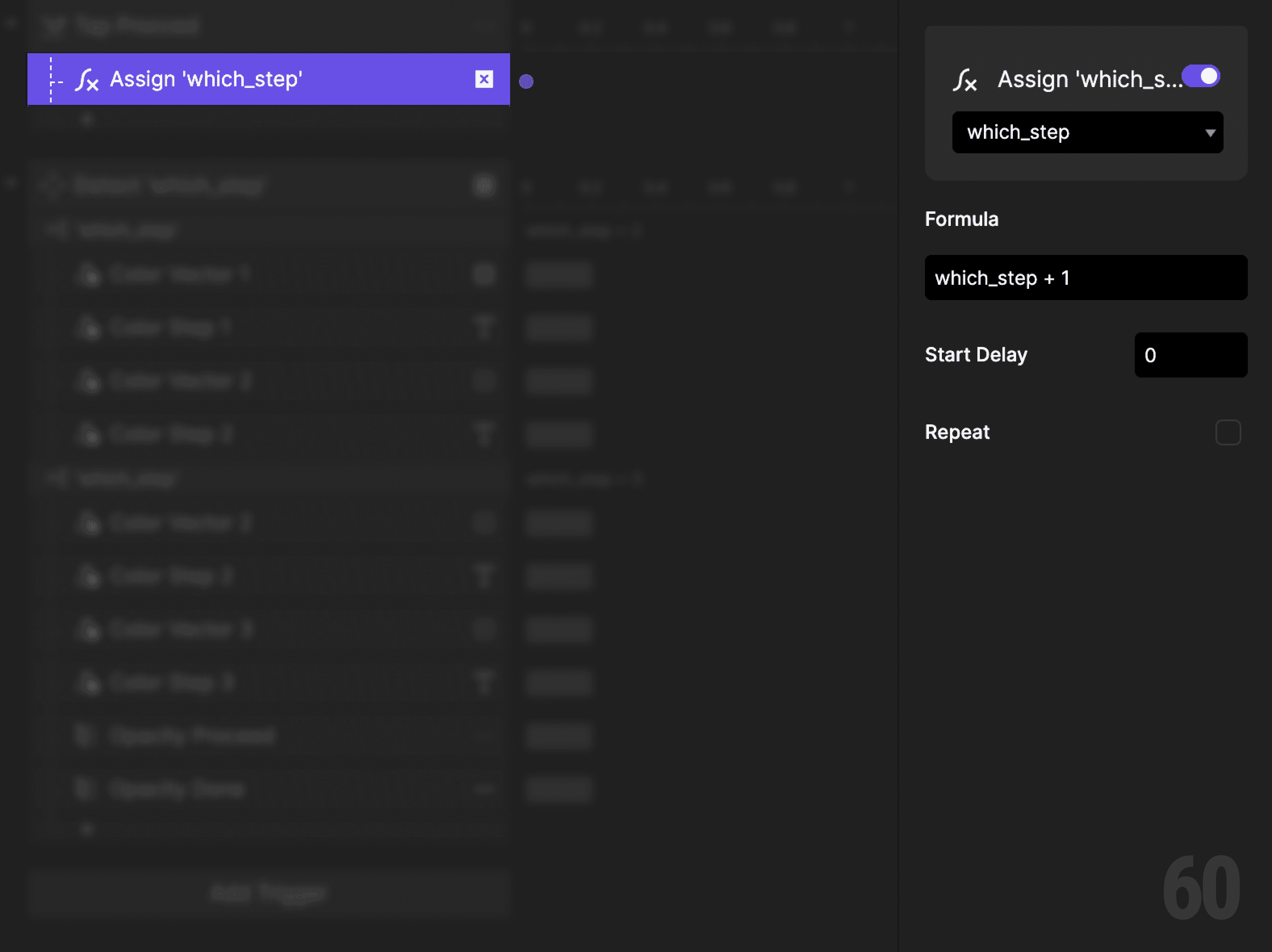
This is a screenshot of Step 2: Increment the step value.

Step 3: Detect variable changes

Add a Detect trigger.

  • Variable: which_step


This allows the interface to react whenever the step changes.
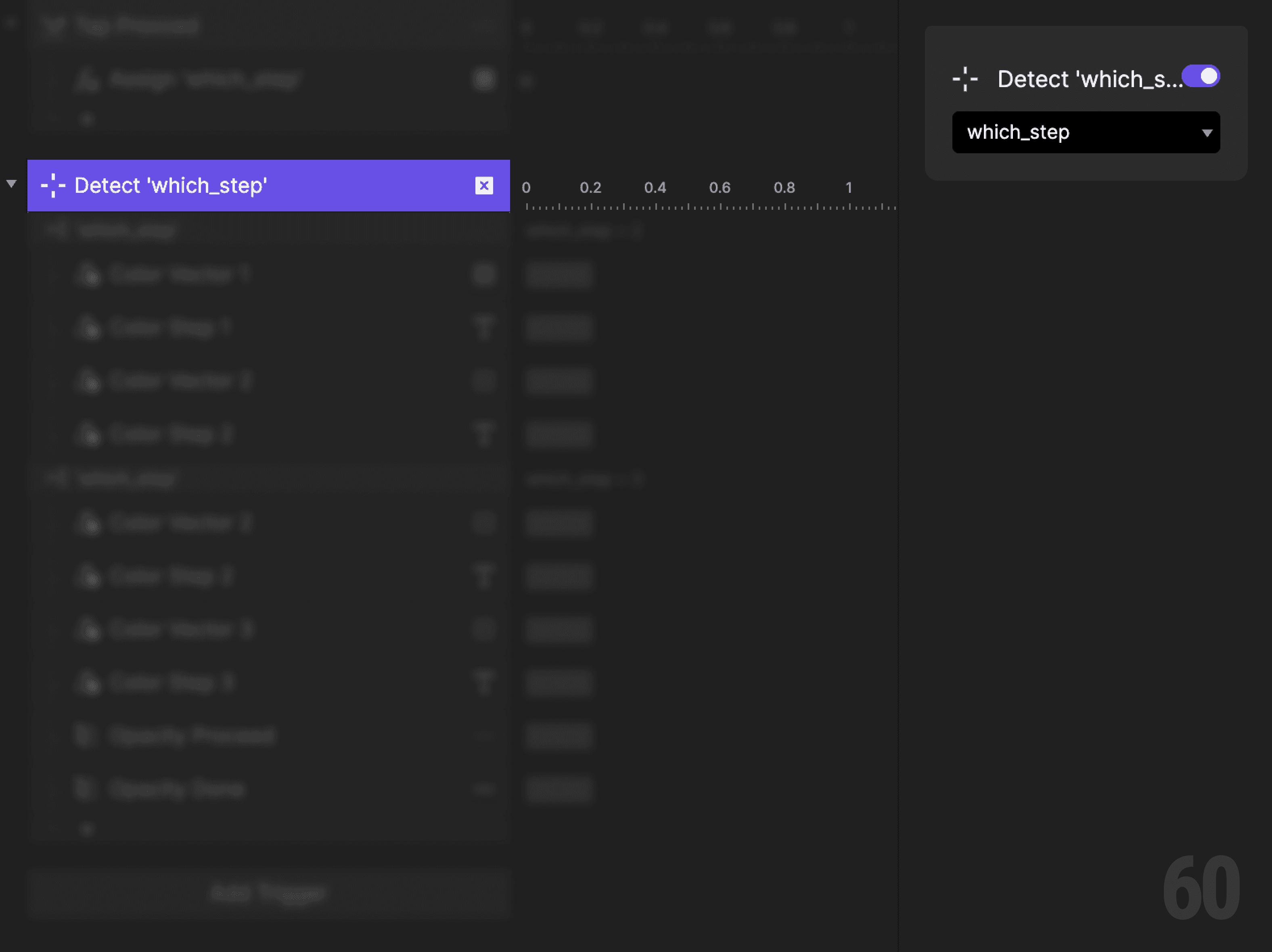
This is a screenshot of Step 3: Detect variable changes.

Step 4: Create a condition (Step 2)

Add a Condition to the Detect trigger.


This reads as:
When which_step equals 2, then do the following.
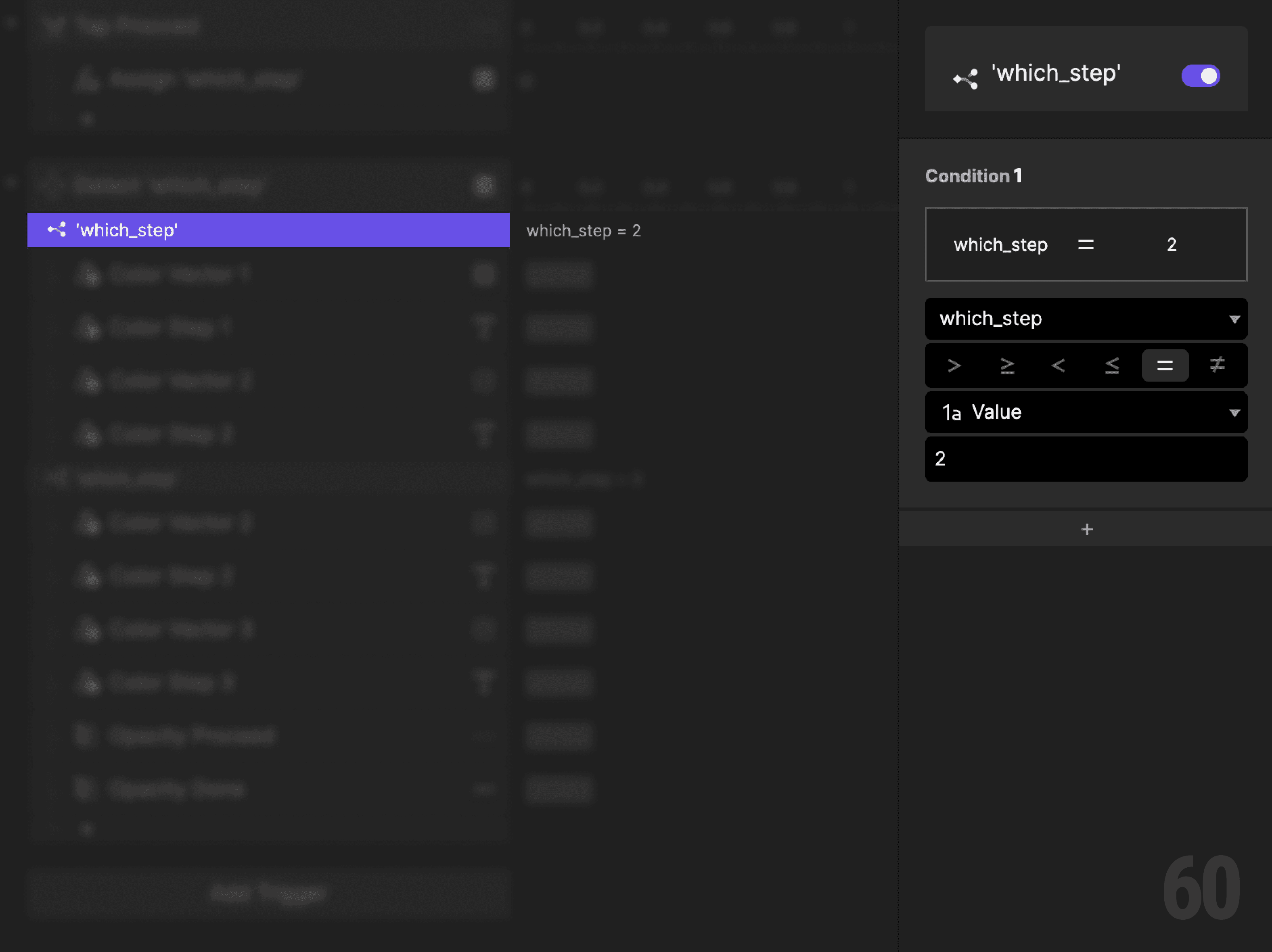
This is a screenshot of Step 4: Create a condition (Step 2).

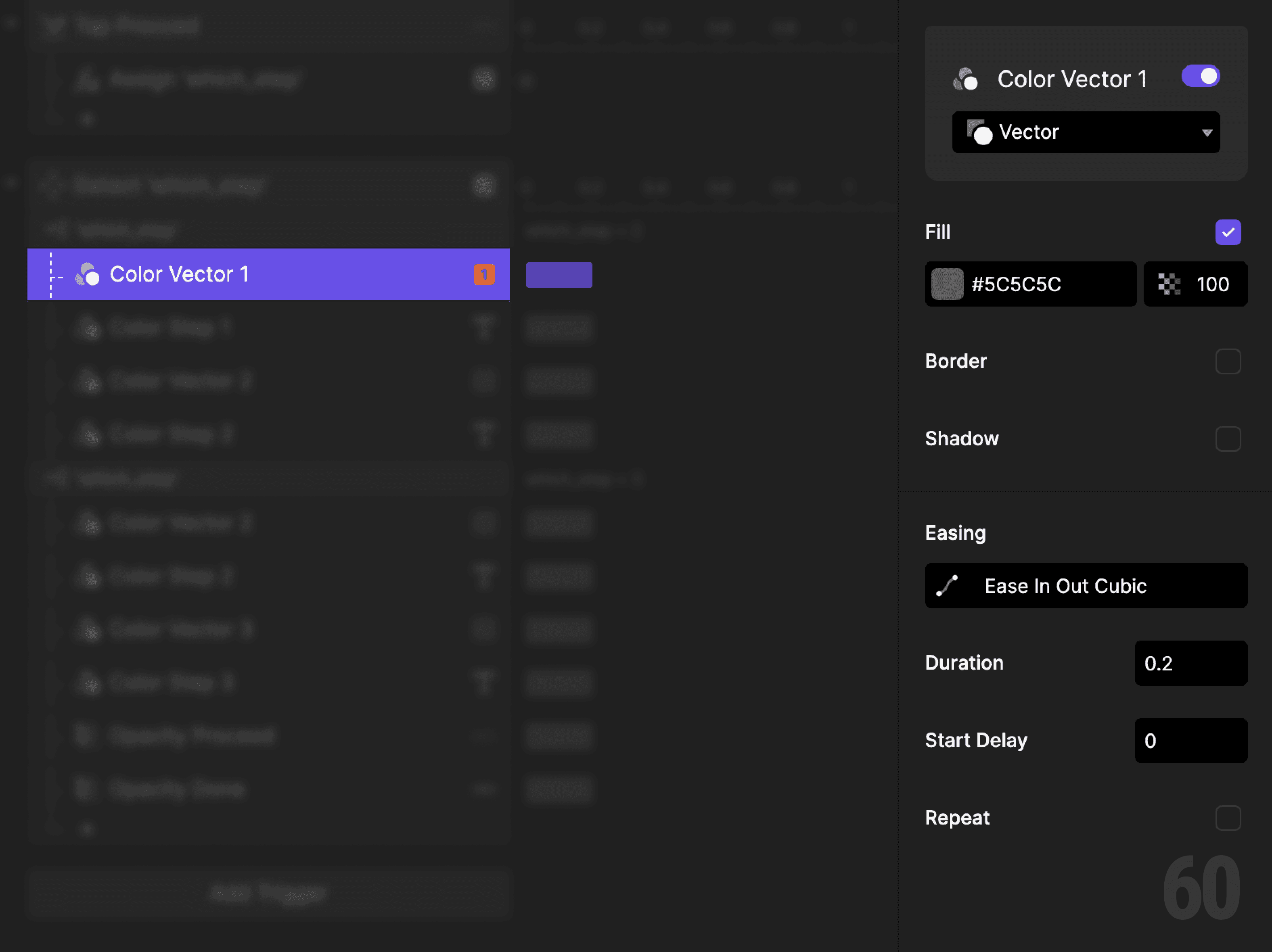
Step 5: Reset Step 1 styles

Add a Color response.

  • Target: Step 1 Vector

  • Set fill back to default

This is a screenshot of Step 5: Reset Step 1 styles.

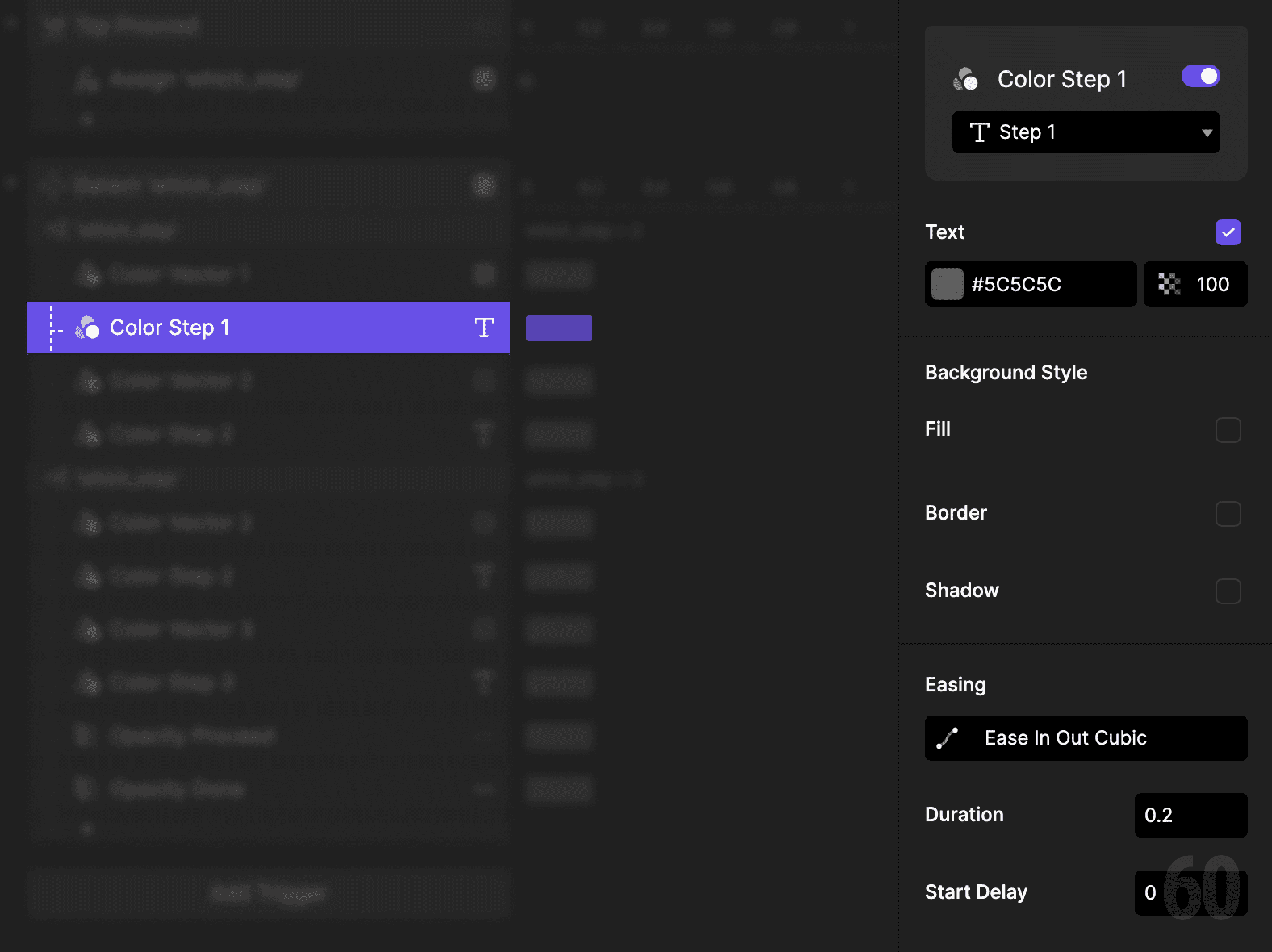
Step 6: Reset Step 1 text

Add another Color response.

  • Target: Step 1 Text

  • Set fill back to default

This is a screenshot of Step 6: Reset Step 1 text.

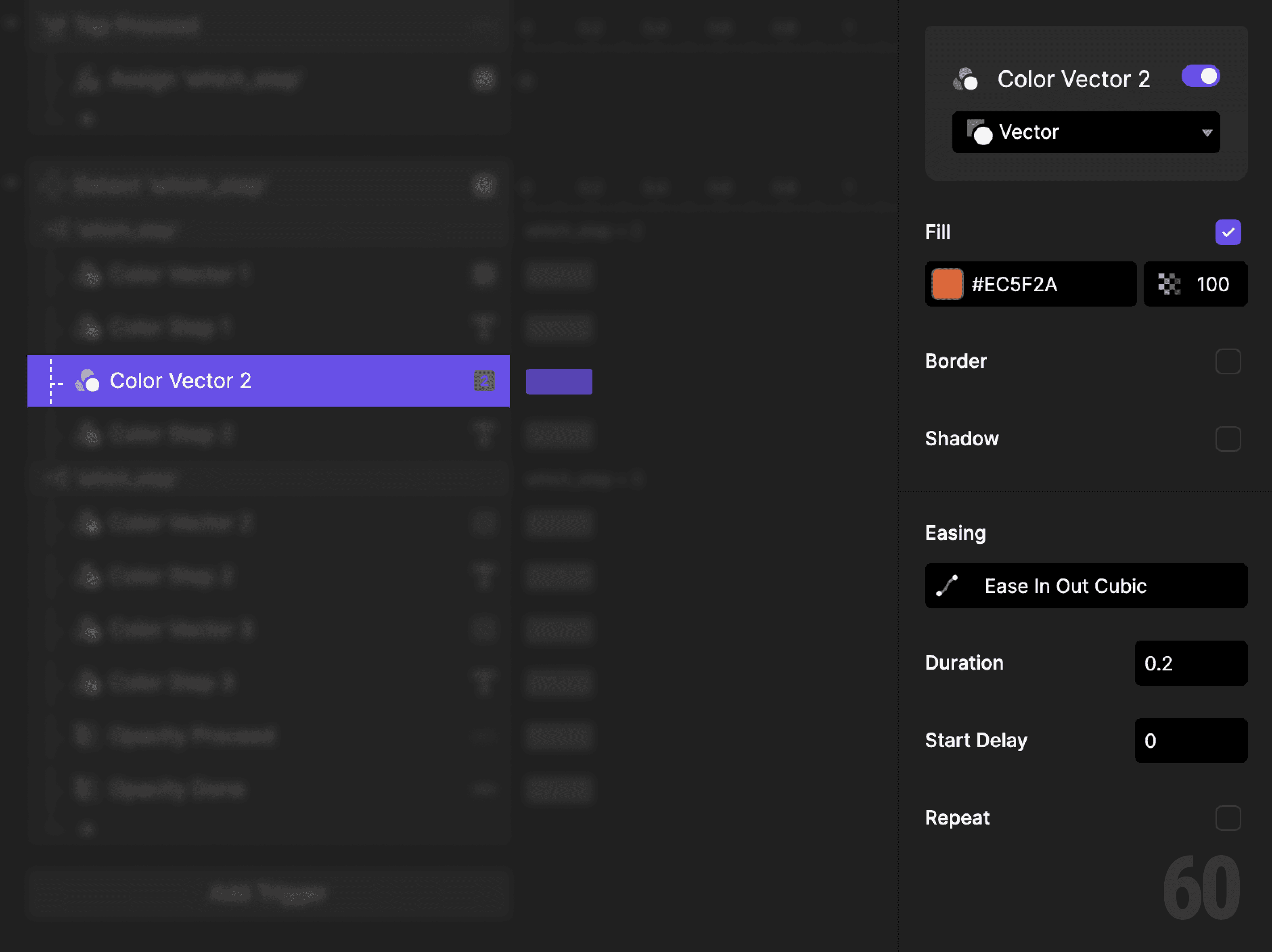
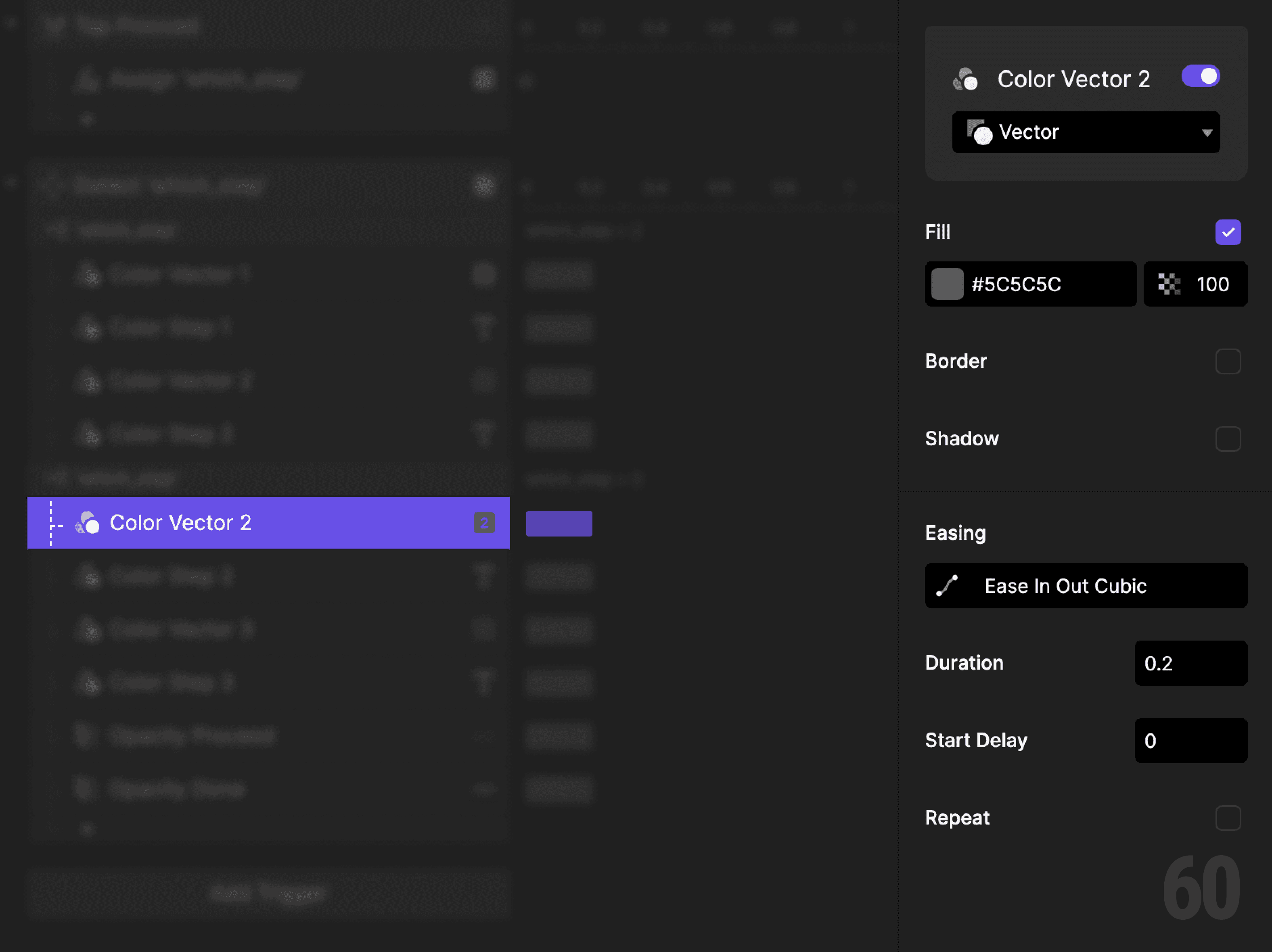
Step 7: Highlight Step 2 icon

Add a Color response.

  • Target: Step 2 Vector

  • Set fill to active color

This is a screenshot of Step 7: Highlight Step 2 icon.

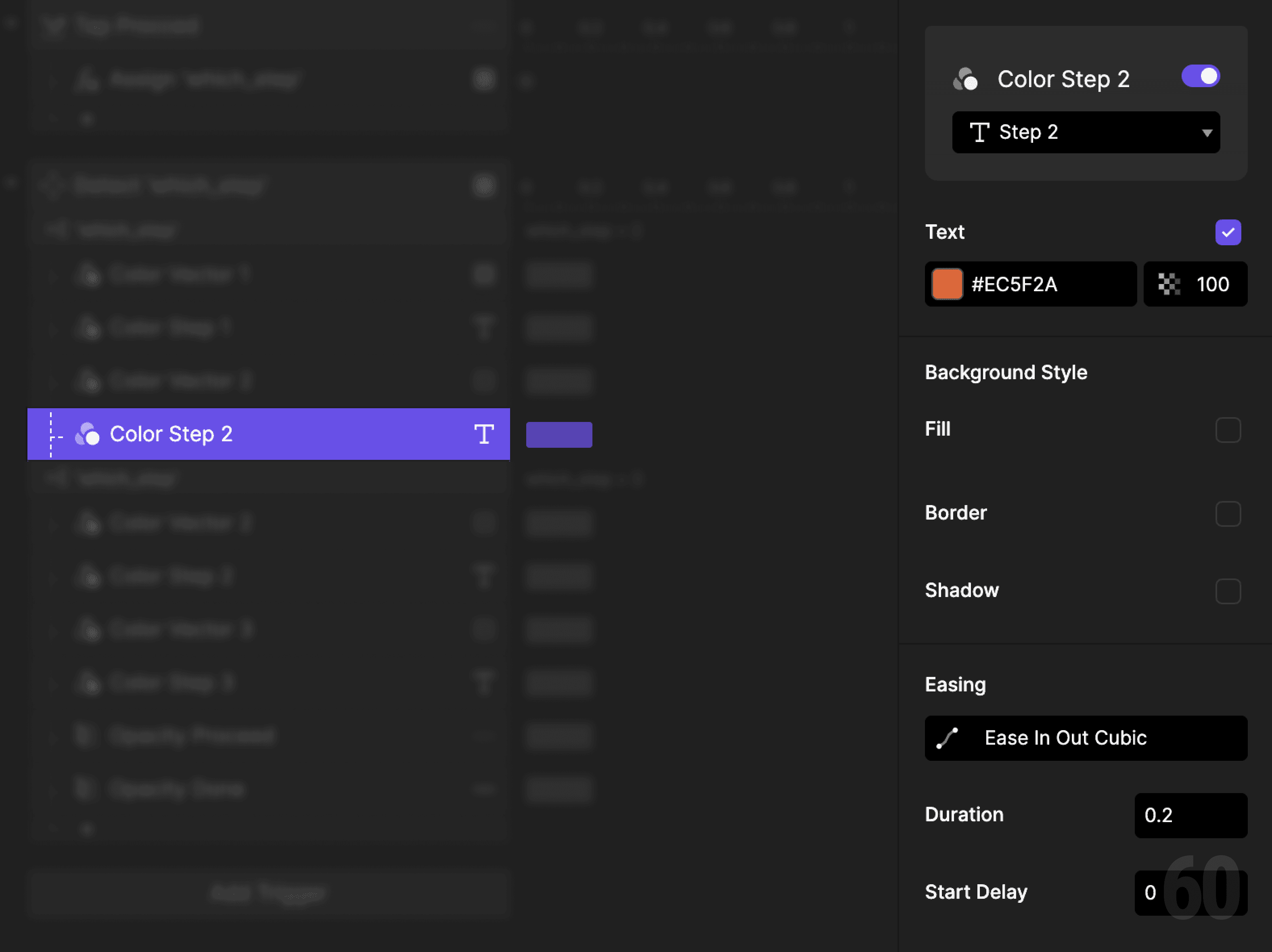
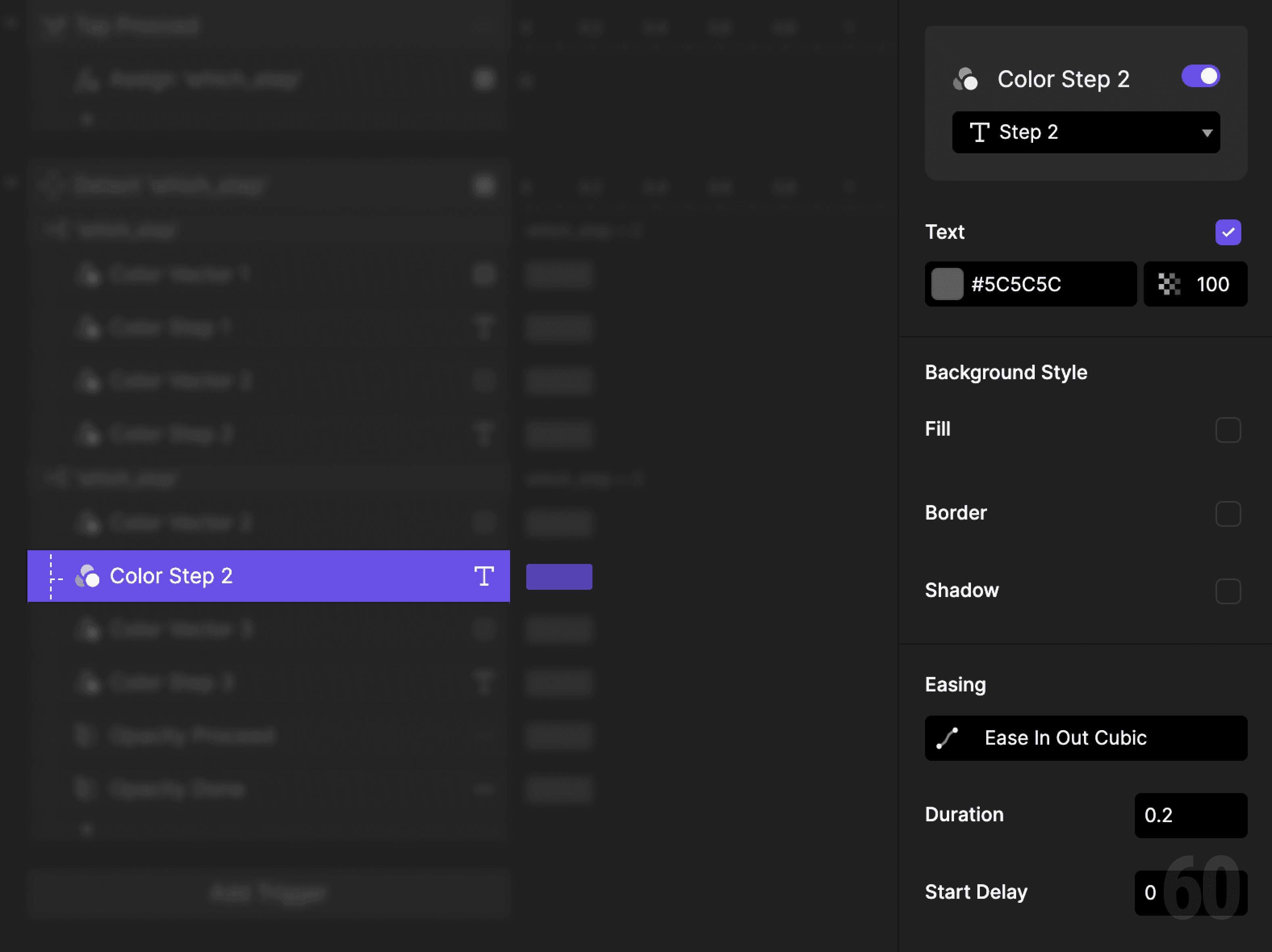
Step 8: Highlight Step 2 text

Add a Color response.

  • Target: Step 2 Text

  • Set fill to active color

This is a screenshot of Step 8: Highlight Step 2 text.

Step 9: Create a condition (Step 3)

Add another Condition to the Detect trigger.


This reads as:
When which_step equals 3, then do the following.
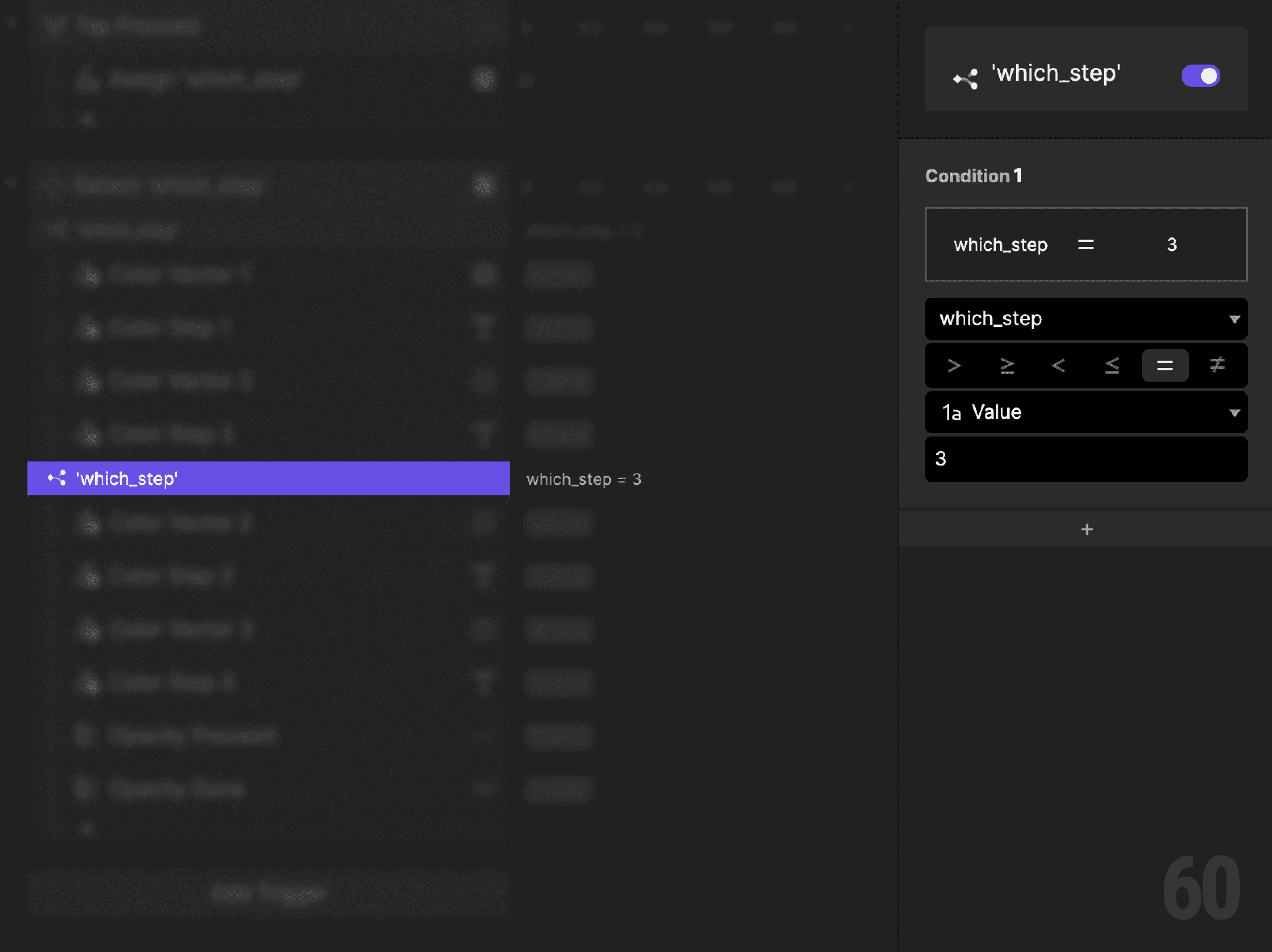
This is a screenshot of Step 9: Create a condition (Step 3).

Step 10: Reset Step 2 icon

Add a Color response.

  • Target: Step 2 Vector

  • Set fill back to default

This is a screenshot of Step 10: Reset Step 2 icon.

Step 11: Reset Step 2 text

Add a Color response.

  • Target: Step 2 Text

  • Set fill back to default

This is a screenshot of Step 11: Reset Step 2 text.

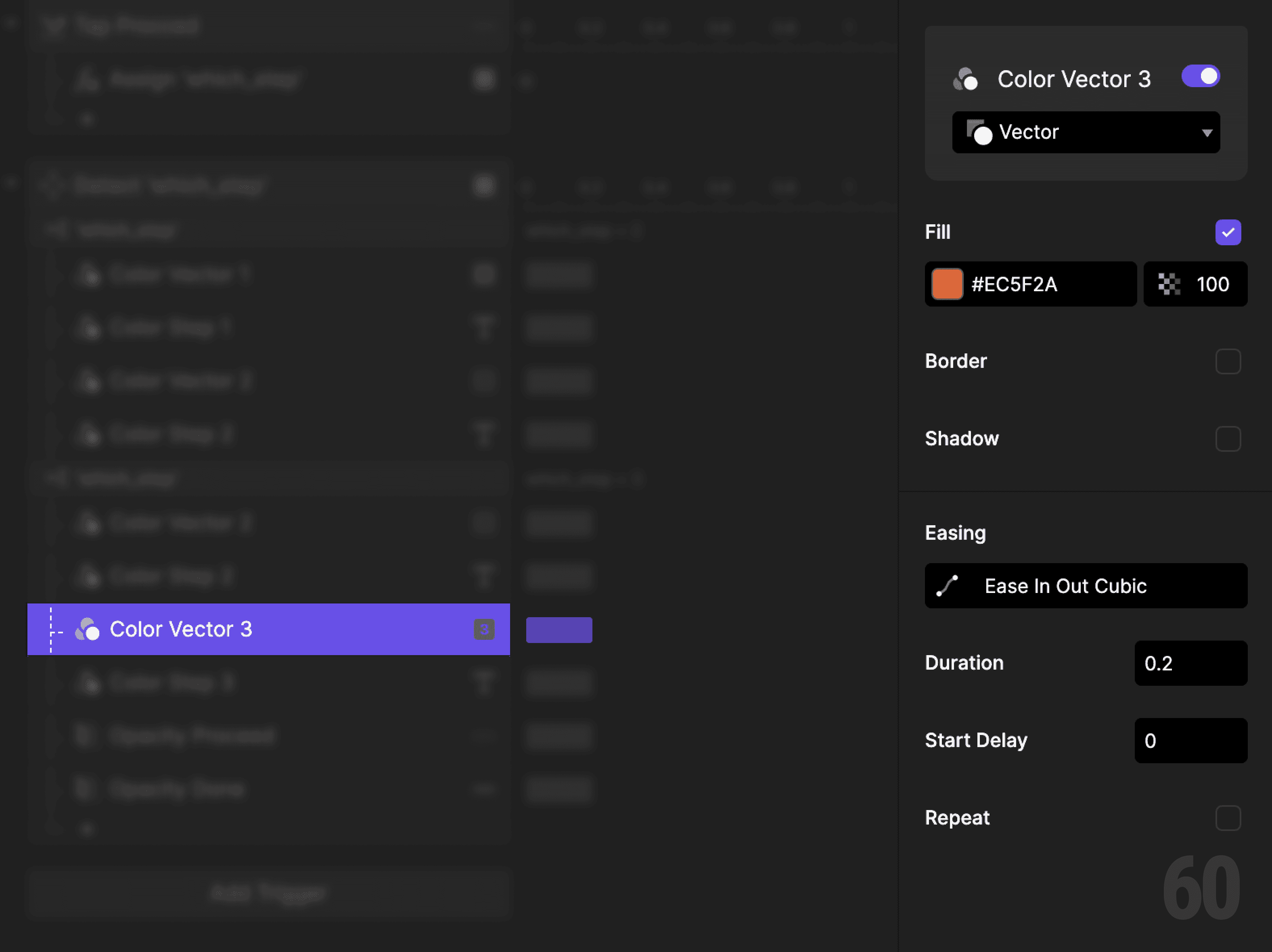
Step 12: Highlight Step 3 icon

Add a Color response.

  • Target: Step 3 Vector

  • Set fill to active color

This is a screenshot of Step 12: Highlight Step 3 icon.

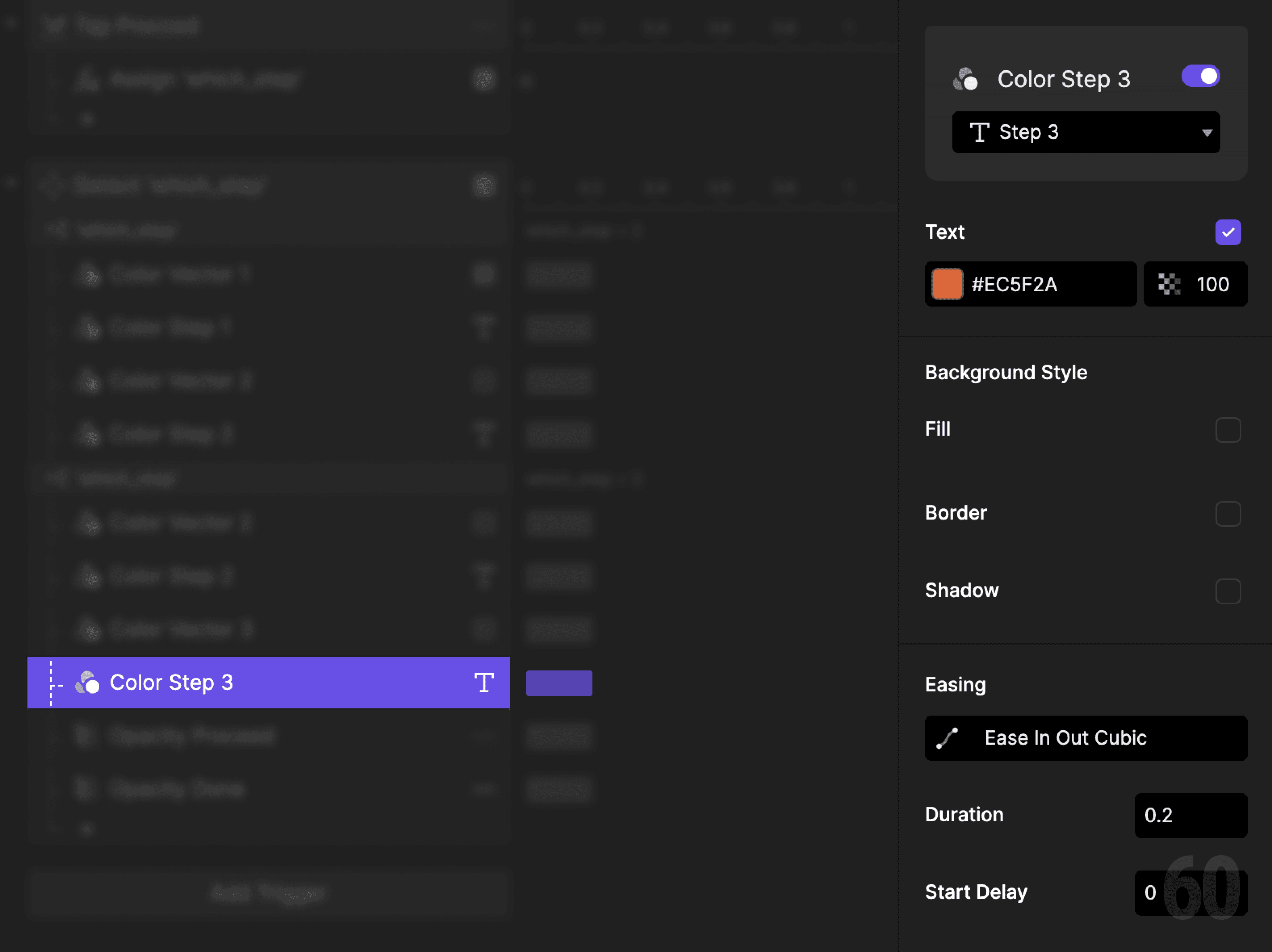
Step 13: Highlight Step 3 text

Add a Color response.

  • Target: Step 3 Text

  • Set fill to active color

This is a screenshot of Step 13: Highlight Step 3 text.

Step 14: Swap buttons

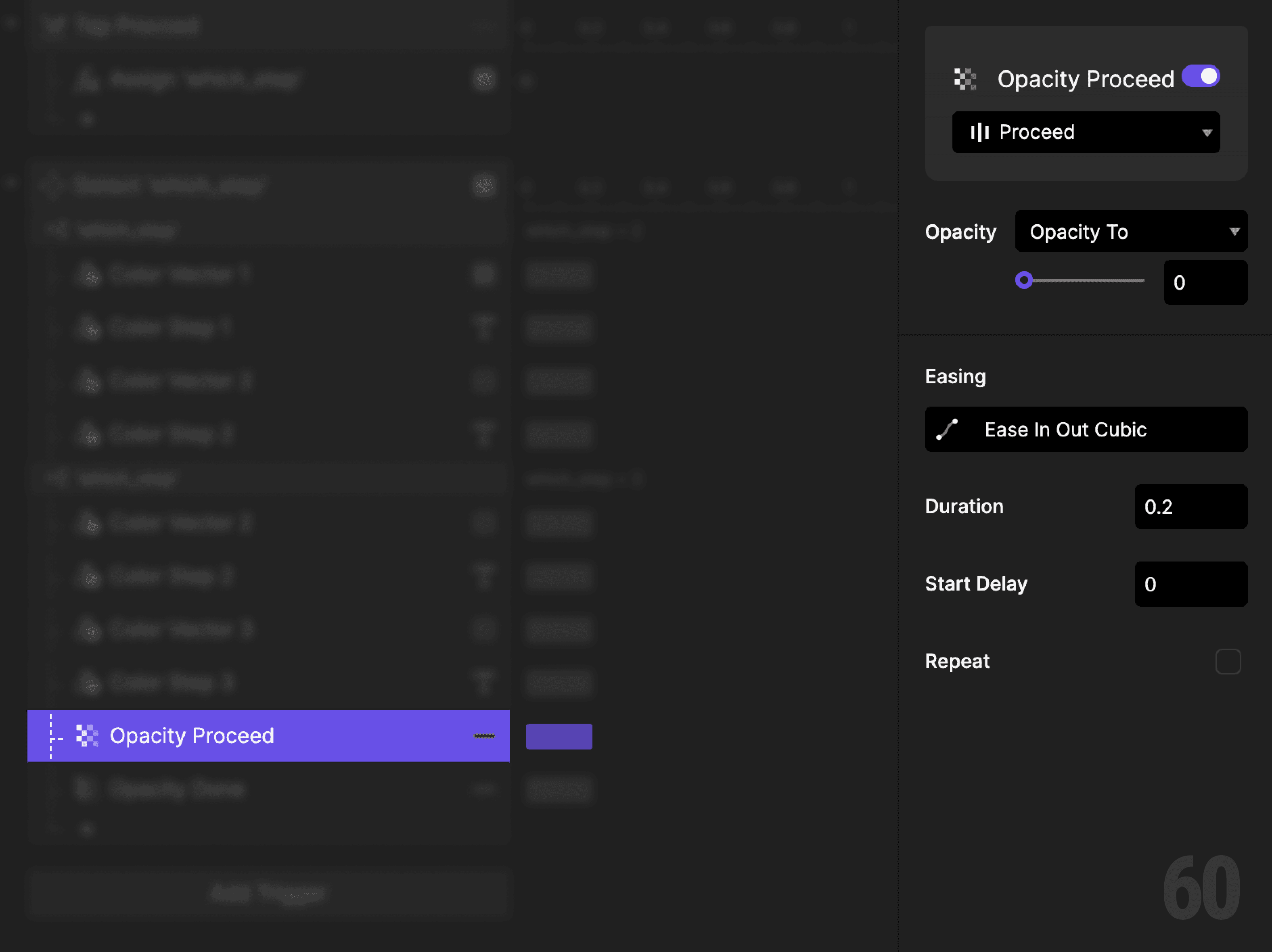
Add an Opacity response.

  • Target: Proceed button

  • Set opacity to 0%

This is a screenshot of Step 14: Swap buttons.

Step 15: Show Done button

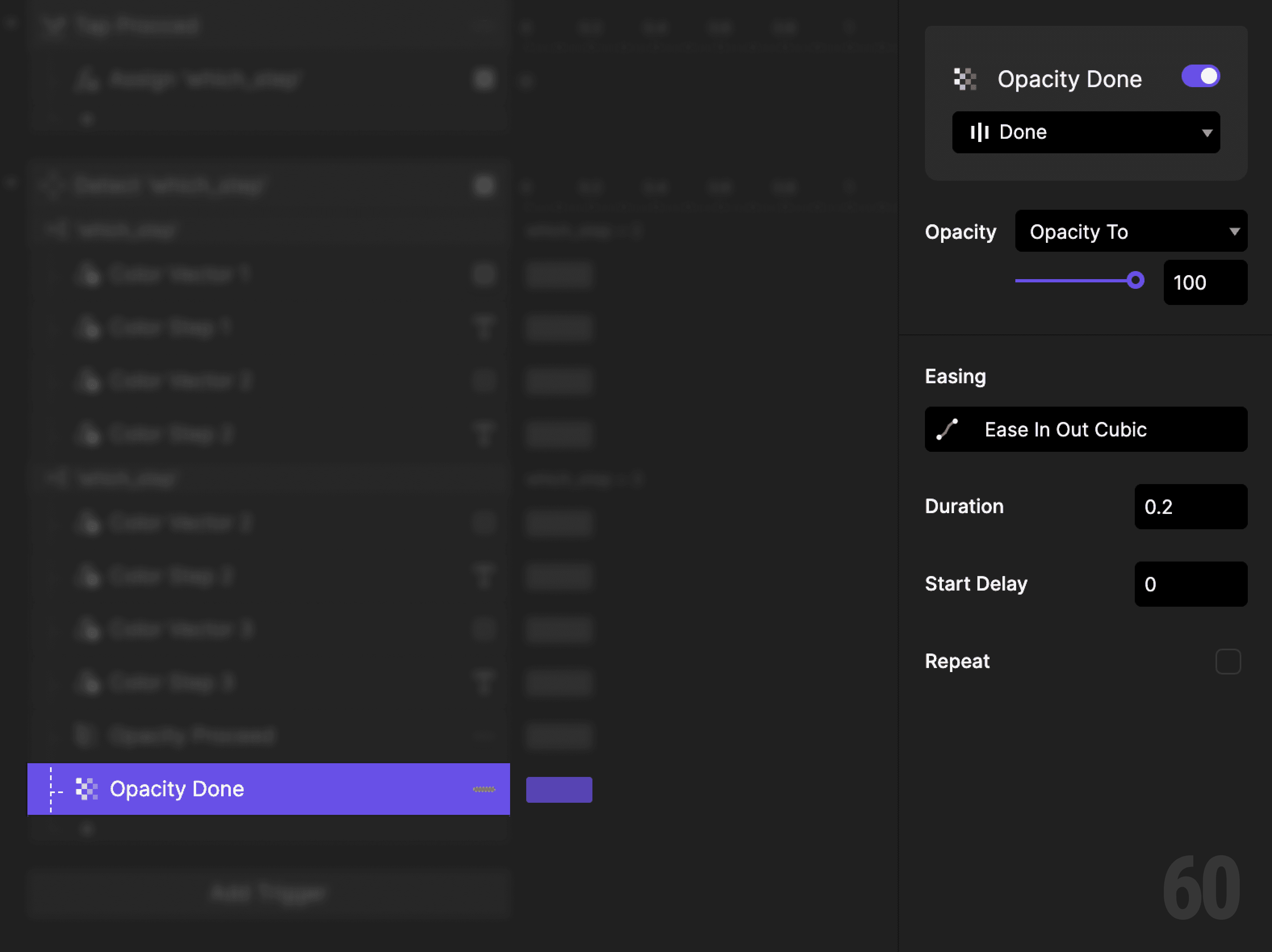
Add another Opacity response.

  • Target: Done button

  • Set opacity to 100%

This is a screenshot of Step 15: Show Done button.

Step 16: Preview and test

Tap Proceed repeatedly.

Check for:

  • Steps highlighting in order

  • Only one step active at a time

  • Proceed disappearing at the final step


If the UI always matches the step value, the interaction is correct.

Try this next

  • Add backward navigation

  • Animate color changes

  • Disable Proceed at the final step

Up next

Enable and disable button. Allowing actions only when conditions are met.
This is a background image of 1.8 Enable and Disable Button.

Enable and Disable Button

1.8