1.6 Tap Image Carousel

Level 1

23 Steps

What you are building

A simple image carousel that moves one image at a time using Previous and Next buttons.


Tap Next to move forward.
Tap Previous to move backward.


Only one image is fully visible at a time.

How to think about it

This interaction is about sequence.

There is a clear order.

Each tap moves exactly one step.

You are not scrolling freely. You are moving intentionally through states.


In ProtoPie terms, the state lives in the X position of the carousel container.

Recreate this in ProtoPie

Start by creating three main layers:

  • Previous button

  • Next button

  • Carousel container


Inside the Carousel container:

  • Create a horizontal stack

  • Add Image 1, Image 2, Image 3


Only one image should appear fully visible at a time.
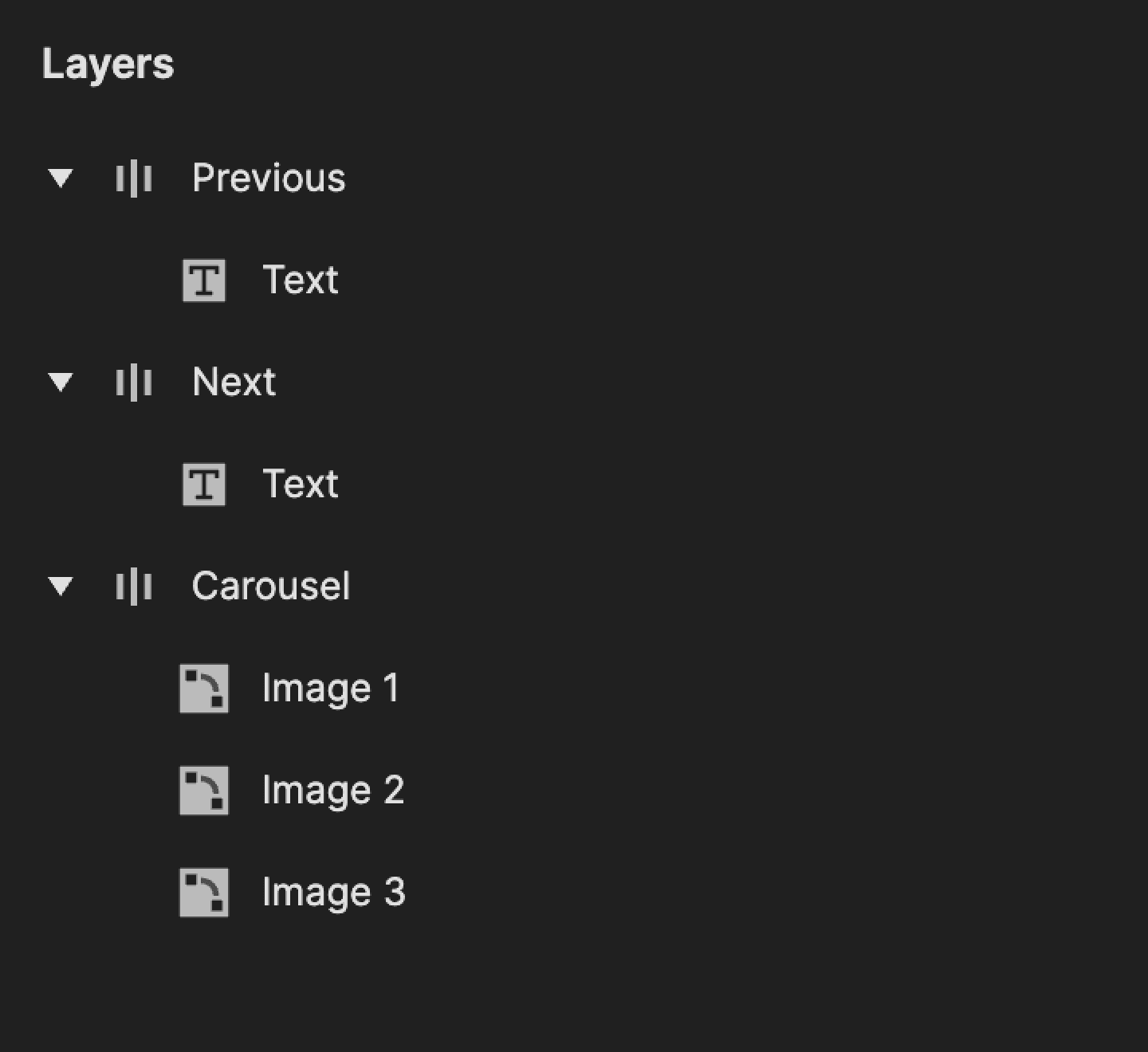
This is a screenshot of layers in ProtoPie.

Step 1: Add tap trigger to Next

Select the Next button.

Add a Tap trigger.
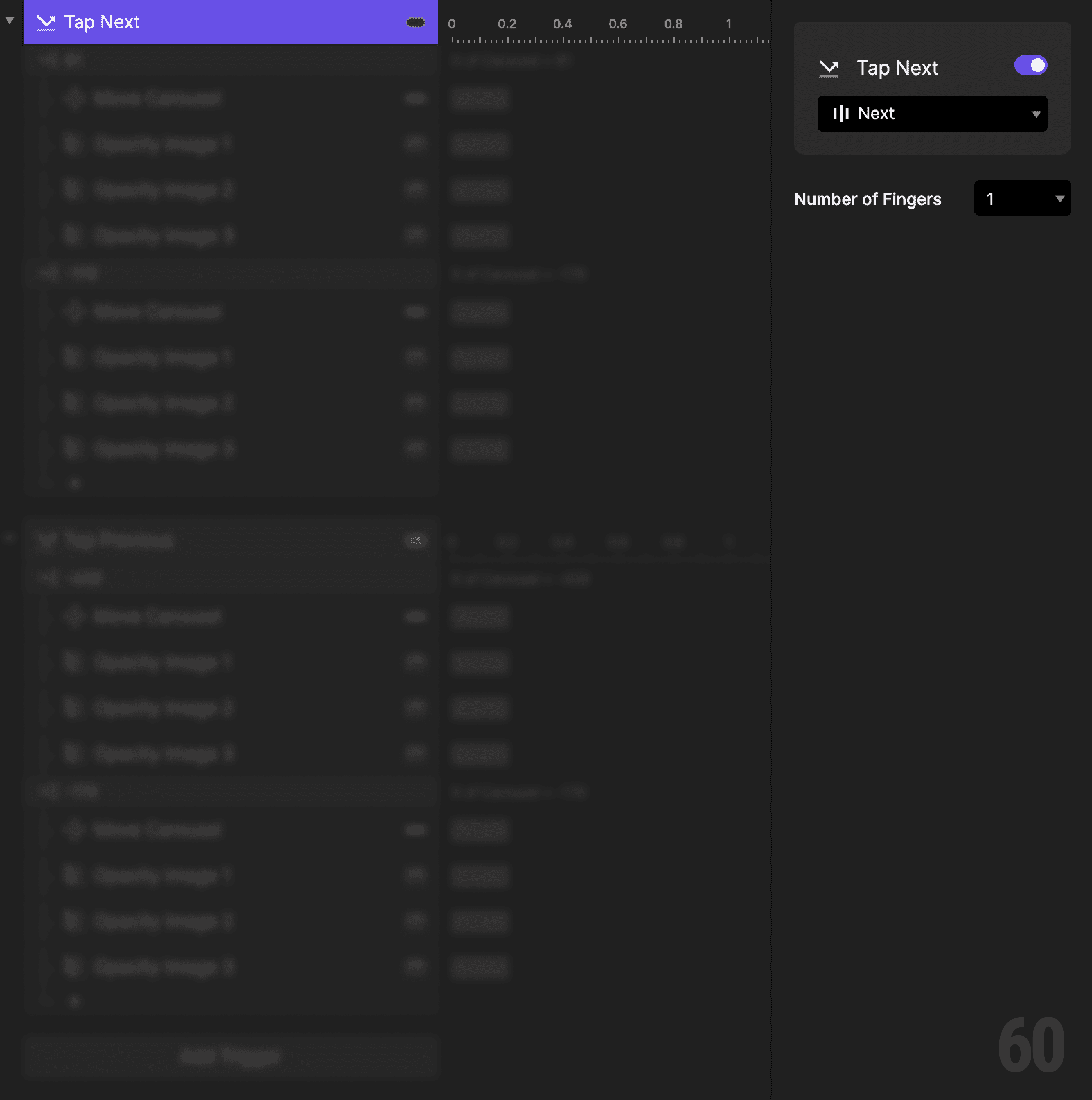
This is a screenshot of Step 1: Add tap trigger to Next.

Step 2: Create a condition (Image 1 → Image 2)

Add a Condition based on the X position of the Carousel container.


This reads as:
When Carousel X is 81, then do the following.


This means Image 1 is currently centered.
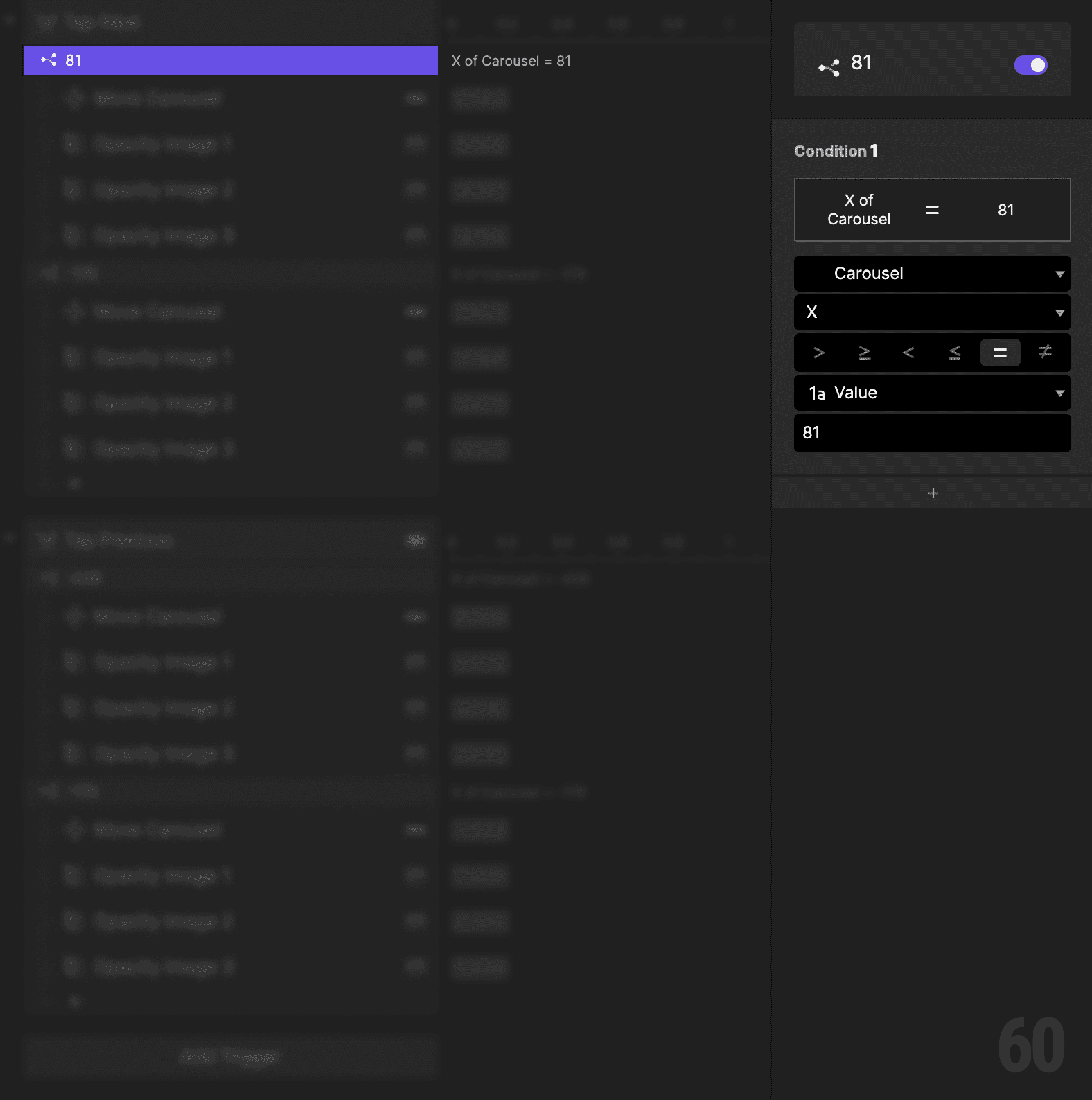
This is a screenshot of Step 2: Create a condition (Image 1 → Image 2).

Step 3: Move the carousel forward

Add a Move response.

  • Target: Carousel container

  • Set X to -179


This brings Image 2 into focus.
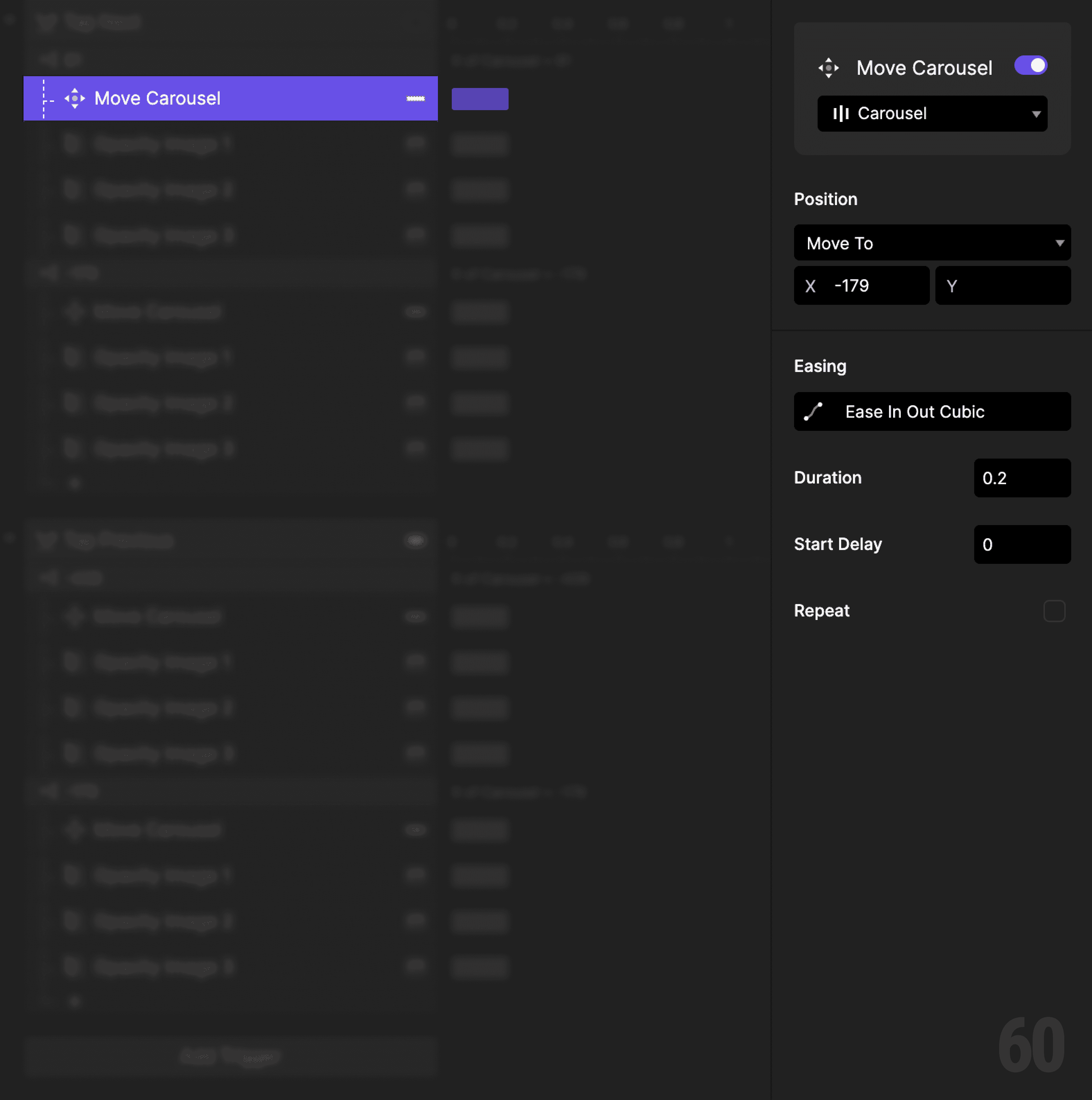
This is a screenshot of Step 3: Move the carousel forward.

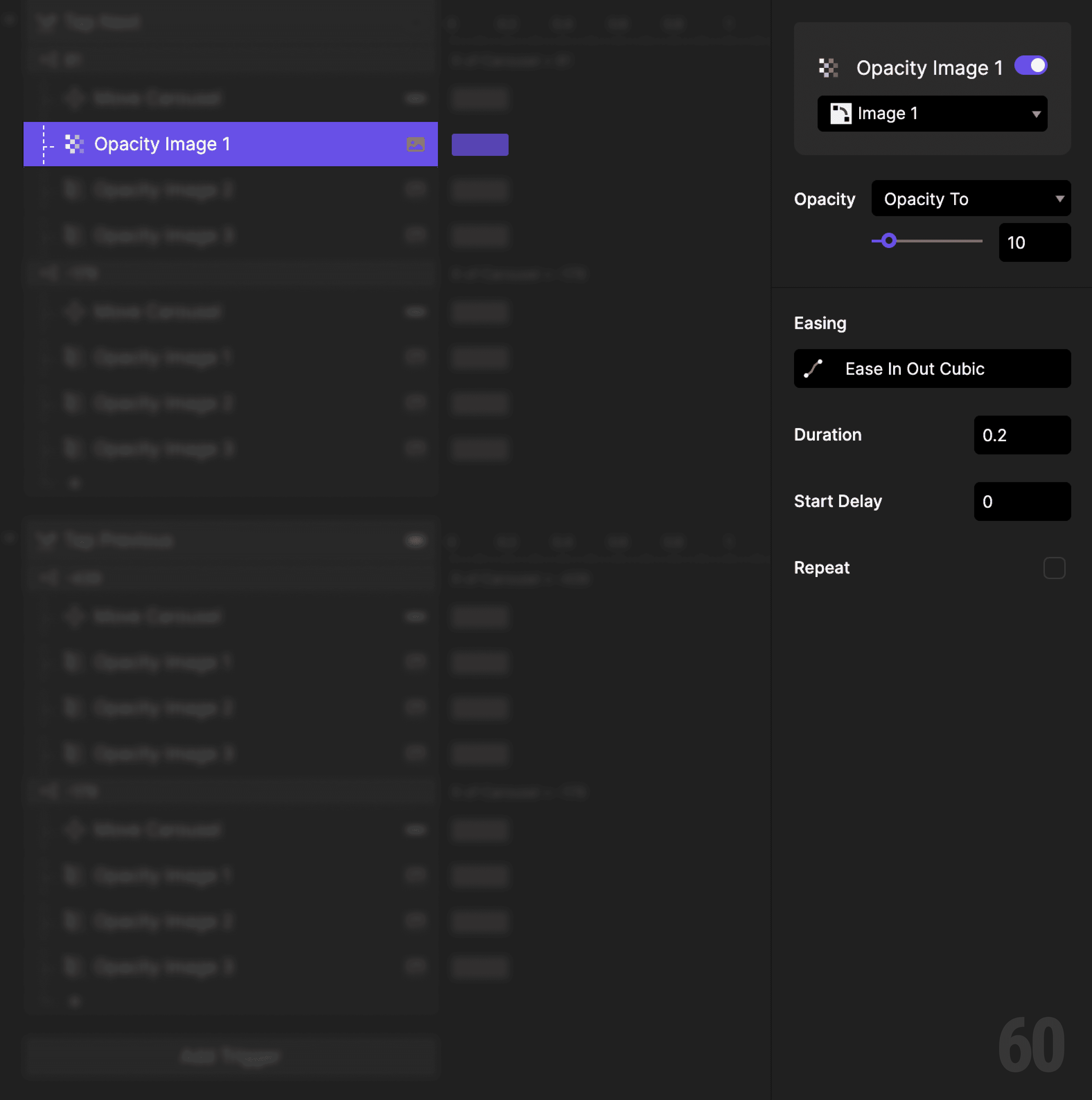
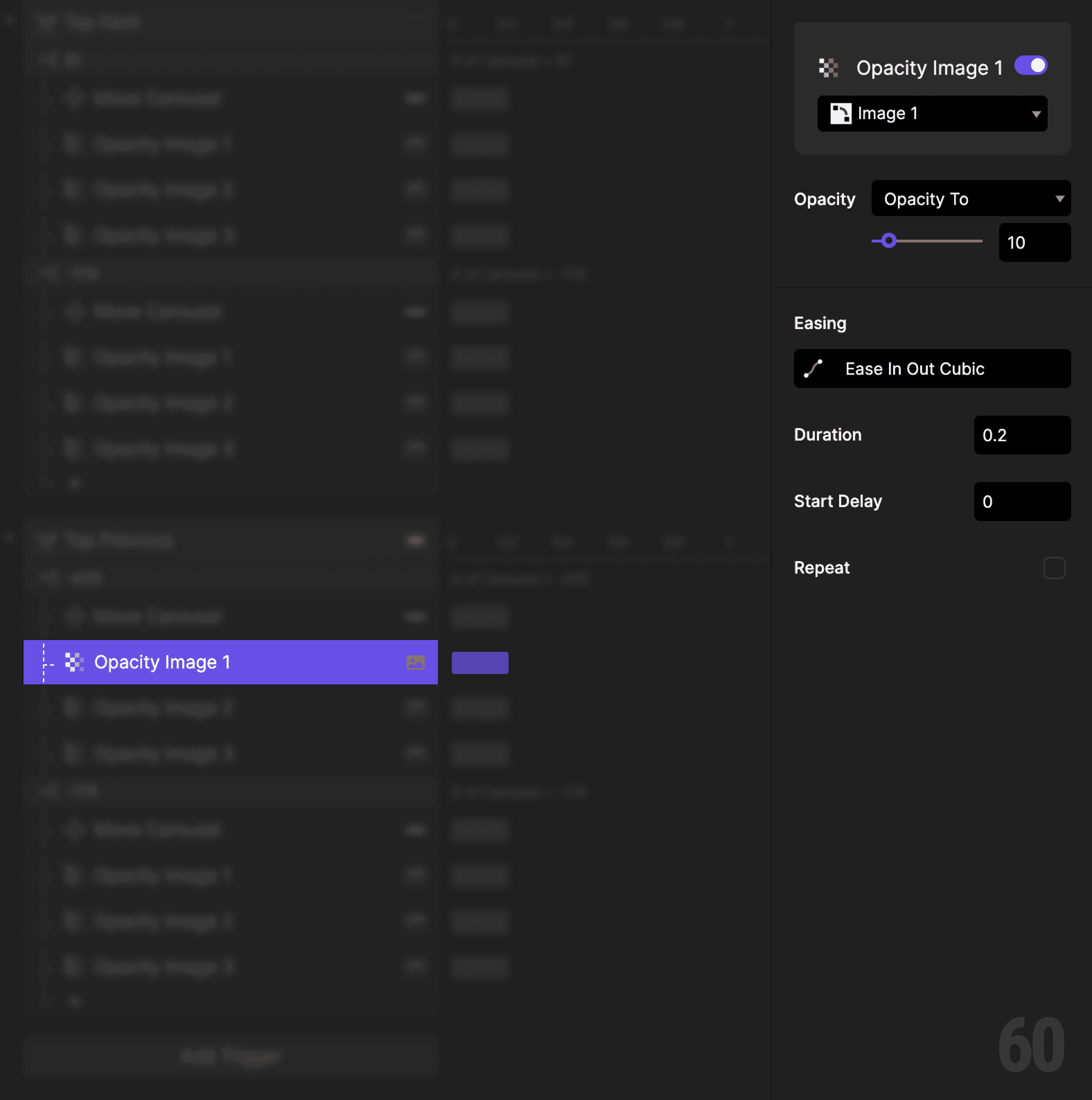
Step 4: Fade out Image 1

Add an Opacity response.

  • Target: Image 1

  • Set opacity to 10%

This is a screenshot of Step 4: Fade out Image 1.

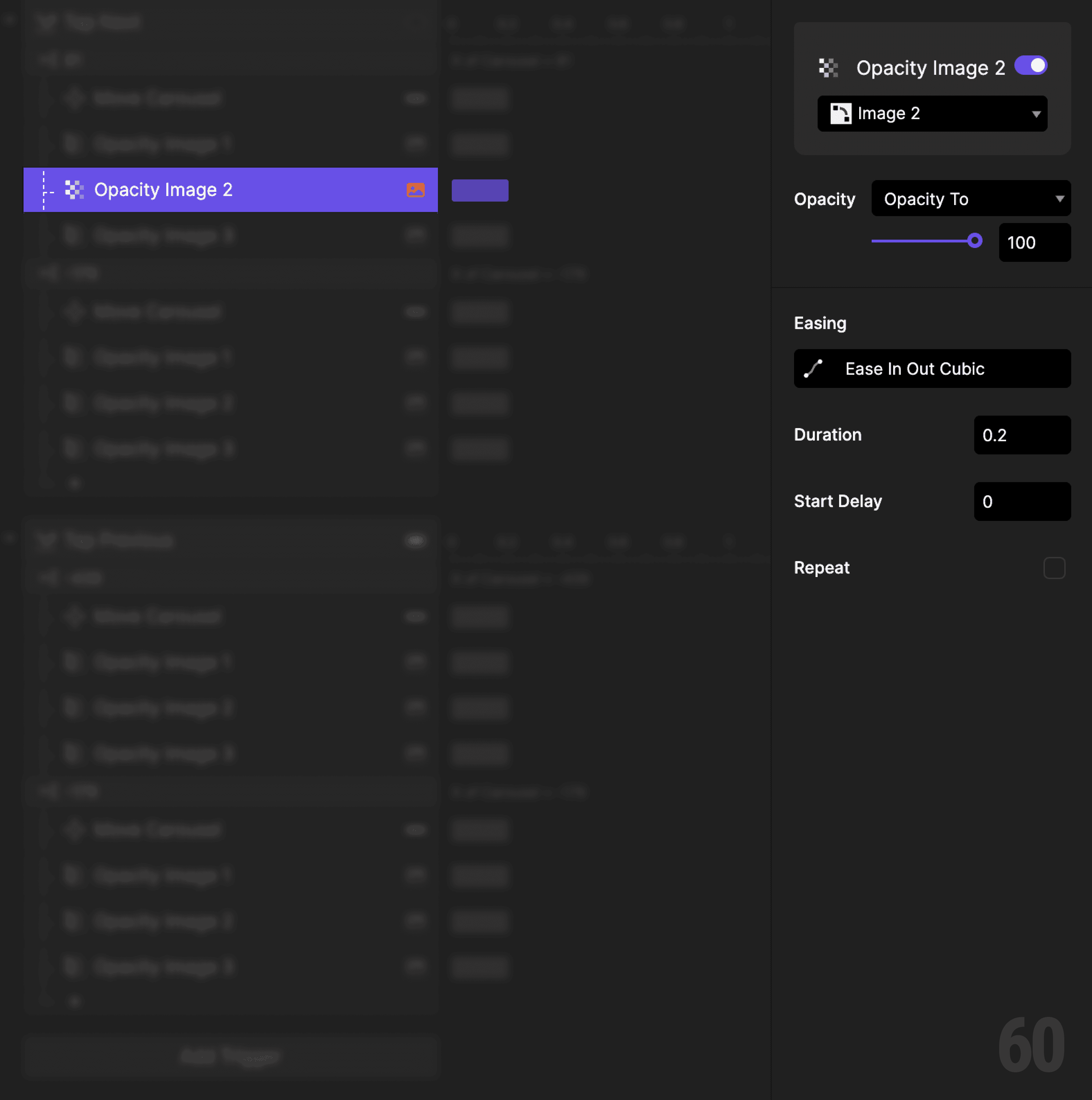
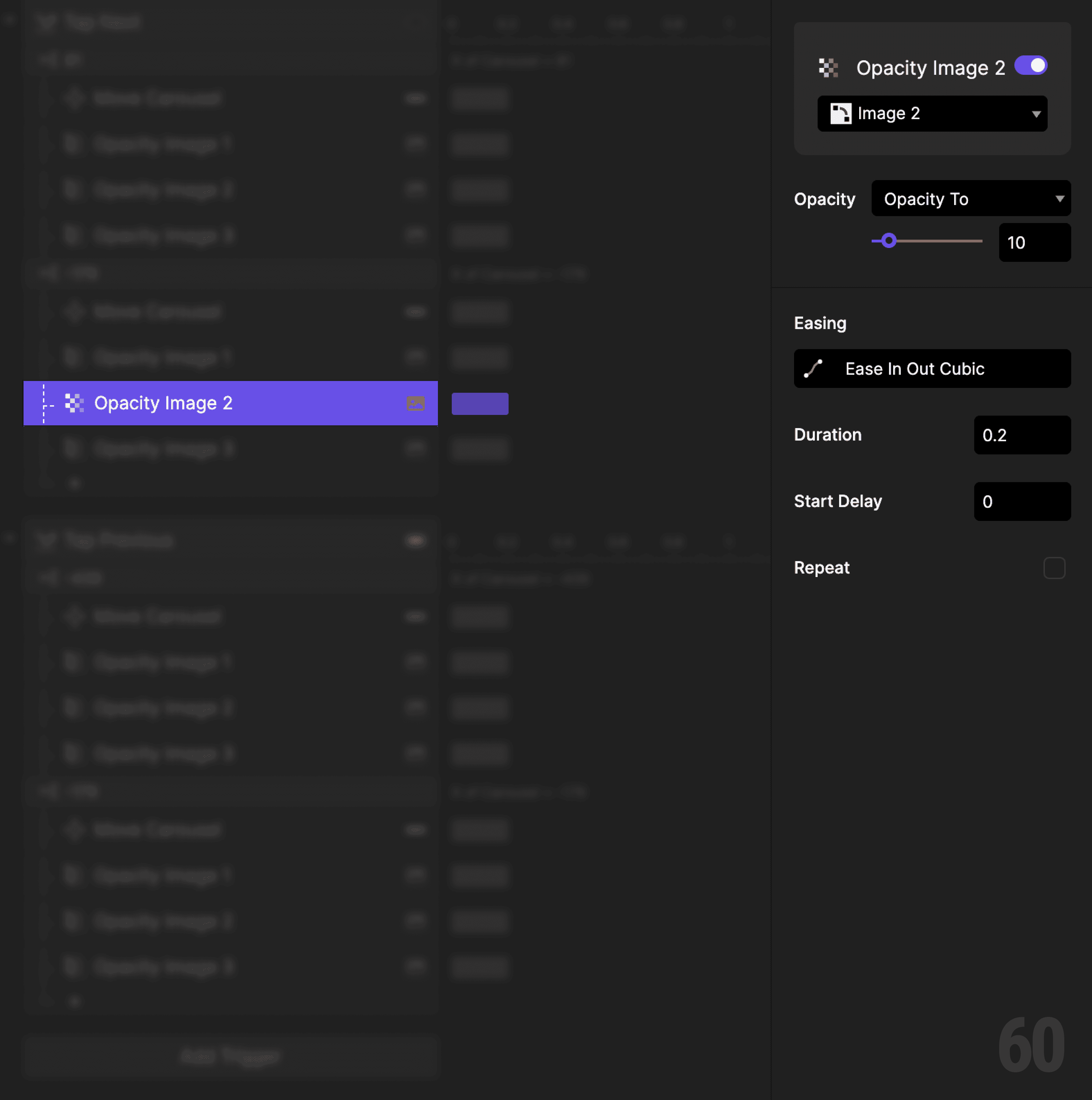
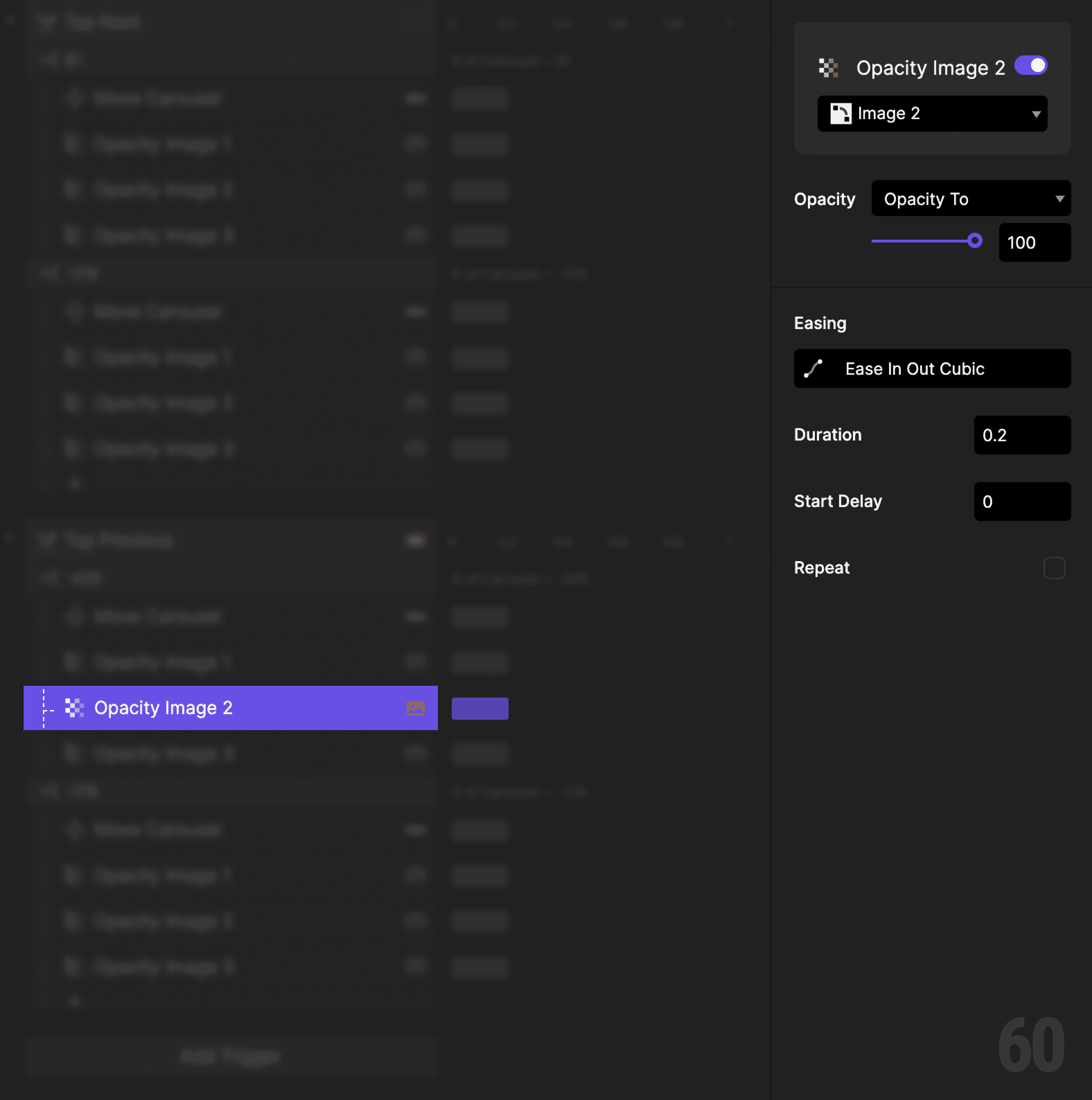
Step 5: Fade in Image 2

Add an Opacity response.

  • Target: Image 2

  • Set opacity to 100%

This is a screenshot of Step 5: Fade in Image 2.

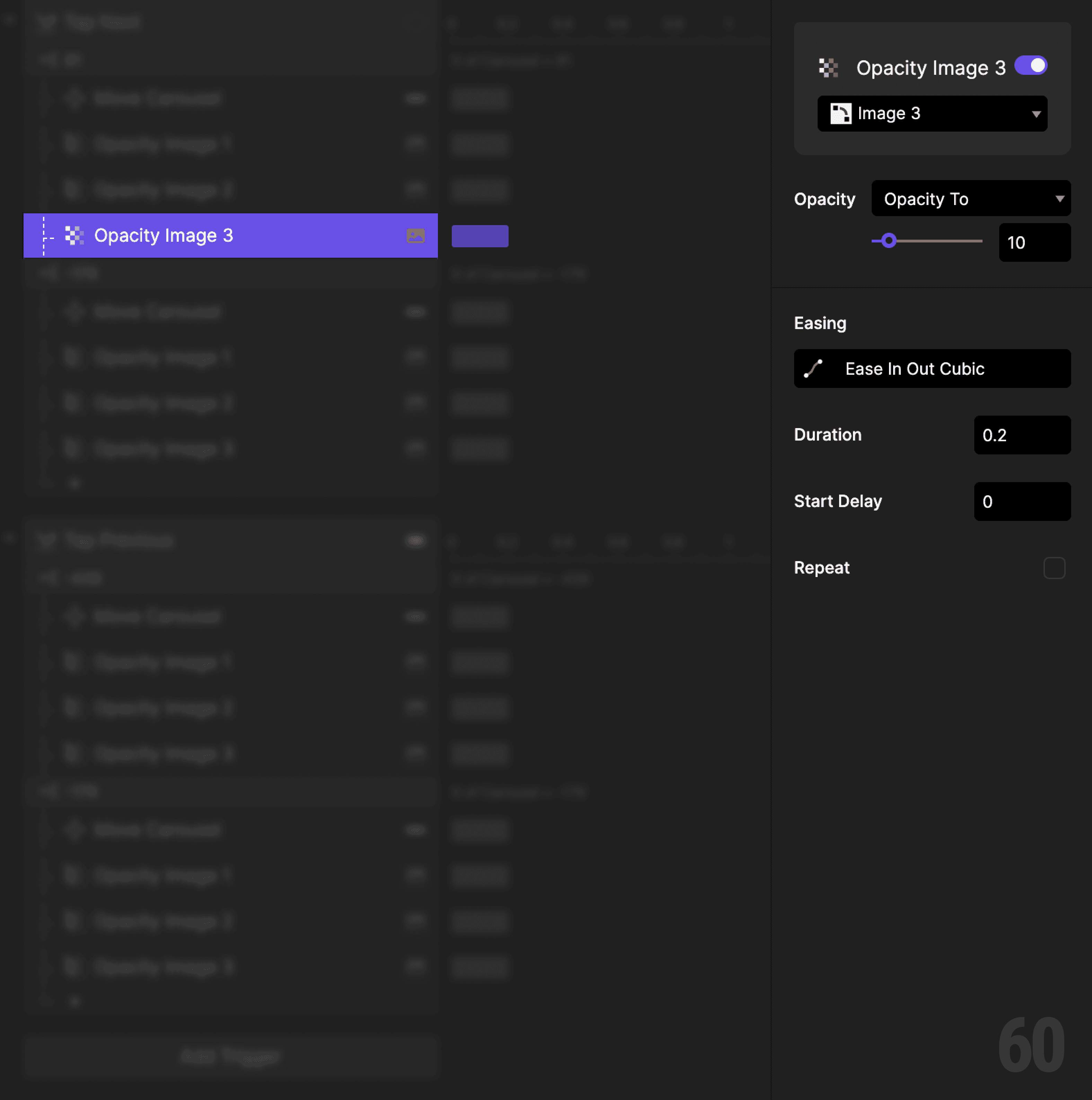
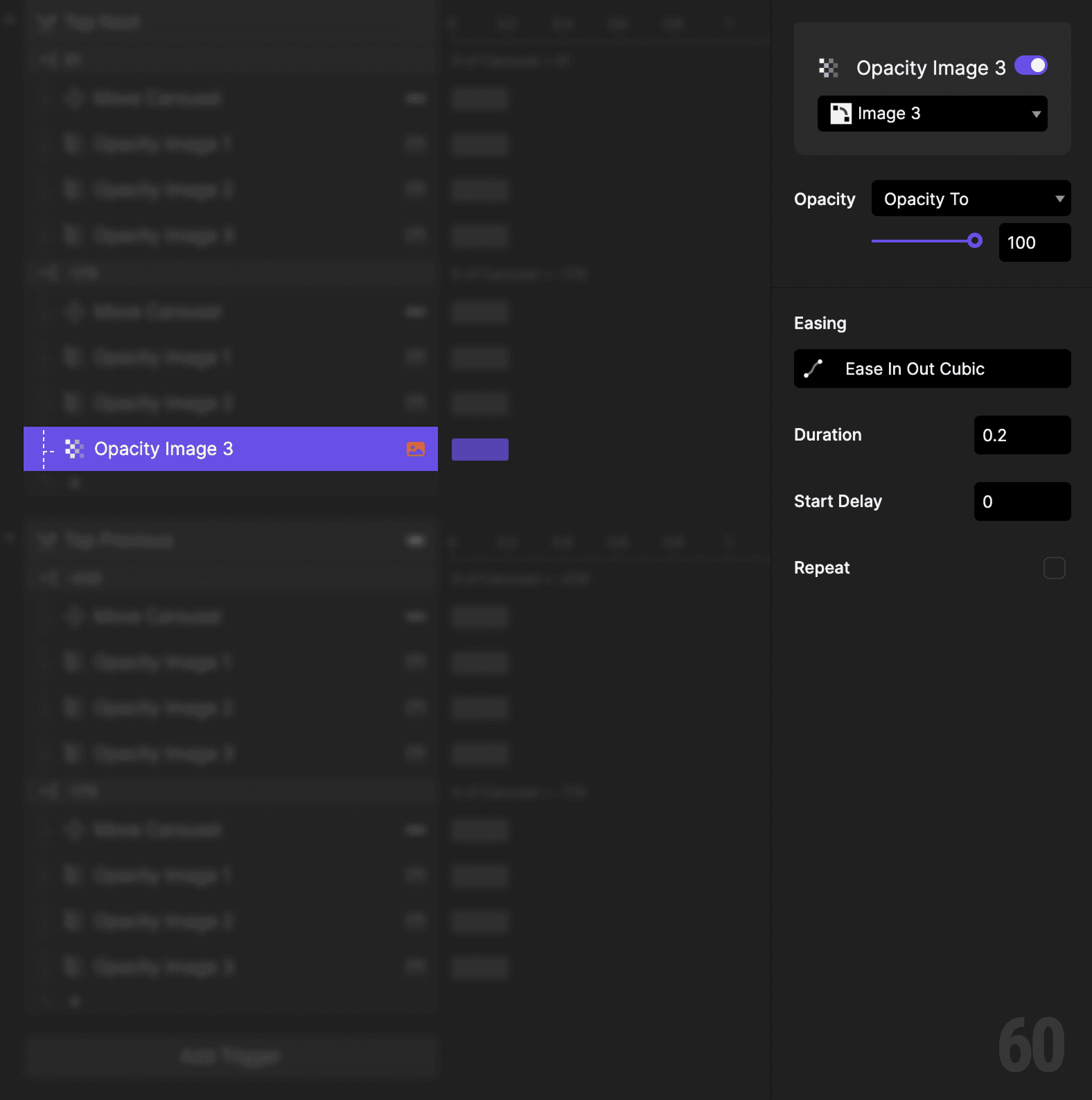
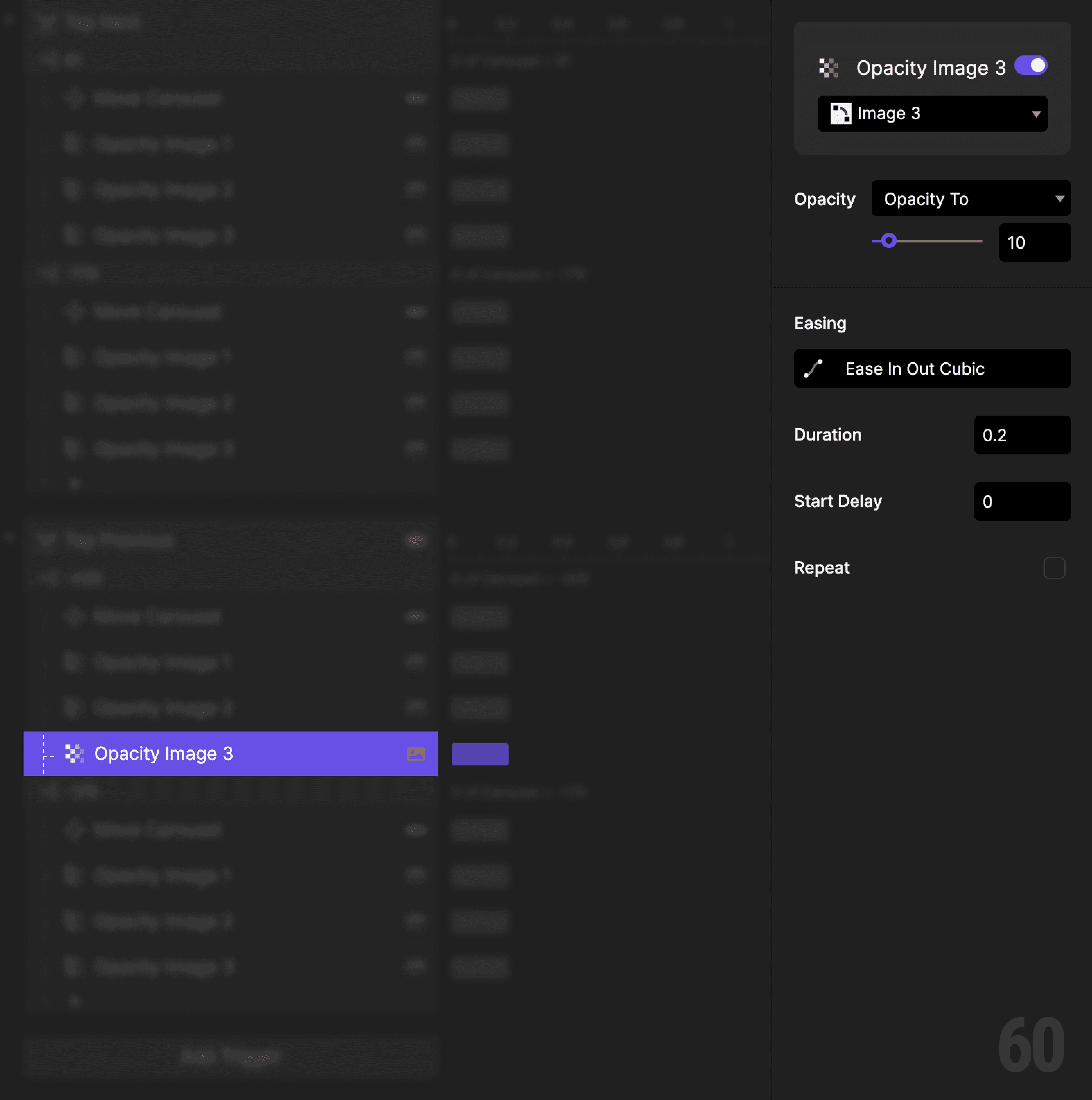
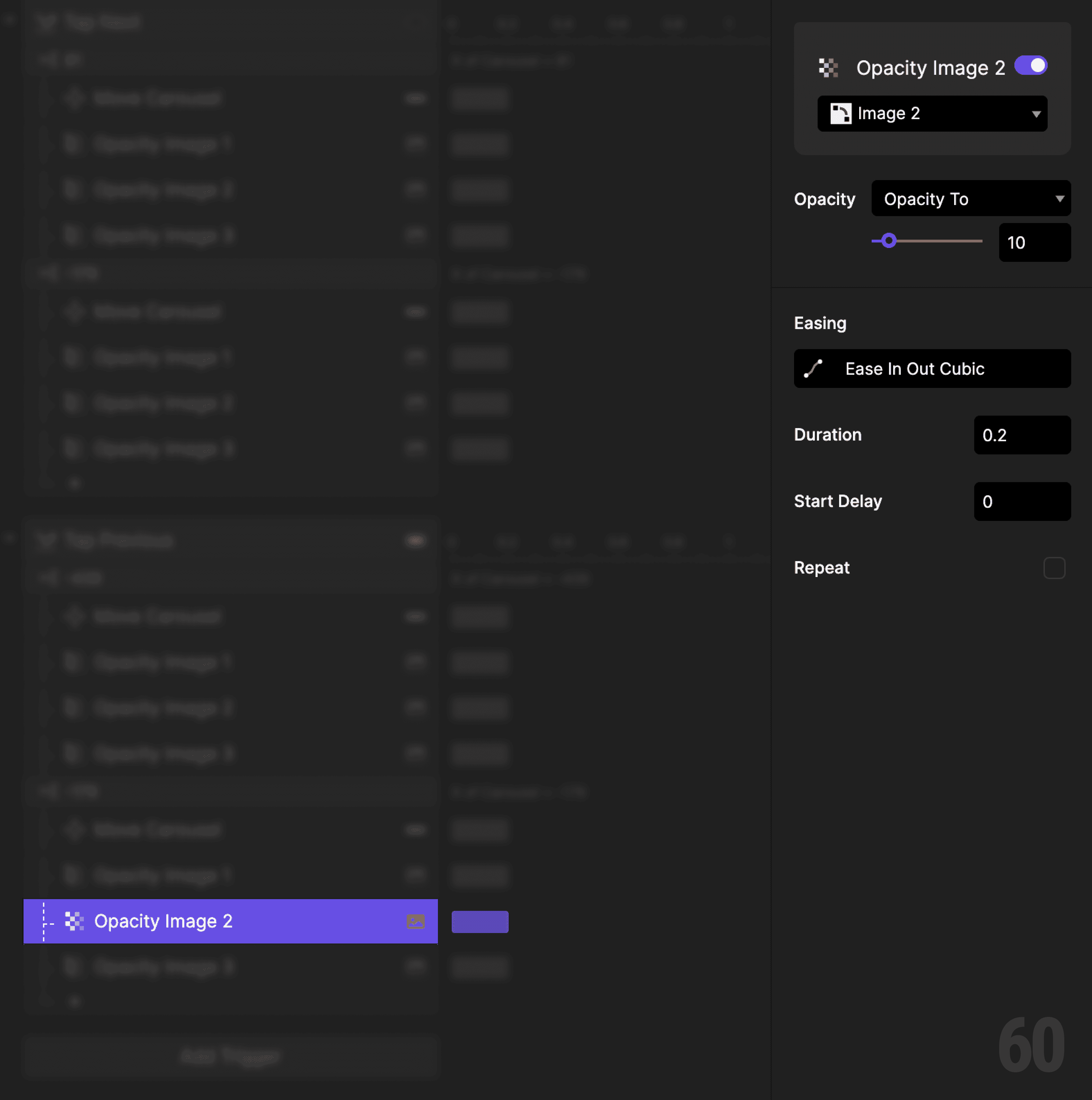
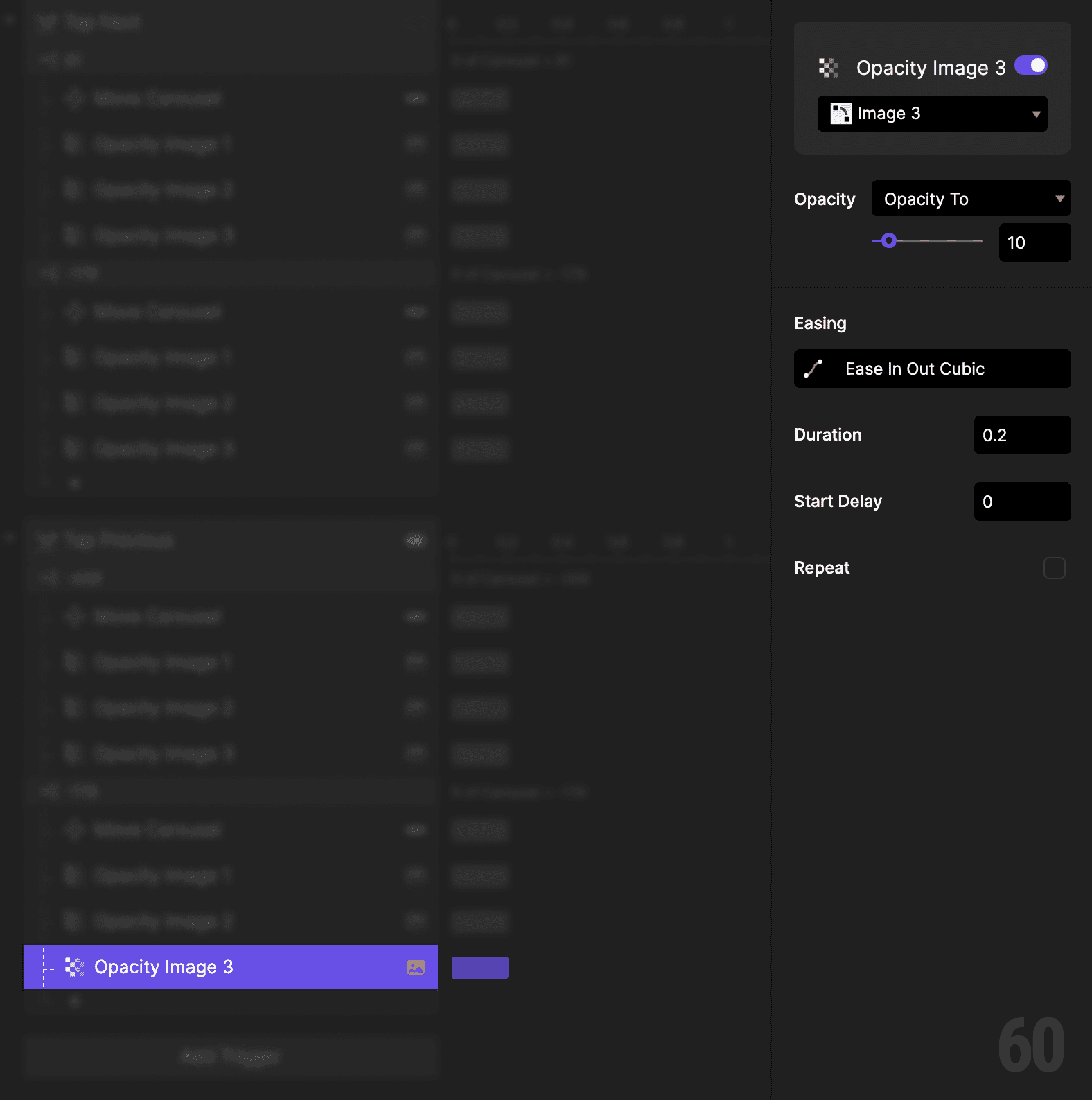
Step 6: Fade out Image 3

Add an Opacity response.

  • Target: Image 3

  • Set opacity to 10%

This is a screenshot of Step 6: Fade out Image 3.

Step 7: Create a condition (Image 2 → Image 3)

Add another Condition to the same tap trigger.

Set it again based on Carousel X.


This reads as:
When Carousel X is -179, then do the following.


This means Image 2 is currently centered.
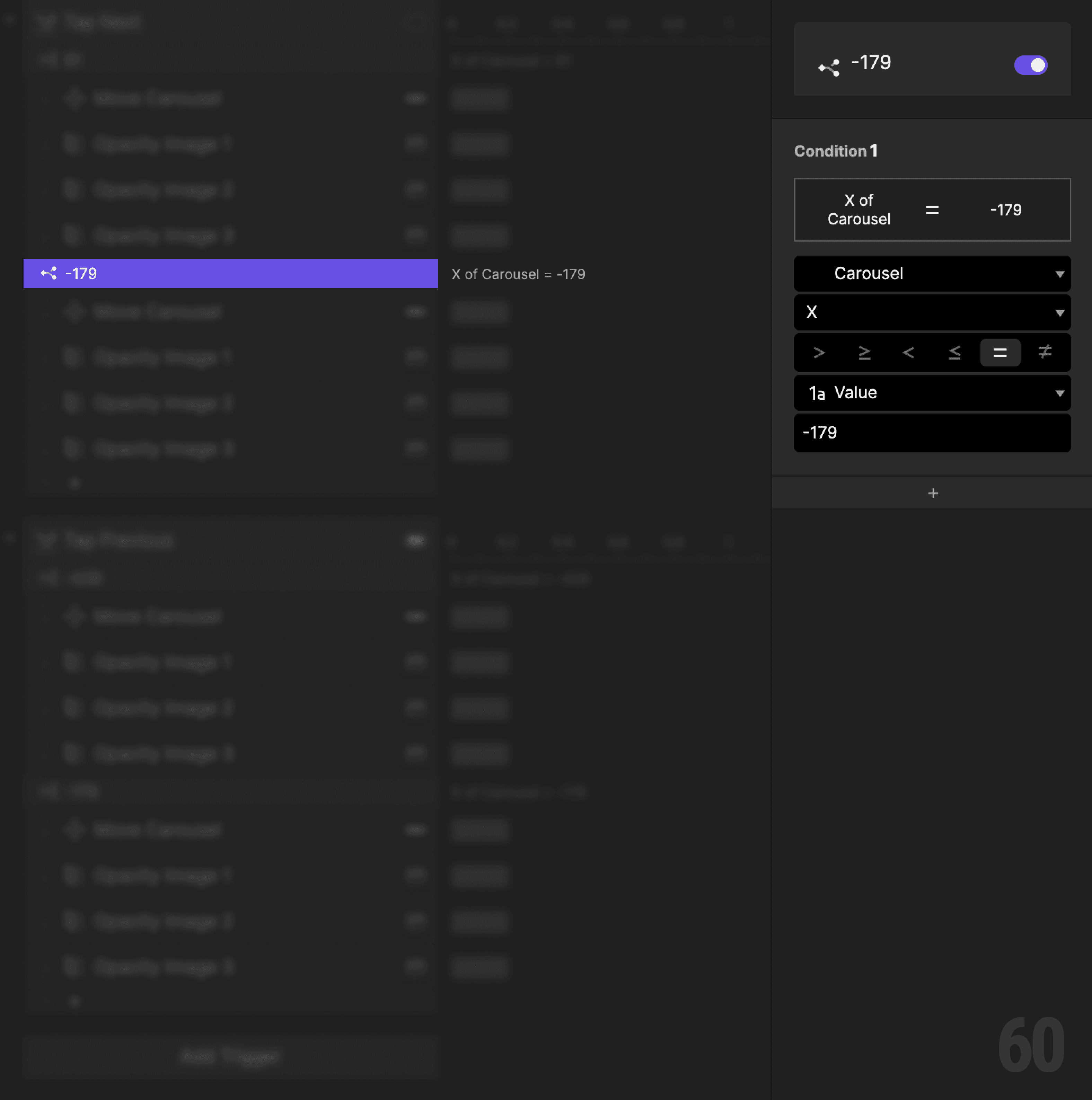
This is a screenshot of Step 7: Create a condition (Image 2 → Image 3).

Step 8: Move the carousel forward again

Add a Move response.

  • Target: Carousel container

  • Set X to -439


This brings Image 3 into focus.
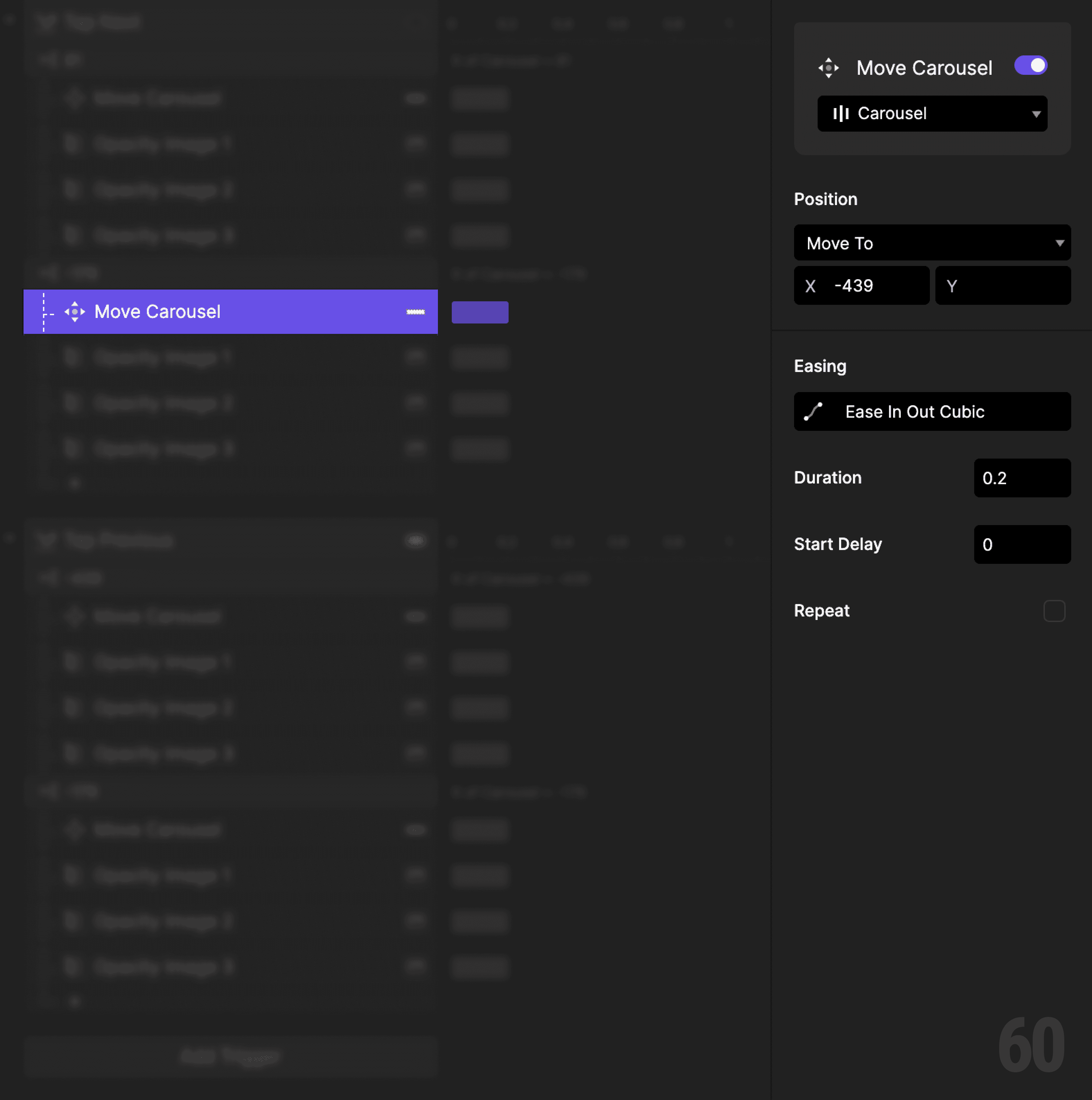
This is a screenshot of Step 8: Move the carousel forward again.

Step 9: Fade out Image 1

Add an Opacity response.

  • Target: Image 1

  • Set opacity to 10%

This is a screenshot of Step 9: Fade out Image 1.

Step 10: Fade out Image 2

Add an Opacity response.

  • Target: Image 2

  • Set opacity to 10%

This is a screenshot of Step 10: Fade out Image 2.

Step 11: Fade in Image 3

Add an Opacity response.

  • Target: Image 3

  • Set opacity to 100%

This is a screenshot of Step 11: Fade in Image 3.

Step 12: Add tap trigger to Previous

Select the Previous button.

Add a Tap trigger.


This will move the carousel backward.
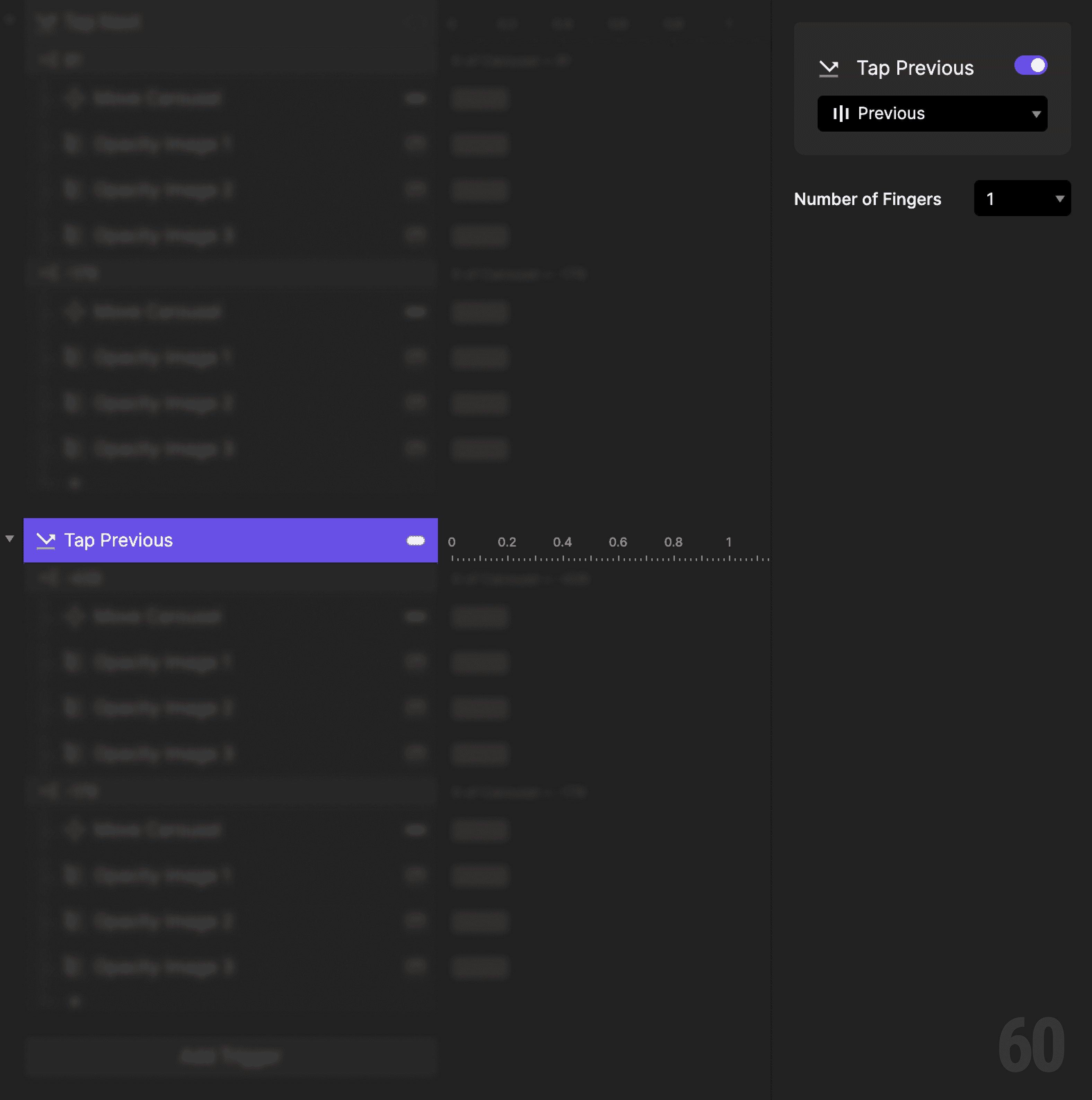
This is a screenshot of Step 12: Add tap trigger to Previous.

Step 13: Create a condition (Image 3 → Image 2)

Add a Condition based on Carousel X.


This reads as:
When Carousel X is -439, then do the following.
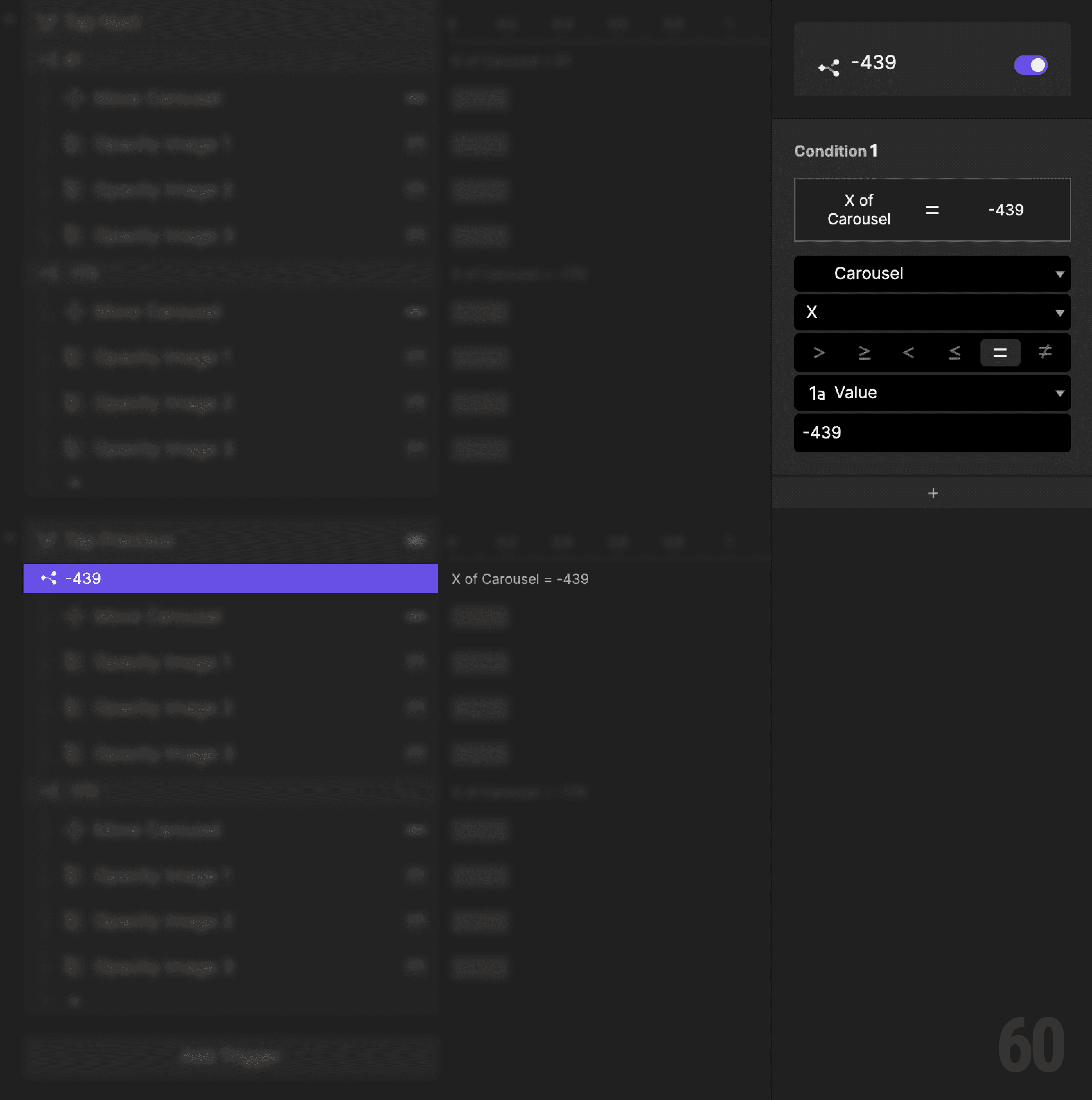
This is a screenshot of Step 13: Create a condition (Image 3 → Image 2).

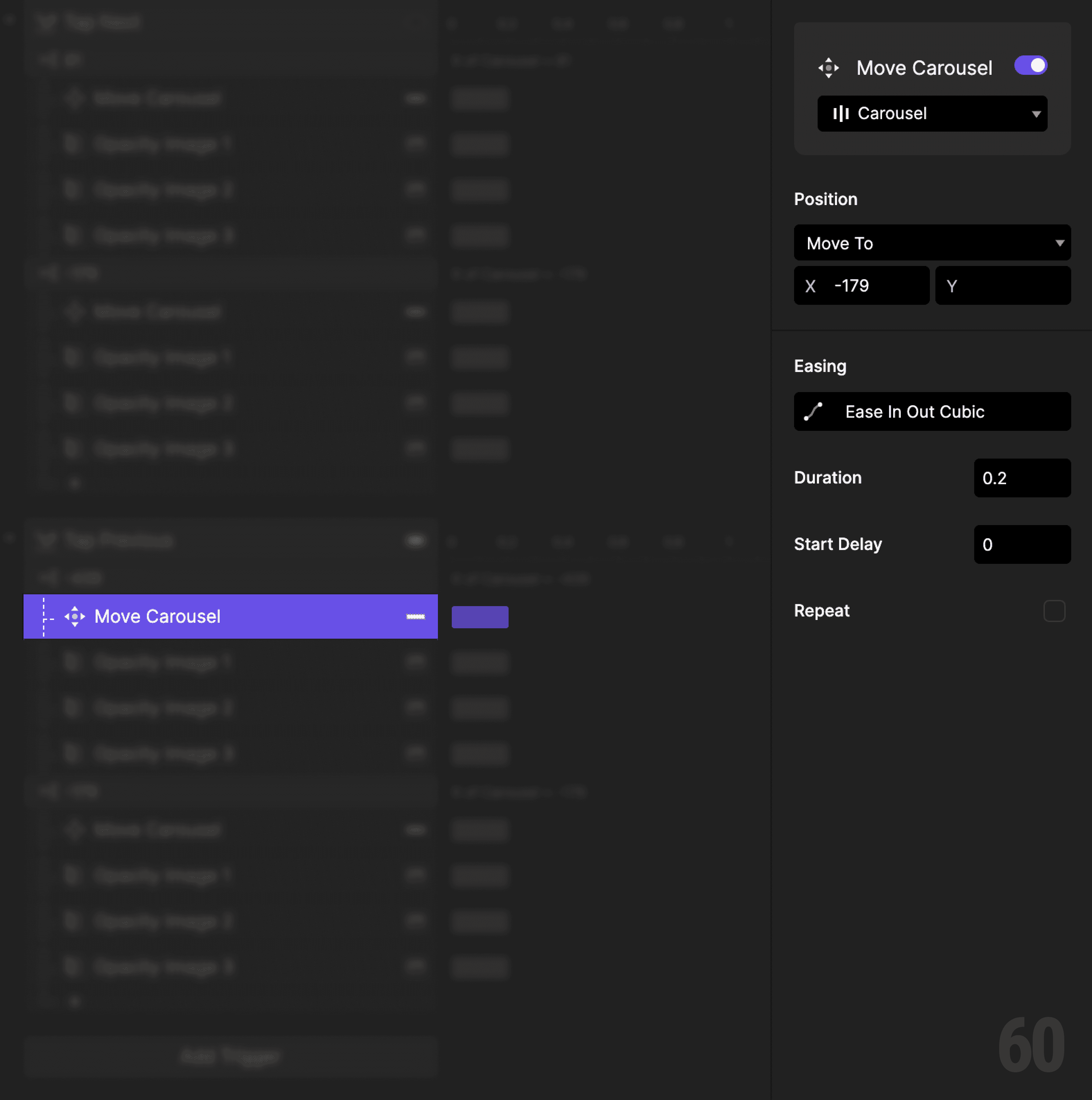
Step 14: Move the carousel backward

Add a Move response.

  • Target: Carousel container

  • Set X to -179

This is a screenshot of Step 14: Move the carousel backward.

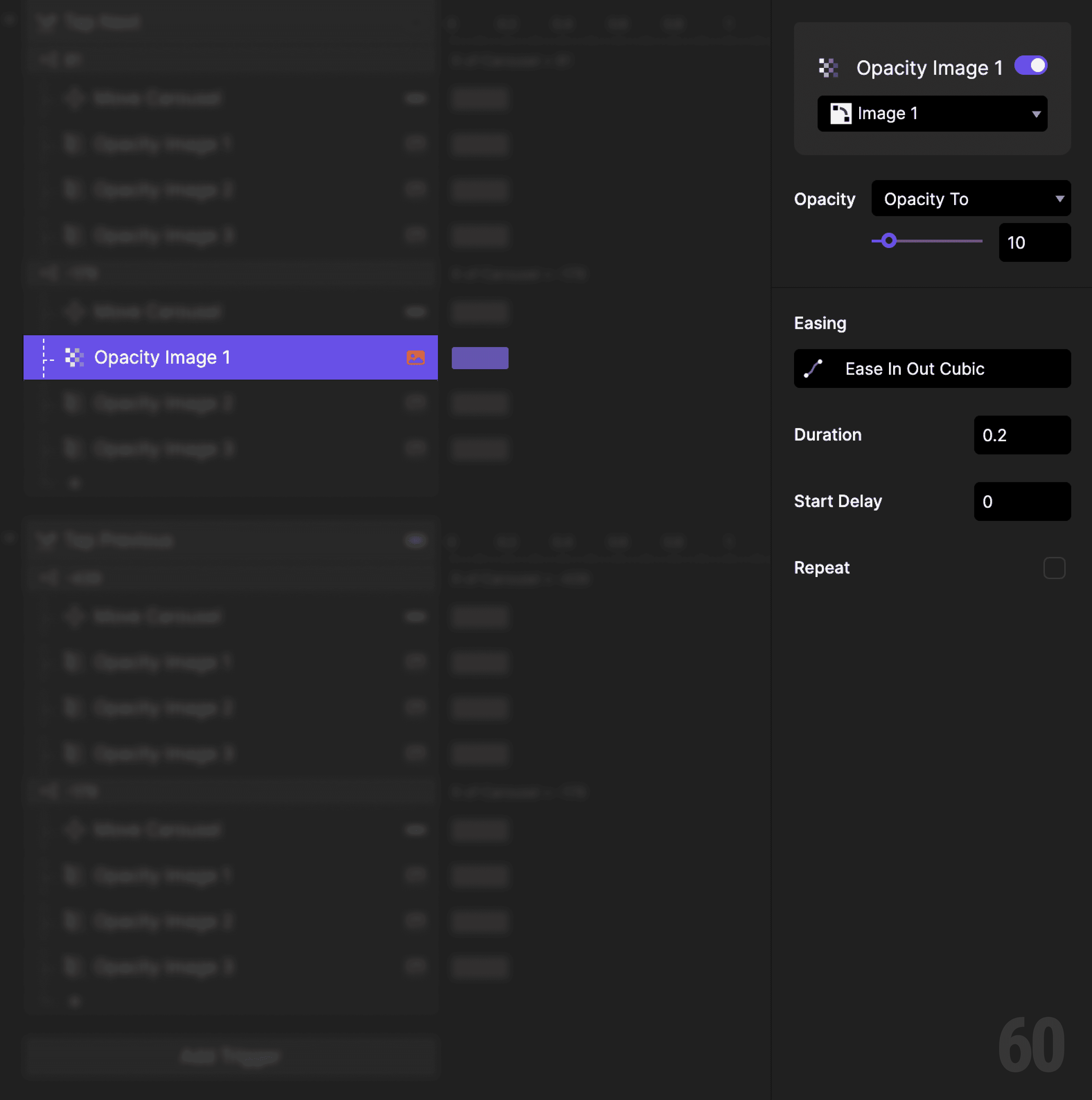
Step 15: Fade out Image 1

Add an Opacity response.

  • Target: Image 1

  • Set opacity to 10%

This is a screenshot of Step 15: Fade out Image 1.

Step 16: Fade in Image 2

Add an Opacity response.

  • Target: Image 2

  • Set opacity to 100%

This is a screenshot of Step 16: Fade in Image 2.

Step 17: Fade out Image 3

Add an Opacity response.

  • Target: Image 3

  • Set opacity to 10%

This is a screenshot of Step 17: Fade out Image 3.

Step 18: Create a condition (Image 2 → Image 1)

Add another Condition to the Previous tap trigger.


This reads as:
When Carousel X is -179, then do the following.
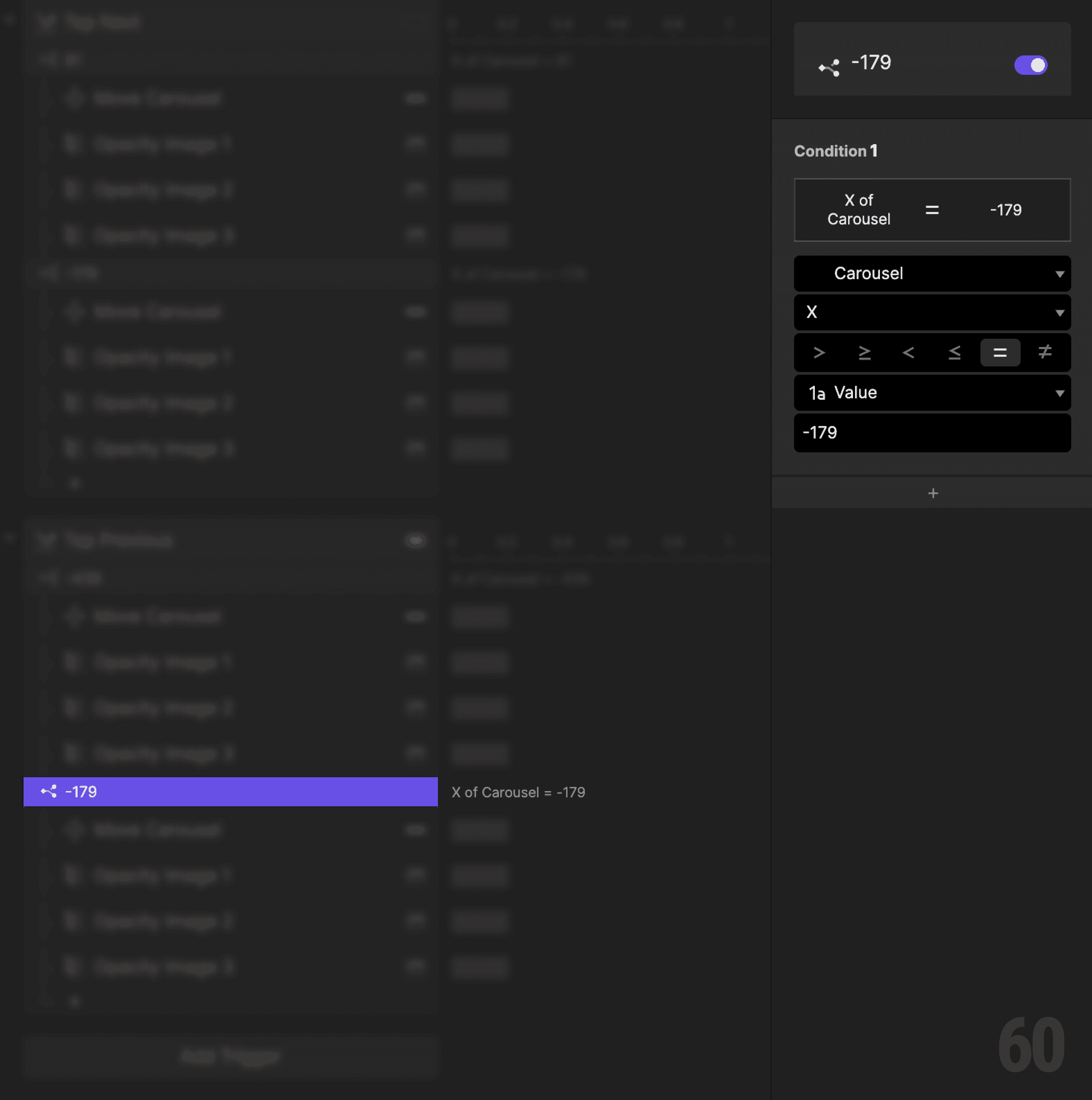
This is a screenshot of Step 18: Create a condition (Image 2 → Image 1).

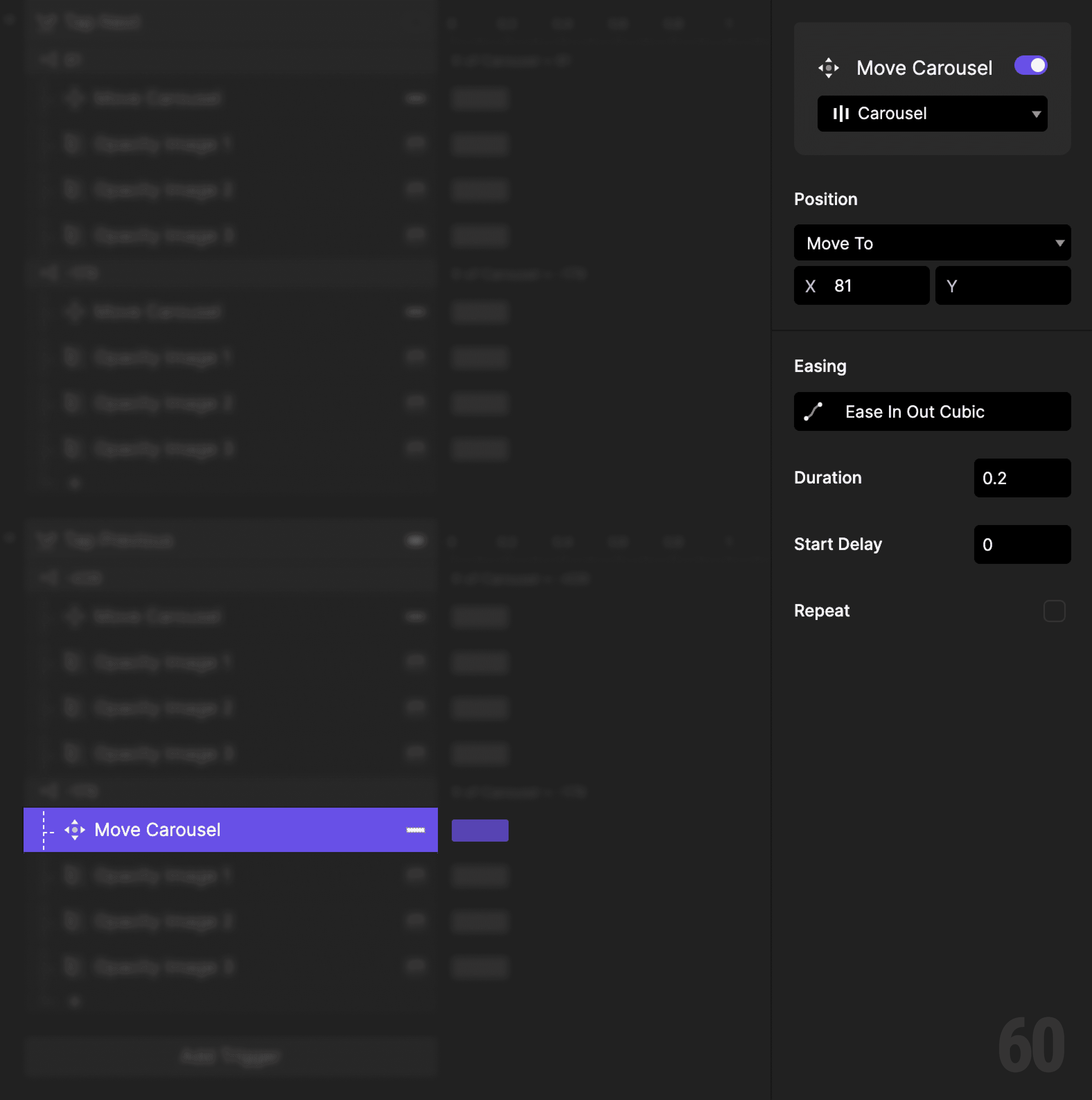
Step 19: Move the carousel back again

Add a Move response.

  • Target: Carousel container

  • Set X to 81

This is a screenshot of Step 19: Move the carousel back again.

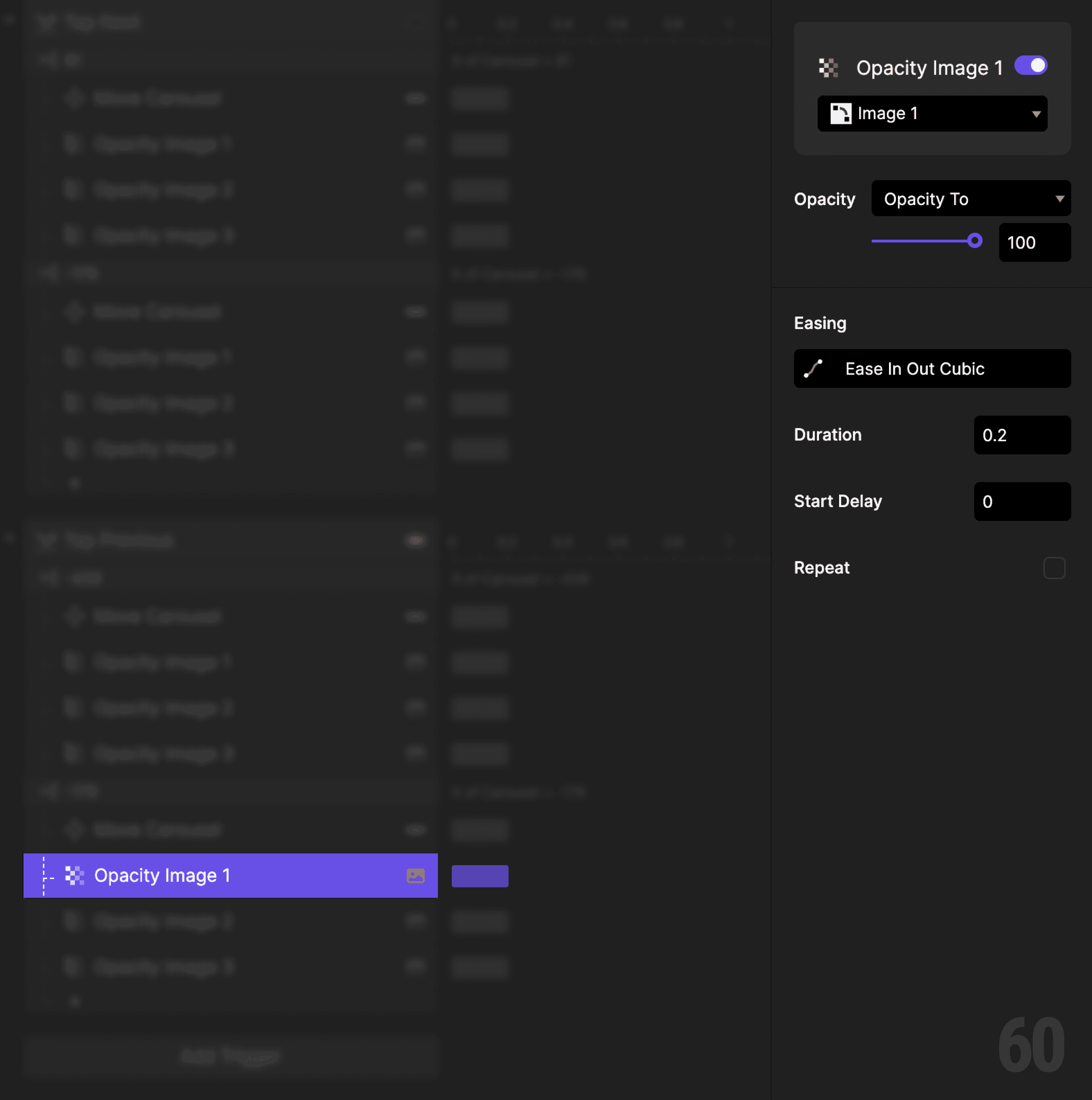
Step 20: Fade in Image 1

Add an Opacity response.

  • Target: Image 1

  • Set opacity to 100%

This is a screenshot of Step 20: Fade in Image 1.

Step 21: Fade out Image 2

Add an Opacity response.

  • Target: Image 2

  • Set opacity to 10%

This is a screenshot of Step 21: Fade out Image 2.

Step 22: Fade out Image 3

Add an Opacity response.

  • Target: Image 3

  • Set opacity to 10%

This is a screenshot of Step 22: Fade out Image 3.

Step 23: Preview and test

Tap Next and Previous repeatedly.

Check for:

  • One image fully visible at a time

  • Predictable movement

  • No skipped states


If each tap moves exactly one step, the carousel is correct.

Try this next

  • Animate opacity with easing

  • Disable buttons at the ends

  • Replace position logic with a variable
Up next

Step indicator update. Visualizing position in a sequence.

This is a background image of 1.7 Step Indicator Update.

Step Indicator Update

1.7