1.5 Accordion Expand and Collapse

Level 1

16 Steps

What you are building

An accordion list where items expand and collapse when tapped.


Tap to reveal more content.
Tap again to hide it.


This pattern is commonly used for FAQs, settings, and dense lists in iOS.

How to think about it

Accordion interactions are about progressive disclosure.


Show only what is needed.
Reveal more only when the user asks for it.


The motion should feel like space is being created, not content appearing abruptly.

You can think of the state as living in the rotation of the arrow icon.

Recreate this in ProtoPie

Start by creating a vertical stack list with two containers.

Each container includes:

  • Item icon on the left

  • Title text

  • Body text

  • Arrow icon on the right


Set the opacity of the Body layer to 0% by default.
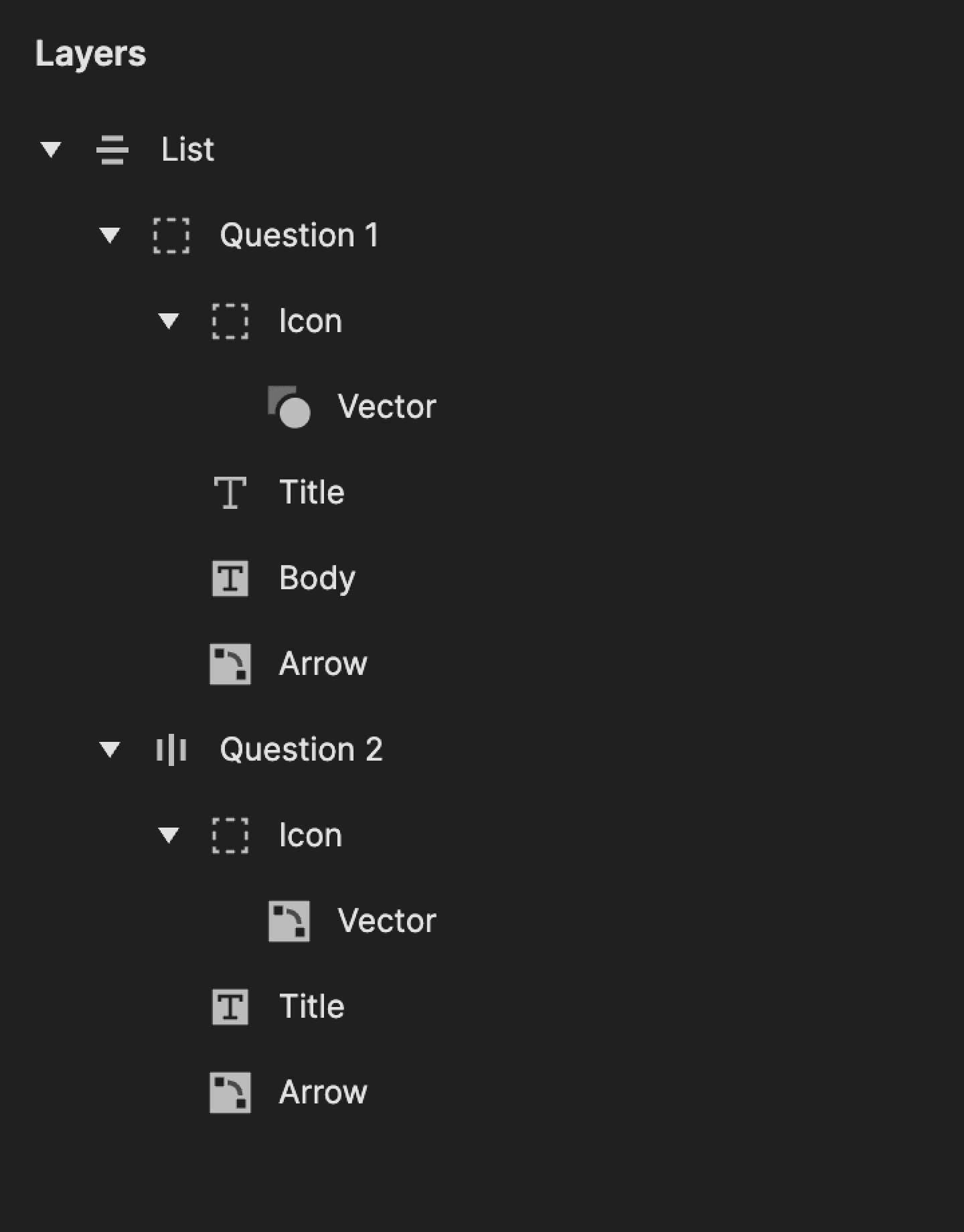
This is a screenshot of layers in ProtoPie.

Step 1: Add tap trigger

Select the Question 1 container.

Add a Tap trigger.


This controls expand and collapse.
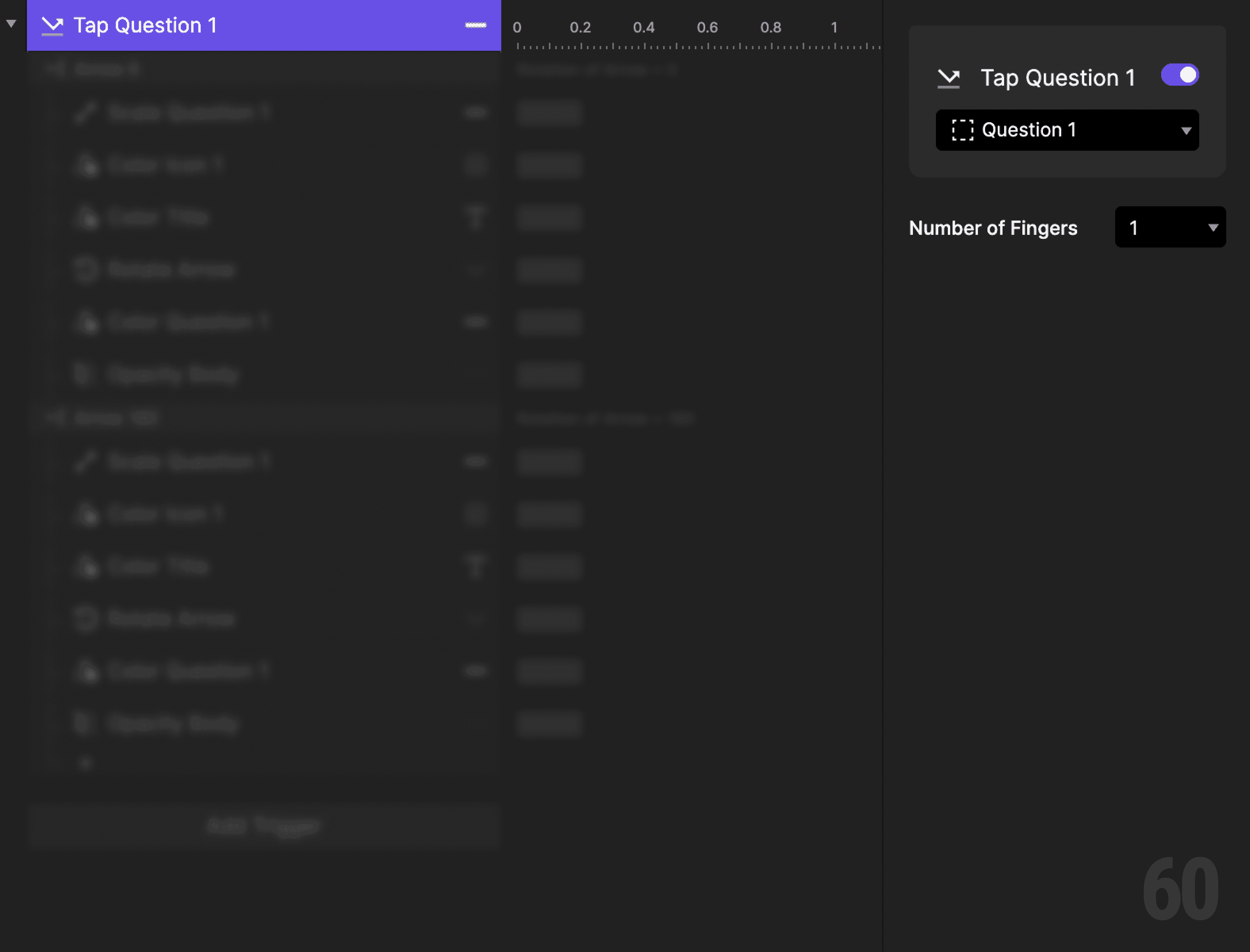
This is a screenshot of Step 1: Add tap trigger.

Step 2: Create a condition (expand)

Add a Condition to the tap trigger.

Set it based on the rotation of the Arrow icon.


This reads as:
When Arrow rotation is 0 degrees, then do the following.


This means the item is collapsed.
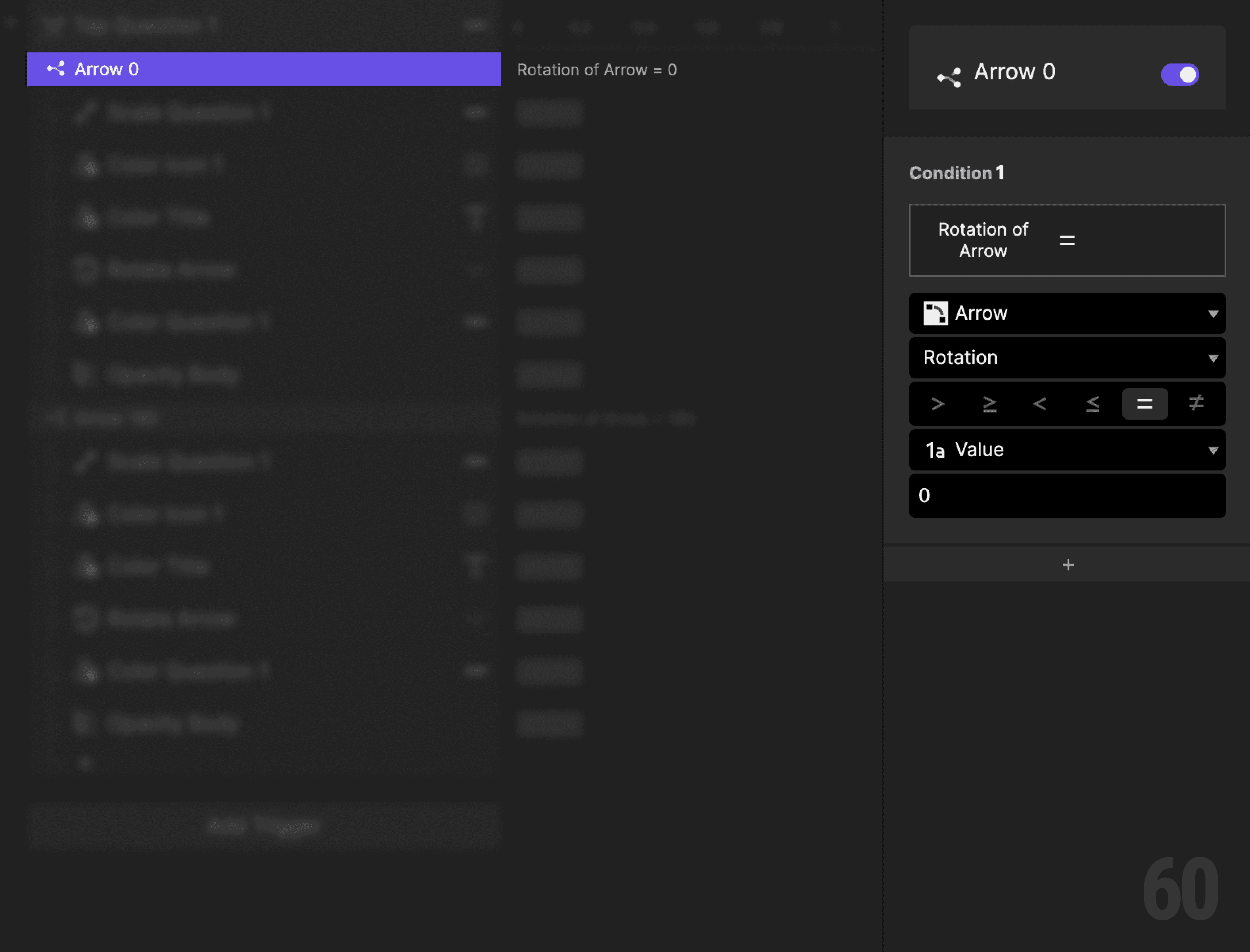
This is a screenshot of Step 2: Create a condition (expand).

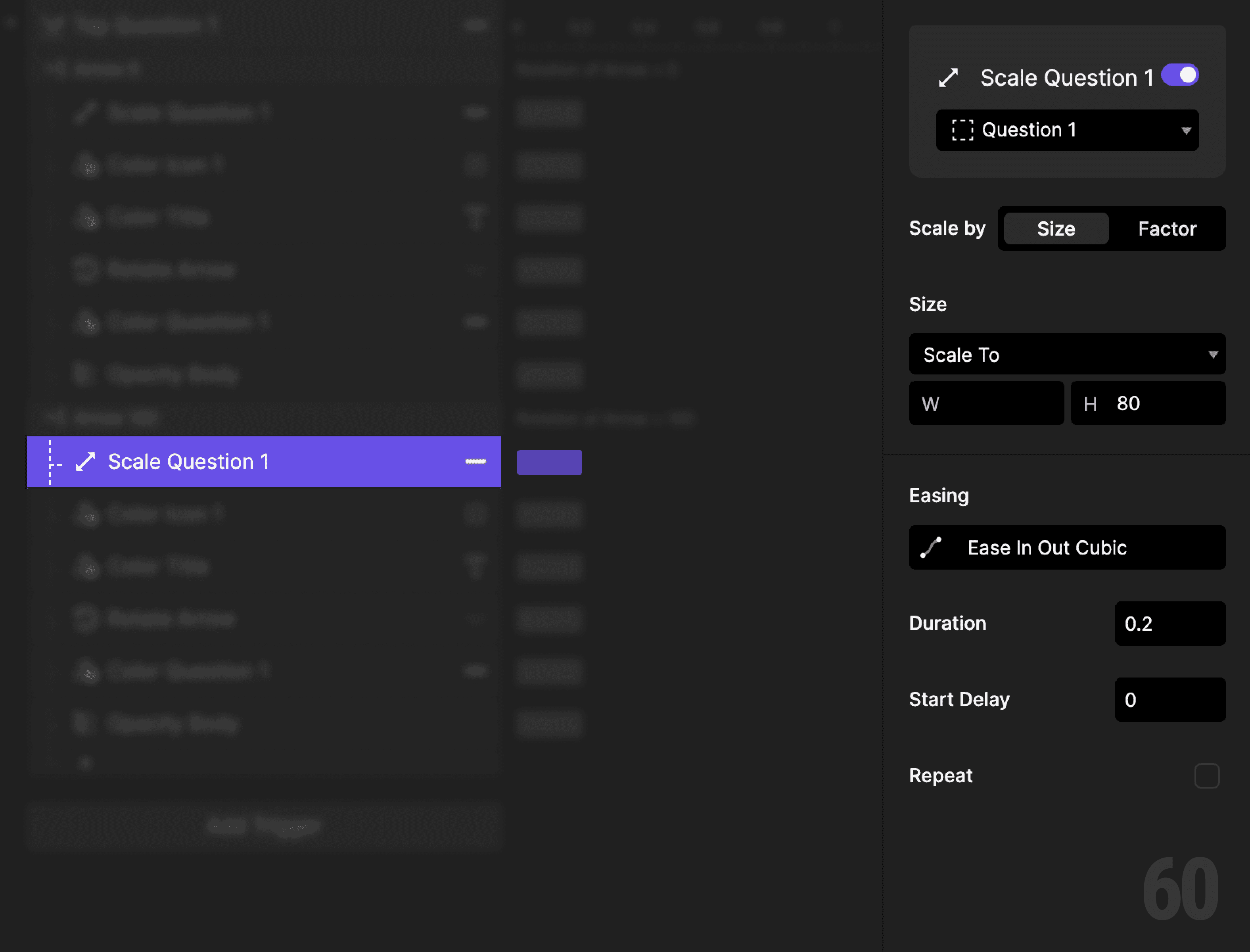
Step 3: Expand the container

Add a Scale response.

  • Target: Question 1

  • Scale height to 140


This creates space for the body content.
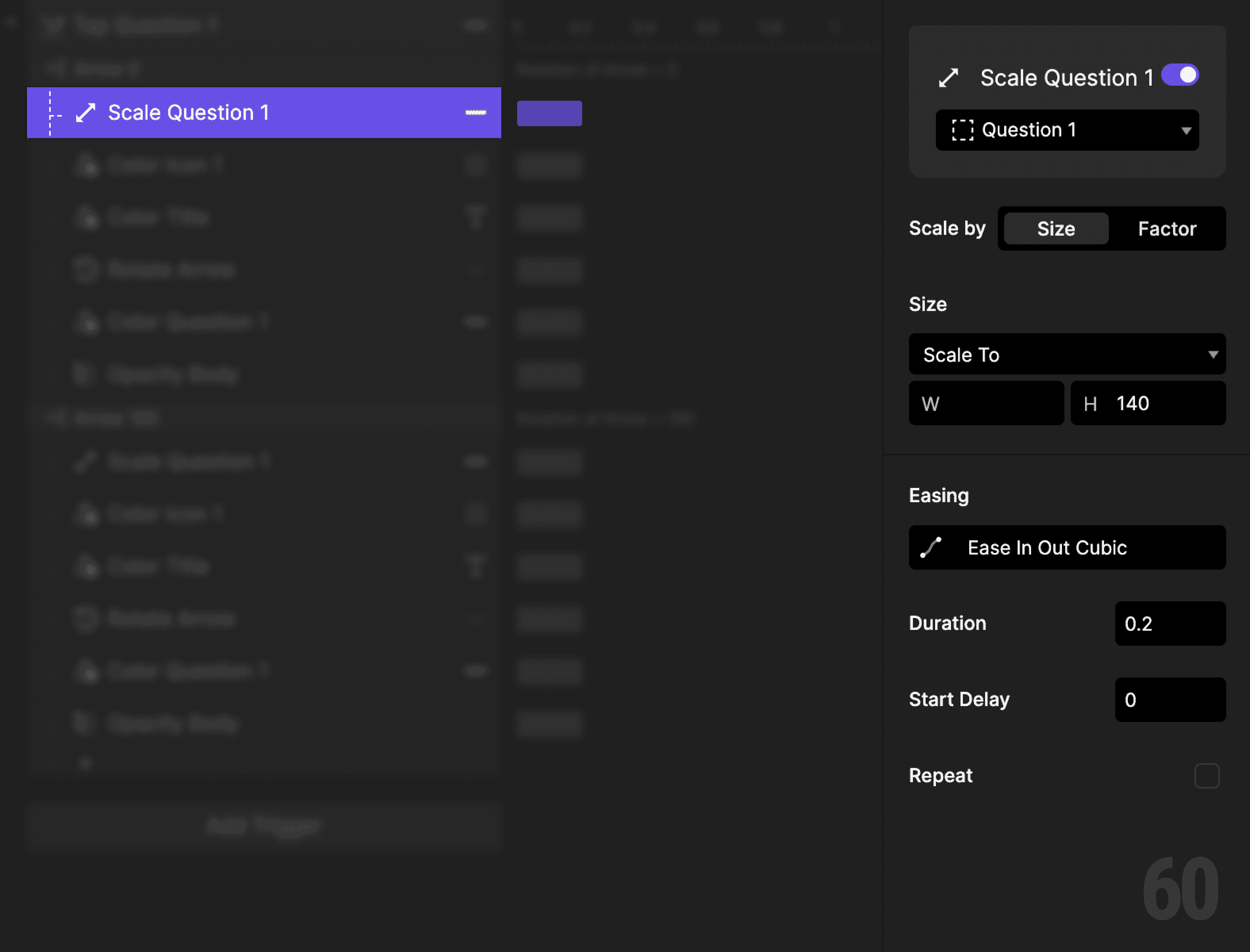
This is a screenshot of Step 3: Expand the container.

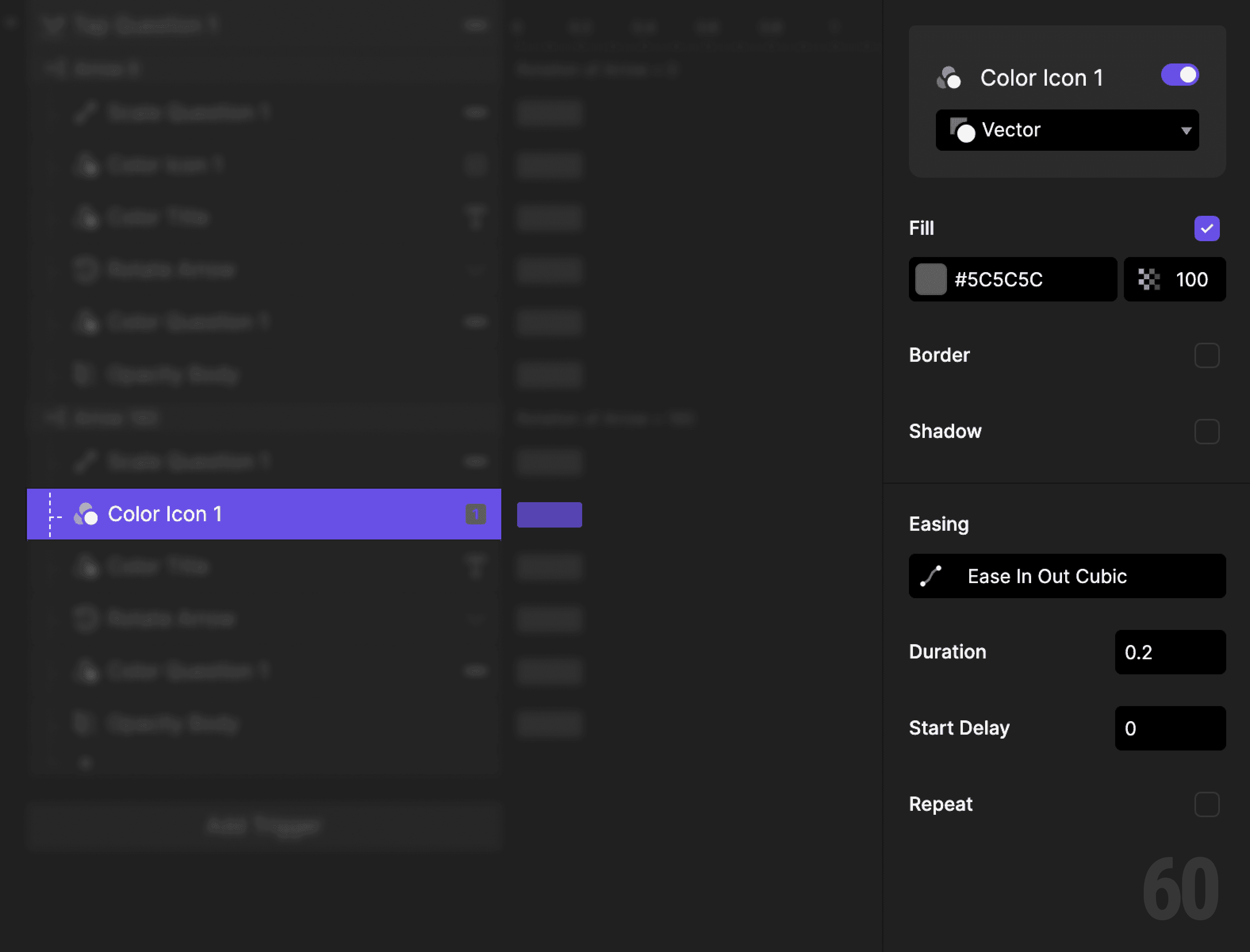
Step 4: Highlight the item icon

Add a Color response.

  • Target: Item icon vector

  • Set fill to an active color


This signals the expanded state.
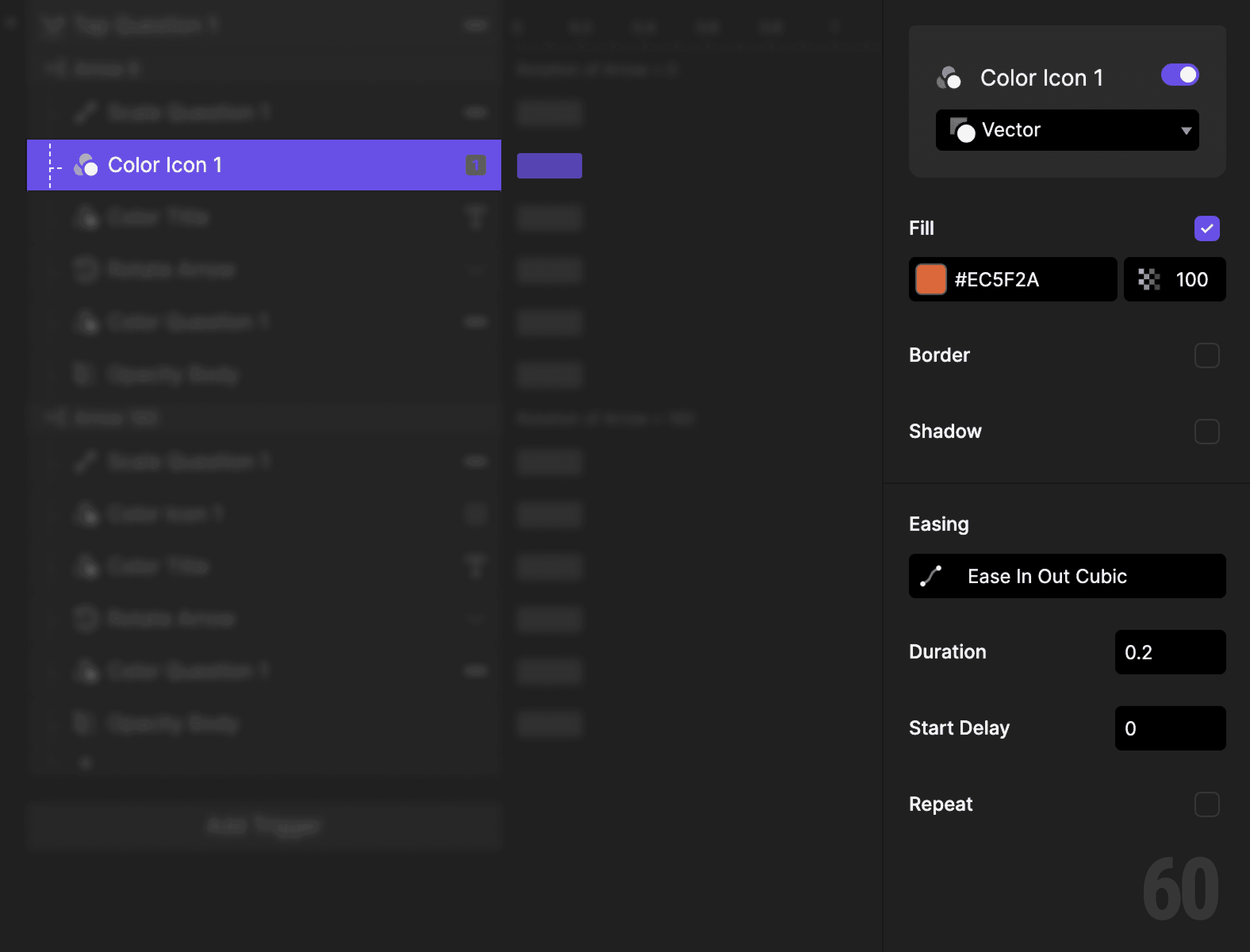
This is a screenshot of Step 4: Highlight the item icon.

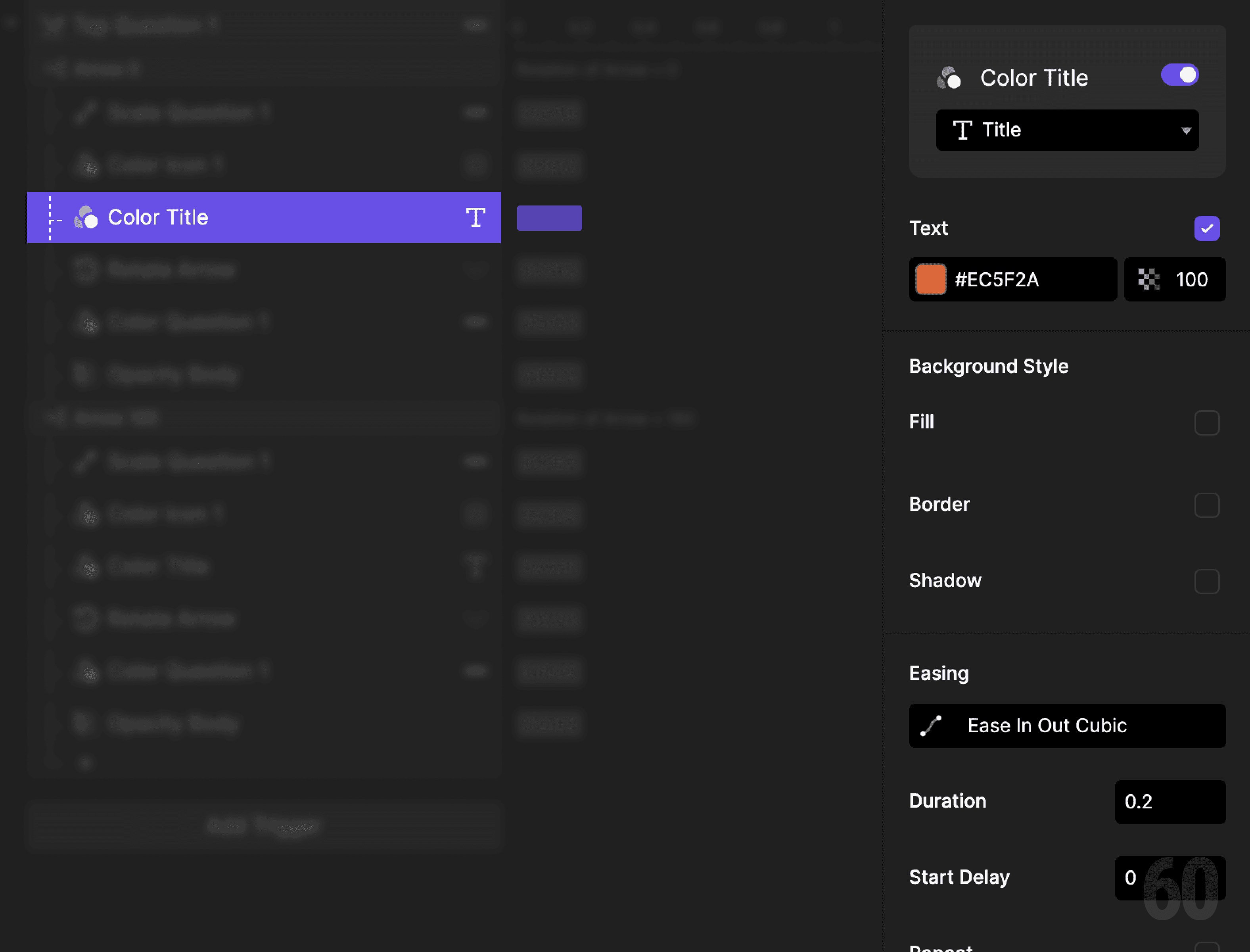
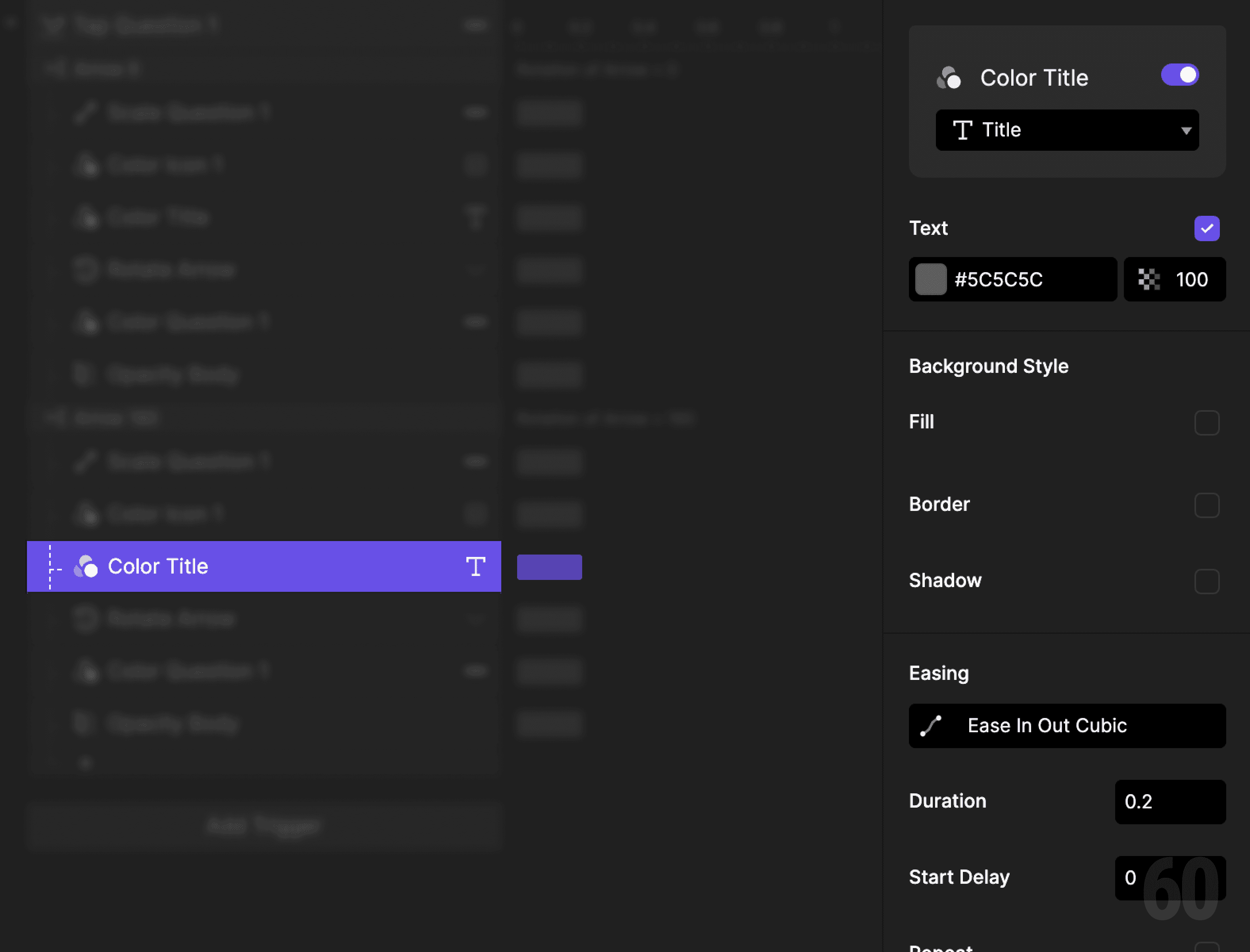
Step 5: Highlight the title

Add a Color response.

  • Target: Title

  • Set fill to an active color

This is a screenshot of Step 5: Highlight the title.

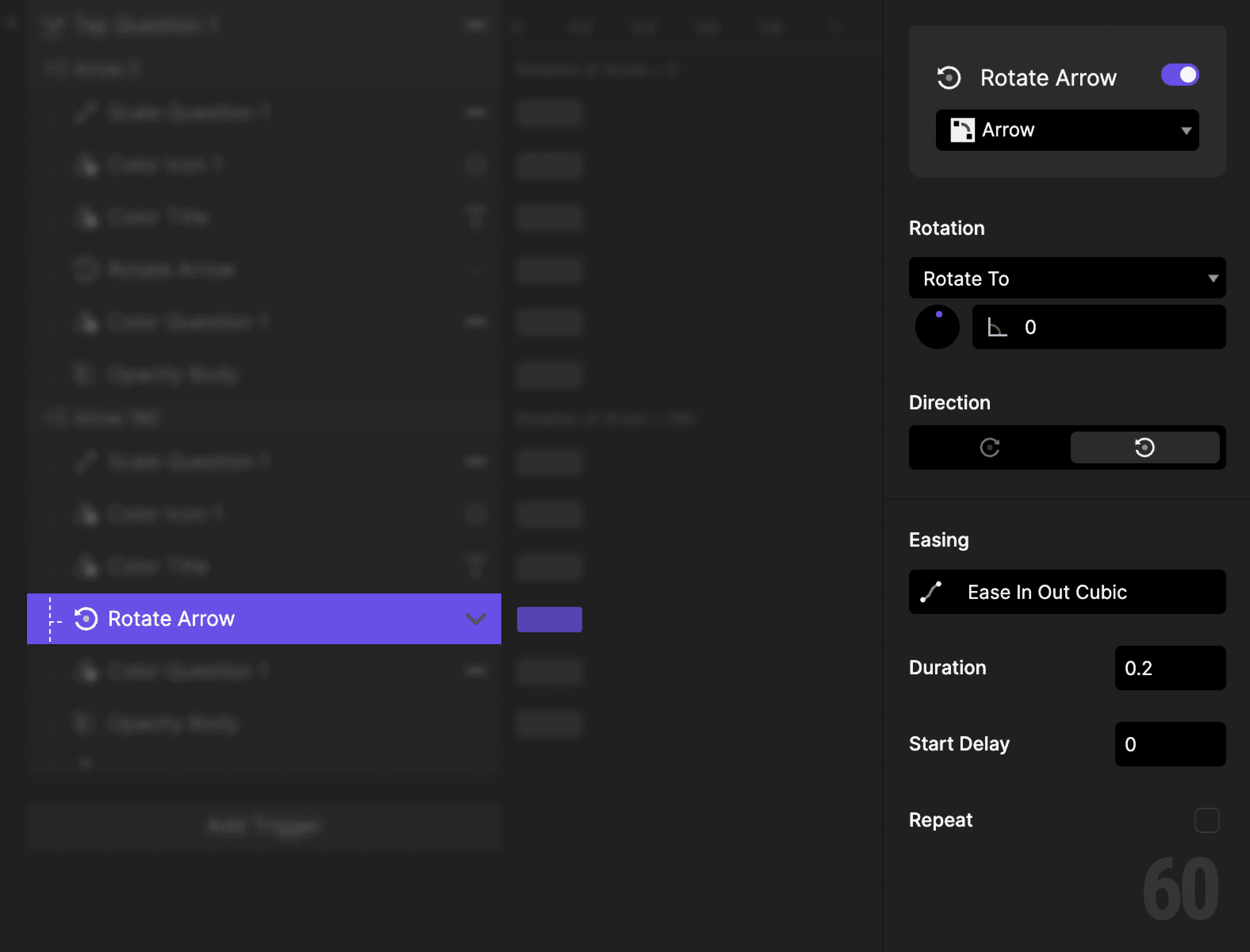
Step 6: Rotate the arrow

Add a Rotate response.

  • Target: Arrow icon

  • Set rotation to 180 degrees


This visually indicates expansion.
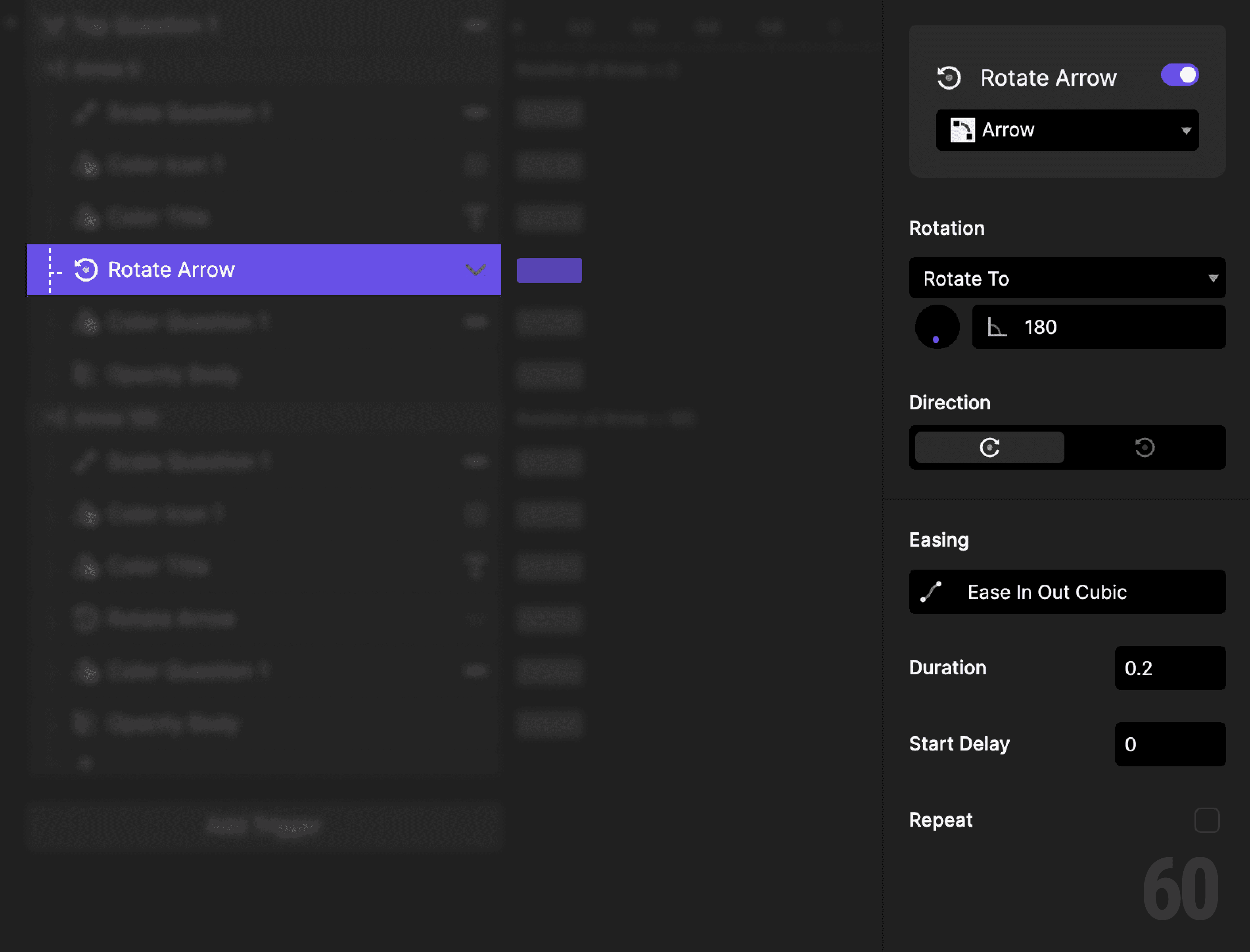
This is a screenshot of Step 6: Rotate the arrow.

Step 7: Change container background

Add a Color response.

  • Target: Question 1 container

  • Set fill to white


This separates the expanded item from the list.
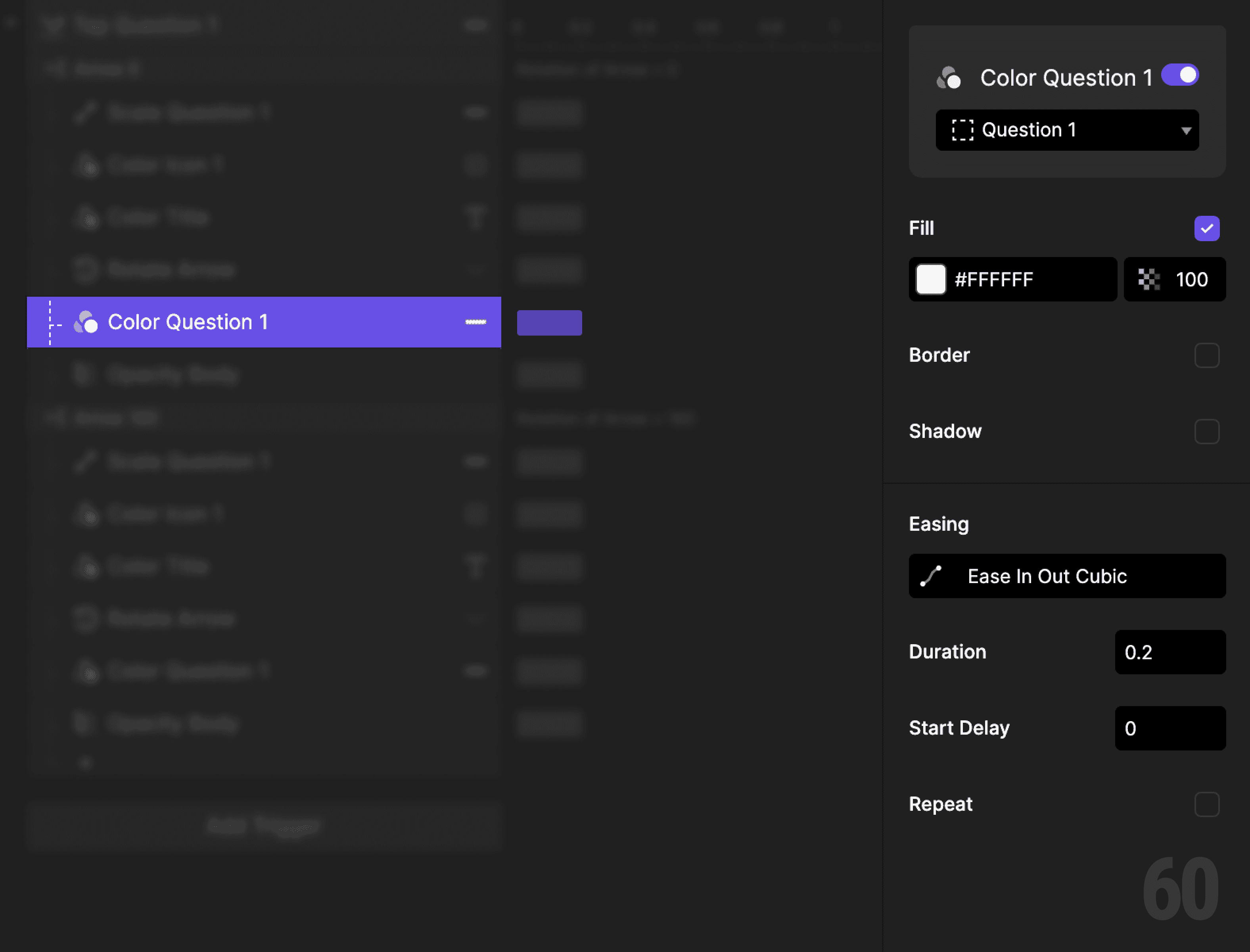
This is a screenshot of Step 7: Change container background.

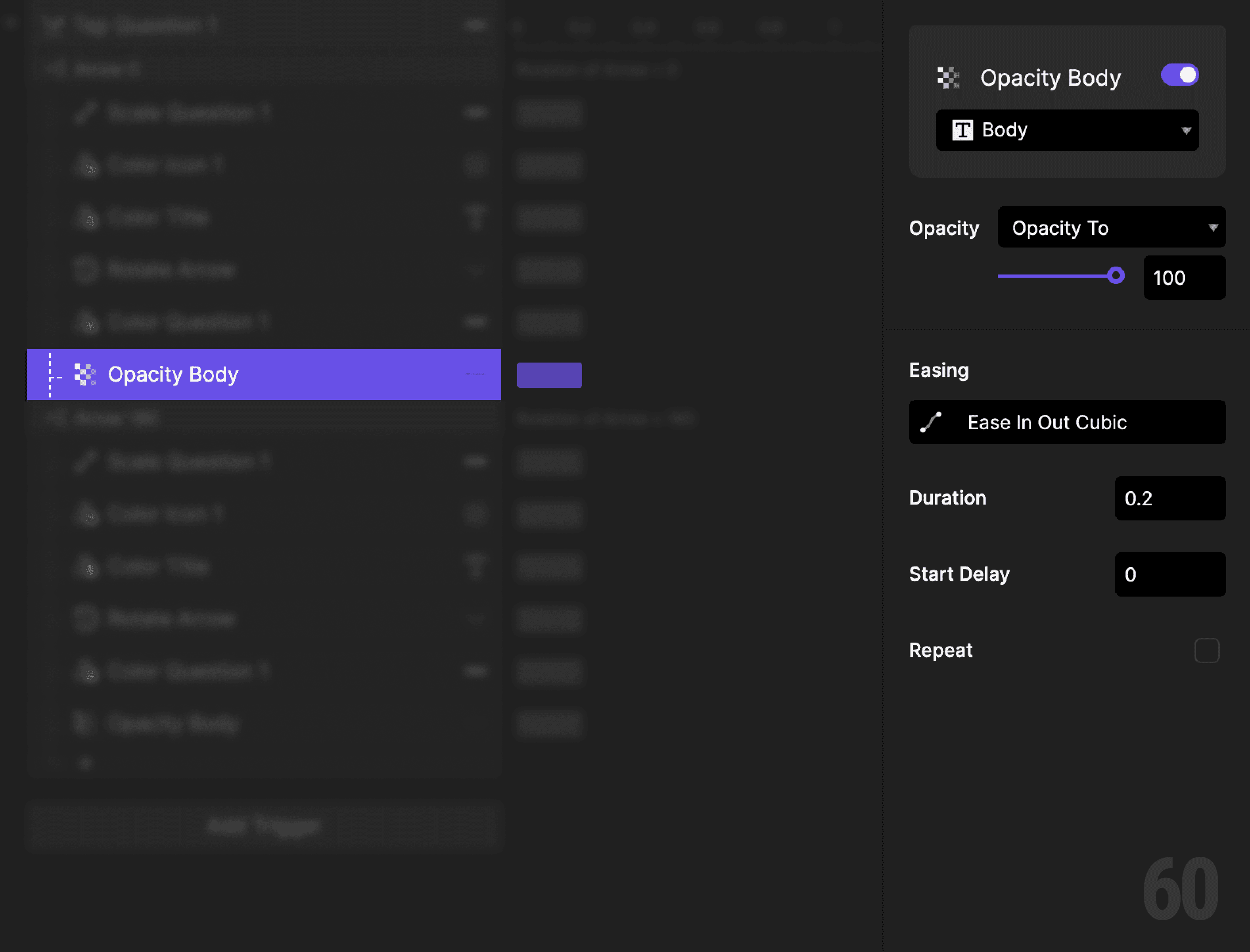
Step 8: Reveal the body text

Add an Opacity response.

  • Target: Body

  • Set opacity to 100%

This is a screenshot of Step 8: Reveal the body text.

Step 9: Create a condition (collapse)

Add another Condition to the same tap trigger.

Set it again based on Arrow rotation.


This reads as:
When Arrow rotation is 180 degrees, then do the following.


This means the item is expanded.
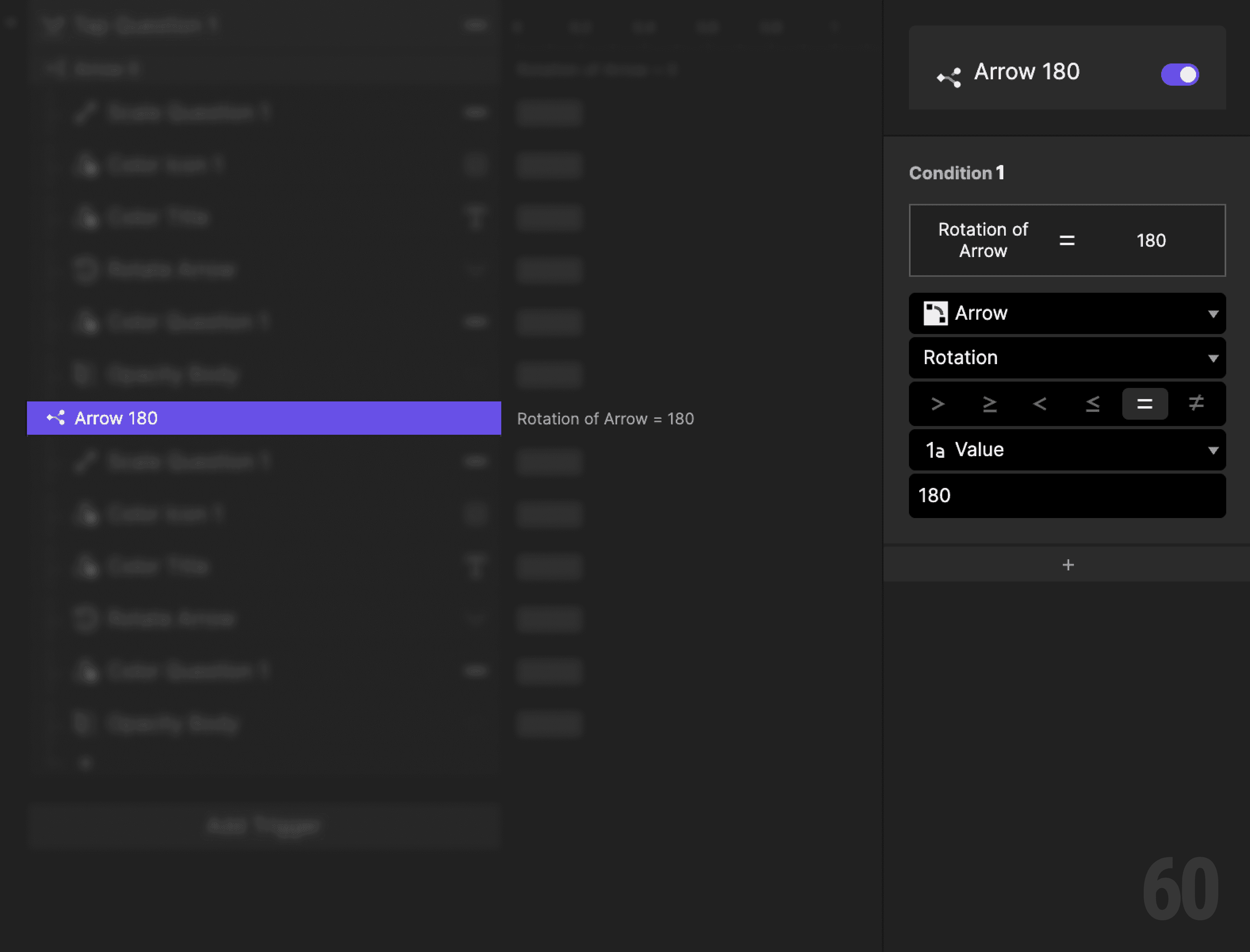
This is a screenshot of Step 9: Create a condition (collapse).

Step 10: Collapse the container

Add a Scale response.

  • Target: Question 1

  • Scale height back to 80

This is a screenshot of Step 10: Collapse the container.

Step 11: Reset item icon color

Add a Color response.

  • Target: Item icon vector

  • Set fill back to default

This is a screenshot of Step 11: Reset item icon color.

Step 12: Reset title color

Add a Color response.

  • Target: Title

  • Set fill back to default

This is a screenshot of Step 12: Reset title color.

Step 13: Reset arrow rotation

Add a Rotate response.

  • Target: Arrow icon

  • Set rotation back to 0 degrees

This is a screenshot of Step 13: Reset arrow rotation.

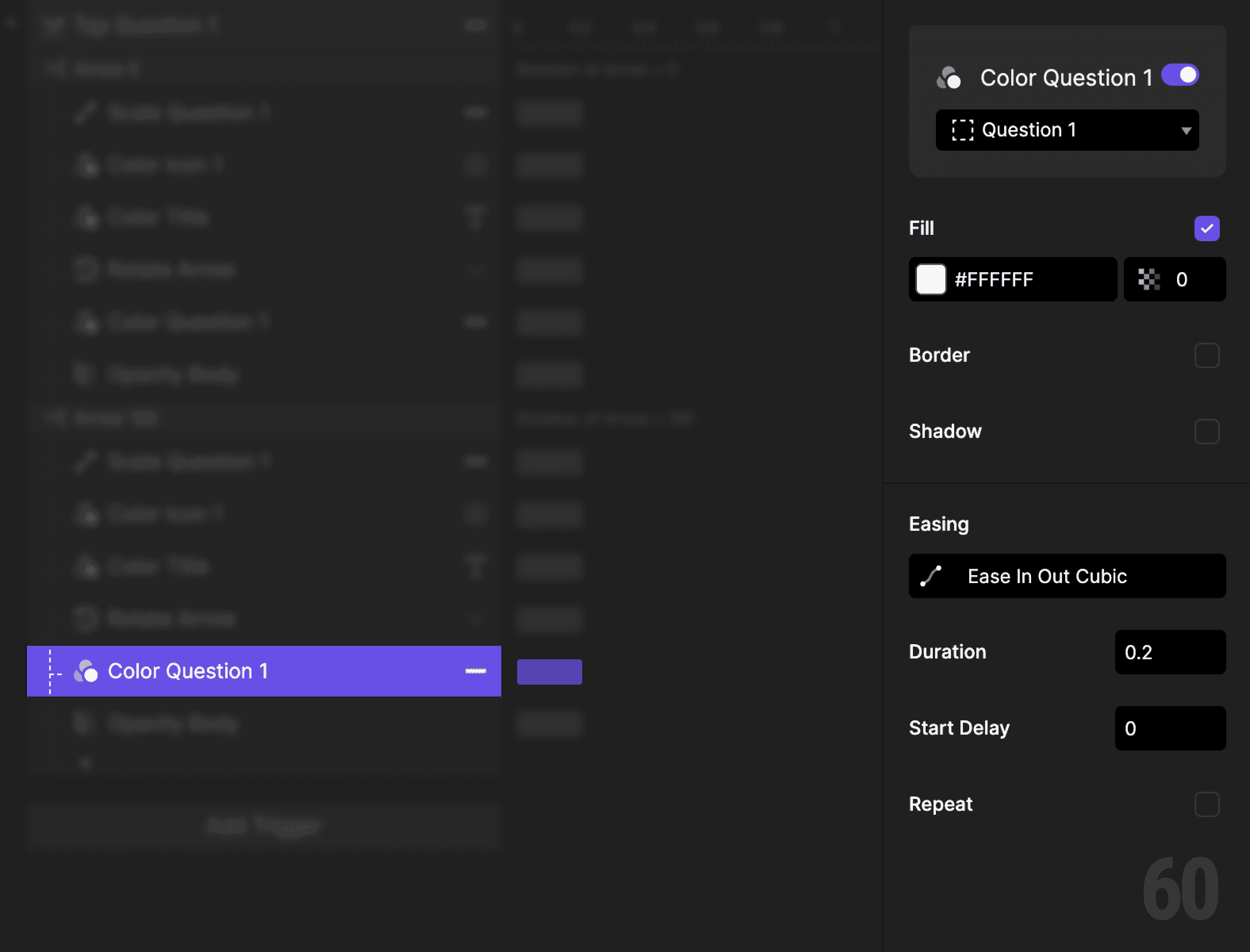
Step 14: Reset container background

Add a Color response.

  • Target: Question 1 container

  • Set fill opacity to 0%

This is a screenshot of Step 14: Reset container background.

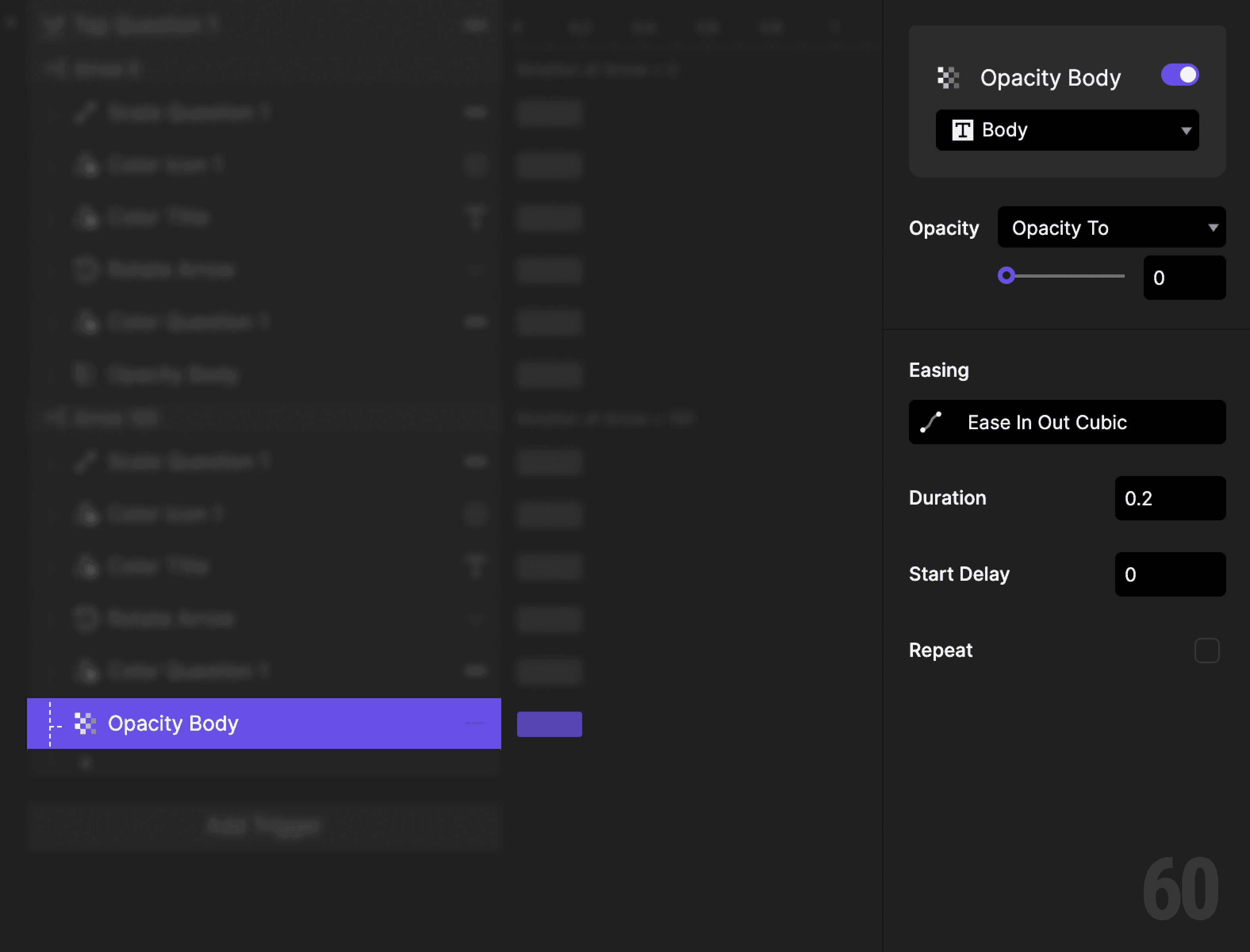
Step 15: Hide the body text

Add an Opacity response.

  • Target: Body

  • Set opacity back to 0%

This is a screenshot of Step 15: Hide the body text.

Step 16: Preview and test

Tap the accordion item repeatedly.

Check for:

  • Smooth height changes

  • Clear arrow rotation

  • Body text appearing only when expanded


If it feels calm and predictable, the interaction is correct.

Try this next

  • Animate height and opacity together

  • Allow only one accordion open at a time

  • Replace rotation logic with a variable

Up next

Tap image carousel. Moving through content one step at a time.

This is a background image of 1.6 Tap Image Carousel.

Tap Image Carousel

Tap Image Carousel

1.6