1.4 Icon + Label State Change

Level 1

18 Steps

What you are building

A list item where multiple elements update together based on a single state.


Tap once and the icon, text, and color all change.
Tap again and everything reverts.


This pattern is extremely common in iOS lists and settings.

How to think about it

This interaction is about shared state.


Instead of each element reacting independently, everything listens to the same condition.

When the state changes, the entire row updates together. That is what makes it feel coherent.


You can think of the state as living in the visibility of the On icon.

Recreate this in ProtoPie

Start by creating a list item with the following layers:

  • List: the full row container

  • Icon container on the left

    • Off icon (visible by default)

    • On icon (opacity set to 0)

  • Label: text on the right


The icons swap visibility.
The label updates its text and color.
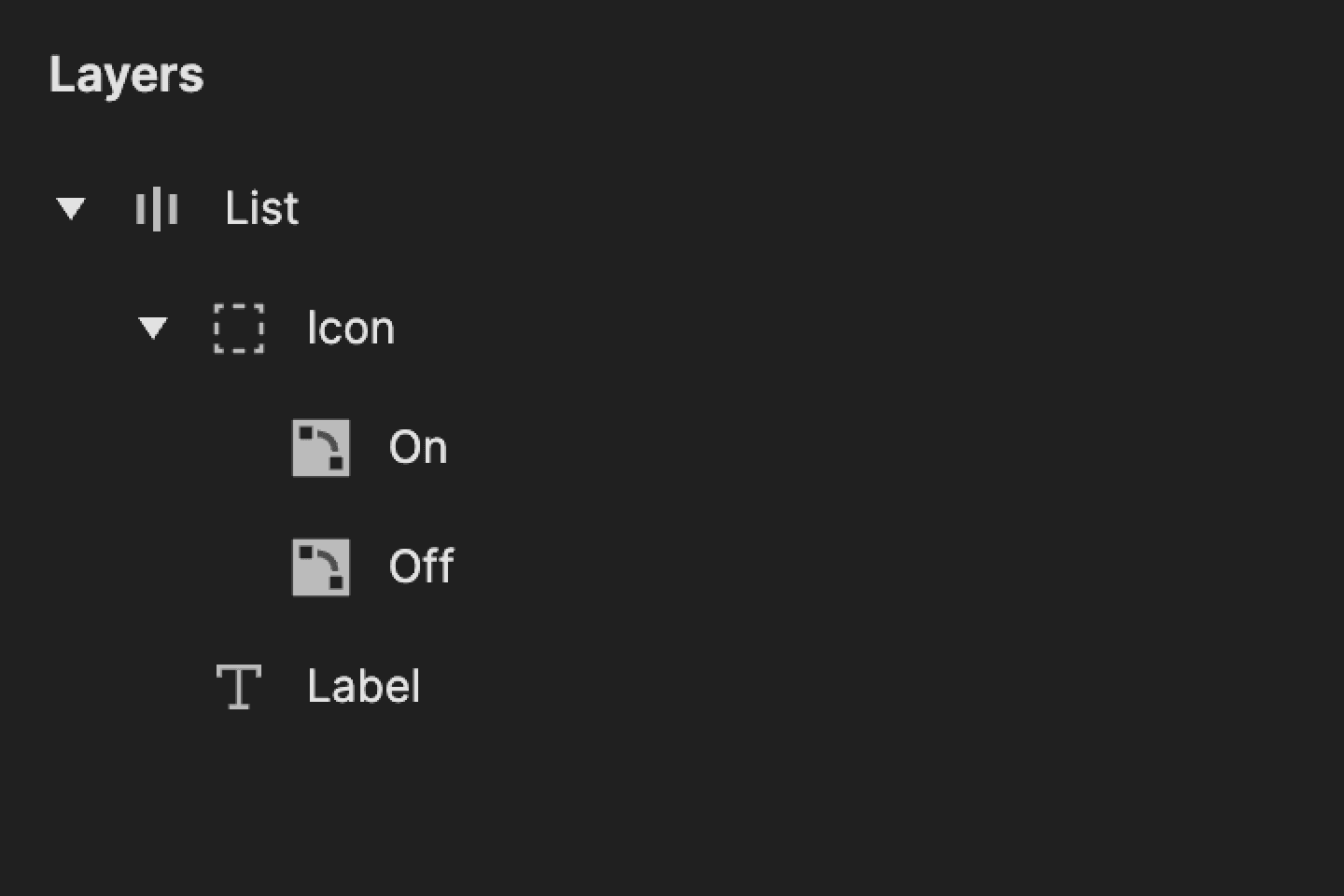
This is a screenshot of layers in ProtoPie.

Step 1: Add tap trigger

Select the List layer.

Add a Tap trigger.


This is the main interaction trigger.
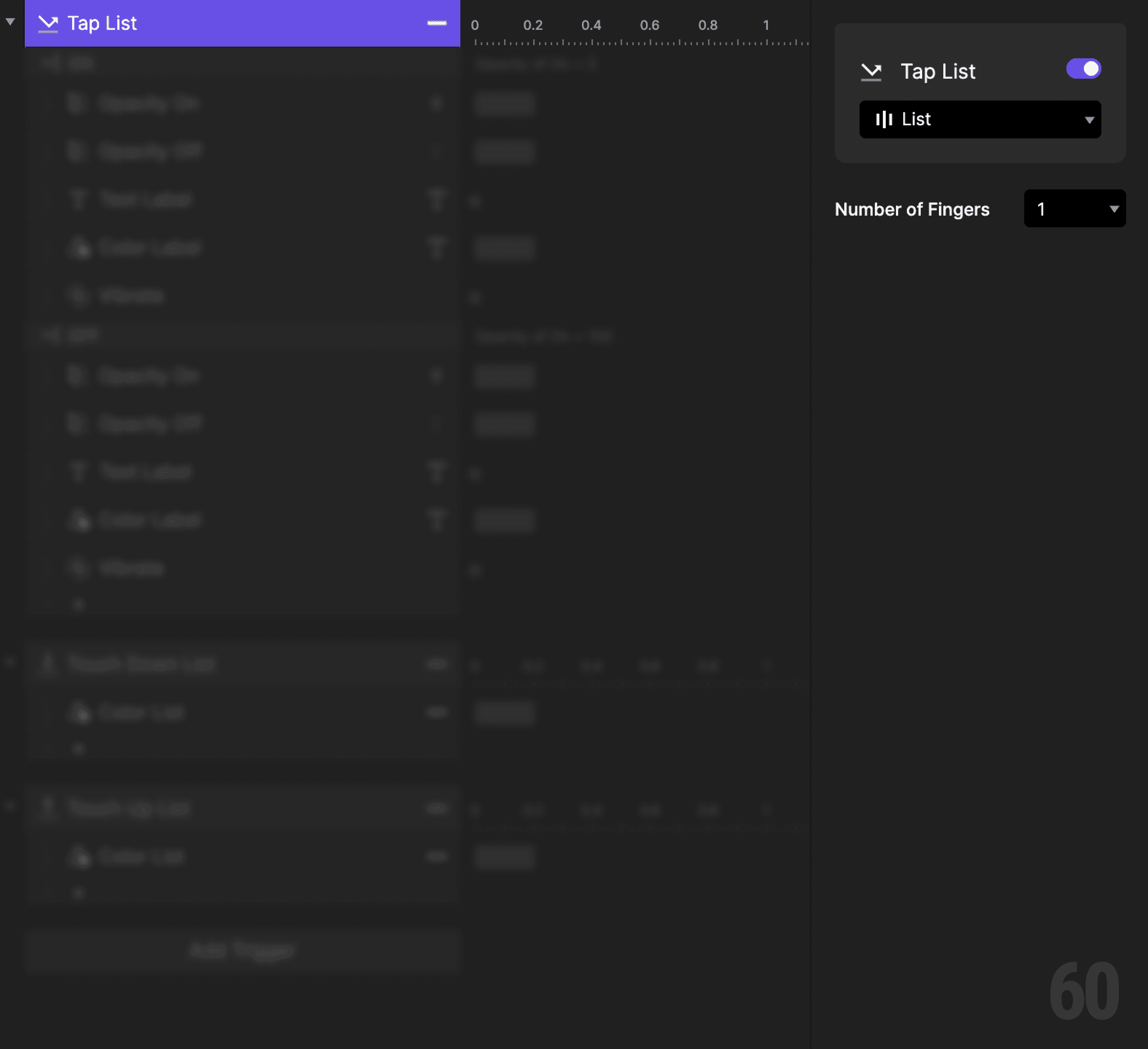
This is a screenshot of Step 1: Add tap trigger.

Step 2: Create a condition (turn on)

Add a Condition to the tap trigger.

Set the condition based on the opacity of the On icon.


This reads as:
When Opacity of On icon is 0%, then do the following.


This means the item is currently off.
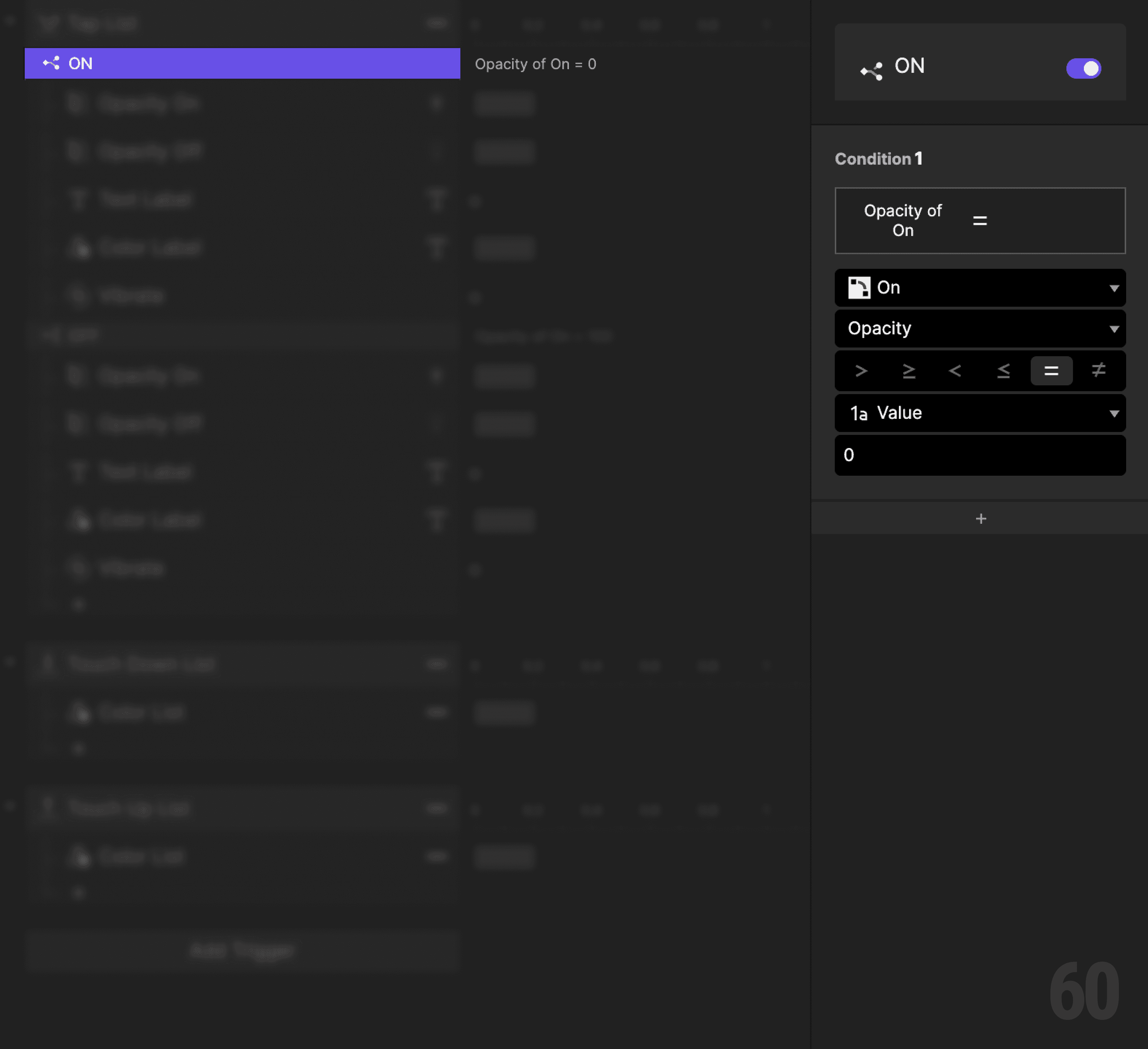
This is a screenshot of Step 2: Create a condition (turn on).

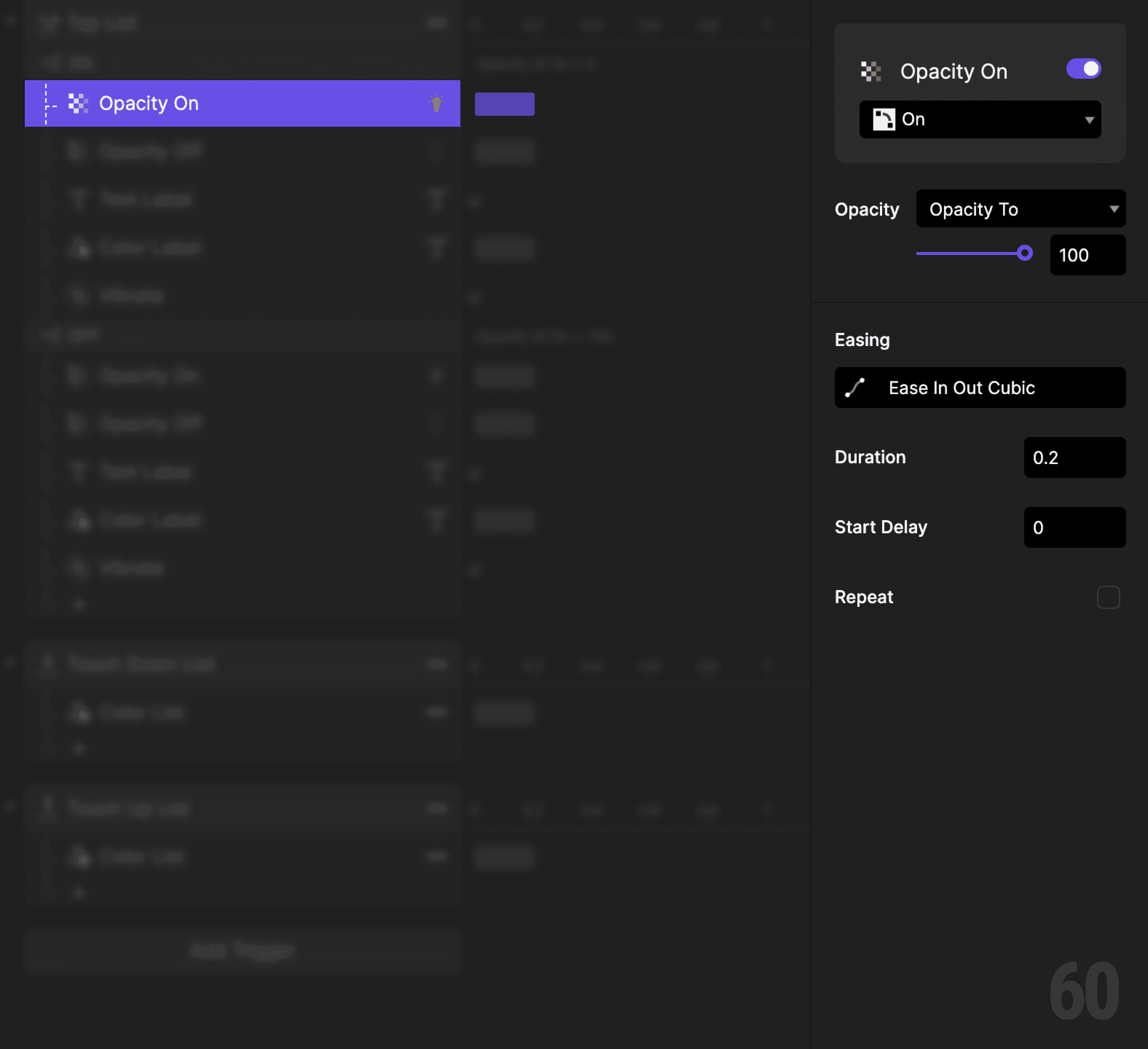
Step 3: Show the On icon

Add an Opacity response.

  • Target: On icon

  • Set opacity to 100%

This is a screenshot of Step 3: Show the On icon.

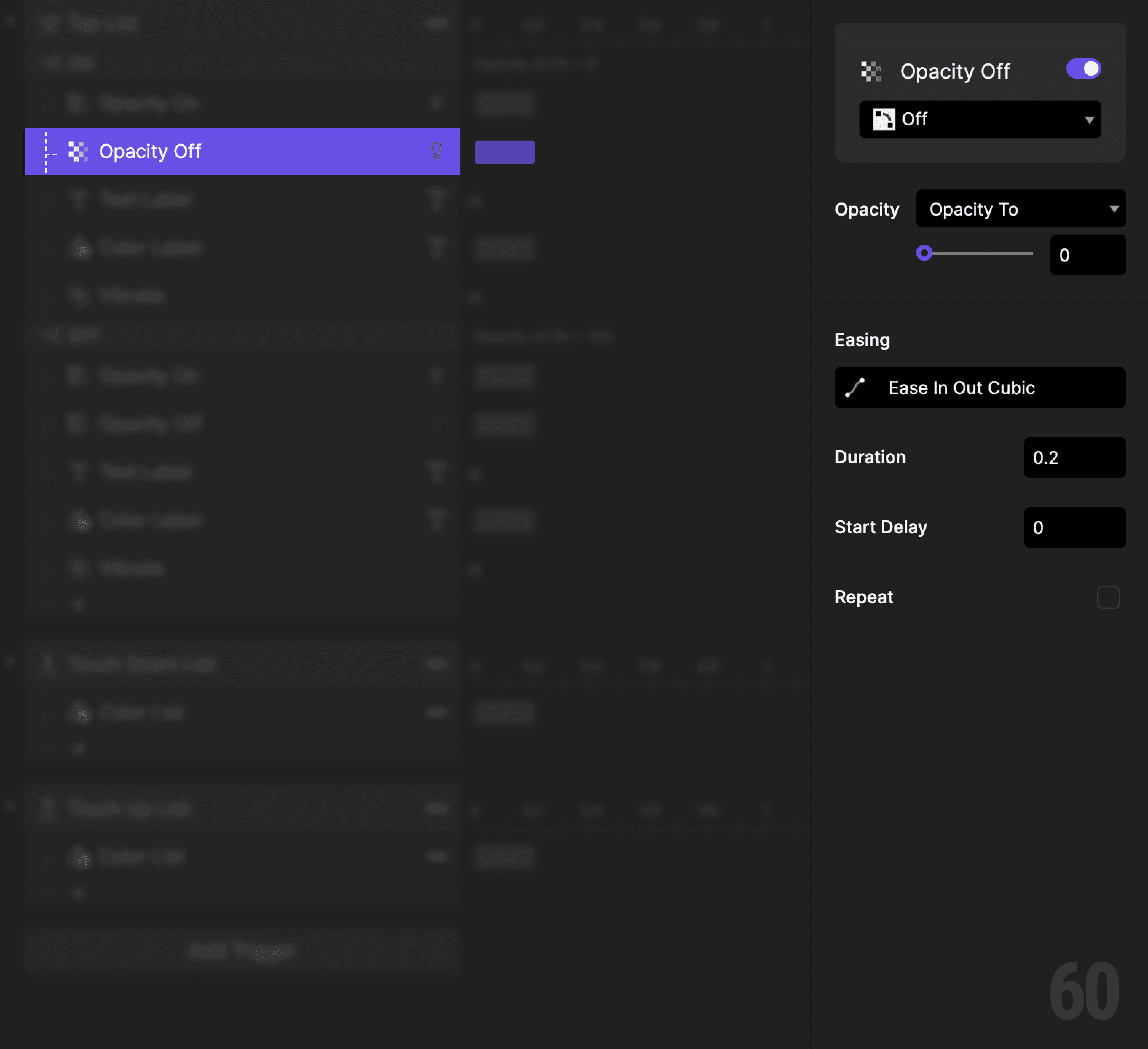
Step 4: Hide the Off icon

Add another Opacity response.

  • Target: Off icon

  • Set opacity to 0%

This is a screenshot of Step 4: Hide the Off icon.

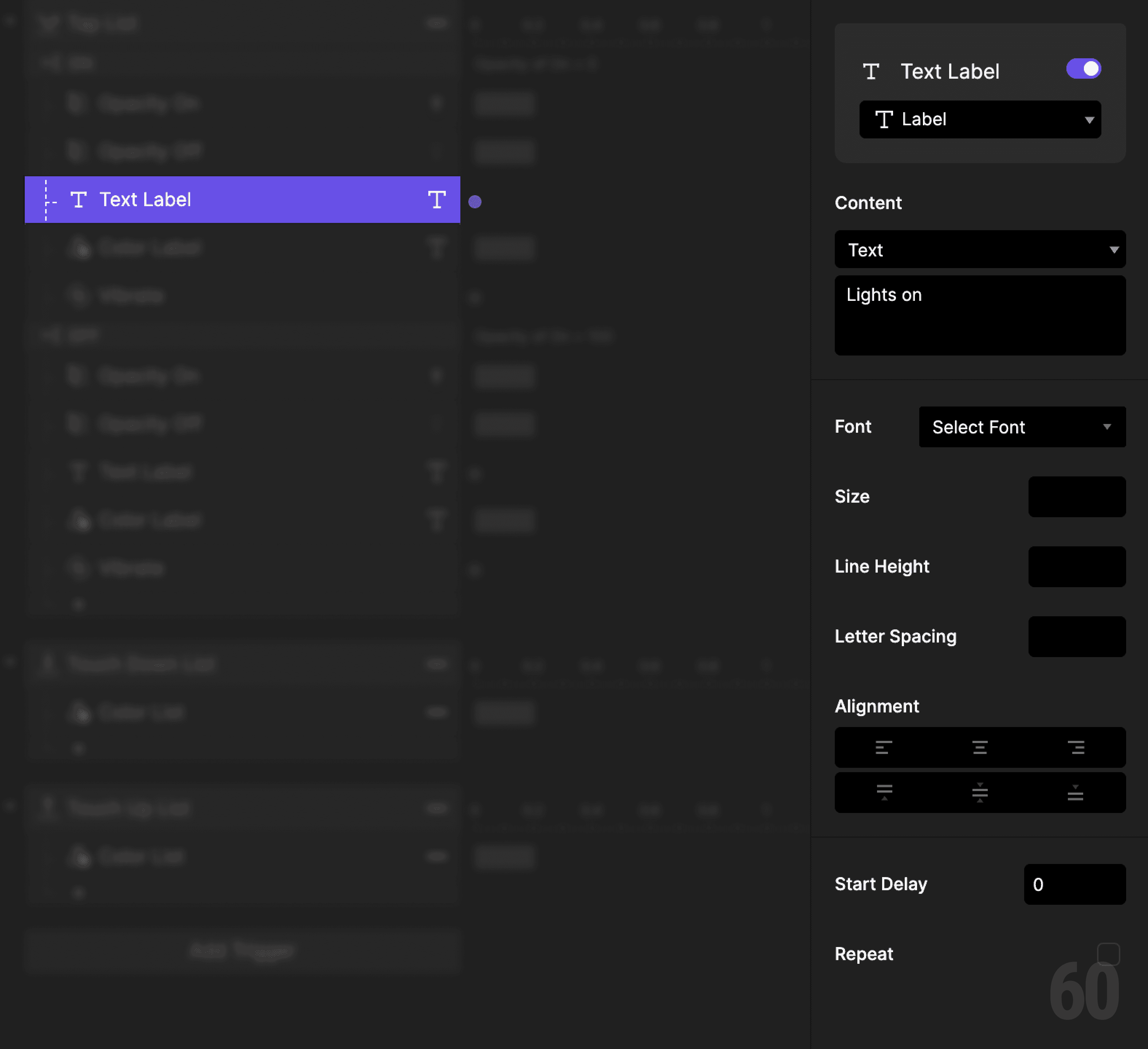
Step 5: Update the label text

Add a Text response.

  • Target: Label

  • Set content to Lights on

This is a screenshot of Step 5: Update the label text.

Step 6: Update the label color

Add a Color response.

  • Target: Label

  • Set fill to an active color


This reinforces the state change.
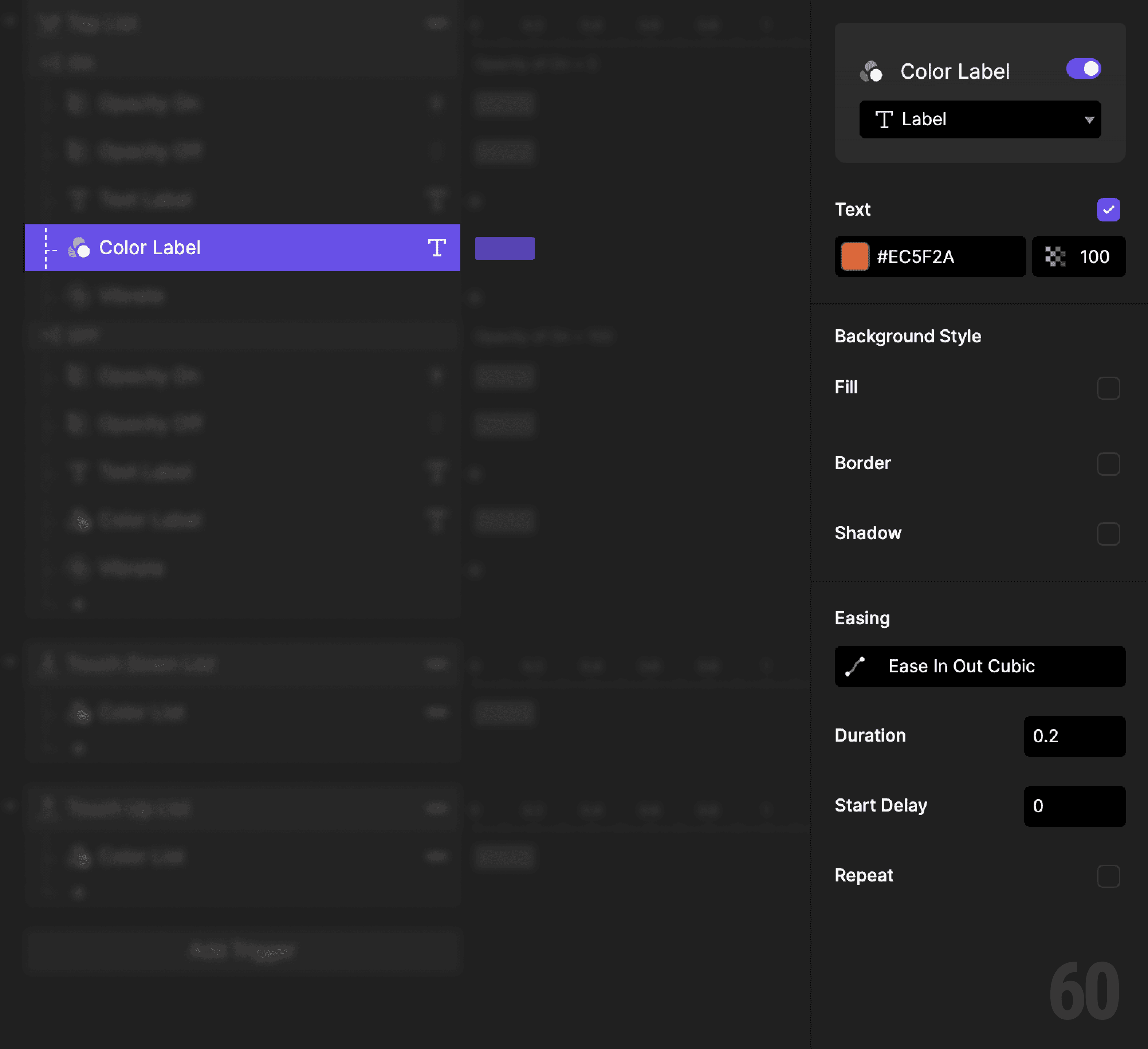
This is a screenshot of Step 6: Update the label color.

Step 7: Add haptic feedback

Add a Vibrate response.

Keep it subtle. This confirms the change.
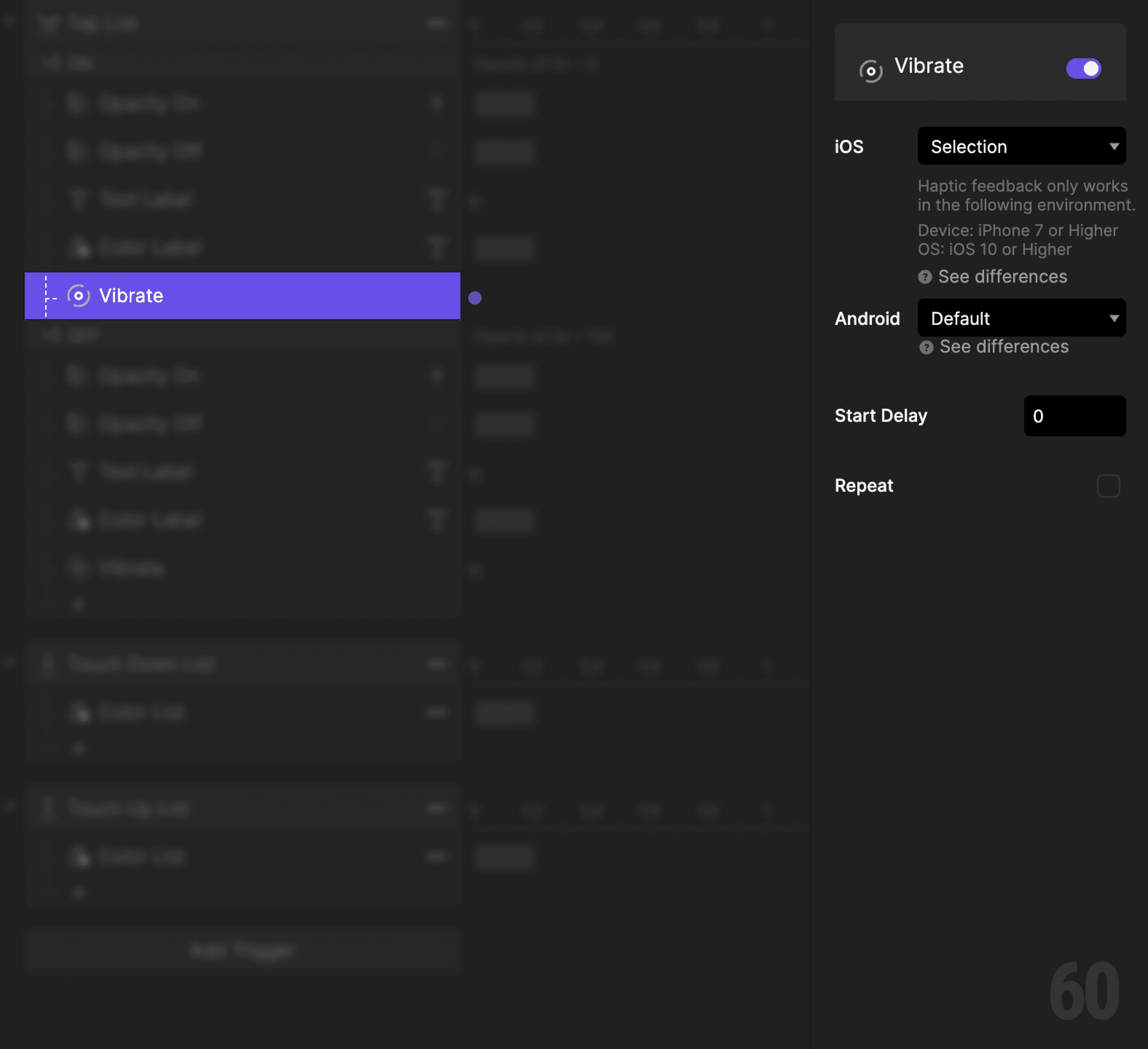
This is a screenshot of Step 7: Add haptic feedback.

Step 8: Create a condition (turn off)

Add another Condition to the same tap trigger.

Set it again based on the opacity of the On icon.


This reads as:
When Opacity of On icon is 100%, then do the following.


This means the item is currently on.
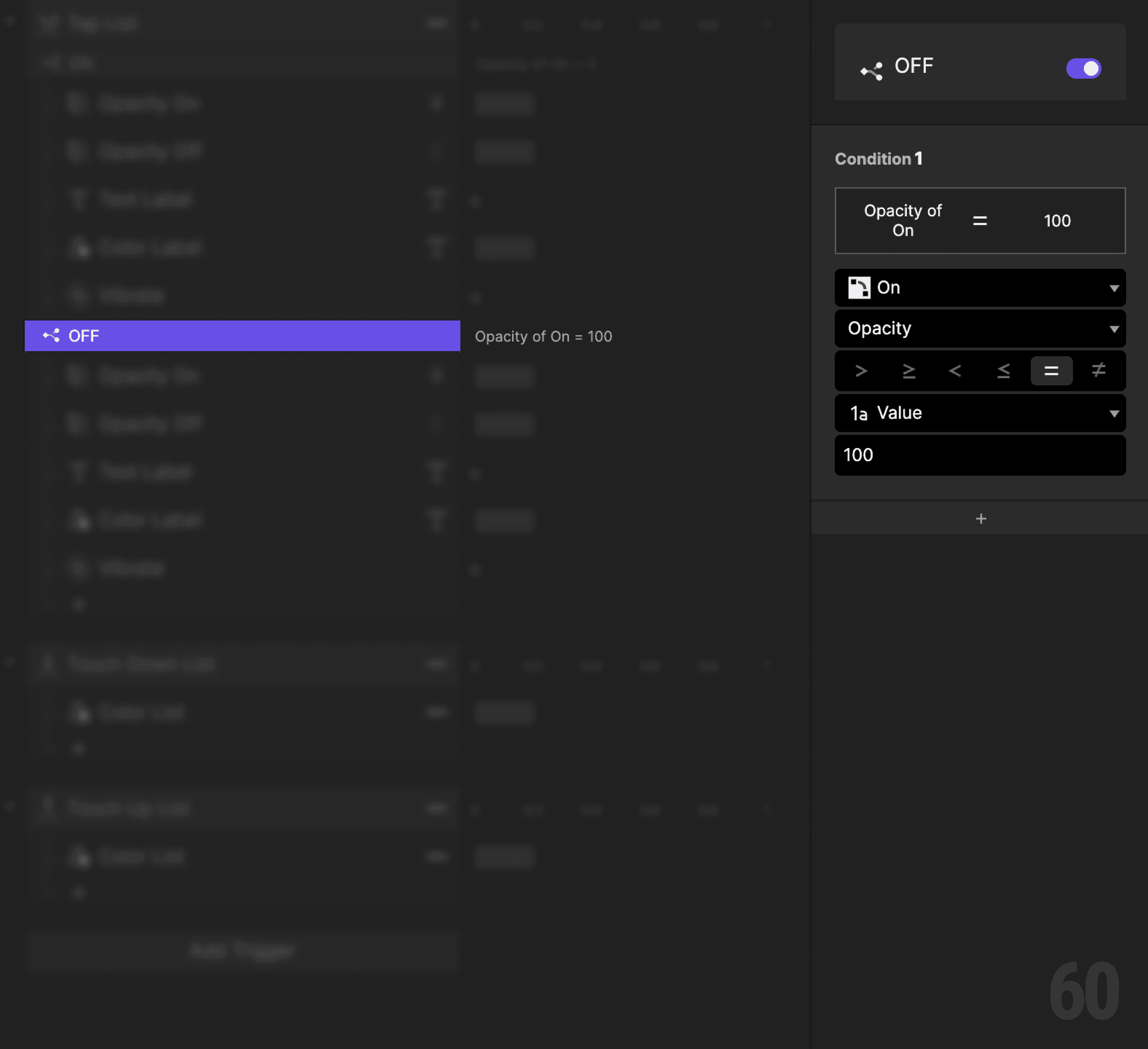
This is a screenshot of Step 8: Create a condition (turn off).

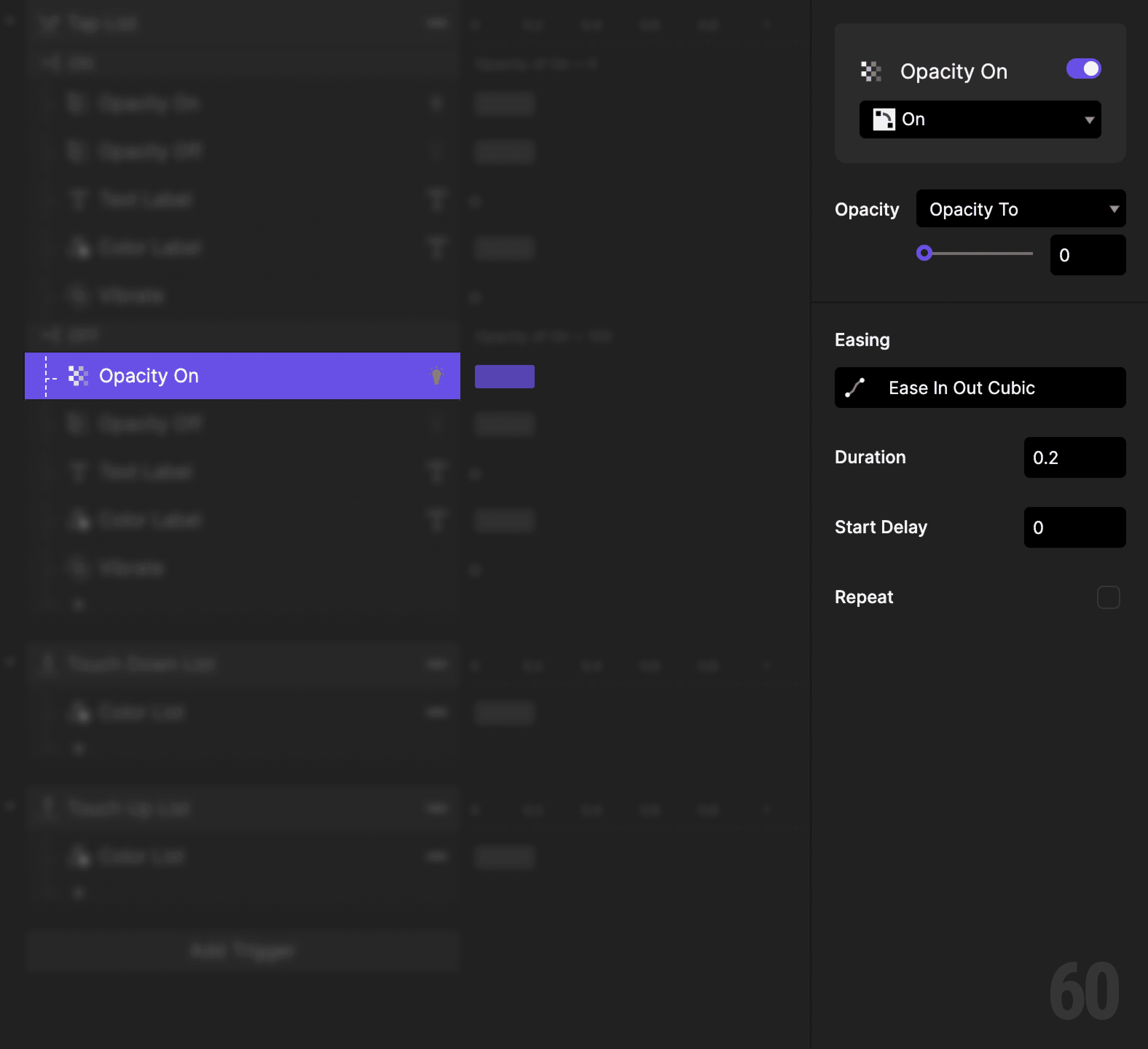
Step 9: Hide the On icon

Add an Opacity response.

  • Target: On icon

  • Set opacity to 0%

This is a screenshot of Step 9: Hide the On icon.

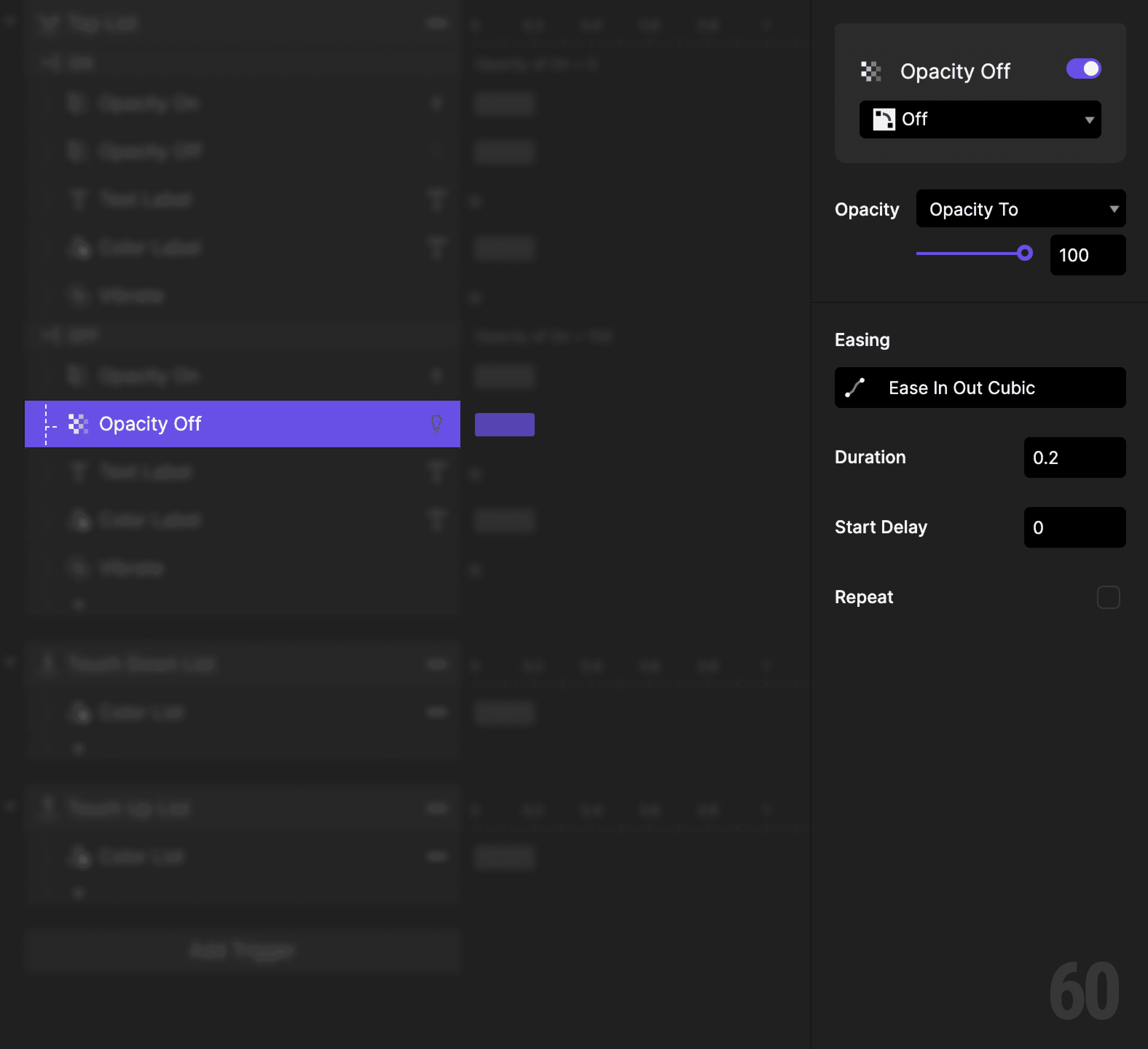
Step 10: Show the Off icon

Add an Opacity response.

  • Target: Off icon

  • Set opacity to 100%

This is a screenshot of Step 10: Show the Off icon.

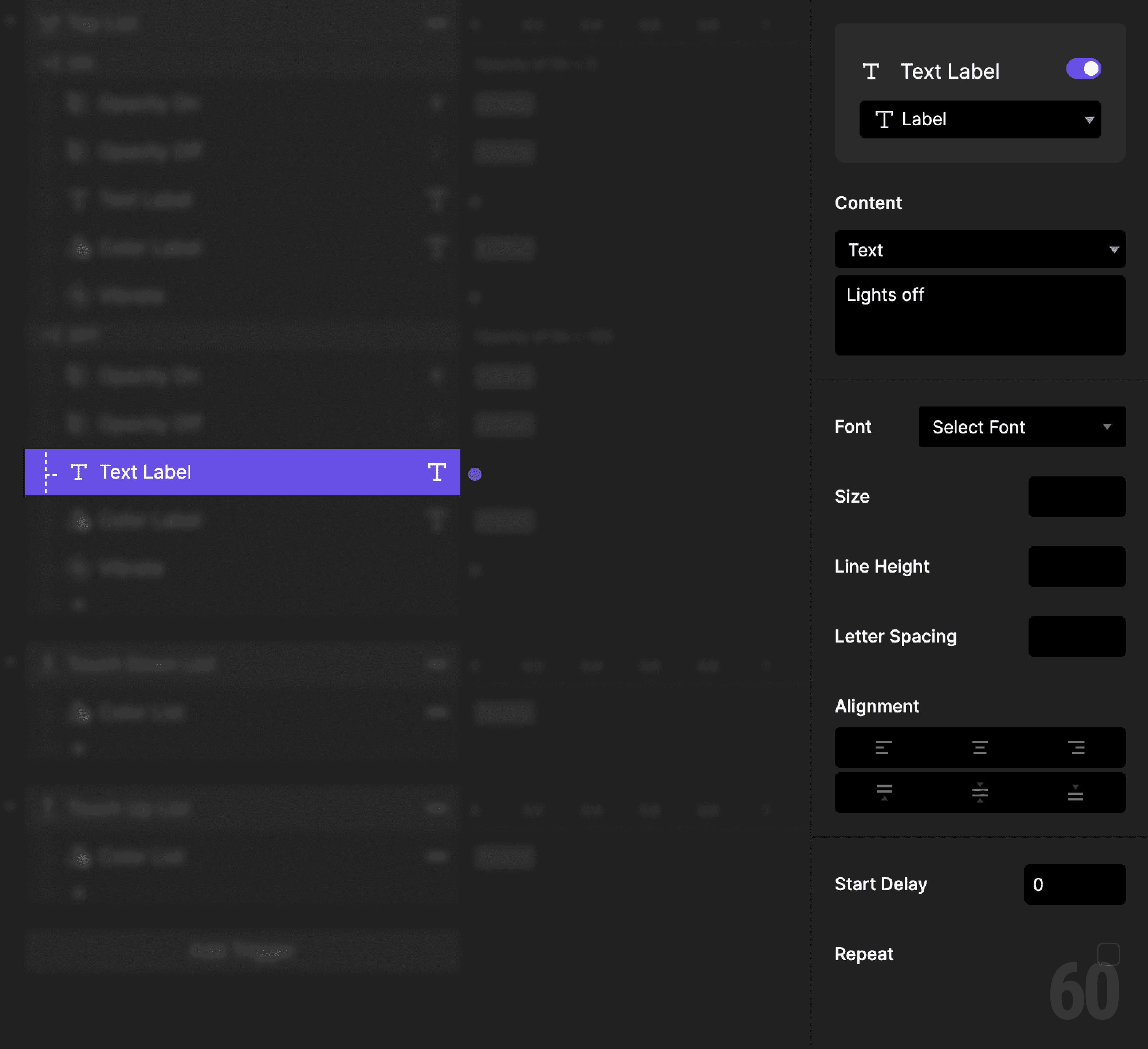
Step 11: Reset the label text

Add a Text response.

  • Target: Label

  • Set content back to Lights off

This is a screenshot of Step 11: Reset the label text.

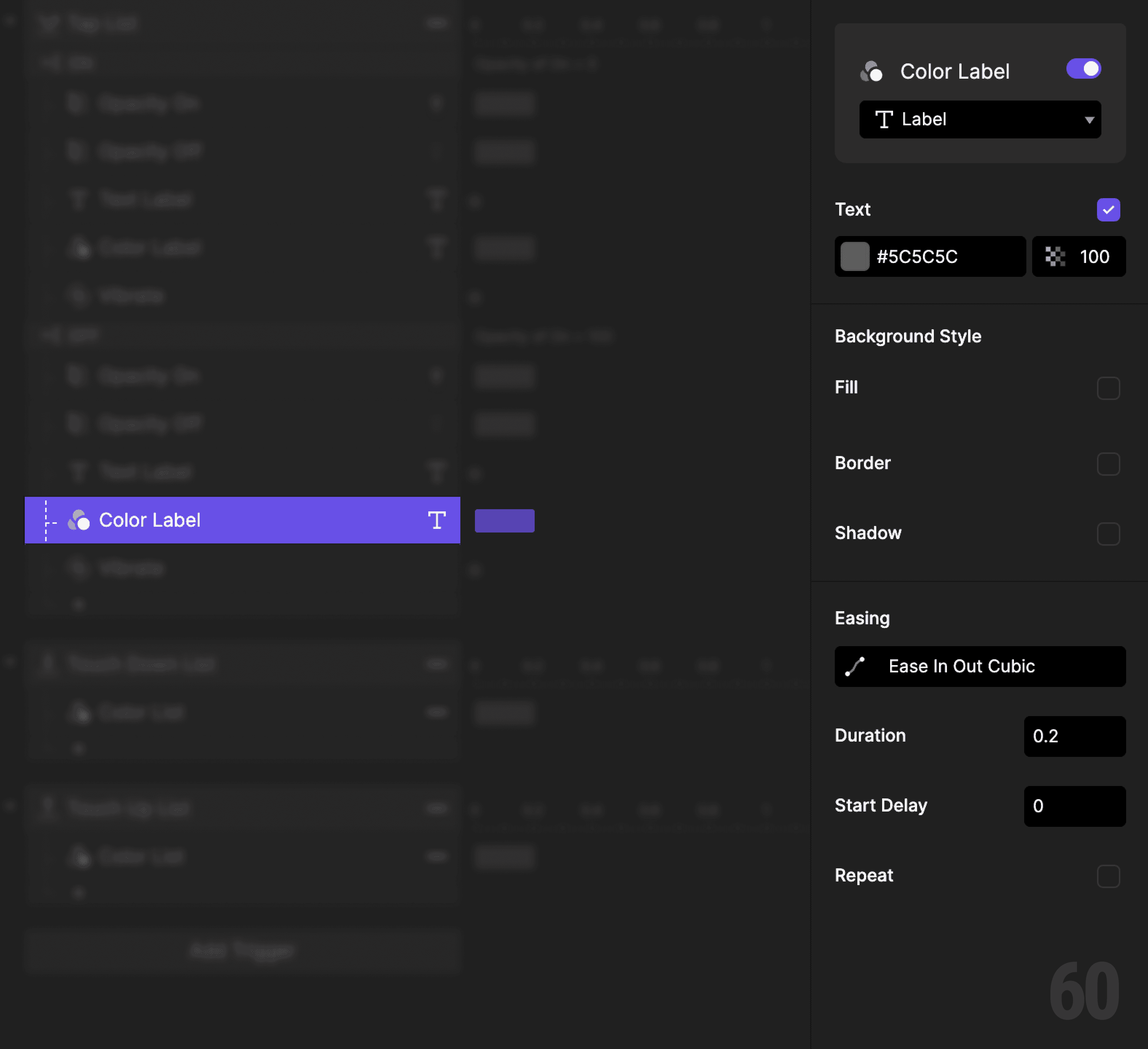
Step 12: Reset the label color

Add a Color response.

  • Target: Label

  • Set fill back to the default color

This is a screenshot of Step 12: Reset the label color.

Step 13: Add haptic feedback

Add another Vibrate response.

Use the same haptic style as before.
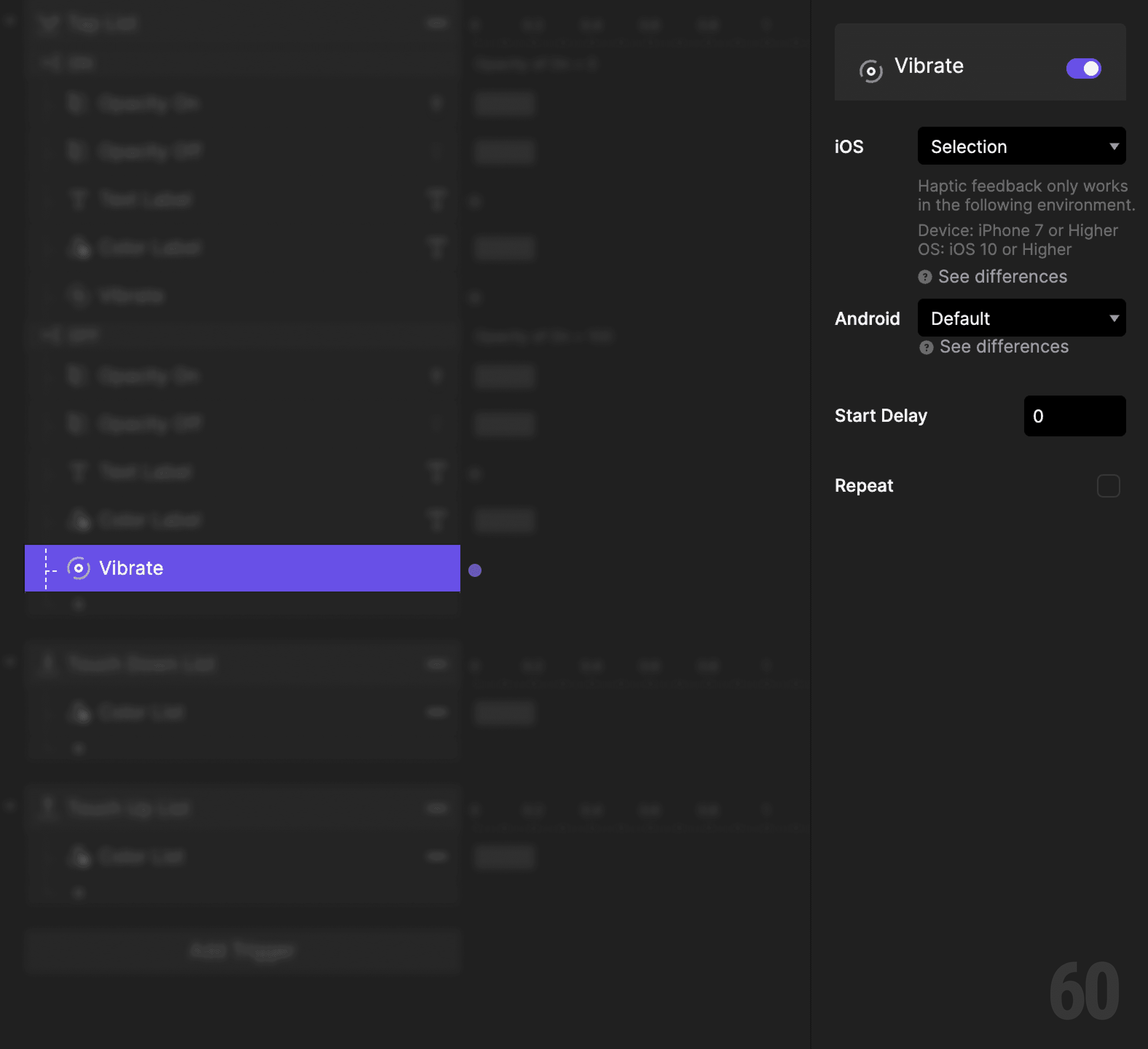
This is a screenshot of Step 13: Add haptic feedback.

Step 14: Add touch down feedback

Select the List layer.

Add a Touch Down trigger.
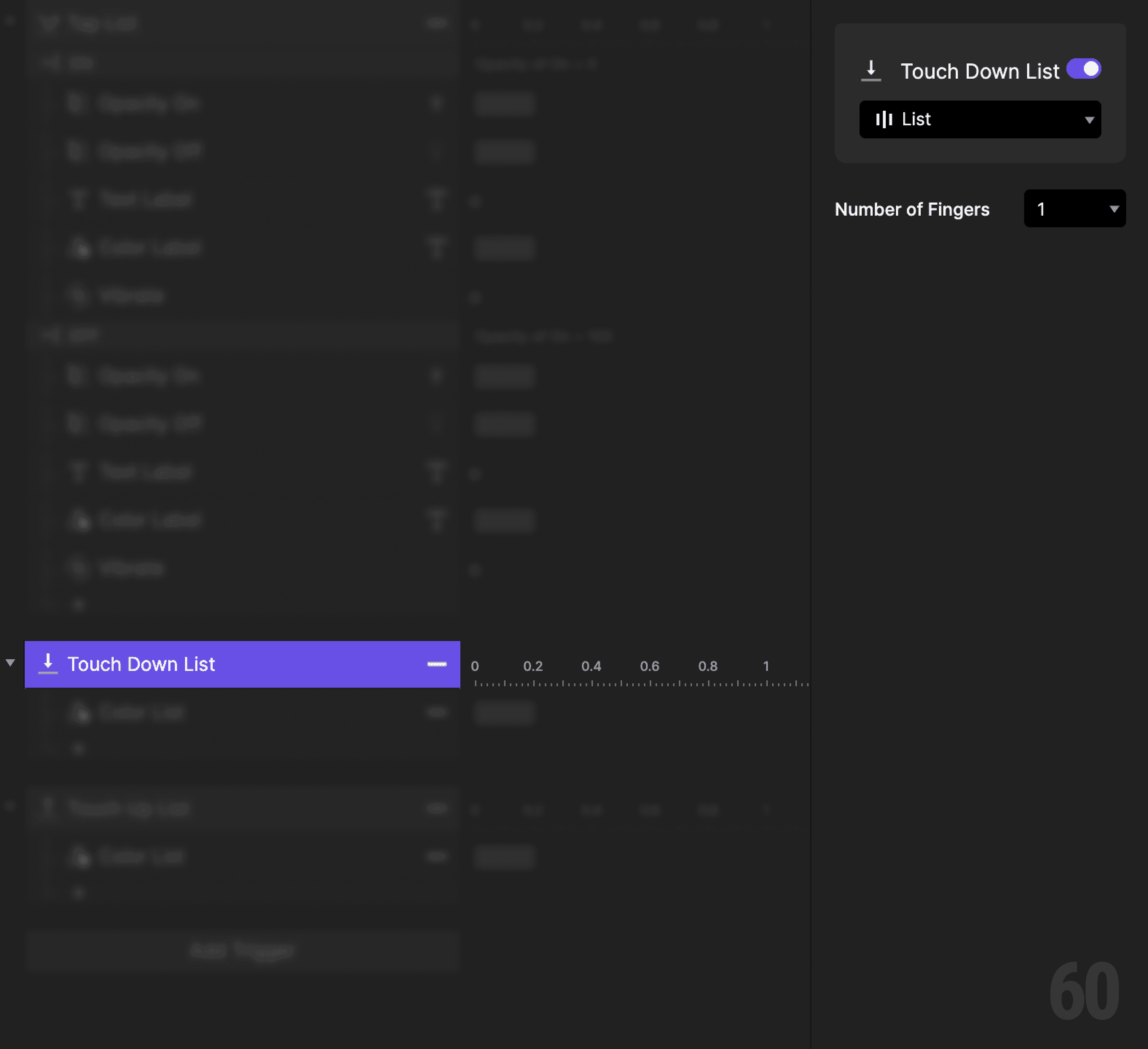
This is a screenshot of Step 14: Add touch down feedback.

Step 15: Show press feedback

Add a Color response.

  • Target: List

  • Set fill to a subtle pressed color


This shows the row is being touched.
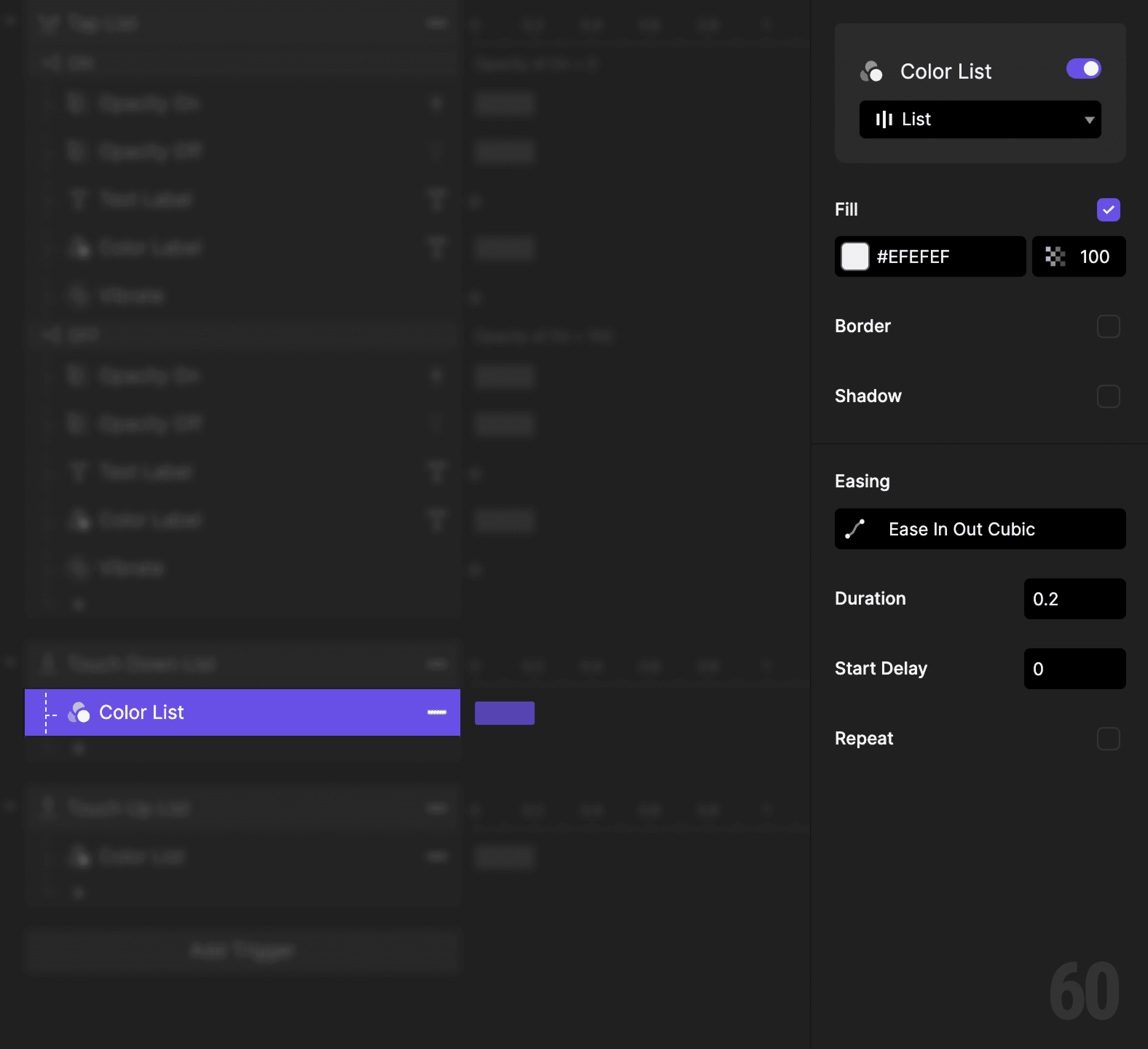
This is a screenshot of Step 15: Show press feedback.

Step 16: Add touch up trigger

Add a Touch Up trigger to the List layer.
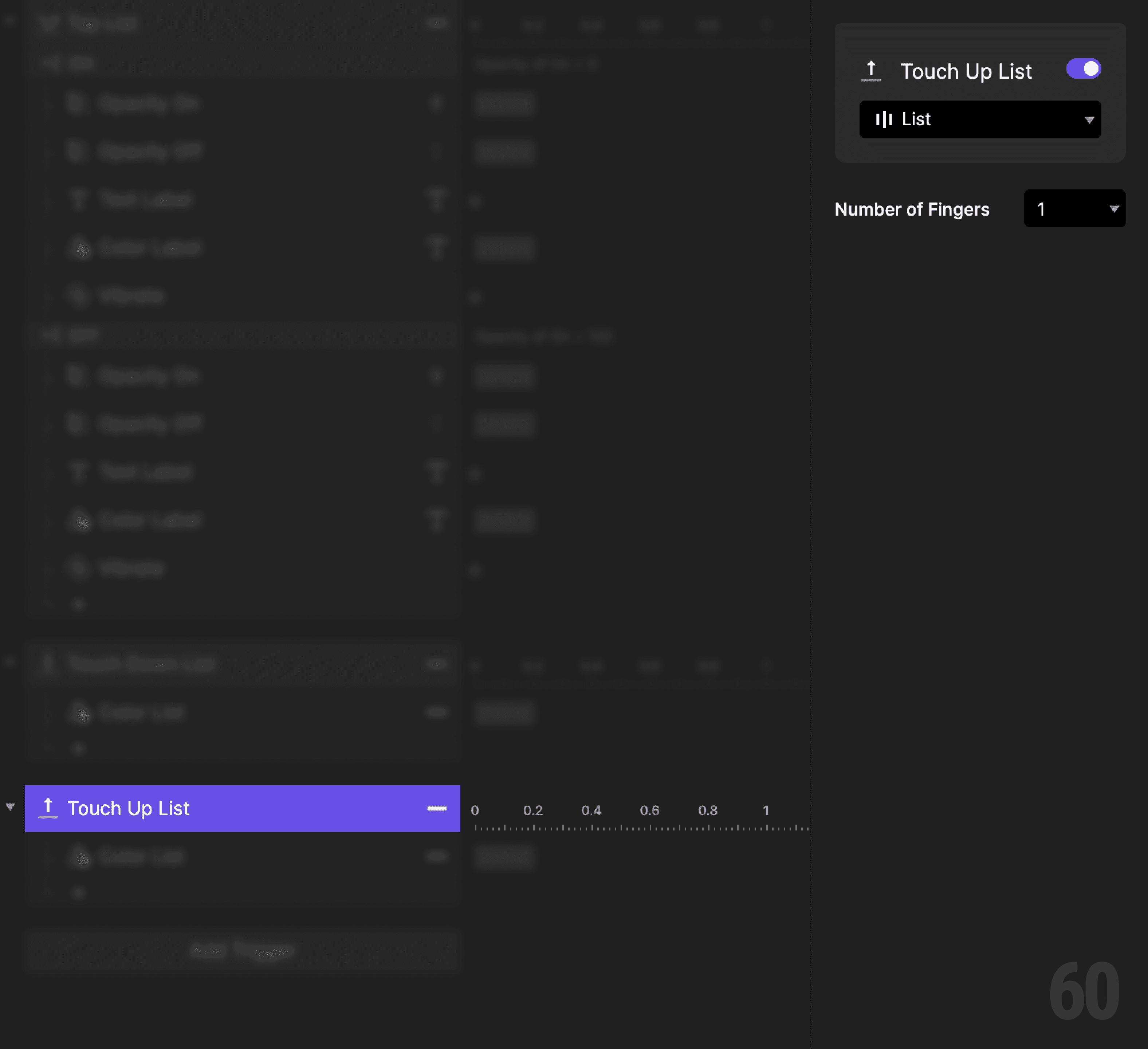
This is a screenshot of Step 16: Add touch up trigger.

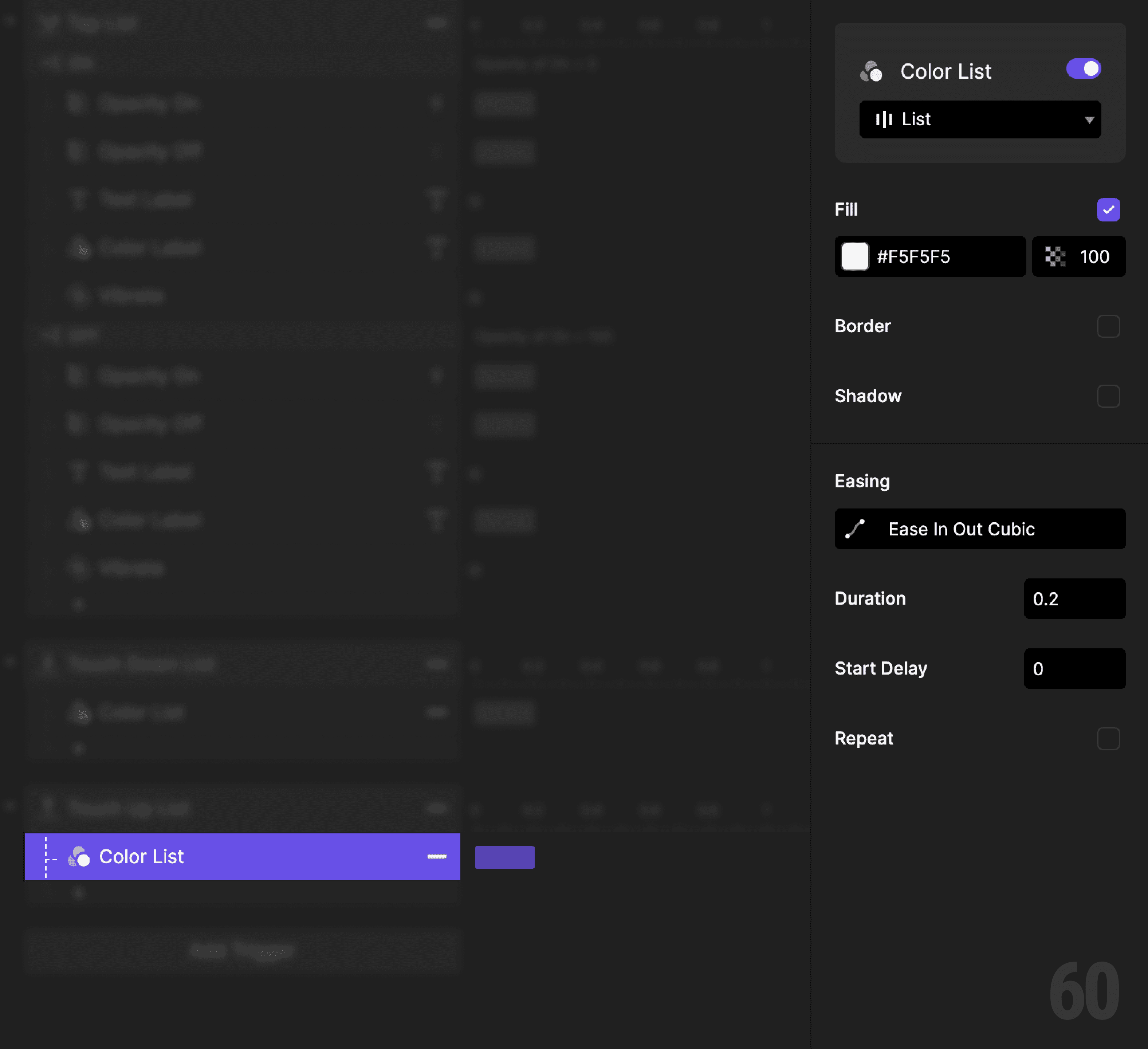
Step 17: Reset press feedback

Add a Color response.

  • Target: List

  • Set fill back to default

This is a screenshot of Step 17: Reset press feedback.

Step 18: Preview and test

Tap the list item repeatedly.

Check for:

  • Icons swapping correctly

  • Text and color updating together

  • Clear tap feedback on press


If everything updates in sync, the interaction is correct.

Try this next

  • Animate icon opacity transitions

  • Add multiple list items sharing logic

  • Replace opacity logic with a variable

Up next

Accordion expand and collapse. Revealing content progressively.

This is a background image of 1.5 Accordion Expand and Collapse.

Accordion Expand and Collapse

Accordion Expand and Collapse

1.5