1.3 Simple Screen Transition

Level 1

17 Steps

What you are building

A basic screen-to-screen navigation with press feedback.


Press a button.
The button responds.
The next screen slides in.


This is the foundation of navigation in iOS.

How to think about it

A screen transition is not just movement.

It is a sequence.


First, acknowledge the press.
Then, move to the next screen.


When feedback and navigation are separated in time, the interface feels intentional instead of rushed.

Recreate this in ProtoPie

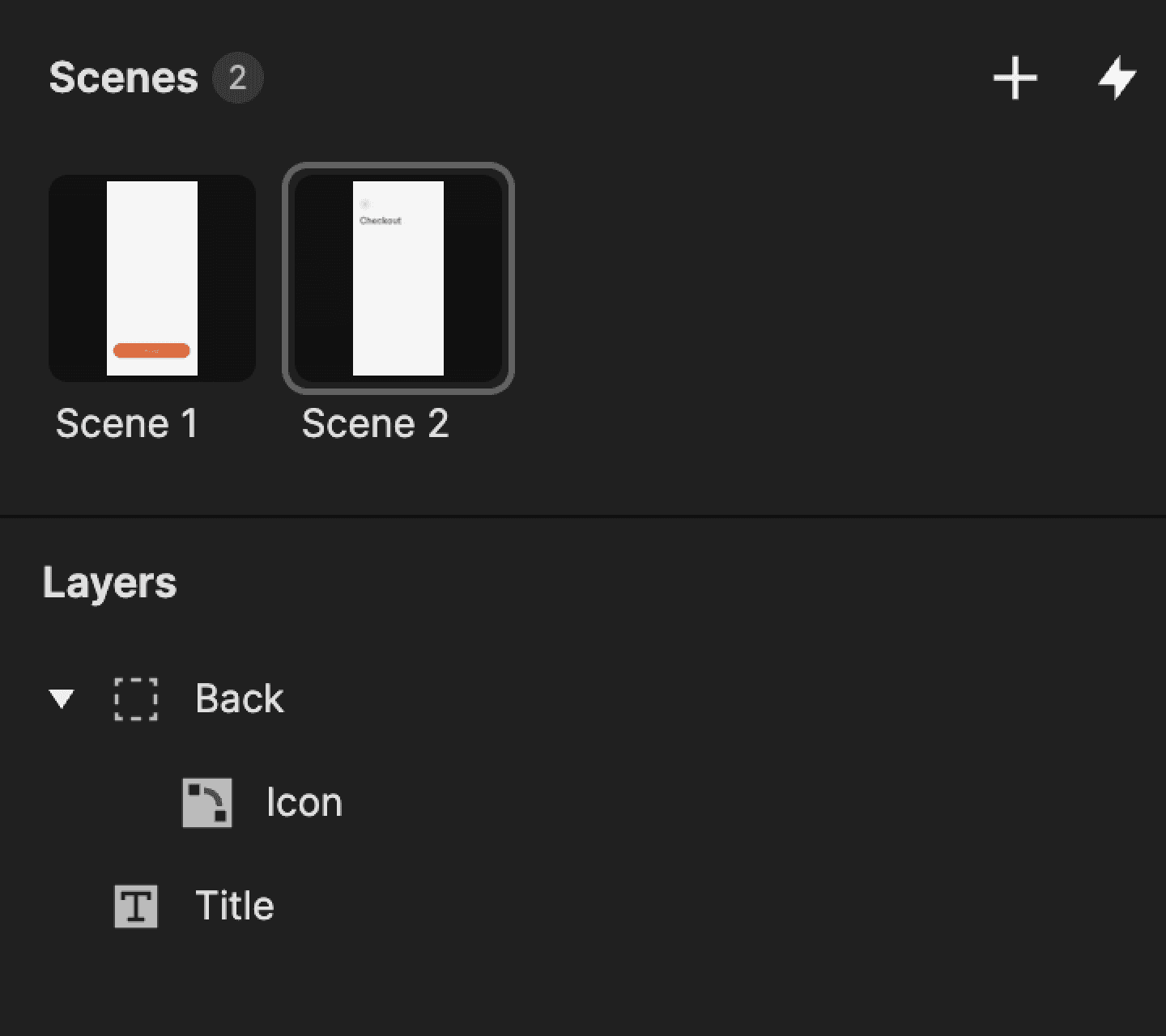
Start by creating two scenes:

  • Scene 1: Primary screen with a button

  • Scene 2: Secondary screen with a back button


Each scene has its own interaction, but they follow the same logic.
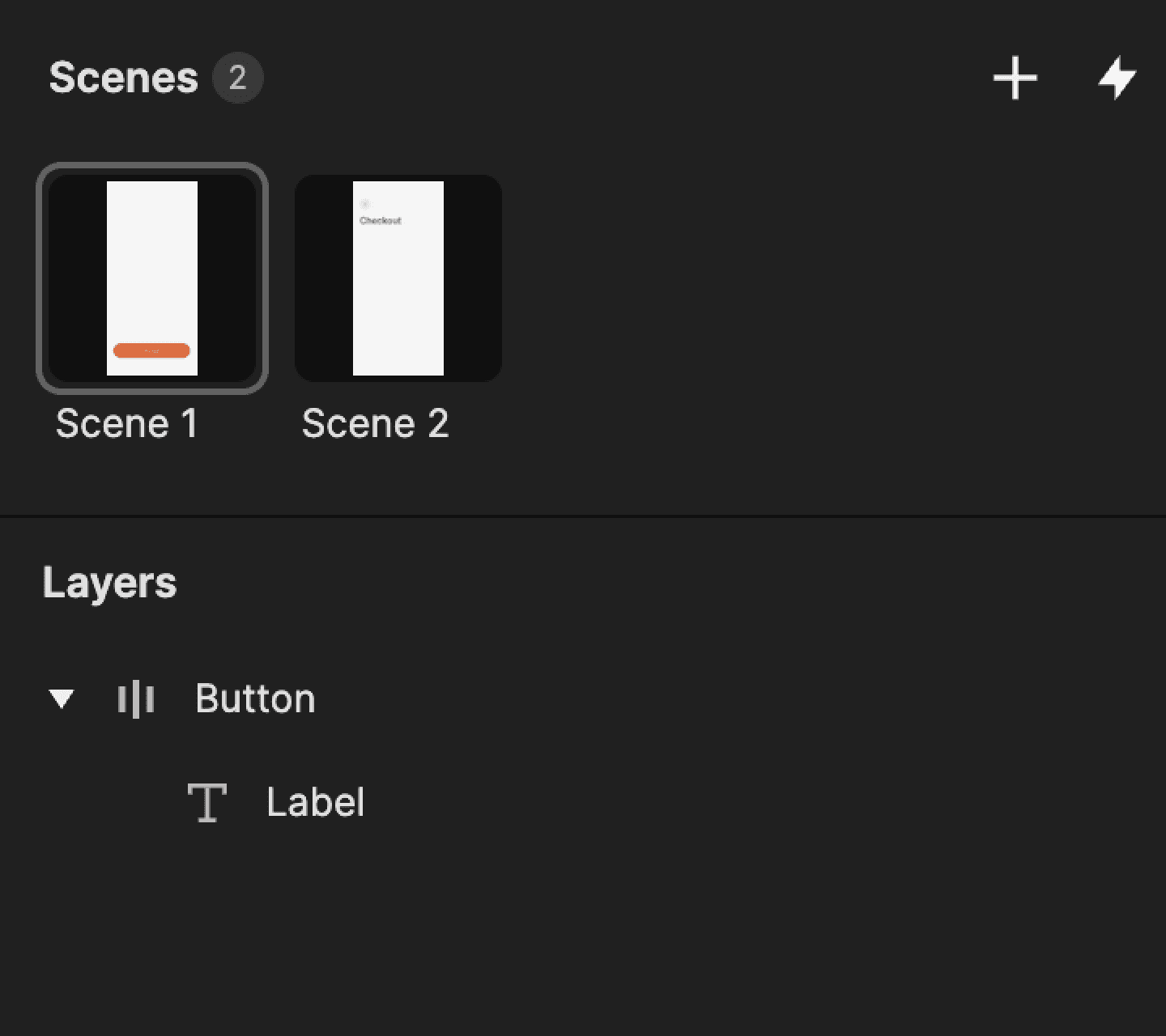
This is a screenshot of layers from scene 1 in ProtoPie.
This is a screenshot of layers from scene 2 in ProtoPie.

Scene 1: Forward navigation

In Scene 1, create two layers:

  • Button: the base shape

  • Label: the text inside it


This is the primary navigation trigger.

Step 1: Add touch down trigger

Select the Button layer.

Add a Touch Down trigger.


This fires the moment the user presses the button.
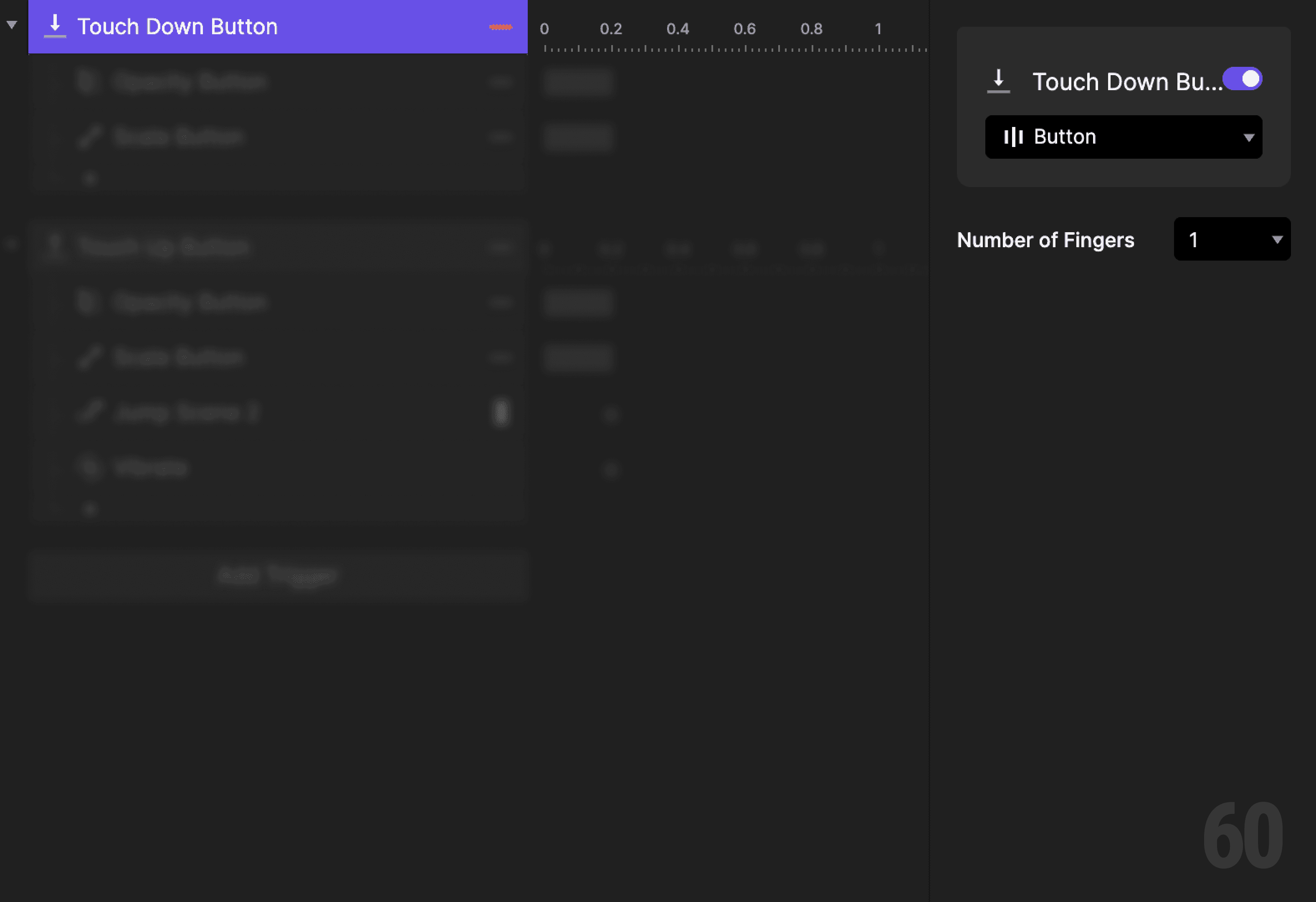
This is a screenshot of Step 1: Add touch down trigger.

Step 2: Reduce button opacity

Add an Opacity response.

  • Target: Button

  • Set opacity to 80%


This visually acknowledges the press.
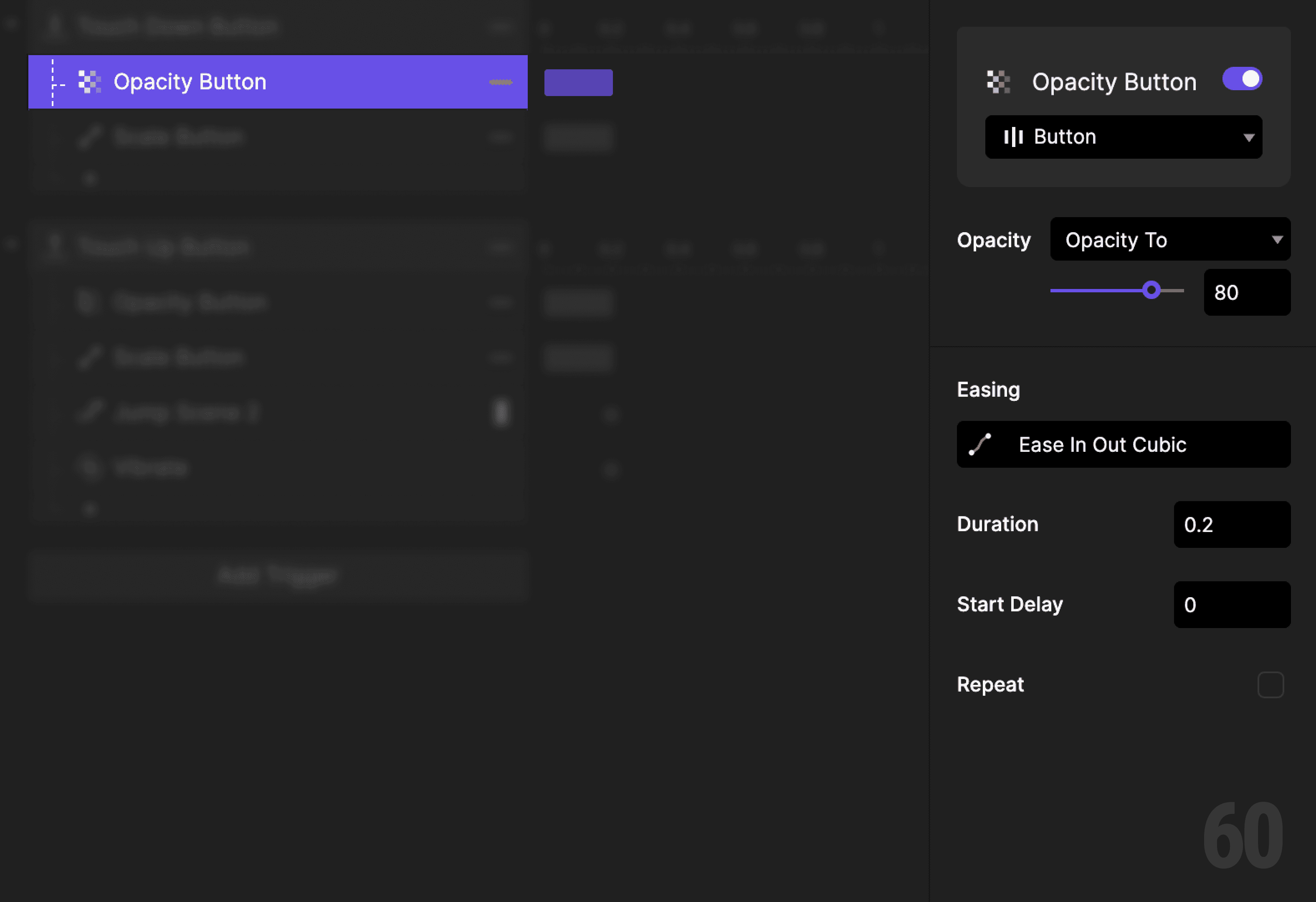
This is a screenshot of Step 2: Reduce button opacity.

Step 3: Scale the button down

Add a Scale response.

  • Target: Button

  • Scale by Factor

  • Set X and Y to 96


This adds a subtle physical press effect.
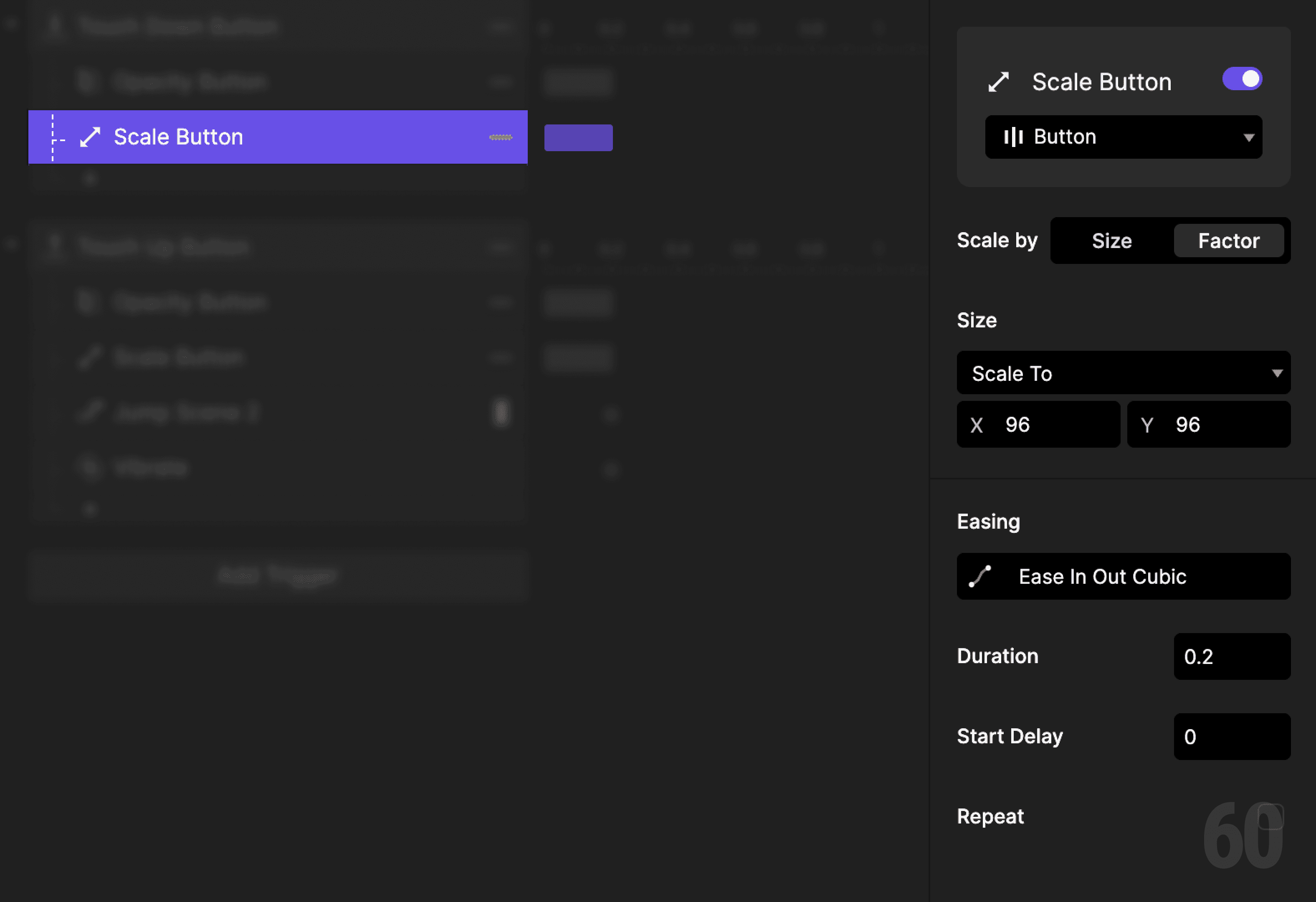
This is a screenshot of Scale the button down.

Step 4: Add touch up trigger

Add a Touch Up trigger to the Button layer.

This fires when the finger is released.
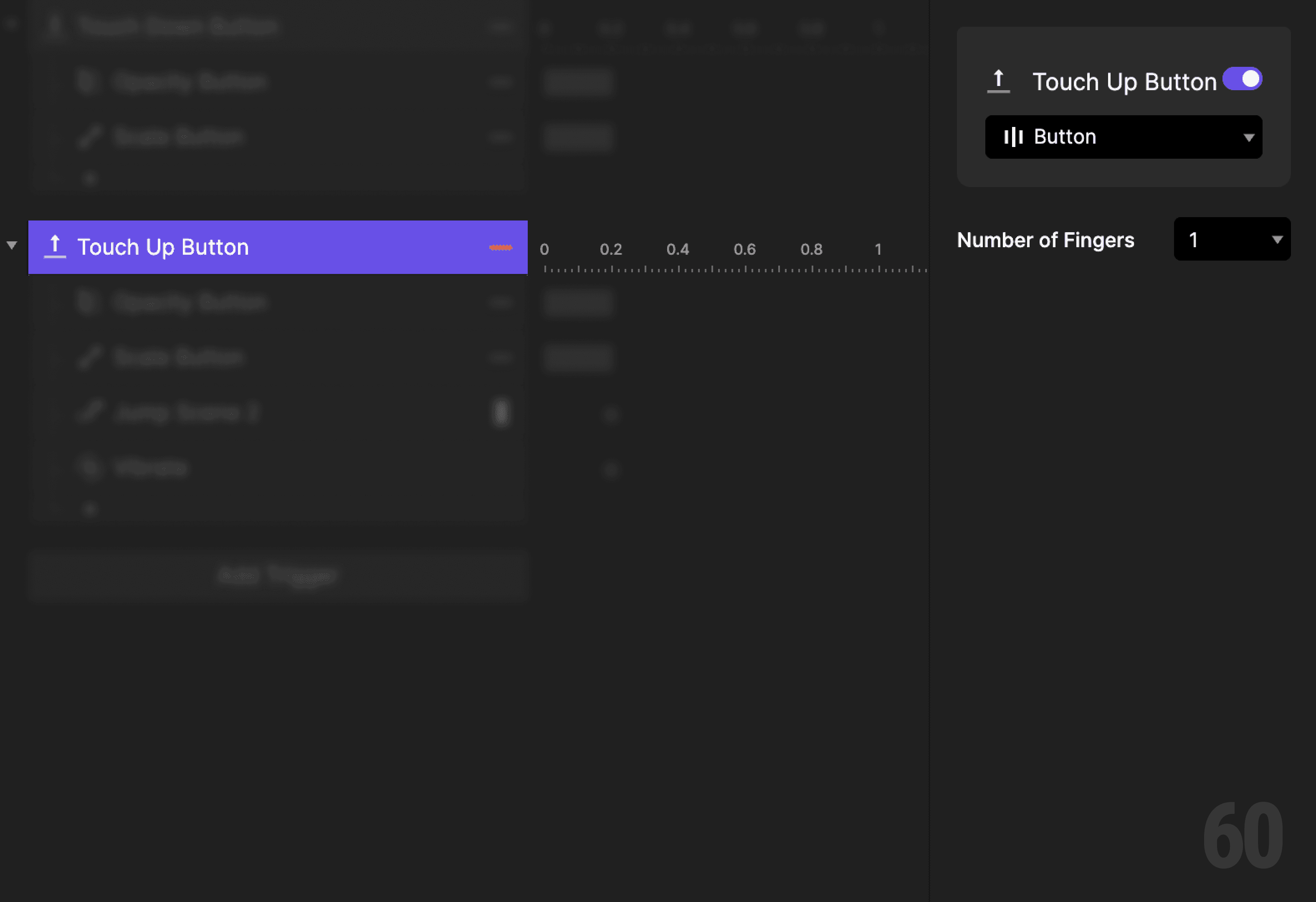
This is a screenshot of Step 4: Add touch up trigger.

Step 5: Restore button opacity

Add an Opacity response.

  • Target: Button

  • Set opacity back to 100%


This returns the button to its default state.
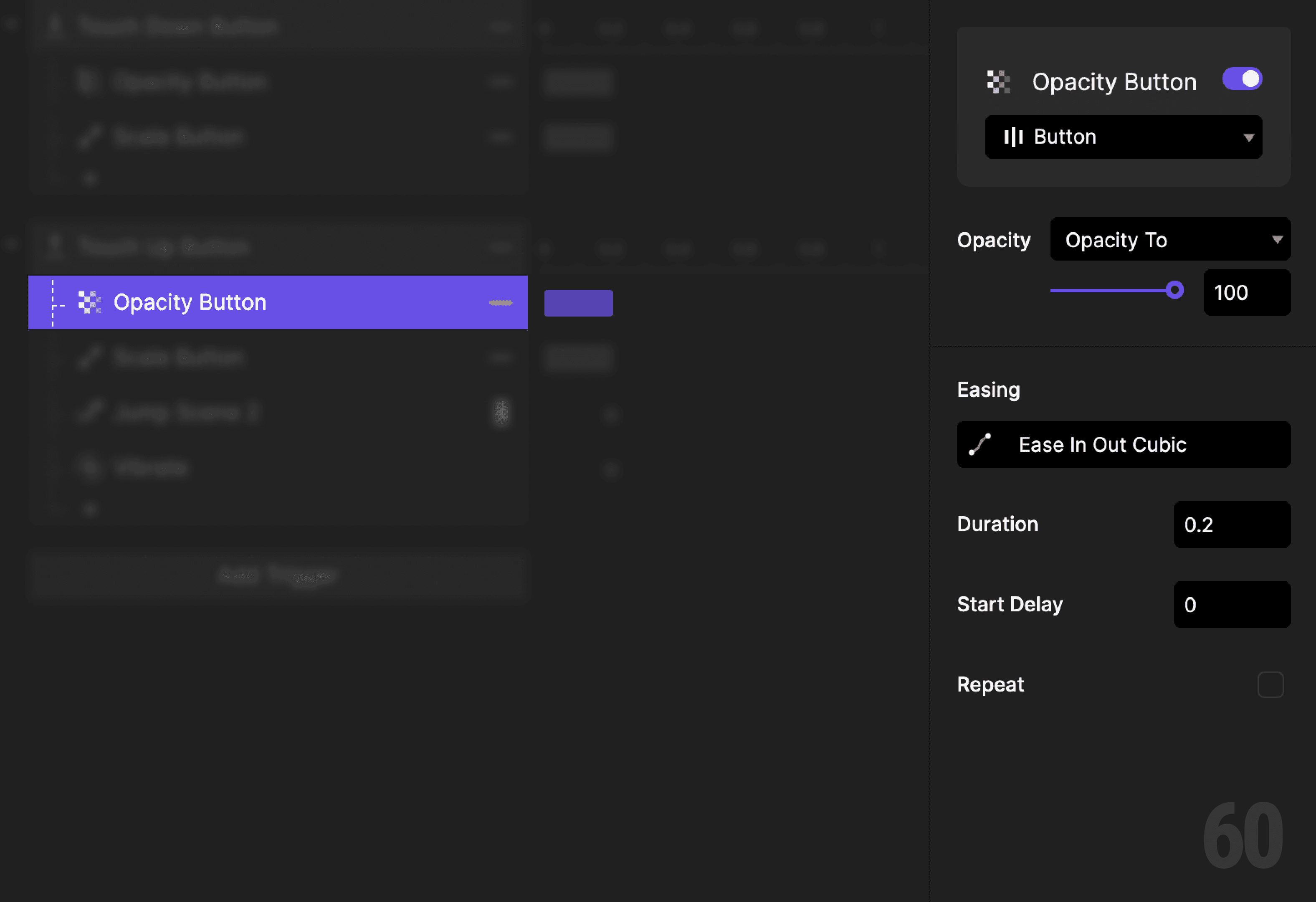
This is a screenshot of Step 5: Restore button opacity.

Step 6: Restore button scale

Add a Scale response.

  • Target: Button

  • Reset scale to default


Use the same easing and duration as the press down.
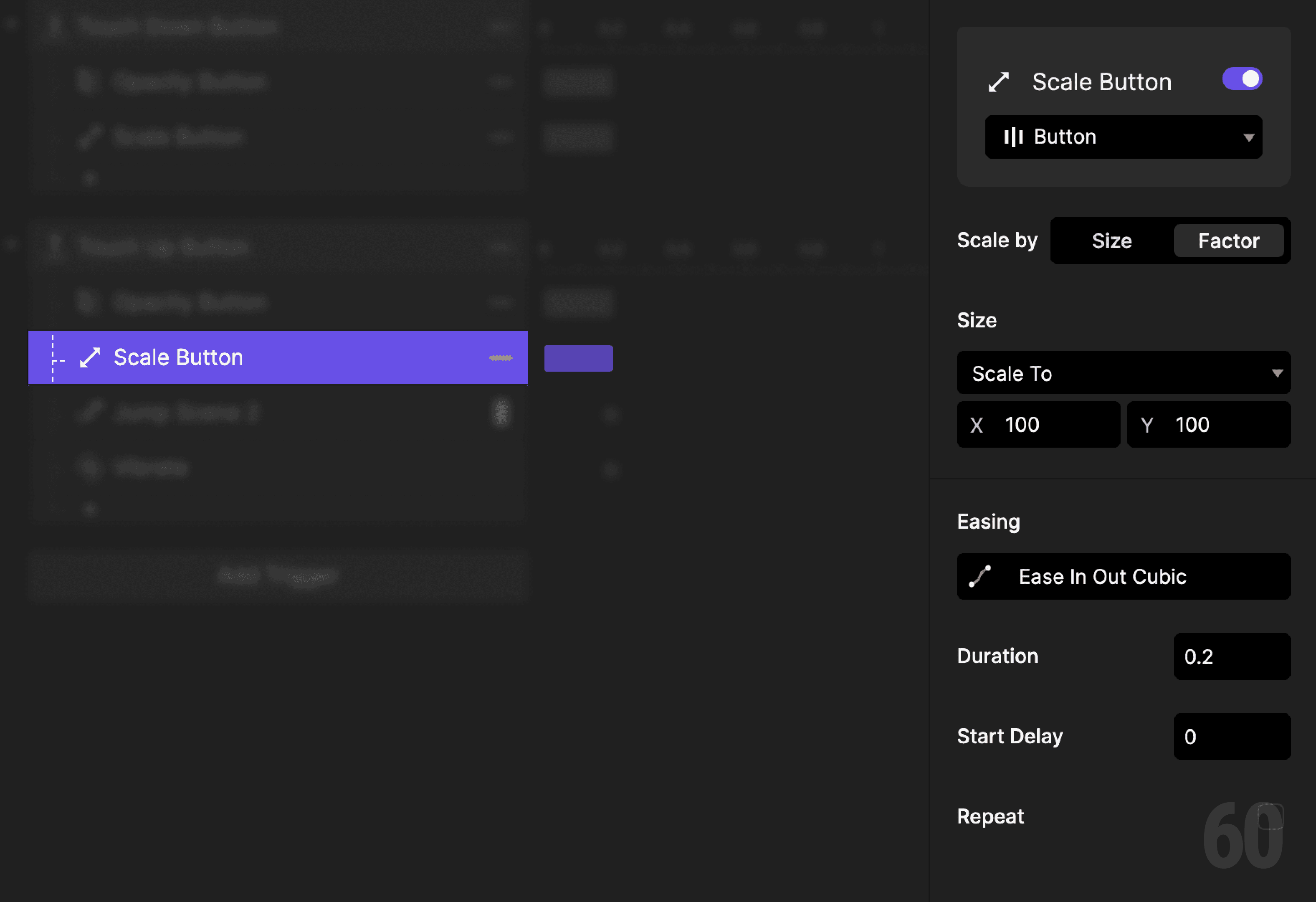
This is a screenshot of Step 6: Restore button scale.

Step 7: Jump to Scene 2

Add a Jump response.

  • Destination: Scene 2

  • Transition: Slide In

  • Direction: Right to Left

  • Delay: 0.2s


The delay ensures navigation happens after the press feedback completes.
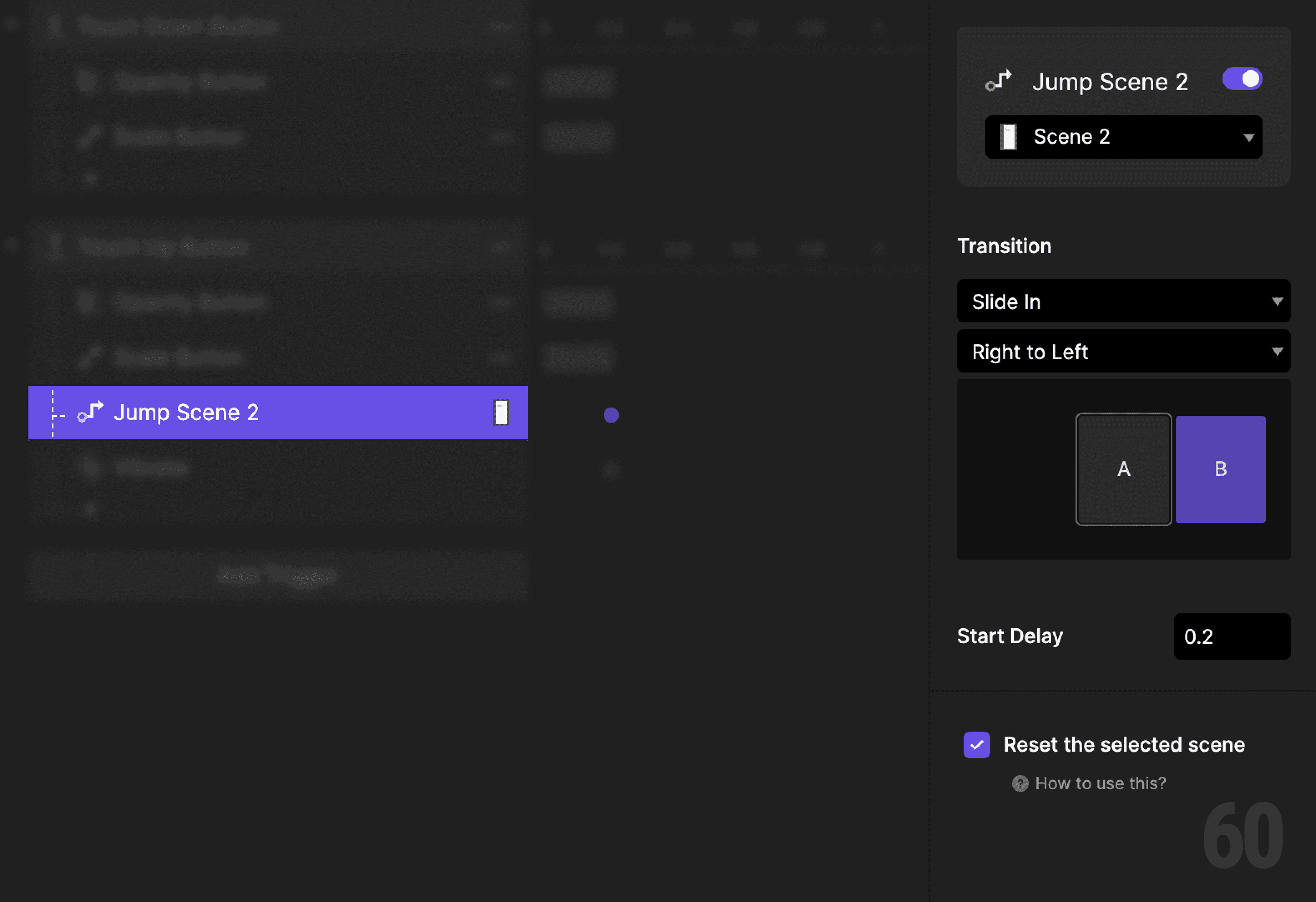
This is a screenshot of Step 7: Jump to Scene 2.

Step 8: Add haptic feedback

Add a Vibrate response.

  • Delay: 0.2s


The haptic should trigger at the same moment as the transition.
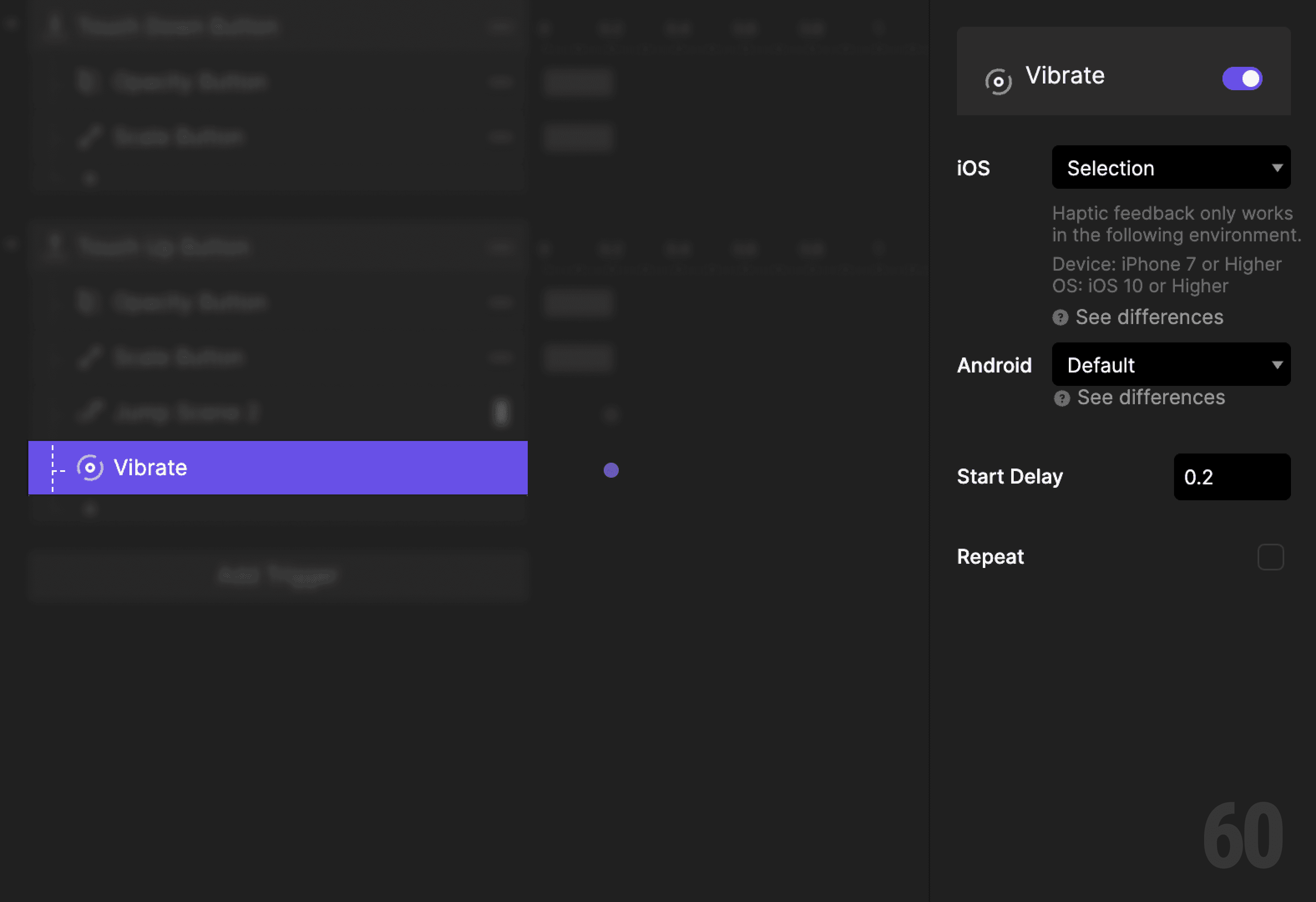
This is a screenshot of Step 8: Add haptic feedback.

Scene 2: Back navigation

In Scene 2, create two layers:

  • Back: the base shape

  • Icon: the back arrow inside it


This returns the user to the previous screen.

Step 9: Add touch down trigger

Select the Back layer.

Add a Touch Down trigger.
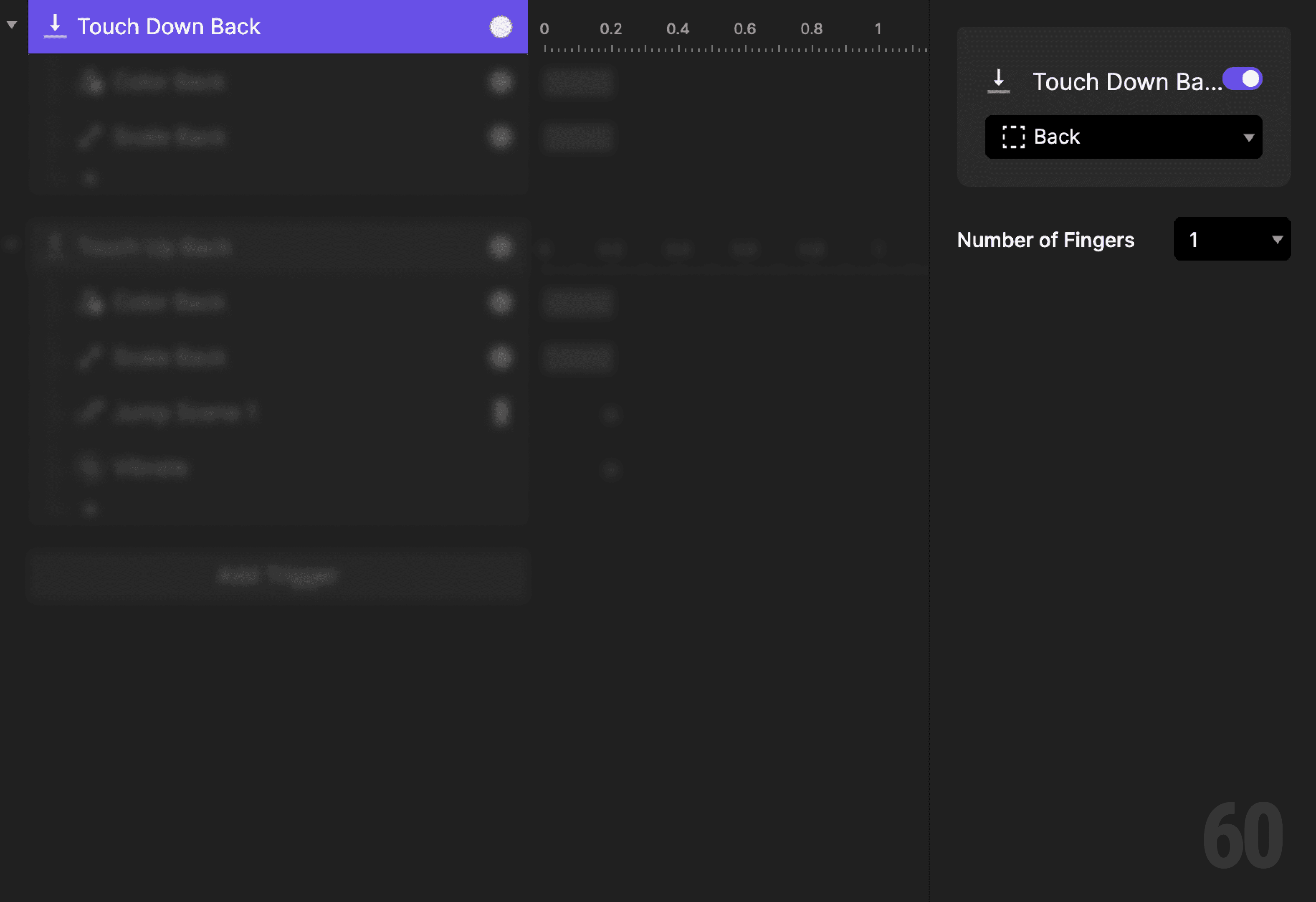
This is a screenshot of Step 9: Add touch down trigger.

Step 10: Change back button opacity

Add a Color response.

  • Target: Back

  • Set color to darker shade.


This acknowledges the press.
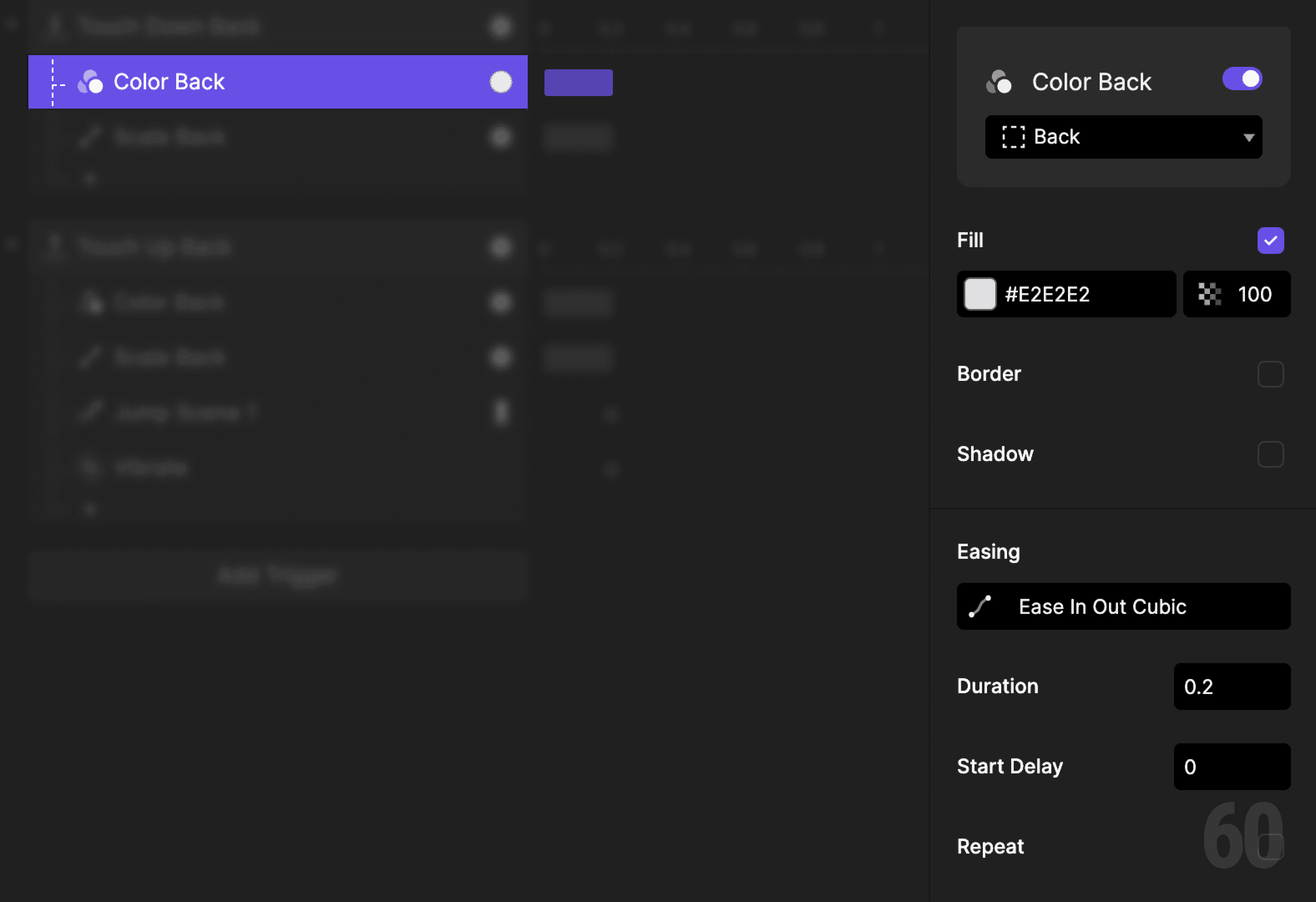
This is a screenshot of Step 10: Change back button opacity.

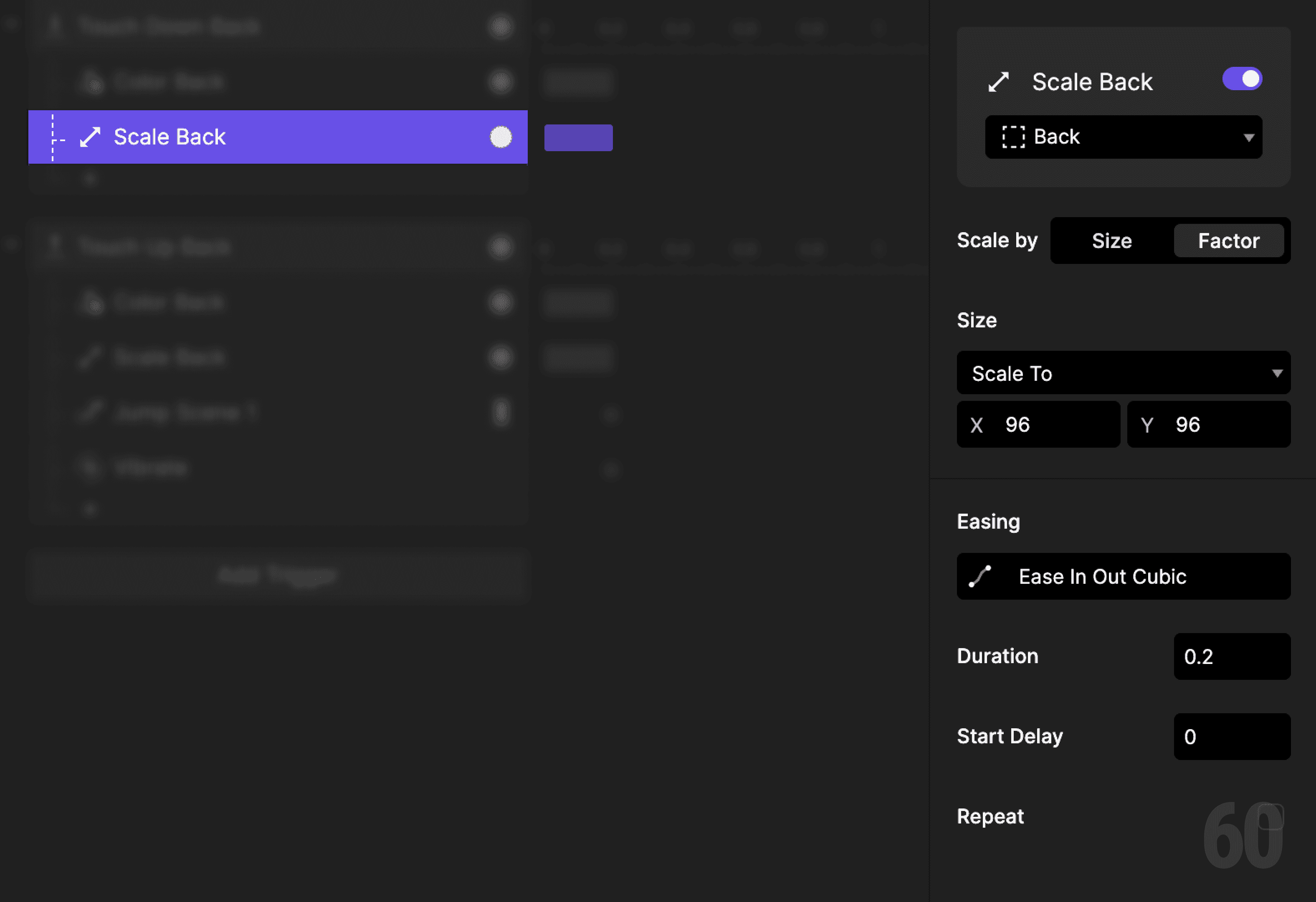
Step 11: Scale the back button down

Add a Scale response.

  • Target: Back

  • Scale by Factor

  • Set X and Y to 96

This is a screenshot of Step 11: Scale the back button down.

Step 12: Add touch up trigger

Add a Touch Up trigger to the Back layer.
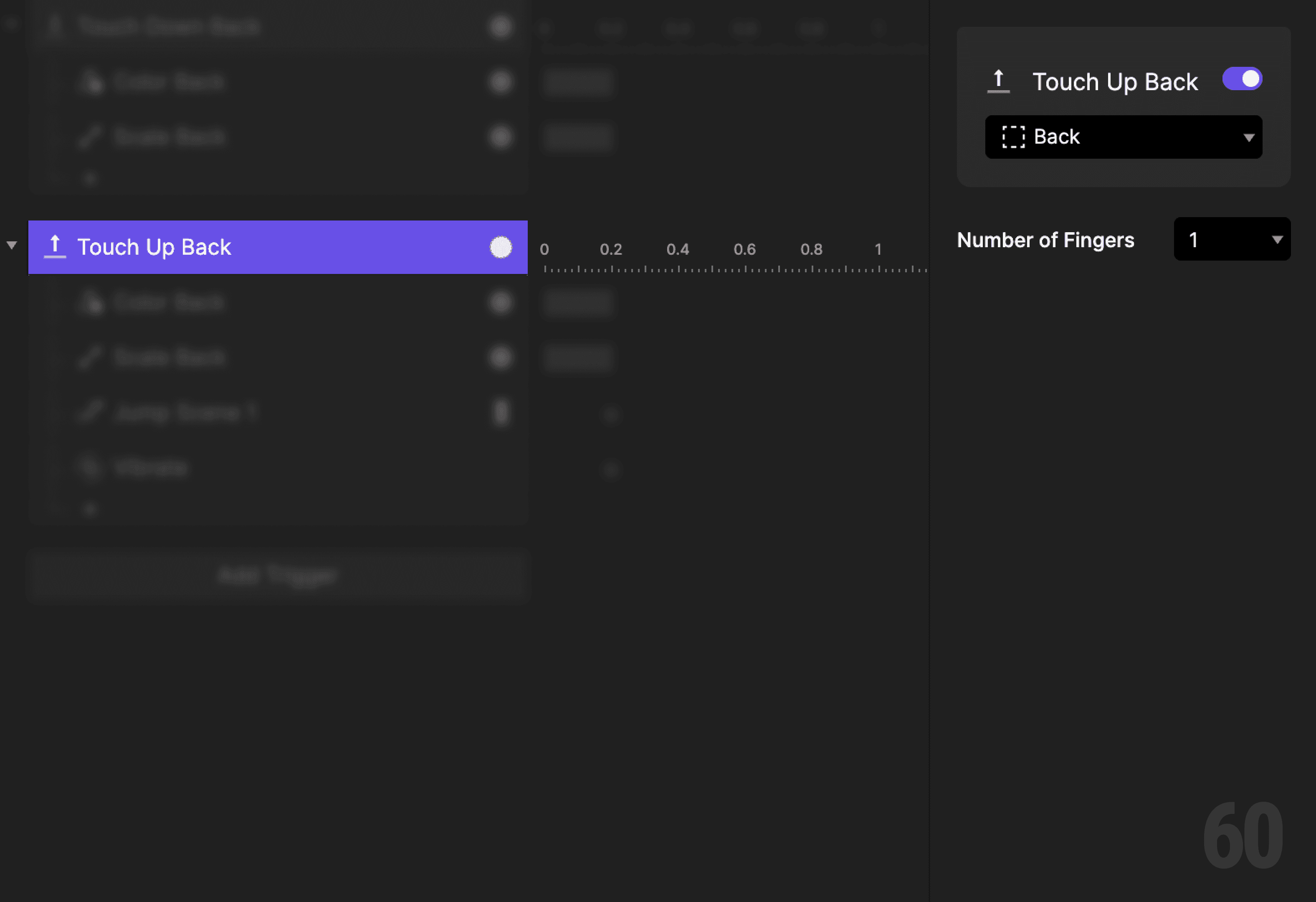
This is a screenshot of Step 12: Add touch up trigger.

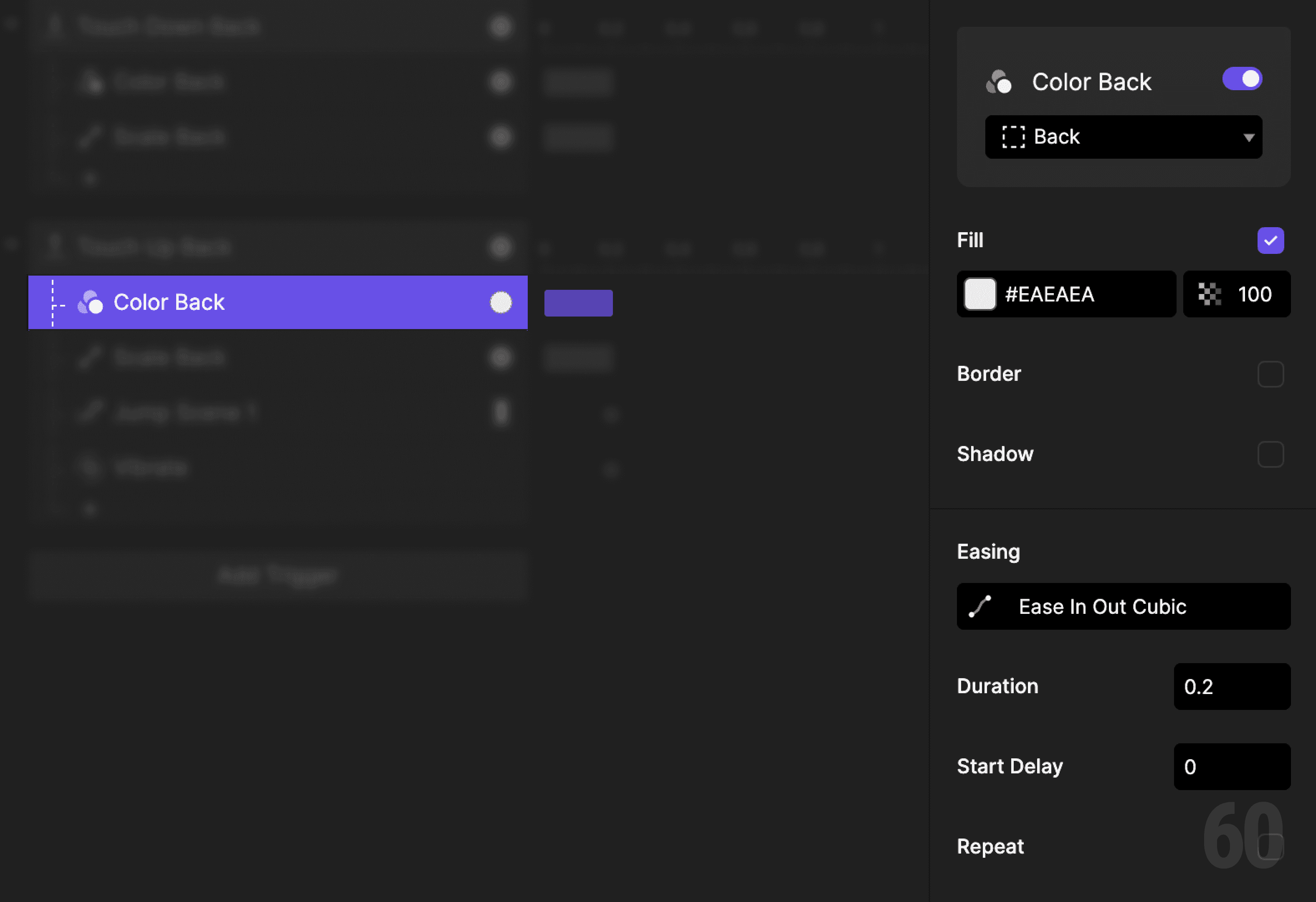
Step 13: Restore back button color

Add a Color response.

  • Target: Back

  • Reset color to default

This is a screenshot of Step 13: Restore back button color.

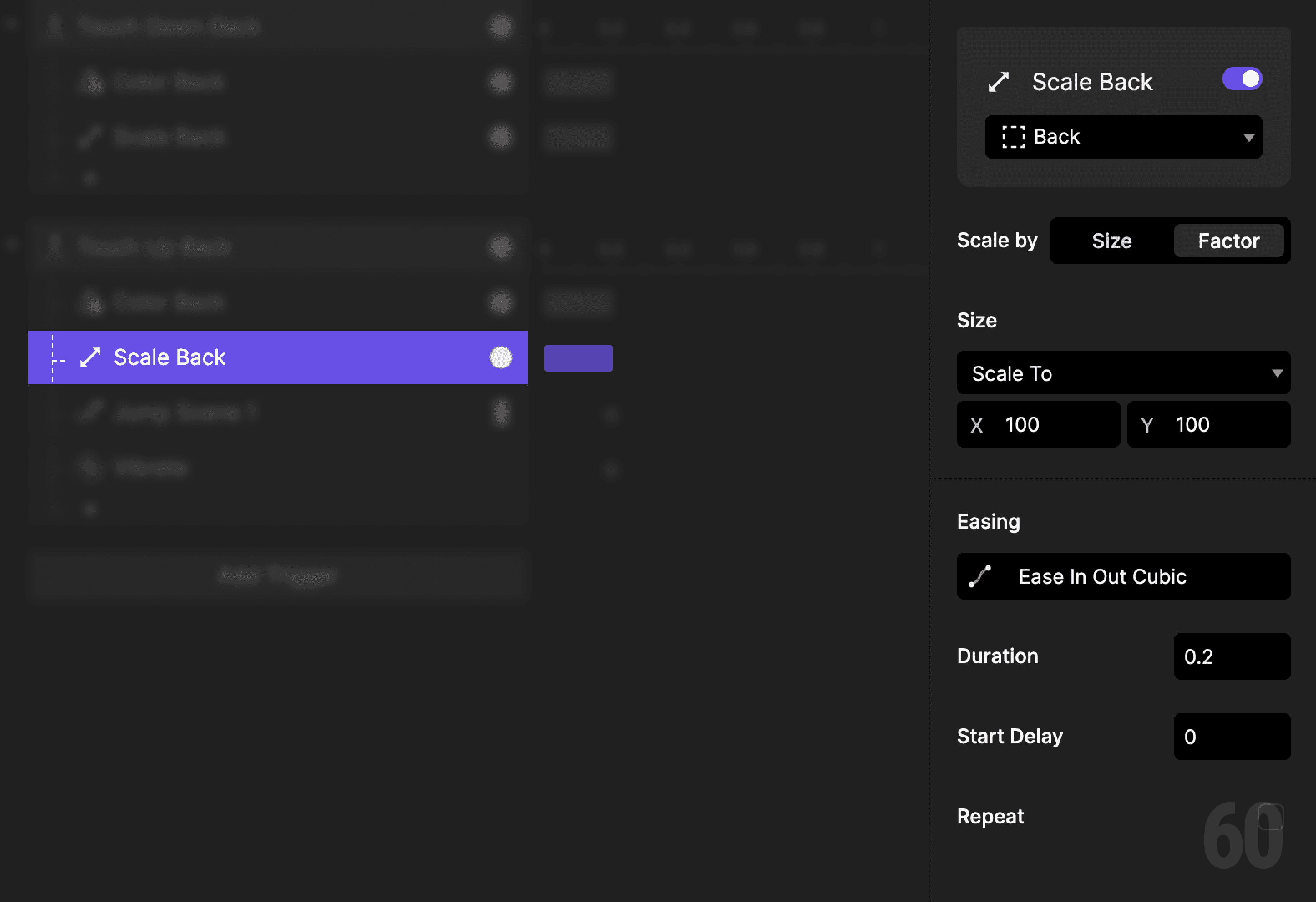
Step 14: Restore back button scale

Add a Scale response.

  • Target: Back

  • Reset scale to default

This is a screenshot of Step 14: Restore back button scale.

Step 15: Jump back to Scene 1

Add a Jump response.

  • Destination: Scene 1

  • Transition: Slide Out

  • Direction: Left to Right

  • Delay: 0.2s


This mirrors the forward navigation motion.
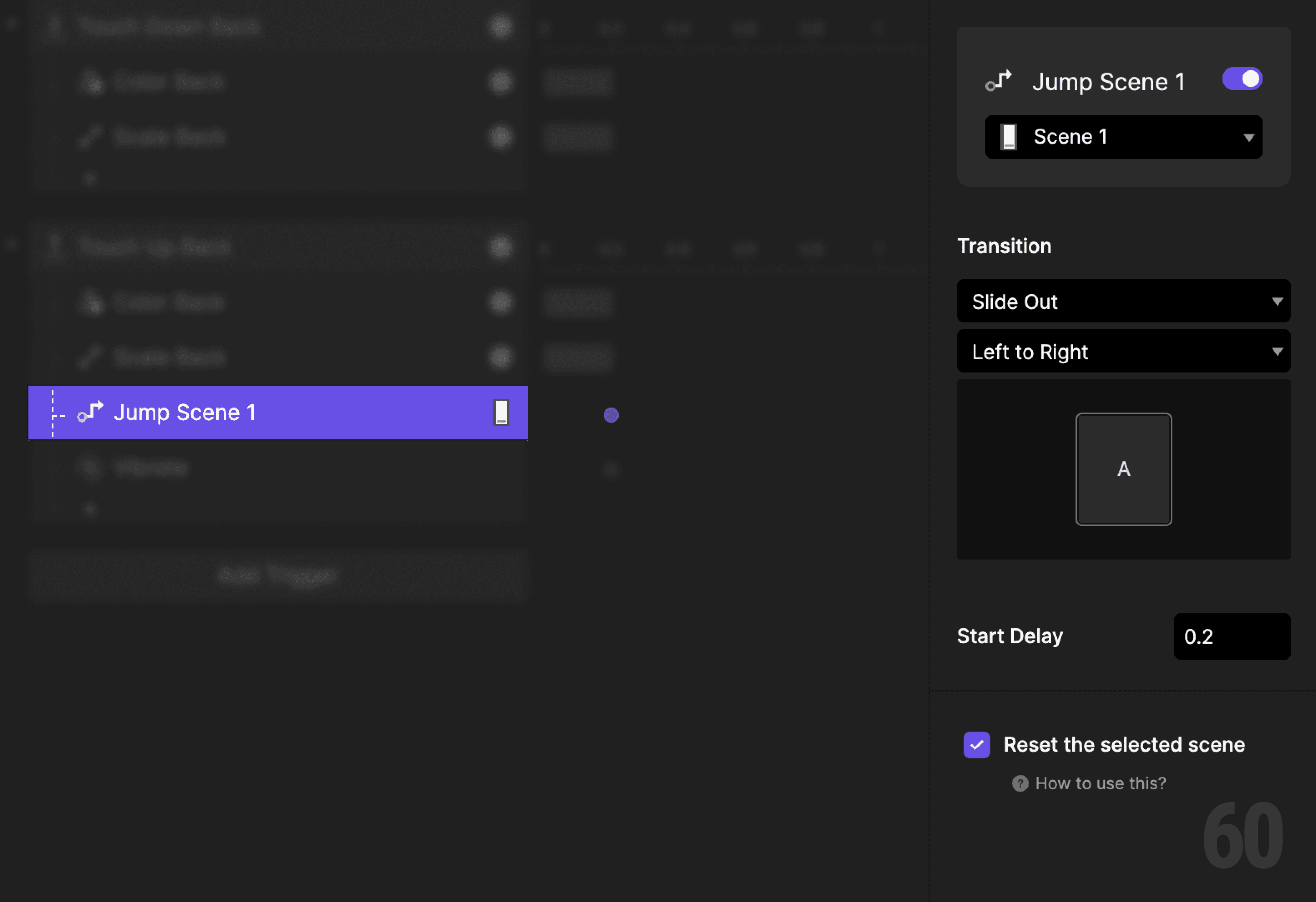
This is a screenshot of Step 15: Jump back to Scene 1.

Step 16: Add haptic feedback

Add a Vibrate response.

  • Delay: 0.2s


The haptic should fire with the transition.
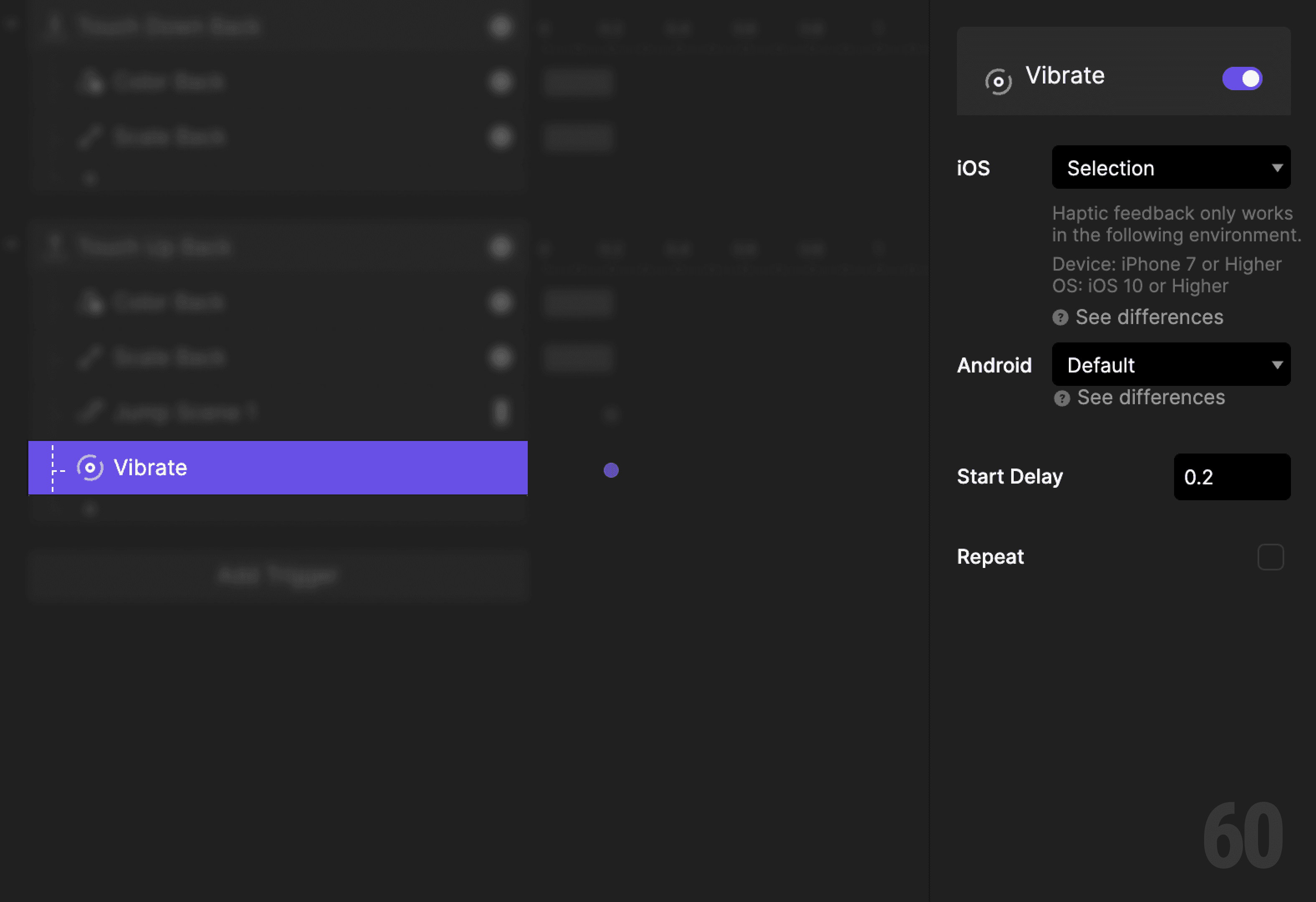
This is a screenshot of Step 16: Add haptic feedback.

Step 17: Preview and test

Navigate forward and backward repeatedly.

Check for:

  • Clear press feedback before movement

  • Consistent transition directions

  • Symmetry between forward and back navigation


If the motion feels predictable, the interaction is correct.

Try this next

  • Adjust transition duration and compare feel

  • Remove delay and notice the difference

  • Add swipe back support

Up next

Icon and label state change. Multiple elements responding to one state.

This is a background image of 1.4 Icon + Label State Change.

Icon + Label State Change

Icon + Label State Change

1.4