1.1 Tap Toggle
What you are building
A simple toggle interaction where a switch moves between off and on when tapped.
Tap once to turn it on.
Tap again to turn it off.
This is one of the most common interaction patterns in iOS, and a perfect place to start learning ProtoPie.
How to think about it
A tap toggle is binary.
On or off.
Active or inactive.
There is no in between. The only goal is clarity. The user should always know which state they are in.
You can think of the toggle state as living in the position of the handle. Where the handle rests is the truth.
Recreate this in ProtoPie
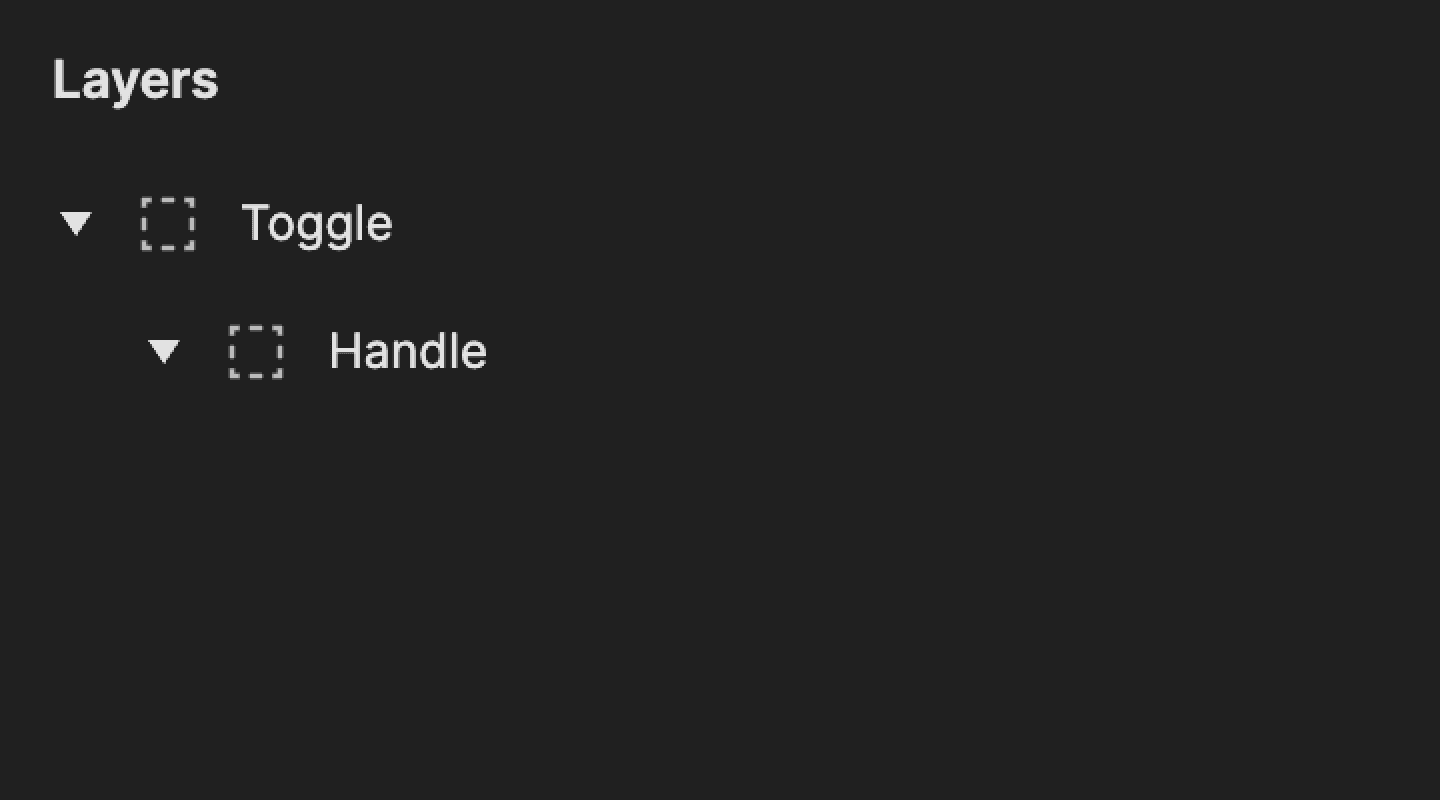
Start by creating two layers:
Toggle: the base track
Handle: the circular knob inside the toggle
The Handle will move.
The Toggle will change color.
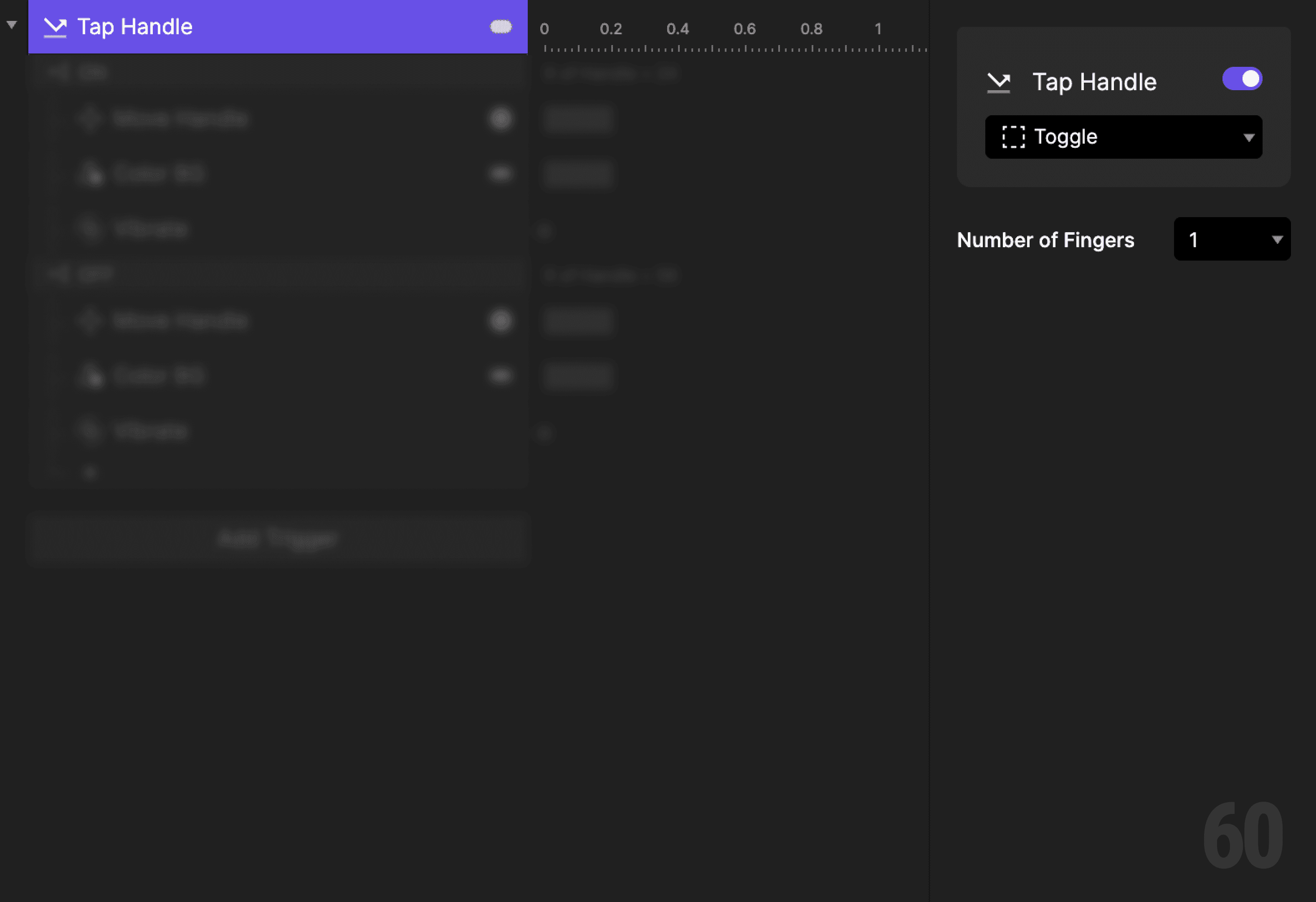
Step 1: Add a tap trigger
Select the Toggle layer.
Add a Tap trigger. This is the only input for the interaction.
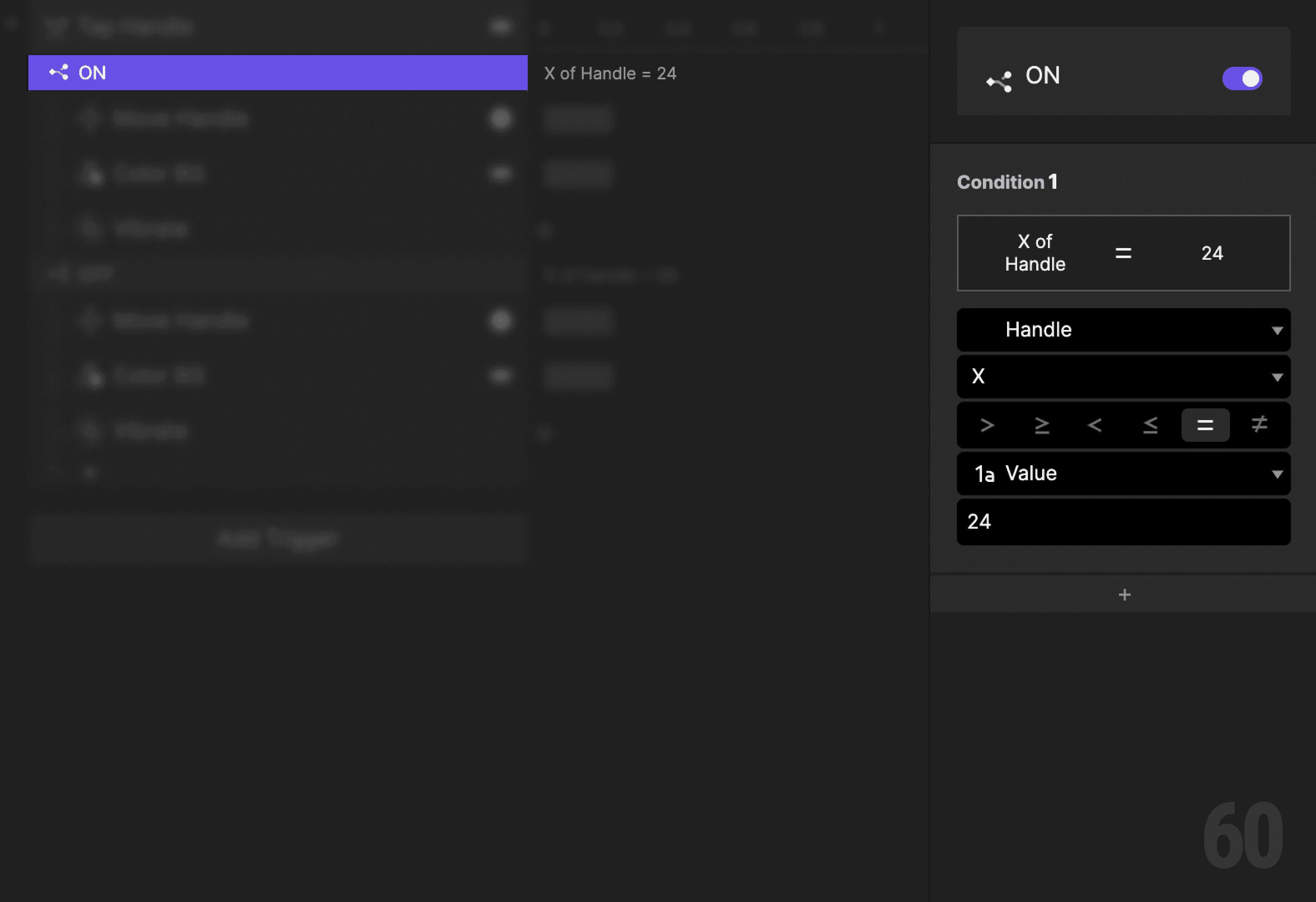
Step 2: Create a condition (toggle on)
Add a Condition to the tap trigger.
Set the condition based on the X position of the Handle.
This reads as:
When Handle X is 24, then do the following.
This means the toggle is currently off.
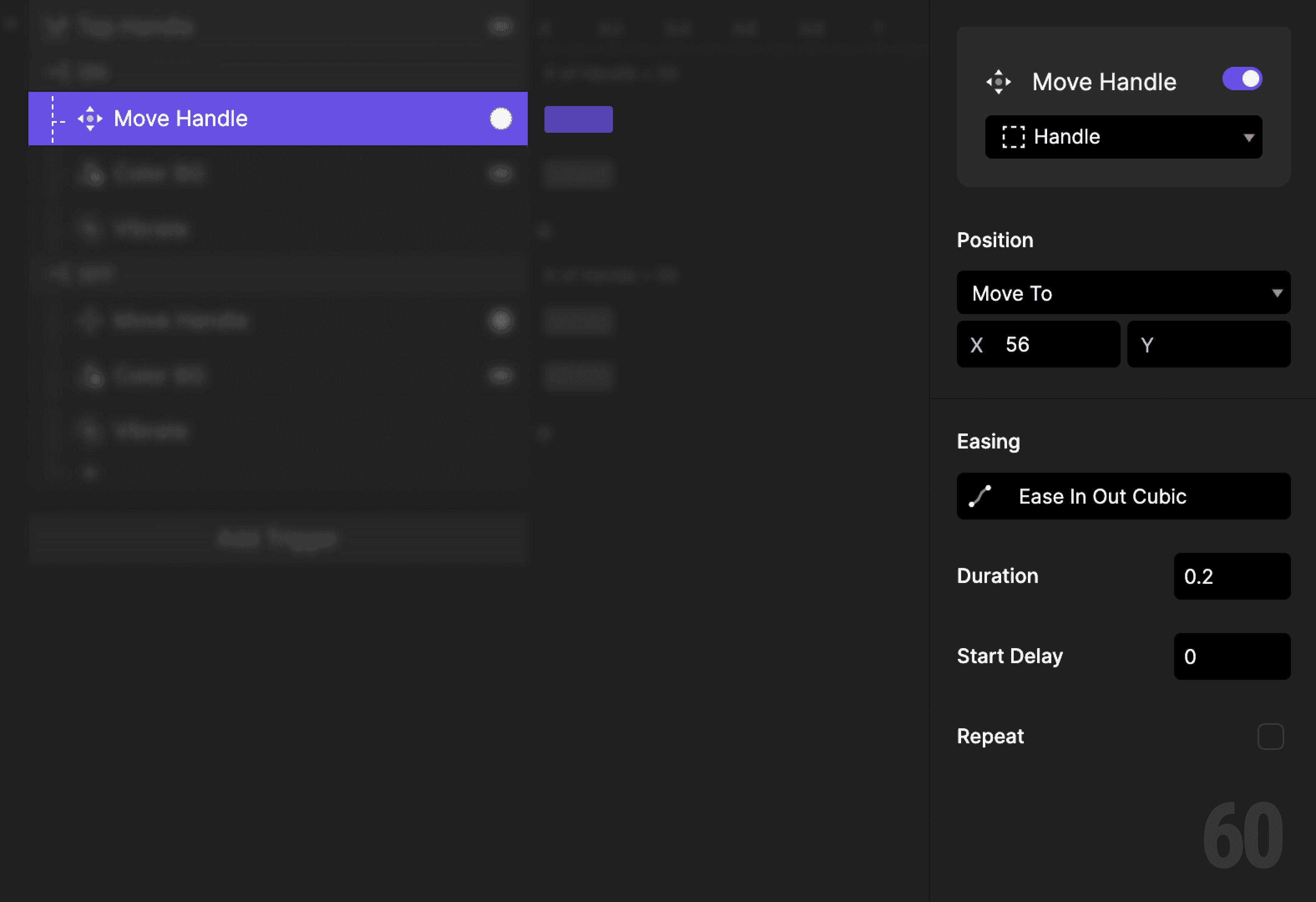
Step 3: Move the handle to ON
Add a Move response.
Target: Handle
Set X position to 56
This slides the handle to the on position.
Play with easing and duration until it feels right. Keep it quick and confident.
Step 4: Change the toggle color
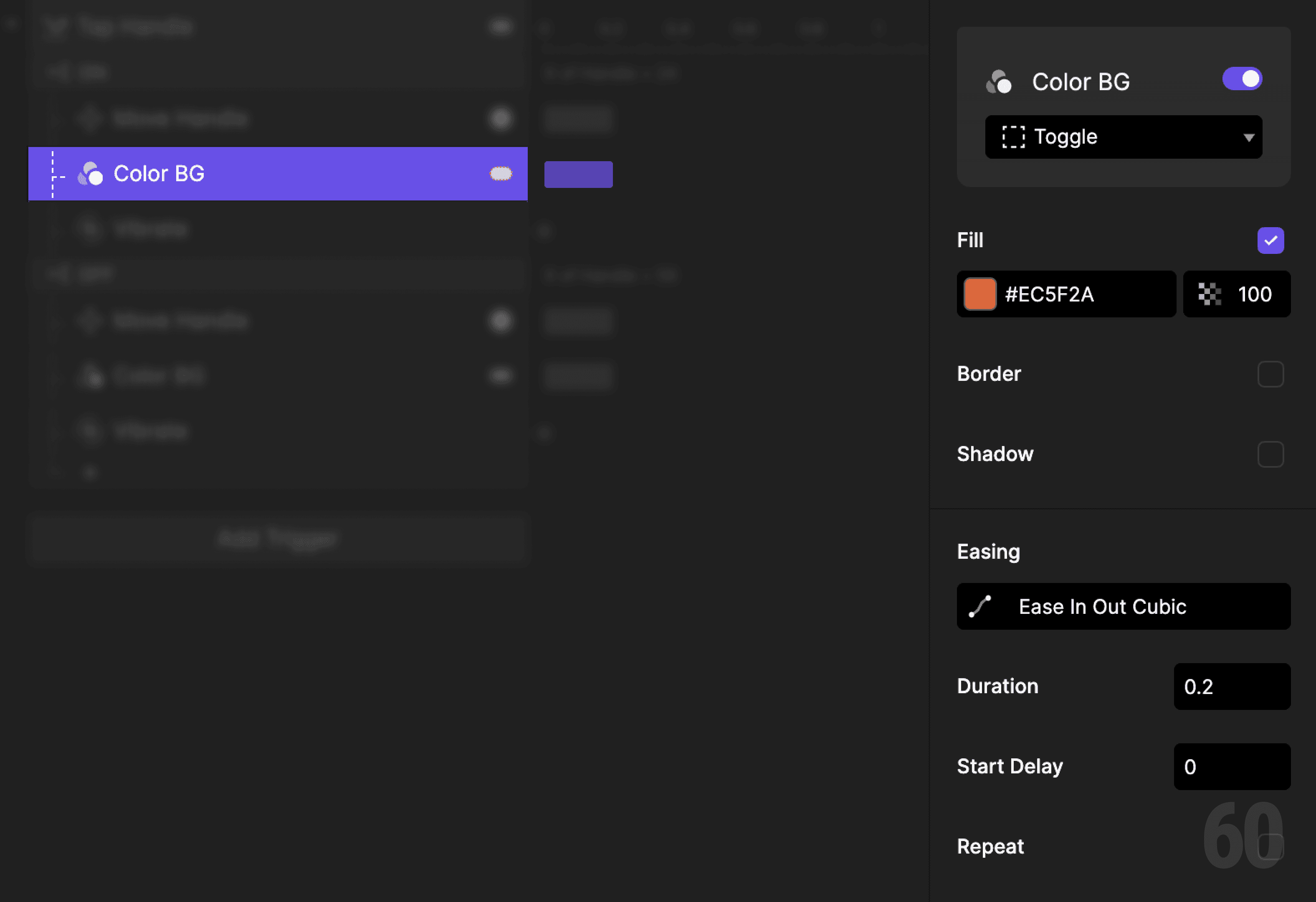
Add a Color response.
Target: Toggle
Set the fill to your active color
This visually confirms the on state.
Step 5: Add haptic feedback
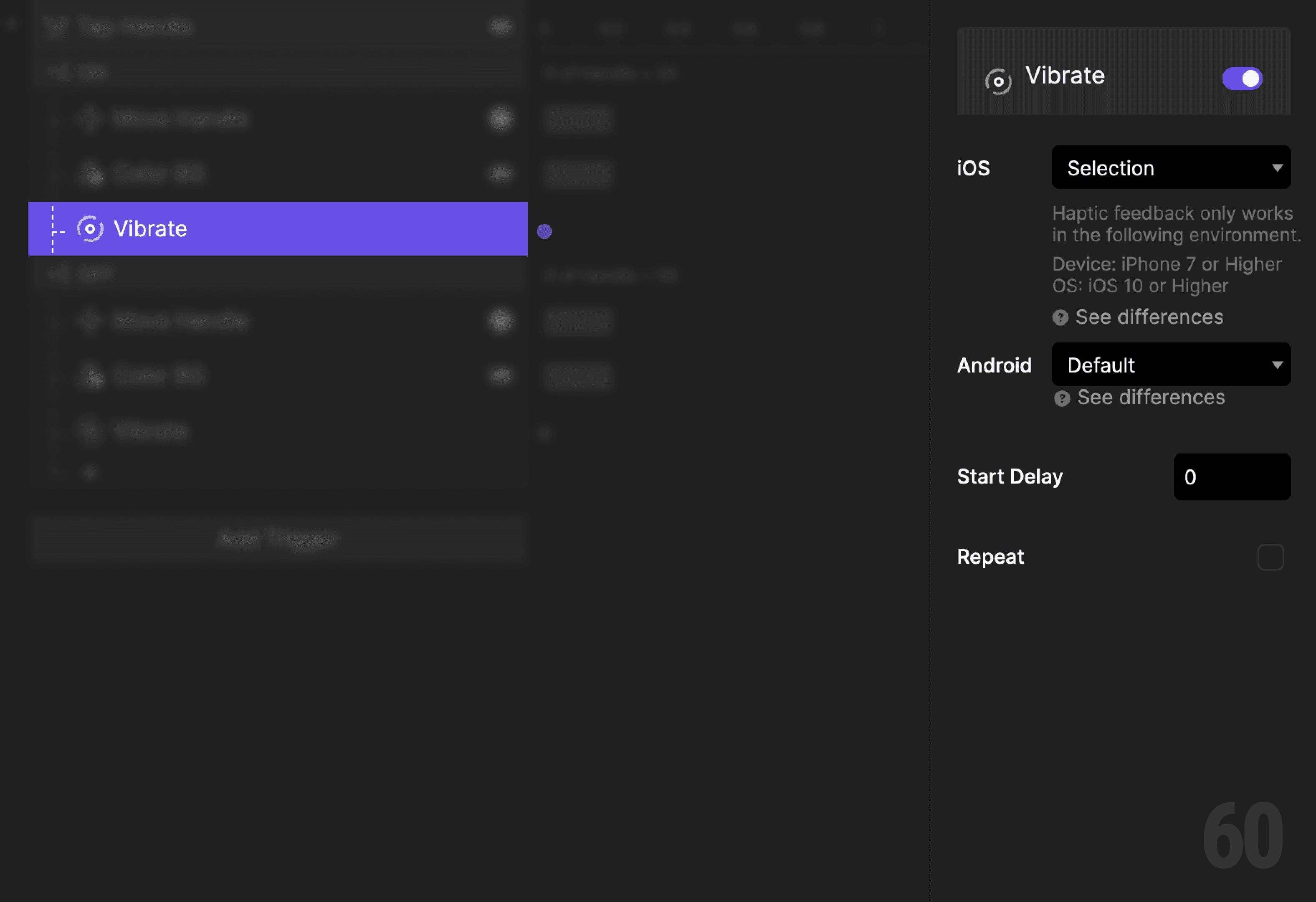
Add a Vibrate response.
Keep it subtle. This is confirmation, not celebration.
Step 6: Create a condition (toggle off)
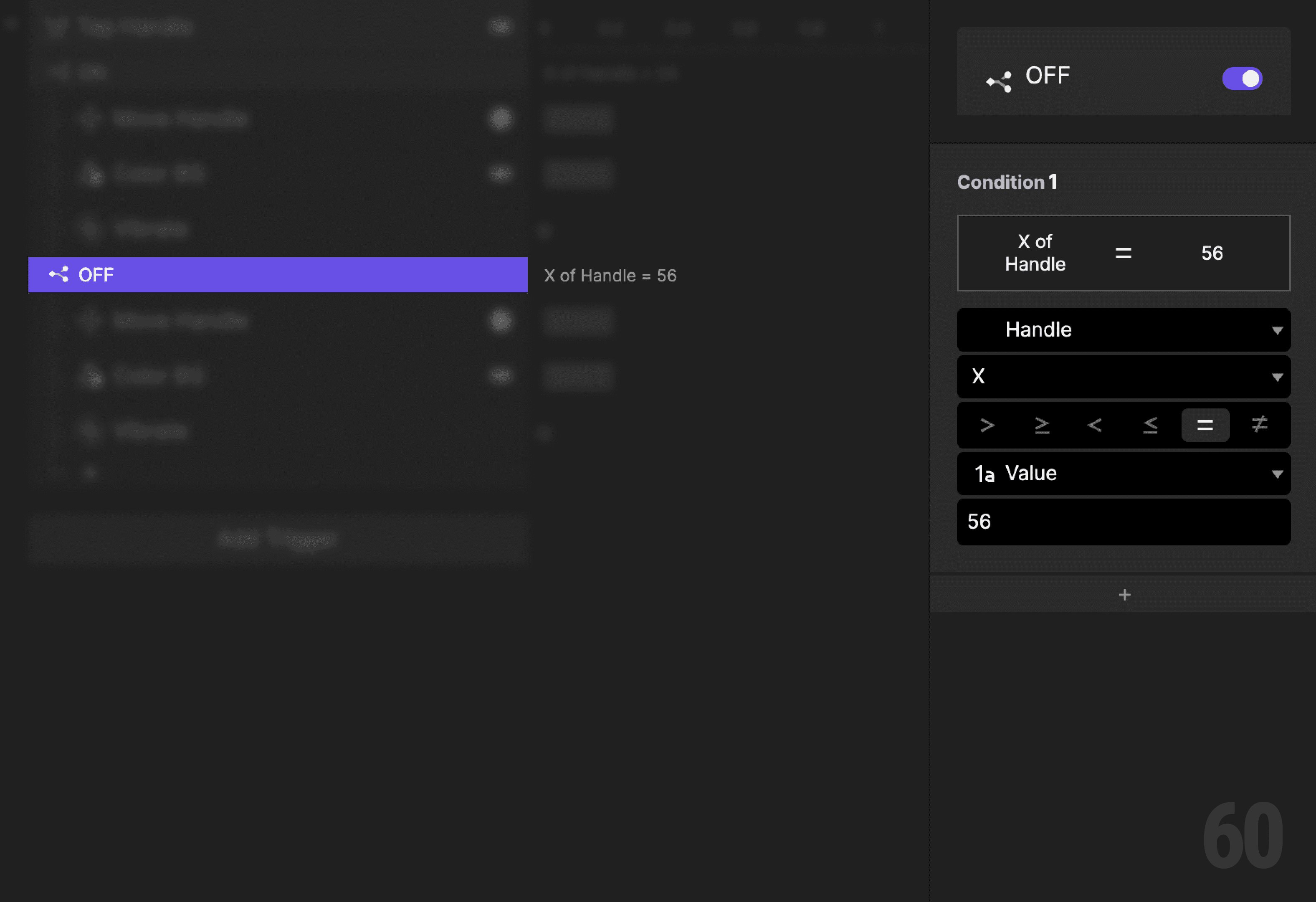
Add another Condition to the same tap trigger.
Set it again based on the X position of the Handle.
This reads as:
When Handle X is 56, then do the following.
This means the toggle is currently on.
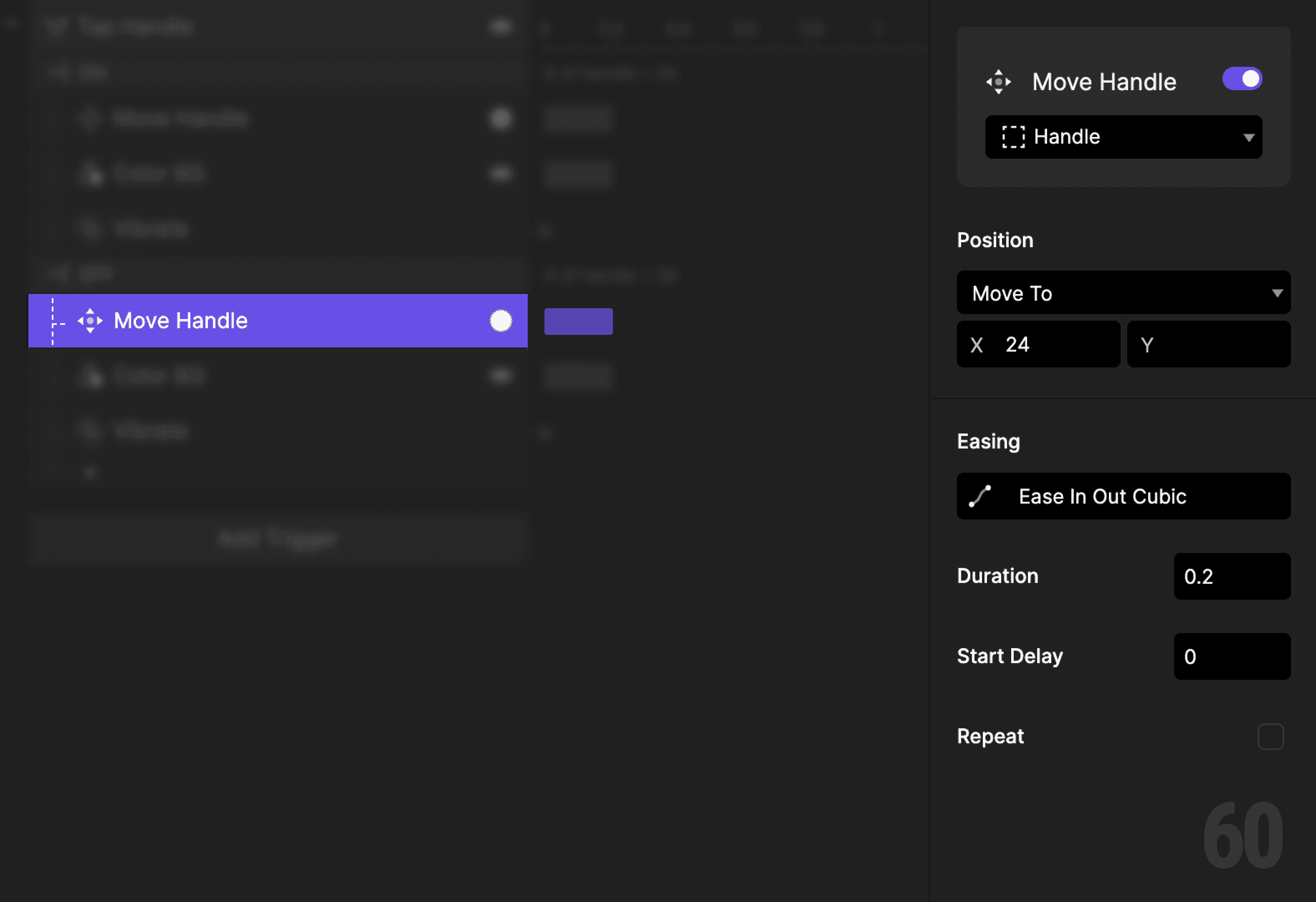
Step 7: Move the handle back to OFF
Add a Move response.
Target: Handle
Set X position back to 24
Use the same easing and duration as before for consistency.
Step 8: Reset the toggle color
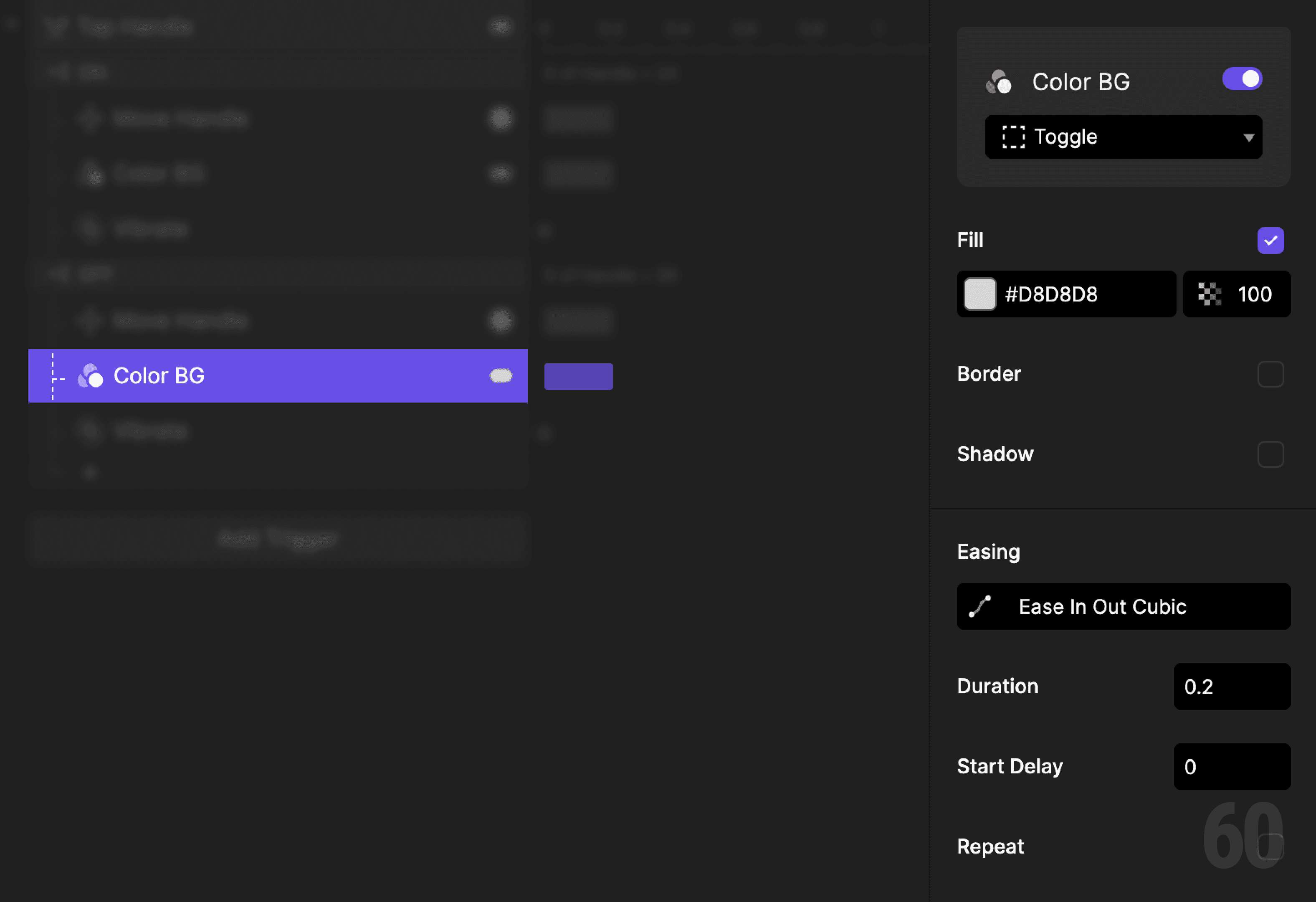
Add a Color response.
Target: Toggle
Set the fill back to the default color
This restores the off state visually.
Step 9: Add haptic feedback
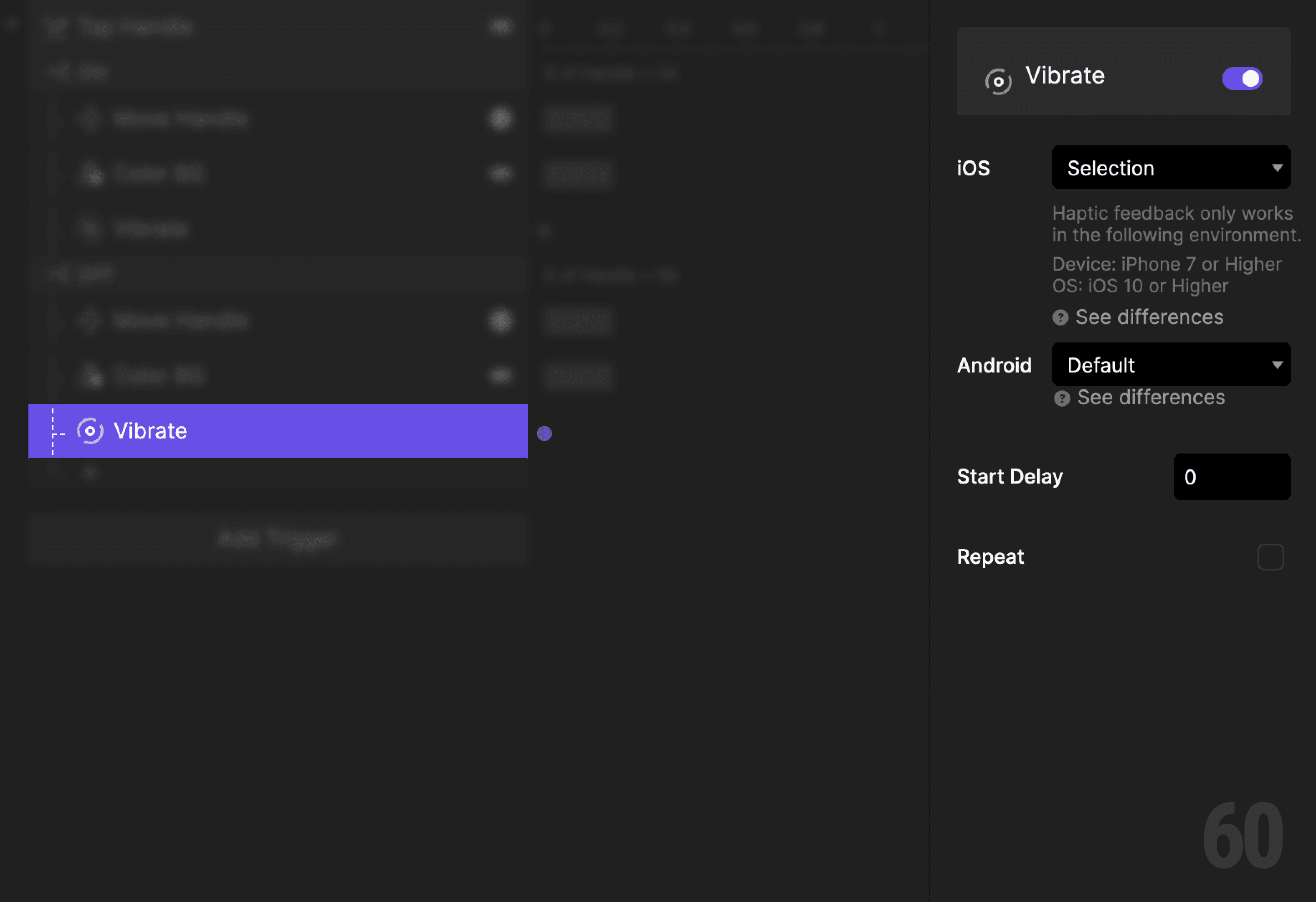
Add another Vibrate response.
Use the same haptic style as before. Consistency matters more than variety.
Step 10: Preview and test
Play the prototype and tap repeatedly.
Check for:
Clear on and off states
Smooth handle movement
Immediate visual and haptic feedback
If it feels obvious, you nailed it.
Try this next
Add tap support directly on the Handle
Animate the background fill while dragging
Refactor this using a variable instead of X position